



# Qwen3-Coder-Next: ローカルで実行する方法

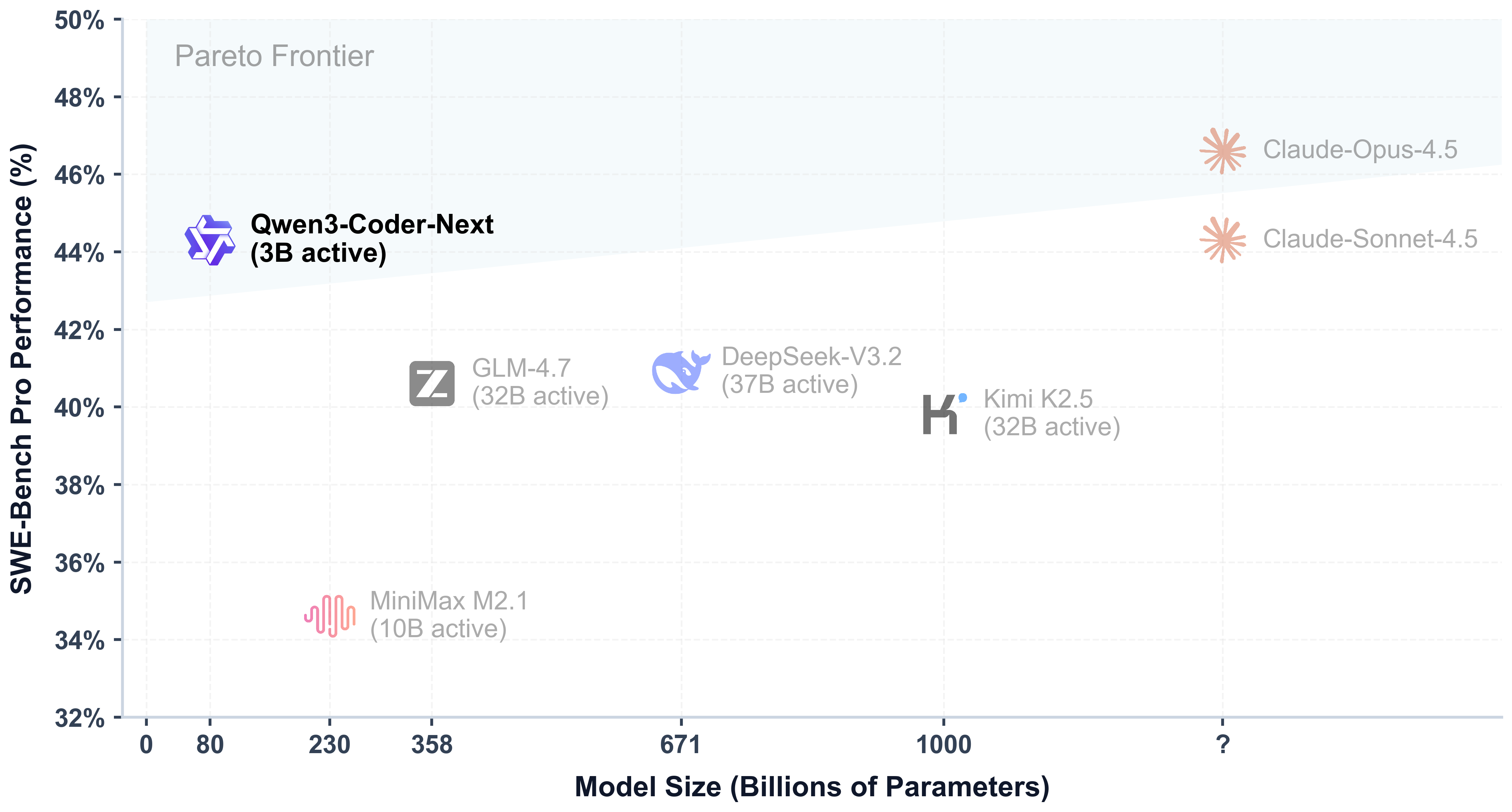
Qwen は Qwen3-Coder-Next をリリースしました。これは 80B MoE モデル（3B アクティブパラメータ）で、 **256Kコンテキスト** 高速なエージェント型コーディングとローカル利用向けです。アクティブパラメータが10〜20倍多いモデルの性能に匹敵します。

これは **46GBのRAM**/VRAM/ユニファイドメモリ（8-bitでは85GB）で動作し、超高速なコード応答のために非推論モードです。このモデルは長期的な推論、複雑なツール使用、実行失敗からの復旧に優れています。

{% hint style="success" %}
**2月19日 अपडेट**: llama.cpp のパース修正後、ツール呼び出しはさらに良くなるはずです。

**新登場！** Unsloth GGUFの性能については [量子化ベンチマーク](#gguf-quantization-benchmarks) を、私たちの Dynamic GGUF 向けに！

**2月4日:** `llama.cpp` の計算を修正するバグを修正しました。 `ベクトル化された key_gdiff。` これにより以前のループと出力の問題が修正されます。GGUF を更新しました。 **再ダウンロードしてください** および **更新** `llama.cpp` より良い出力のために。
{% endhint %}

Codex と Claude Code 上でモデルを実行する方法も学べます。 **ファインチューニング**では、Qwen3-Next-Coder は Unsloth で bf16 LoRA 用に単一の B200 GPU に収まります。

Qwen3-Coder-Next Unsloth [Dynamic GGUFs](/docs/jp/ji-ben/unsloth-dynamic-2.0-ggufs.md) を実行するには: [unsloth/Qwen3-Coder-Next-GGUF](https://huggingface.co/unsloth/Qwen3-Coder-Next-GGUF)

<a href="/pages/983a60d2a135fd088443d0cba9213375b211e188#run-qwen3-coder-next" class="button primary">GGUF 実行チュートリアル</a><a href="/pages/983a60d2a135fd088443d0cba9213375b211e188#improving-generation-speed" class="button secondary">Codex と Claude Code</a><a href="/pages/983a60d2a135fd088443d0cba9213375b211e188#fp8-qwen3-coder-next-in-vllm" class="button secondary">FP8 vLLM チュートリアル</a>

### ⚙️ 使用ガイド

46GBのRAMやユニファイドメモリがありませんか？心配いりません。3-bit などの小さな量子化版を実行できます。最適なのは、モデルサイズ = 計算資源の合計（ **`ディスク容量 + RAM + VRAM ≥ 量子化サイズ）です。`** 量子化版がデバイスに完全に収まる場合、20トークン/秒以上が期待できます。収まらない場合でもオフロードで動作しますが、速度は遅くなります。

最適な性能を得るために、Qwen は次の設定を推奨しています:

* <mark style="background-color:blue;">`Temperature = 1.0`</mark>
* `Top_P = 0.95`
* `Top_K = 40`
* `Min_P = 0.01` （llama.cpp のデフォルトは 0.05）
* `repeat penalty` = 無効 または 1.0

最大までネイティブにサポート `262,144` コンテキストですが、 `32,768` トークンに設定してメモリ使用量を減らせます。

### 🖥️ Qwen3-Coder-Next を実行

用途によって異なる設定が必要です。このガイドでは 4-bit を使うため、約 46GB の RAM/ユニファイドメモリが必要です。最高の性能のために、少なくとも 3-bit 精度の使用を推奨します。

#### 🦥 Unsloth Studioガイド

Qwen3-Coder-Next は [Unsloth Studio](/docs/jp/xin-zhe/studio.md)で実行およびファインチューニングできます。これはローカルAI向けの新しいオープンソースWeb UIです。Unsloth Studioを使えば、モデルをローカルで **MacOS、Windows**、Linuxおよび以下で実行できます:

{% columns %}
{% column %}

* 検索、ダウンロード、 [GGUFを実行](/docs/jp/xin-zhe/studio.md#run-models-locally) およびsafetensorモデル
* [**自己修復** ツール呼び出し](/docs/jp/xin-zhe/studio.md#execute-code--heal-tool-calling) + **ウェブ検索**
* [**コード実行**](/docs/jp/xin-zhe/studio.md#run-models-locally) （Python、Bash）
* [自動推論](/docs/jp/xin-zhe/studio.md#model-arena) パラメータ調整（temp、top-p など）
* llama.cpp経由の高速CPU + GPU推論
* [LLMを学習](/docs/jp/xin-zhe/studio.md#no-code-training) VRAMを70%少なくして2倍高速
  {% endcolumn %}

{% column %}

<div data-with-frame="true"><figure><img src="/files/c32867f999db074387ac16732ce548485cc593de" alt=""><figcaption></figcaption></figure></div>
{% endcolumn %}
{% endcolumns %}

{% stepper %}
{% step %}
**Unslothをインストール**

ターミナルで次を実行してください:

MacOS、Linux、WSL:

```bash
curl -fsSL https://unsloth.ai/install.sh | sh
```

Windows PowerShell:

```bash
irm https://unsloth.ai/install.ps1 | iex
```

{% hint style="success" %}
**インストールは迅速で、約1〜2分で完了します。**
{% endhint %}
{% endstep %}

{% step %}
**Unslothを起動**

MacOS、Linux、WSLおよびWindows:

```bash
unsloth studio -H 0.0.0.0 -p 8888
```

その後、 `http://localhost:8888` をブラウザで開いてください。
{% endstep %}

{% step %}
**Qwen3-Coder-Next を検索してダウンロード**

初回起動時には、アカウントを保護するためのパスワードを作成し、後で再度サインインする必要があります。その後、モデル、データセット、基本設定を選ぶ簡単なオンボーディングウィザードが表示されます。いつでもスキップして、直接チャットに進めます。

その後、 [Studio Chat](/docs/jp/xin-zhe/studio/chat.md) タブを開いて **Qwen3-Coder-Next** を検索バーで検索し、希望するモデルと量子化版をダウンロードしてください。

<div data-with-frame="true"><figure><img src="/files/df70edf2fe9ba3c58c1fff02ee34685549ec9e57" alt="" width="563"><figcaption></figcaption></figure></div>
{% endstep %}

{% step %}
**Qwen3-Coder-Next を実行**

Unsloth Studioを使うと推論パラメータは自動設定されますが、手動で変更することもできます。コンテキスト長、チャットテンプレート、その他の設定も編集できます。

詳細は、 [Unsloth Studio推論ガイド](/docs/jp/xin-zhe/studio/chat.md).

<div data-with-frame="true"><figure><img src="/files/44d9105dd956eac31f9586bcf01055a289b0ef3e" alt="" width="563"><figcaption></figcaption></figure></div>
{% endstep %}
{% endstepper %}

#### Llama.cpp チュートリアル（GGUF）:

llama.cppで実行するための手順（ほとんどのデバイスに収まるよう、4ビットを使用します）:

{% stepper %}
{% step %}
最新の `llama.cpp` を [GitHubで入手はこちら](https://github.com/ggml-org/llama.cpp)。以下のビルド手順に従うこともできます。 `-DGGML_CUDA=ON` を `-DGGML_CUDA=OFF` に変更してください。GPUがない場合、またはCPU推論だけを使いたい場合です。 **Apple Mac / Metalデバイスでは**、 `-DGGML_CUDA=OFF` そのまま続けてください - Metalサポートはデフォルトで有効です。

{% code overflow="wrap" %}

```bash
apt-get update
apt-get install pciutils build-essential cmake curl libcurl4-openssl-dev -y
git clone https://github.com/ggml-org/llama.cpp
cmake llama.cpp -B llama.cpp/build \\
    -DBUILD_SHARED_LIBS=OFF -DGGML_CUDA=ON
cmake --build llama.cpp/build --config Release -j --clean-first --target llama-cli llama-mtmd-cli llama-server llama-gguf-split
cp llama.cpp/build/bin/llama-* llama.cpp
```

{% endcode %}
{% endstep %}

{% step %}
Hugging Face から直接取得できます。RAM/VRAM に収まるなら、コンテキストを 256K まで増やせます。 `--fit を` 使うと、コンテキスト長も自動判定されます。

推奨パラメータを使えます: `temperature=1.0`, `top_p=0.95`, `top_k=40`

```bash
./llama.cpp/llama-cli \\
    -hf unsloth/Qwen3-Coder-Next-GGUF:UD-Q4_K_XL \\
    --ctx-size 16384 \\
    --temp 1.0 --top-p 0.95 --min-p 0.01 --top-k 40
```

{% endstep %}

{% step %}
モデルをダウンロードするには（ `pip install huggingface_hub`）。 `UD-Q4_K_XL` または他の量子化版。ダウンロードが止まる場合は、 [Hugging Face Hub、XETデバッグ](/docs/jp/ji-ben/troubleshooting-and-faqs/hugging-face-hub-xet-debugging.md)

{% code overflow="wrap" %}

```bash
pip install -U huggingface_hub
hf download unsloth/Qwen3-Coder-Next-GGUF \\
    --local-dir unsloth/Qwen3-Coder-Next-GGUF \\
    --include "*UD-Q4_K_XL*"
```

{% endcode %}
{% endstep %}

{% step %}
その後、会話モードでモデルを実行します:

{% code overflow="wrap" %}

```bash
./llama.cpp/llama-cli \\
    --model unsloth/Qwen3-Coder-Next-GGUF/Qwen3-Coder-Next-UD-Q4_K_XL.gguf \\
    --seed 3407 \
    --temp 1.0 \\
    --top-p 0.95 \\
    --min-p 0.01 \\
    --top-k 40
```

{% endcode %}

また、 **コンテキストウィンドウ** 必要に応じて、最大まで `262,144`

{% hint style="info" %}
注意: このモデルは非思考モードのみをサポートし、出力に `<think></think>` ブロックを生成しません。そのため、 `enable_thinking=False` を指定する必要はなくなりました。
{% endhint %}
{% endstep %}
{% endstepper %}

### 🦙Llama-serverによる提供とデプロイ

本番環境で Qwen3-Coder-Next をデプロイするには、 `llama-server` tmux などで新しいターミナルを開きます。次に、以下でモデルをデプロイします:

{% code overflow="wrap" %}

```bash
./llama.cpp/llama-server \\
    --model unsloth/Qwen3-Coder-Next-GGUF/Qwen3-Coder-Next-UD-Q4_K_XL.gguf \\
    --alias "unsloth/Qwen3-Coder-Next" \\
    --seed 3407 \
    --temp 1.0 \\
    --top-p 0.95 \\
    --min-p 0.01 \\
    --top-k 40 \\
    --port 8001 \\
```

{% endcode %}

その後、新しいターミナルで `pip install openai`でモデルを実行できます:

{% code overflow="wrap" %}

```python
from openai import OpenAI
import json
openai_client = OpenAI(
    base_url = "http://127.0.0.1:8001/v1",
    api_key = "sk-no-key-required",
)
completion = openai_client.chat.completions.create(
    model = "unsloth/Qwen3-Coder-Next",
    messages = [{"role": "user", "content": "HTML で Flappy Bird ゲームを作成して"},],
)
print(completion.choices[0].message.content)
```

{% endcode %}

すると次のように出力されます:

{% columns %}
{% column width="66.66666666666666%" %}
{% code overflow="wrap" expandable="true" %}

````markdown
こちらは、1つのファイルに収められた、完全に動作する Flappy Bird ゲームです。

グラフィックには **HTML5 Canvas** を、物理演算（重力、衝突判定、スコア計算）には **JavaScript** を使っています。外部画像やダウンロードは不要で、ゲームはコードで鳥とパイプを描画します。

### 実行方法:
1.  下のコードブロックをコピーします。
2.  コンピュータ上に `game.html` という新しいファイルを作成します。
3.  そのファイルにコードを貼り付けて保存します。
4.  `game.html` をダブルクリックして、Web ブラウザで開きます。

```html
<!DOCTYPE html>
<html lang="ja">
<head>
    <meta charset="UTF-8">
    <meta name="viewport" content="width=device-width, initial-scale=1.0">
    <title>シンプルな Flappy Bird</title>
    <style>
        body {
            margin: 0;
            padding: 0;
            display: flex;
            flex-direction: column;
            justify-content: center;
            align-items: center;
            height: 100vh;
            background-color: #333;
            font-family: 'Courier New', Courier, monospace;
            color: white;
        }

        h1 {
            margin-bottom: 10px;
        }

        #game-container {
            position: relative;
            box-shadow: 0 0 20px rgba(0,0,0,0.5);
        }

        canvas {
            display: block;
            background-color: #70c5ce; /* 空色 */
            border: 4px solid #000;
        }

        #ui-layer {
            position: absolute;
            top: 0;
            left: 0;
            width: 100%;
            height: 100%;
            pointer-events: none; /* クリックを canvas に通す */
            display: flex;
            flex-direction: column;
            justify-content: center;
            align-items: center;
            text-align: center;
        }

        .message {
            background: rgba(255, 255, 255, 0.8);
            padding: 20px;
            border-radius: 10px;
            color: #333;
        }

        #score-board {
            position: absolute;
            top: 20px;
            width: 100%;
            text-align: center;
            font-size: 40px;
            font-weight: bold;
            color: white;
            text-shadow: 2px 2px 0 #000;
            z-index: 10;
        }
    </style>
</head>
<body>

    <h1>Flappy Bird クローン</h1>
    
    <div id="game-container">
        <div id="score-board">0</div>
        <canvas id="birdCanvas" width="320" height="480"></canvas>
        
        <div id="ui-layer">
            <div id="start-screen" class="message">
                <h2>飛ぶ準備はできた？</h2>
                <p><strong>Space</strong> または <strong>Click</strong> でジャンプ</p>
                <p>Space で開始</p>
            </div>
            <div id="game-over-screen" class="message" style="display: none;">
                <h2>ゲームオーバー</h2>
                <p>スコア: <span id="final-score">0</span></p>
                <p>ベスト: <span id="best-score">0</span></p>
                <p><strong>Space</strong> で再スタート</p>
            </div>
        </div>
    </div>

    <script>
        // --- 設定 ---
        const canvas = document.getElementById('birdCanvas');
        const ctx = canvas.getContext('2d');
        const scoreElement = document.getElementById('score-board');
        const startScreen = document.getElementById('start-screen');
        const gameOverScreen = document.getElementById('game-over-screen');
        const finalScoreSpan = document.getElementById('final-score');
        const bestScoreSpan = document.getElementById('best-score');

        // ゲーム変数
        let frames = 0;
        let score = 0;
        let highScore = localStorage.getItem('flappyHighScore') || 0;
        let gameState = 'START'; // START, PLAYING, GAMEOVER
        const gravity = 0.25;
        const speed = 2; // 左に移動するパイプの速度

        // --- 鳥のオブジェクト ---
        const bird = {
            x: 50,
            y: 150,
            width: 30,
            height: 30,
            velocity: 0,
            jumpStrength: 4.5,
            radius: 15,
            draw: function() {
                ctx.fillStyle = "#FFD700"; // 金色
                ctx.beginPath();
                ctx.arc(this.x + this.radius, this.y + this.radius, this.radius, 0, Math.PI * 2);
                ctx.fill();
                ctx.lineWidth = 2;
                ctx.stroke();

                // 目
                ctx.fillStyle = "white";
                ctx.beginPath();
                ctx.arc(this.x + this.radius + 5, this.y + this.radius - 5, 5, 0, Math.PI * 2);
                ctx.fill();
                ctx.fillStyle = "black";
                ctx.beginPath();
                ctx.arc(this.x + this.radius + 7, this.y + this.radius - 5, 2, 0, Math.PI * 2);
                ctx.fill();
                
                // くちばし
                ctx.fillStyle = "orange";
                ctx.beginPath();
                ctx.moveTo(this.x + this.radius + 10, this.y + this.radius);
                ctx.lineTo(this.x + this.radius + 20, this.y + this.radius + 5);
                ctx.lineTo(this.x + this.radius + 10, this.y + this.radius + 10);
                ctx.fill();
                ctx.stroke();
            },
            update: function() {
                this.velocity += gravity;
                this.y += this.velocity;

                // 地面との衝突
                if (this.y + this.height >= canvas.height) {
                    this.y = canvas.height - this.height;
                    gameOver();
                }
                
                // 天井との衝突（任意：パイプより上に飛ぶのを防ぐ）
                if (this.y < 0) {
                    this.y = 0;
                    this.velocity = 0;
                }
            },
            jump: function() {
                this.velocity = -this.jumpStrength;
            },
            reset: function() {
                this.y = 150;
                this.velocity = 0;
            }
        };

        // --- パイプ配列 ---
        const pipes = {
            position: [],
            width: 50,
            gap: 120, // 上下のパイプの間隔
            dx: 2, // 移動速度

            draw: function() {
                for (let i = 0; i < this.position.length; i++) {
                    let p = this.position[i];
                    let topY = p.y;
                    let bottomY = p.y + this.gap;

                    ctx.fillStyle = "#228B22"; // フォレストグリーン

                    // 上のパイプ
                    ctx.fillRect(p.x, 0, this.width, topY);
                    ctx.strokeRect(p.x, 0, this.width, topY);

                    // 下のパイプ
                    ctx.fillRect(p.x, bottomY, this.width, canvas.height - bottomY);
                    ctx.strokeRect(p.x, bottomY, this.width, canvas.height - bottomY);
                }
            },

            update: function() {
                // 120フレームごとに新しいパイプを追加（約2秒）
                if (frames % 120 === 0) {
                    // 上のパイプの高さをランダムに設定
                    // 最小高さ 50、最大高さ canvas - gap - 50
                    let maxY = canvas.height - this.gap - 50;
                    let randomY = Math.floor(Math.random() * (maxY - 50 + 1) + 50);
                    
                    this.position.push({
                        x: canvas.width,
                        y: randomY
                    });
                }

                for (let i = 0; i < this.position.length; i++) {
                    let p = this.position[i];
                    p.x -= this.dx;

                    // 衝突判定
                    // ロジック: 鳥のXがパイプのX範囲内かを確認
                    if (bird.x + bird.width > p.x && bird.x < p.x + this.width) {
                        // ロジック: 鳥のYが上のパイプまたは下のパイプに当たっているか確認
                        if (bird.y < p.y || bird.y + bird.height > p.y + this.gap) {
                            gameOver();
                        }
                    }

                    // スコア更新（鳥がパイプを通過したとき）
                    if (p.x + this.width < bird.x && !p.passed) {
                        score++;
                        scoreElement.innerText = score;
                        p.passed = true;
                    }

                    // 画面外に出たパイプを削除
                    if (p.x + this.width <= 0) {
                        this.position.shift();
                        // 配列の長さが変わったので i を減らす
                        i--; 
                    }
                }
            },
            
            reset: function() {
                this.position = [];
            }
        };

        // --- 背景（雲/草）---
        const background = {
            draw: function() {
                // 草を描画
                ctx.fillStyle = "#7cfc00"; // ライングリーン
                ctx.fillRect(0, canvas.height - 20, canvas.width, 20);
                ctx.beginPath();
                ctx.moveTo(0, canvas.height - 20);
                ctx.lineTo(canvas.width, canvas.height - 20);
                ctx.stroke();
            }
        };

        // --- ゲーム制御関数 ---

        function loop() {
            // キャンバスをクリア
            ctx.clearRect(0, 0, canvas.width, canvas.height);

            // 背景を描画
            background.draw();

            if (gameState === 'START') {
                bird.draw();
                // 地面の線を描画
                ctx.fillStyle = "#ded895";
                ctx.fillRect(0, canvas.height - 10, canvas.width, 10);
            } 
            else if (gameState === 'PLAYING') {
                bird.update();
                bird.draw();
                pipes.update();
                pipes.draw();
                frames++;
            } 
            else if (gameState === 'GAMEOVER') {
                pipes.draw();
                bird.draw();
                // フレームや位置は更新せず、停止させるだけ
            }

            requestAnimationFrame(loop);
        }

        function startGame() {
            gameState = 'PLAYING';
            startScreen.style.display = 'none';
            gameOverScreen.style.display = 'none';
            score = 0;
            frames = 0;
            scoreElement.innerText = score;
            bird.reset();
            pipes.reset();
        }

        function gameOver() {
            gameState = 'GAMEOVER';
            
            // ハイスコアを更新
            if (score > highScore) {
                highScore = score;
                localStorage.setItem('flappyHighScore', highScore);
            }

            finalScoreSpan.innerText = score;
            bestScoreSpan.innerText = highScore;
            gameOverScreen.style.display = 'block';
        }

        // --- 入力処理 ---

        function handleInput(e) {
            // Space のデフォルトのスクロール動作を防ぐ
            if (e.type === 'keydown' && e.code === 'Space') {
                e.preventDefault();
            }

            if (e.code === 'Space' || e.type === 'mousedown' || e.type === 'touchstart') {
                switch (gameState) {
                    case 'START':
                        startGame();
                        bird.jump();
                        break;
                    case 'PLAYING':
                        bird.jump();
                        break;
                    case 'GAMEOVER':
                        startGame();
                        bird.jump();
                        break;
                }
            }
        }

        window.addEventListener('keydown', handleInput);
        canvas.addEventListener('mousedown', handleInput);
        canvas.addEventListener('touchstart', handleInput);

        // 初期化
        loop();

    </script>
</body>
</html>
```

### このバージョンの機能:
1.  **物理演算:** リアルな重力とジャンプの仕組み。
2.  **衝突判定:** パイプ、地面、または天井に当たるとゲーム終了。
3.  **スコアシステム:** 通過したパイプごとに1点獲得。
4.  **ハイスコア:** ページを更新しても最良スコアを記憶するためにブラウザの LocalStorage を使用。
5.  **応答性のある操作:** **Spacebar**、**Mouse Click**、または **Touch**（モバイルデバイス向け）で動作。
6.  **グラフィック:** 鳥はコードで描画され（目とくちばしを含む）、パイプには枠線があるため、壊れた画像リンクは発生しません。
````

{% endcode %}

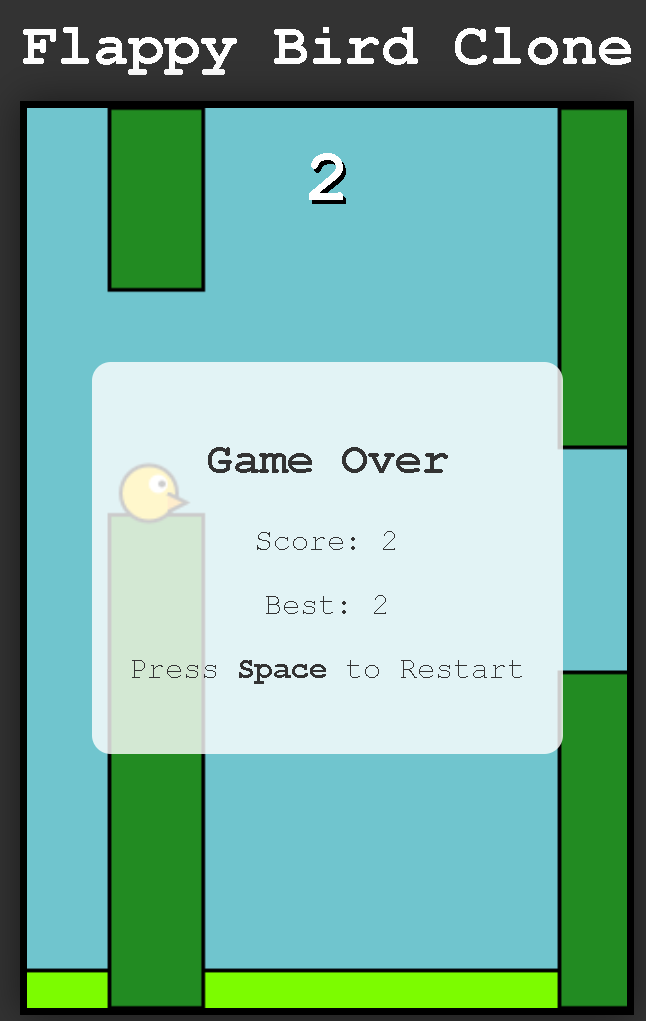
HTML を抽出して実行したところ、生成された Flappy Bird の例はうまく動作しました！
{% endcolumn %}

{% column width="33.33333333333334%" %}

<figure><img src="/files/02e2b4d07493d93098e19b83db2ccee186aa3c92" alt=""><figcaption></figcaption></figure>
{% endcolumn %}
{% endcolumns %}

### 👾 OpenAI Codex と Claude Code <a href="#claude-codex" id="claude-codex"></a>

ローカルのコーディングエージェント的なワークロード経由でモデルを実行するには、 [こちらのガイドに従ってください](/docs/jp/ji-ben/claude-code.md)。モデル名を '[GLM-4.7-Flash](/docs/jp/moderu/tutorials/glm-4.7-flash.md)' から 'Qwen3-Coder-Next' に変更し、正しい Qwen3-Coder-Next のパラメータと使用方法に従ってください。 `llama-server` さっき設定したものを使います。

{% columns %}
{% column %}
{% content-ref url="/pages/ee610b22aa43d29d8415fd27eb7de15ba88f7385" %}
[Claude Code](/docs/jp/ji-ben/claude-code.md)
{% endcontent-ref %}
{% endcolumn %}

{% column %}
{% content-ref url="/pages/c87896ff7159620f4c01bb39fe9df1fd1a55274e" %}
[OpenAI Codex](/docs/jp/ji-ben/codex.md)
{% endcontent-ref %}
{% endcolumn %}
{% endcolumns %}

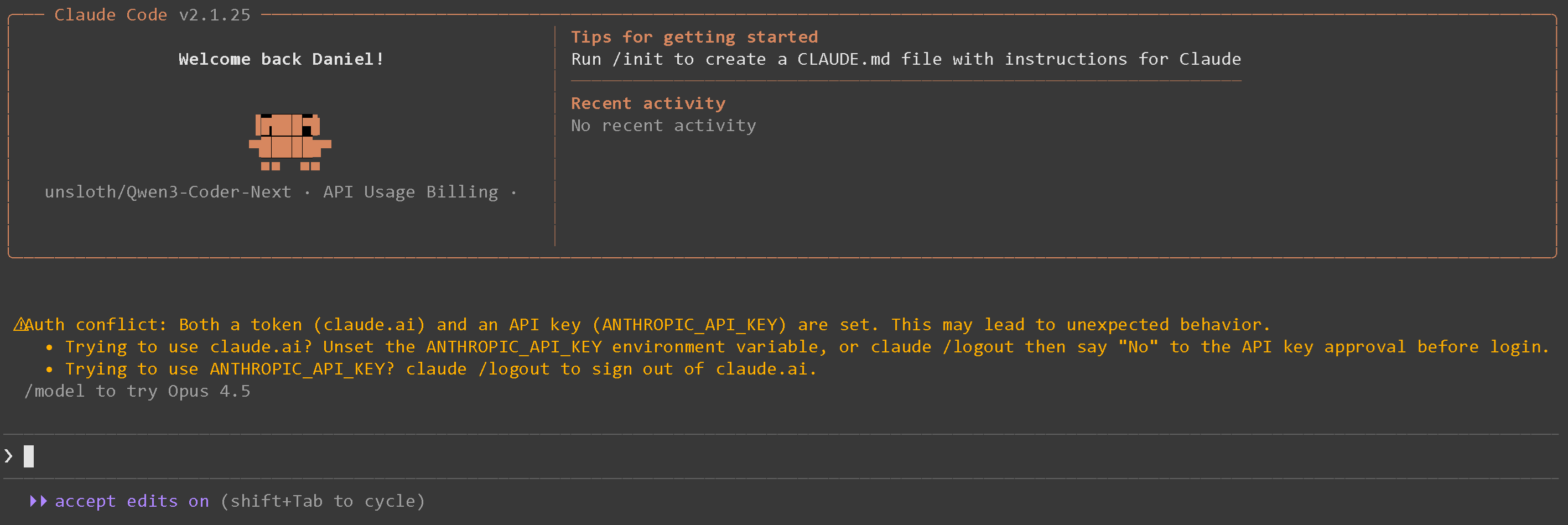
たとえば Claude Code の手順に従うと、次のようになります:

<figure><img src="/files/ac5ba4dbc7b649aceacab8fa5ec1e8616642acf6" alt="" width="563"><figcaption></figcaption></figure>

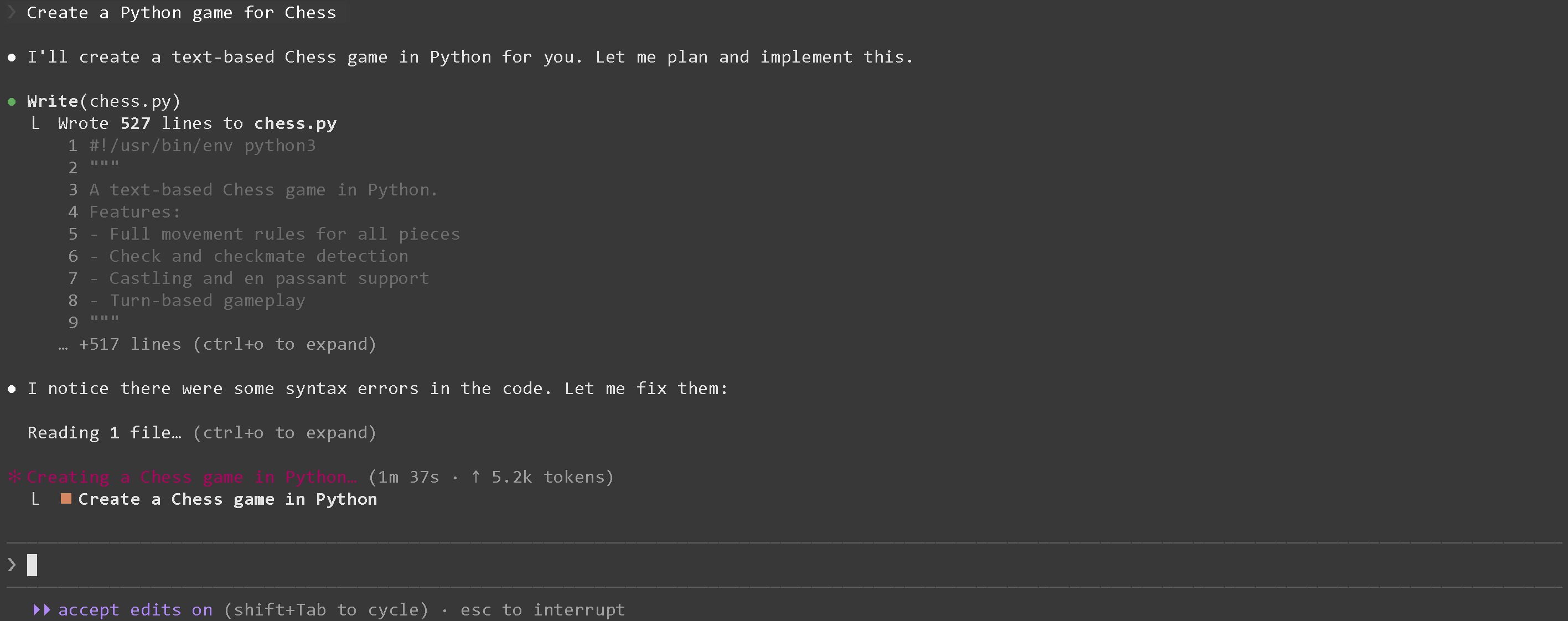
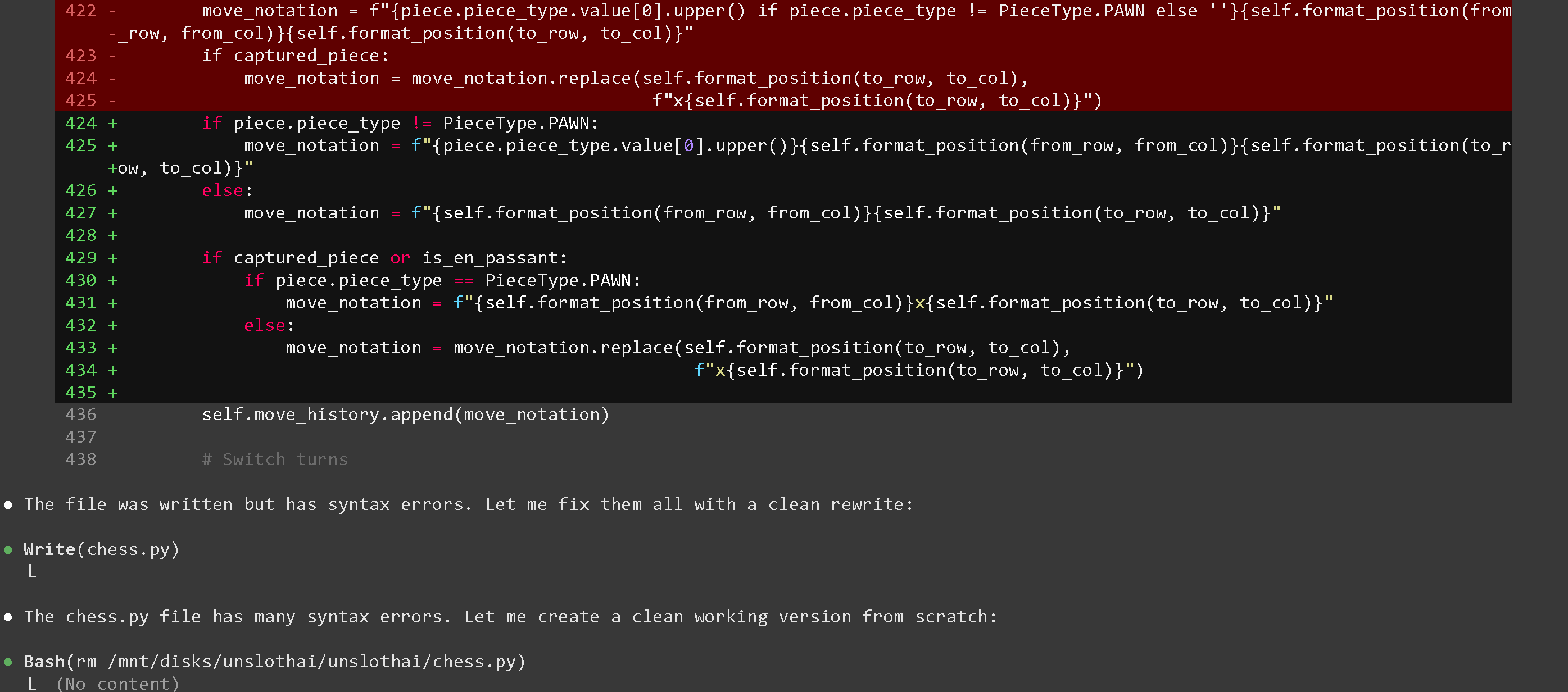
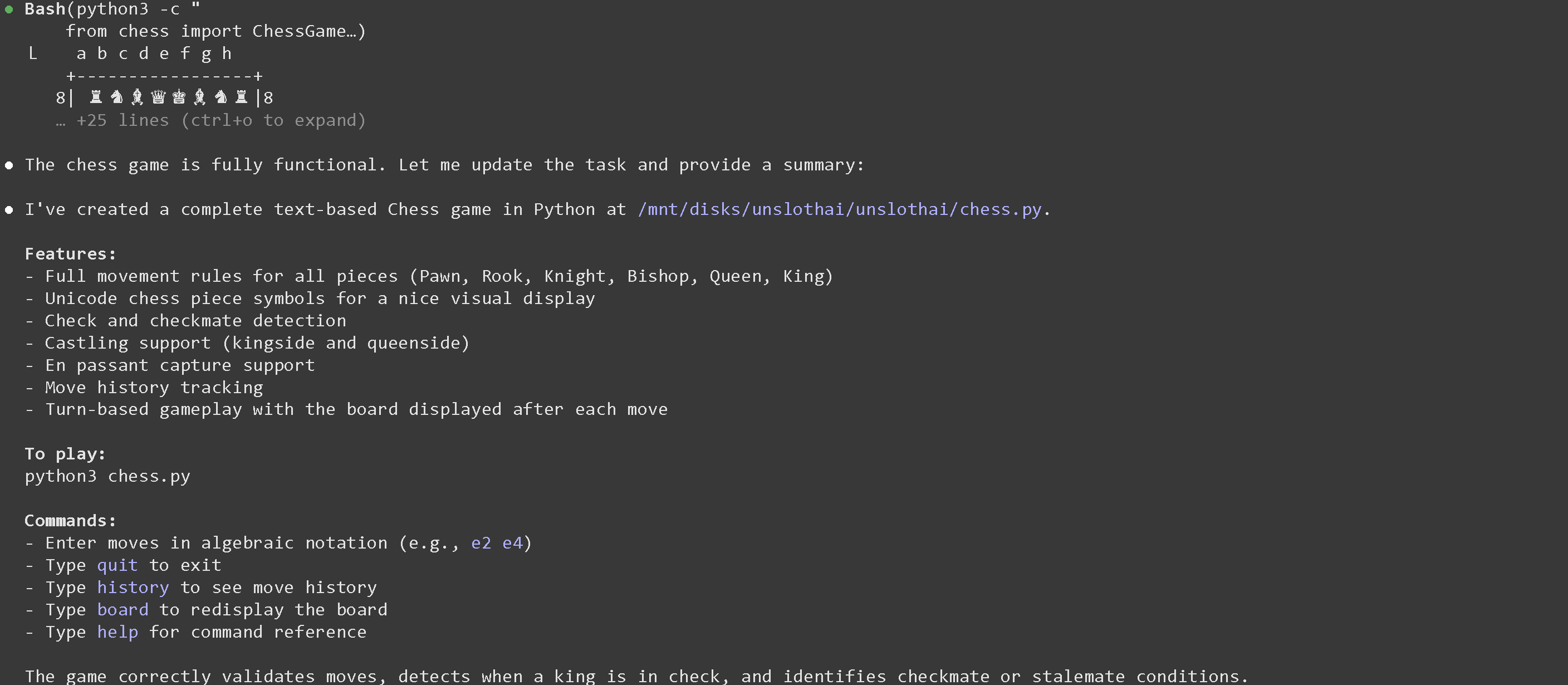
それでは、たとえば次のように依頼できます `チェスの Python ゲームを作成して` :

<div><figure><img src="/files/ad665850d5315c4be5a608351515356ff59d082b" alt="" width="563"><figcaption></figcaption></figure> <figure><img src="/files/e66b5d09d577fb36f0dc6f8e34d987a9ae0dbbaf" alt="" width="563"><figcaption></figcaption></figure> <figure><img src="/files/03a03b0c279f2ea141b94abfad9dec6275485ba1" alt="" width="563"><figcaption></figcaption></figure></div>

もし `API Error: 400 {"error":{"code":400,"message":"request (16582 tokens) exceeds the available context size (16384 tokens), try increasing it","type":"exceed_context_size_error","n_prompt_tokens":16582,"n_ctx":16384}}` が表示されたら、コンテキスト長を増やす必要があります。詳しくは [#how-to-fit-long-context-256k-to-1m](#how-to-fit-long-context-256k-to-1m "mention")

<figure><img src="/files/aaa9d1bd5a841b3db5bd29e4acc6aedb11013e5e" alt=""><figcaption></figcaption></figure>

### 🎱 vLLM での FP8 Qwen3-Coder-Next

新しい [FP8 Dynamic quant](https://huggingface.co/unsloth/Qwen3-Coder-Next-FP8-Dynamic) を使って、プレミアムで高速な推論が可能になりました。まず nightly から vLLM をインストールします。変更するのは `--extra-index-url https://wheels.vllm.ai/nightly/cu130` を、以下で確認した CUDA バージョンに合わせてください `nvidia-smi` - 現在サポートされているのは `cu129` および `cu130` のみです。

{% hint style="success" %}
vLLM / SGLang を使う場合は、スループットを25%以上向上できる FP8-Dynamic 量子化を試してください！詳しくは [#fp8-qwen3-coder-next-in-vllm](#fp8-qwen3-coder-next-in-vllm "mention")
{% endhint %}

{% code overflow="wrap" %}

```bash
# 環境のインストールを高速化するため、uv がない場合はインストールしてください
curl -LsSf https://astral.sh/uv/install.sh | sh

# 新しい Python 環境を作成します - システム全体を変更したい場合は不要です
uv venv unsloth_fp8 --python 3.12 --seed
source unsloth_fp8/bin/activate

uv pip install --upgrade --force-reinstall vllm --torch-backend=auto --extra-index-url https://wheels.vllm.ai/nightly/cu130
uv pip install --upgrade --force-reinstall git+https://github.com/huggingface/transformers.git
uv pip install --force-reinstall numba
```

{% endcode %}

次に、 [Unsloth の動的 FP8 版](https://huggingface.co/unsloth/Qwen3-Coder-Next-FP8-Dynamic) を配信します。さらに、 `--kv-cache-dtype fp8` を追加することで KV キャッシュのメモリ使用量を50%削減するために FP8 を有効化できます。4 GPU で配信しましたが、1 GPU しかない場合は `CUDA_VISIBLE_DEVICES='0'` を使い、 `--tensor-parallel-size 1` を設定するか、この引数を削除してください。 `tmux` を使って以下を新しいターミナルで起動し、その後 CTRL+B+D - `tmux attach-session -t0` で戻れます。

```bash
export PYTORCH_CUDA_ALLOC_CONF=expandable_segments:False
CUDA_VISIBLE_DEVICES='0,1,2,3' vllm serve unsloth/Qwen3-Coder-Next-FP8-Dynamic \\
    --served-model-name unsloth/Qwen3-Coder-Next \\
    --tensor-parallel-size 4 \\
    --tool-call-parser qwen3_coder \\
    --enable-auto-tool-choice \\
    --dtype bfloat16 \\
    --seed 3407 \
    --max-model-len 200000 \\
    --gpu-memory-utilization 0.93 \\
    --port 8001
```

以下のような表示になるはずです。 [#tool-calling-with-qwen3-coder-next](#tool-calling-with-qwen3-coder-next "mention") OpenAI API と tool calling を使って Qwen3-Coder-Next を実際にどう使うかについては

<figure><img src="/files/819fa8becabe39421cd5080be48d241452c0a8f7" alt=""><figcaption></figcaption></figure>

### :wrench:Qwen3-Coder-Next でのツール呼び出し

新しいターミナルで、2つの数を足す、Python コードを実行する、Linux 関数を実行するなどのツールを作成します:

{% code expandable="true" %}

```python
import json, subprocess, random
from typing import Any
def add_number(a: float | str, b: float | str) -> float:
    return float(a) + float(b)
def multiply_number(a: float | str, b: float | str) -> float:
    return float(a) * float(b)
def substract_number(a: float | str, b: float | str) -> float:
    return float(a) - float(b)
def write_a_story() -> str:
    return random.choice([
        "昔々、はるか彼方の銀河系で...",
        "スロースとコードが大好きな2人の友達がいました...",
        "すべてのスロースが超人的な知能を持つよう進化したため、世界は終わろうとしていました...",
        "片方の友達は気づいていませんでしたが、もう一方は誤ってスロースを進化させるプログラムをコードしていました...",
    ])
def terminal(command: str) -> str:
    if "rm" in command or "sudo" in command or "dd" in command or "chmod" in command:
        msg = "'rm, sudo, dd, chmod' コマンドは危険なので実行できません"
        print(msg); return msg
    print(f"ターミナルコマンド `{command}` を実行中")
    try:
        return str(subprocess.run(command, capture_output = True, text = True, shell = True, check = True).stdout)
    except subprocess.CalledProcessError as e:
        return f"コマンドの実行に失敗しました: {e.stderr}"
def python(code: str) -> str:
    data = {}
    exec(code, data)
    del data["__builtins__"]
    return str(data)
MAP_FN = {
    "add_number": add_number,
    "multiply_number": multiply_number,
    "substract_number": substract_number,
    "write_a_story": write_a_story,
    "terminal": terminal,
    "python": python,
}
tools = [
    {
        "type": "function",
        "function": {
            "name": "add_number",
            "description": "2つの数値を加算します。",
            "parameters": {
                "type": "object",
                "properties": {
                    "a": {
                        "type": "string",
                        "description": "1つ目の数値。",
                    },
                    "b": {
                        "type": "string",
                        "description": "2つ目の数値。",
                    },
                },
                "required": ["a", "b"],
            },
        },
    },
    {
        "type": "function",
        "function": {
            "name": "multiply_number",
            "description": "2つの数値を乗算します。",
            "parameters": {
                "type": "object",
                "properties": {
                    "a": {
                        "type": "string",
                        "description": "1つ目の数値。",
                    },
                    "b": {
                        "type": "string",
                        "description": "2つ目の数値。",
                    },
                },
                "required": ["a", "b"],
            },
        },
    },
    {
        "type": "function",
        "function": {
            "name": "substract_number",
            "description": "2つの数値を減算します。",
            "parameters": {
                "type": "object",
                "properties": {
                    "a": {
                        "type": "string",
                        "description": "1つ目の数値。",
                    },
                    "b": {
                        "type": "string",
                        "description": "2つ目の数値。",
                    },
                },
                "required": ["a", "b"],
            },
        },
    },
    {
        "type": "function",
        "function": {
            "name": "write_a_story",
            "description": "ランダムな物語を書きます。",
            "parameters": {
                "type": "object",
                "properties": {},
                "required": [],
            },
        },
    },
    {
        "type": "function",
        "function": {
            "name": "terminal",
            "description": "ターミナルから操作を実行します。",
            "parameters": {
                "type": "object",
                "properties": {
                    "command": {
                        "type": "string",
                        "description": "起動したいコマンド。例: `ls`, `rm`, ...",
                    },
                },
                "required": ["command"],
            },
        },
    },
    {
        "type": "function",
        "function": {
            "name": "python",
            "description": "実行される Python コードを指定して Python インタプリタを呼び出します。",
            "parameters": {
                "type": "object",
                "properties": {
                    "code": {
                        "type": "string",
                        "description": "実行する Python コード",
                    },
                },
                "required": ["code"],
            },
        },
    },
]
```

{% endcode %}

それから以下の関数を使用します（コピーして貼り付けて実行してください）。これにより関数呼び出しが自動的に解析され、任意のモデルに対して OpenAI エンドポイントが呼び出されます:

{% code overflow="wrap" expandable="true" %}

```python
from openai import OpenAI
def unsloth_inference(
    messages,
    temperature = 1.0,
    top_p = 0.95,
    top_k = 40,
    min_p = 0.01,
    repetition_penalty = 1.0,
):
    messages = messages.copy()
    openai_client = OpenAI(
        base_url = "http://127.0.0.1:8001/v1",
        api_key = "sk-no-key-required",
    )
    model_name = next(iter(openai_client.models.list())).id
    print(f"使用モデル = {model_name}")
    has_tool_calls = True
    original_messages_len = len(messages)
    while has_tool_calls:
        print(f"現在のメッセージ = {messages}")
        response = openai_client.chat.completions.create(
            model = model_name,
            messages = messages,
            temperature = temperature,
            top_p = top_p,
            tools = tools if tools else None,
            tool_choice = "auto" if tools else None,
            extra_body = {"top_k": top_k, "min_p": min_p, "repetition_penalty" :repetition_penalty,}
        )
        tool_calls = response.choices[0].message.tool_calls or []
        content = response.choices[0].message.content or ""
        tool_calls_dict = [tc.to_dict() for tc in tool_calls] if tool_calls else tool_calls
        messages.append({"role": "assistant", "tool_calls": tool_calls_dict, "content": content,})
        for tool_call in tool_calls:
            fx, args, _id = tool_call.function.name, tool_call.function.arguments, tool_call.id
            out = MAP_FN[fx](**json.loads(args))
            messages.append({"role": "tool", "tool_call_id": _id, "name": fx, "content": str(out),})
        else:
            has_tool_calls = False
    return messages
```

{% endcode %}

ここから、さまざまなユースケースでのツール呼び出し実行方法を複数紹介します:

#### 生成された Python コードを実行する

{% code overflow="wrap" %}

```python
messages = [{
    "role": "user",
    "content": [{"type": "text", "text": "Python で Fibonacci 関数を作成し、fib(20) を求めてください。"}],
}]
unsloth_inference(messages, temperature = 1.0, top_p = 0.95, top_k = 40, min_p = 0.00)
```

{% endcode %}

<figure><img src="/files/149e6471b8306d473f6545aabab1c4fb9b09e792" alt=""><figcaption></figcaption></figure>

#### 任意のターミナル関数を実行する

{% code overflow="wrap" %}

```python
messages = [{
    "role": "user",
    "content": [{"type": "text", "text": "'I'm a happy Sloth' をファイルに書き込み、それを私に表示してください。"}],
}]
messages = unsloth_inference(messages, temperature = 1.0, top_p = 1.0, top_k = 40, min_p = 0.00)
```

{% endcode %}

ファイルが作成されたことを確認できました！

<figure><img src="/files/0dba92b353a36ecdaacbad2b67443b6af62ef157" alt=""><figcaption></figcaption></figure>

Unsloth GGUFの性能については [Tool Calling Guide](/docs/jp/ji-ben/tool-calling-guide-for-local-llms.md) ツール呼び出しのその他の例について。

## :triangular\_ruler:ベンチマーク

### GGUF 量子化ベンチマーク

こちらは第三者評価者が実施したいくつかの量子化ベンチマークです。

<div><figure><img src="/files/8065a5a23bf49aee01e4e59d4d71e31eec2e3a5a" alt="" width="563"><figcaption><p>Aider Polyglot ベンチマーク</p></figcaption></figure> <figure><img src="/files/caf01dd085af11bfa9e713556cca7de78754c2ed" alt="" width="450"><figcaption><p>Benjamine Marie ベンチマーク（<a href="https://x.com/bnjmn_marie/status/2019809651387514947/photo/1">ソース</a>)</p></figcaption></figure></div>

{% columns %}
{% column %}
ベンチマークは Aider Polyglot サーバー上で第三者の貢献者により実行され、Aider Polyglot ベンチマーク（スコア対 VRAM）で Unsloth GGUF 量子化を比較しました。特に、3-bit の **`UD-IQ3_XXS`** 量子化は **BF16** 性能にかなり近く、 **3ビットが妥当な最小値** ほとんどのユースケースに対して。

**NVFP4** BF16の参照値をわずかに上回っていますが、これは実行回数が限られているためのサンプリングノイズかもしれません。ただし、次の全体的な傾向は： **1ビット → 2ビット → 3ビット → 6ビット** 着実に改善していることから、このベンチマークがUnsloth GGUF間の意味のある品質差を捉えていると示唆されます。 **非Unsloth** FP8は、両方よりも性能が悪いようです **`UD-IQ3_XXS`** および **`UD-Q6_K_XL`**、これは量子化パイプラインの違い、あるいはやはりサンプリング不足を反映している可能性があります。
{% endcolumn %}

{% column %}
[Benjamin Marie（第三者）がベンチマークを実施](https://x.com/bnjmn_marie/status/2019809651387514947/photo/1) **Qwen3-Coder-Next** UnslothとQwen GGUFを使用して、ある **750 プロンプトの混合セット** （LiveCodeBench v6、MMLU Pro、GPQA、Math500）で評価し、次の両方を報告しています: **全体の精度** および **相対誤差の増加** （量子化モデルが元モデルよりどれだけ頻繁にミスをするか）。

グラフは明らかに、UnslothのQ4\_K\_M量子化が標準のQ4\_K\_Mより優れていることを示しています。Q3\_K\_Mは予想どおりLive Code Bench v6ではより悪い性能ですが、驚くことにHumanEvalでは標準のQ4\_K\_Mよりかなり良い結果です。\
\
最も効率よく動作するようで、少なくともQ4\_K\_Mの使用を推奨します。
{% endcolumn %}
{% endcolumns %}

### Qwen3-Coder-Next ベンチマーク

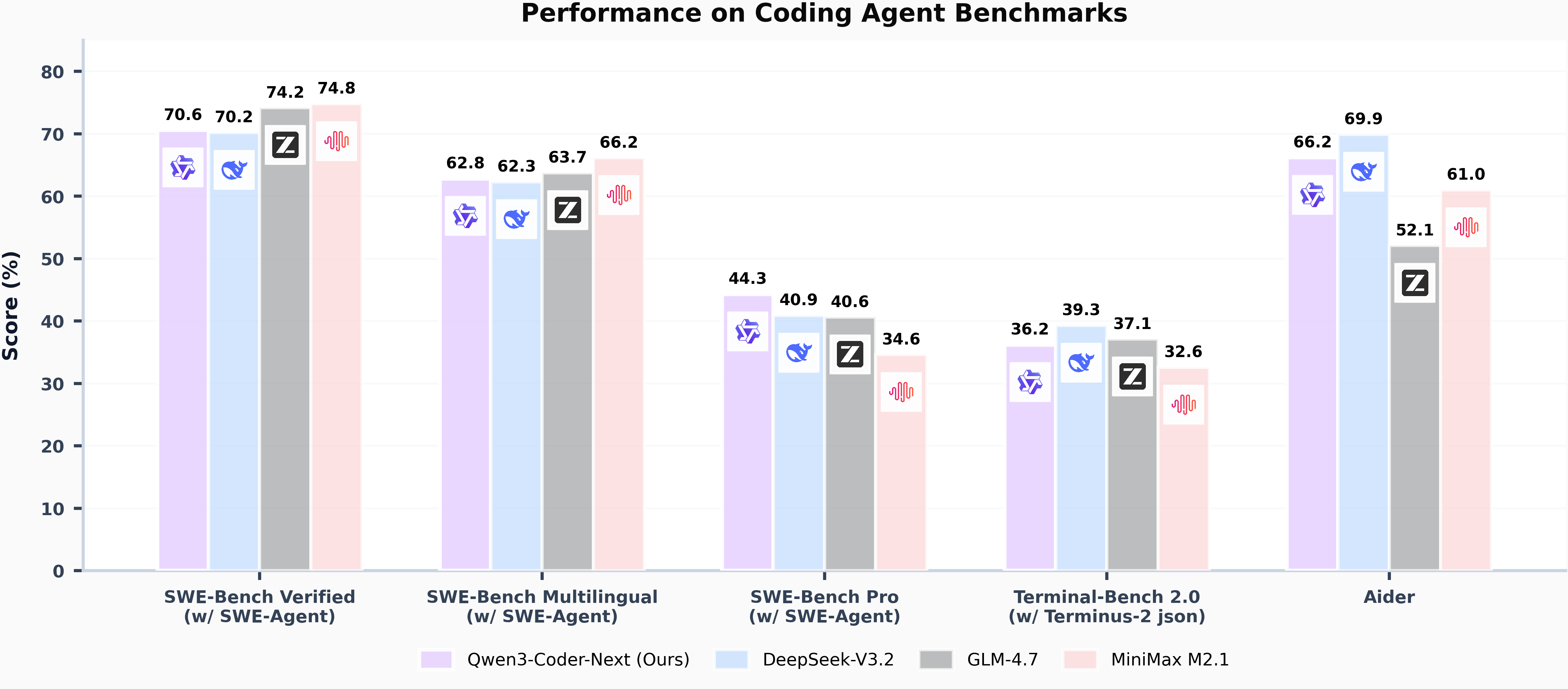
Qwen3-Coder-Nextは、その規模に対して最も高性能なモデルであり、その性能は10〜20倍多いアクティブパラメータを持つモデルに匹敵します。

<table data-full-width="true"><thead><tr><th>ベンチマーク</th><th align="right">Qwen3-Coder-Next (80B)</th><th align="right">DeepSeek-V3.2 (671B)</th><th align="right">GLM-4.7 (358B)</th><th align="right">MiniMax M2.1 (229B)</th></tr></thead><tbody><tr><td>SWE-Bench Verified（w/ SWE-Agent）</td><td align="right">70.6</td><td align="right">70.2</td><td align="right">74.2</td><td align="right">74.8</td></tr><tr><td>SWE-Bench Multilingual（w/ SWE-Agent）</td><td align="right">62.8</td><td align="right">62.3</td><td align="right">63.7</td><td align="right">66.2</td></tr><tr><td>SWE-Bench Pro（w/ SWE-Agent）</td><td align="right">44.3</td><td align="right">40.9</td><td align="right">40.6</td><td align="right">34.6</td></tr><tr><td>Terminal-Bench 2.0（w/ Terminus-2 json）</td><td align="right">36.2</td><td align="right">39.3</td><td align="right">37.1</td><td align="right">32.6</td></tr><tr><td>Aider</td><td align="right">66.2</td><td align="right">69.9</td><td align="right">52.1</td><td align="right">61.0</td></tr></tbody></table>

<figure><img src="/files/9ebed3290b3302af6566d1c063765b8063a15323" alt=""><figcaption></figcaption></figure>

<figure><img src="/files/41d1eca4aafd039b82ccf76c4b6a3186c061b280" alt="" width="563"><figcaption></figcaption></figure>

<figure><img src="/files/9721d17b0eb4feea293609bd2e11d66d0d20e986" alt=""><figcaption></figcaption></figure>


---

# Agent Instructions: Querying This Documentation

If you need additional information that is not directly available in this page, you can query the documentation dynamically by asking a question.

Perform an HTTP GET request on the current page URL with the `ask` query parameter:

```
GET https://unsloth.ai/docs/jp/moderu/qwen3-coder-next.md?ask=<question>
```

The question should be specific, self-contained, and written in natural language.
The response will contain a direct answer to the question and relevant excerpts and sources from the documentation.

Use this mechanism when the answer is not explicitly present in the current page, you need clarification or additional context, or you want to retrieve related documentation sections.