> For the complete documentation index, see [llms.txt](https://unsloth.ai/docs/llms.txt). Markdown versions of documentation pages are available by appending `.md` to page URLs; this page is available as [Markdown](https://unsloth.ai/docs/get-started/install/vs-code.md).
# How to Fine-tune LLMs in VS Code with Unsloth & Colab GPUs
Guide to fine-tuning models directly in Visual Studio Code via Unsloth and Google Colab.
You can now fine-tune LLMs directly from Visual Studio Code (VSCode), locally or by using Google Colab's extension. In this guide, you’ll learn how to use the open-source training [repo: Unsloth](https://github.com/unslothai/unsloth), to connect any [fine-tuning notebook](/docs/get-started/unsloth-notebooks.md) in VS Code to a Colab runtime, so you can train on your local or free Colab GPU. You can also view our video tutorial [here](#video-tutorial).
{% stepper %}
{% step %}
### VS Code and Colab Tutorial:
To begin we will need to have:
* Installed [VS Code](https://code.visualstudio.com/). Git (for cloning the notebook repo) should be installed by default.
* A **Google account** (to authenticate with Colab)
* Recommended: **Jupyter** extension (most VS Code setups already have it)
{% endstep %}
{% step %}
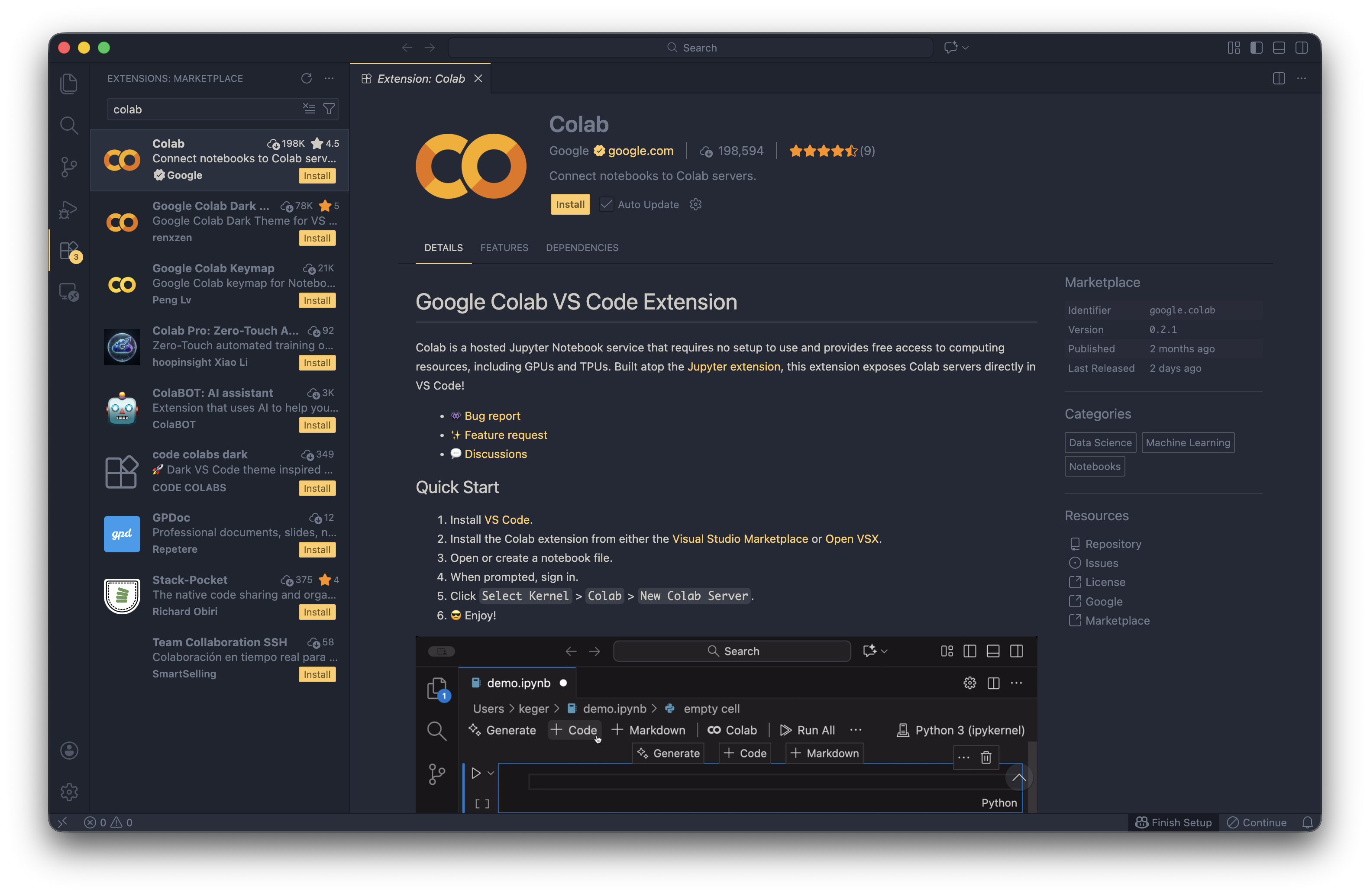
#### Install the Colab extension in VS Code
1. Open **Extensions** in VS Code (`Ctrl+Shift+X` / `Cmd+Shift+X`)
2. Search for **“Colab”** and install the **Google Colab** extension
{% endstep %}
{% step %}
#### Open an Unsloth notebook
1. Clone the Unsloth [notebooks repository](https://github.com/unslothai/notebooks):
```bash
git clone https://github.com/unslothai/notebooks
cd notebooks/nb
```
2. Open your desired notebook. Unsloth supports most models including [embedding](/docs/basics/embedding-finetuning.md), [TTS](/docs/basics/text-to-speech-tts-fine-tuning.md). For example, we'll use Qwen3-4B RL: `nb/Qwen3_(4B)-GRPO.ipynb`
{% endstep %}
{% step %}
#### Select a kernel and choose Colab
In the notebook toolbar, click **Select Kernel**, then choose **Colab**
{% endstep %}
{% step %}
#### Add a new Colab server
After choosing **Colab**, you’ll see a dropdown with server options.
1. Click **+ Add New Colab Server**
2. The first time, a browser window may open for Google authentication
* Log in, grant access, then return to VS Code
{% endstep %}
{% step %}
#### Select GPU and name the server
1. Set **Hardware accelerator** to **GPU**
2. Choose a GPU type (for example **T4**, if available)
3. Give the server a name (anything you like)
{% hint style="info" %}
Note: GPU availability depends on your Colab plan and current capacity. If you don’t see GPU options, see troubleshooting below.
{% endhint %}
{% endstep %}
{% step %}
#### Pick the Python kernel
Once connected to the Colab server, select the **Python** kernel that appears for that runtime (usually a Python 3 kernel).
{% endstep %}
{% step %}
#### Run the notebook
* Click **Run All** in the notebook toolbar (or run cells top-to-bottom)
* Watch the setup cells install dependencies and then start the Unsloth workflow
* You can view our dedicated [fine-tuning](/docs/get-started/fine-tuning-llms-guide.md) or [reinforcement learning](/docs/get-started/reinforcement-learning-rl-guide.md) guides for more info on exactly how to get started with Unsloth.
{% endstep %}
{% endstepper %}
### Video Tutorial
{% embed url="" %}
### Troubleshooting
#### After Colab server disconnects, the notebook won’t run on a new server
**What’s happening:**\
If the notebook stays open while the Colab server disconnects, VS Code can get stuck in a bad kernel/runtime state after reconnecting. Related [GitHub issue](https://github.com/googlecolab/colab-vscode/issues/200).
**Fix:** Close the notebook tab completely and open the notebook again.
#### You can’t select a GPU (only CPU shows up)
Possible causes and fixes:
* **Colab free tier capacity:** GPUs may be temporarily unavailable → try again later.
* **Not actually connected to a Colab runtime:** re-check **Select Kernel → Colab** and ensure a Colab server is active.
* **Account/region restrictions or limits reached:** you may need to wait or use a different Google account / plan.
#### Everything worked, but packages are “gone” after reconnecting
Colab runtimes are **ephemeral**. When a server restarts, you usually need to re-run the setup/install cells (often the first few cells in the notebook).
---
# Agent Instructions
This documentation is published with GitBook. GitBook is the documentation platform designed so that both humans and AI agents can read, navigate, and reason over technical content effectively. Learn more at gitbook.com.
## Querying This Documentation
If you need additional information that is not directly available in this page, you can query the documentation by asking a question.
Perform an HTTP GET request on the following URL with the `ask` and `goal` query parameters:
```
GET https://unsloth.ai/docs/get-started/install/vs-code.md?ask=&goal=
```
`ask` is the immediate question: it should be specific, self-contained, and written in natural language.
`goal` is what the user is ultimately trying to achieve, the reason they need the answer. Sharing it helps GitBook give you a better, more relevant answer. A goal is most helpful when it describes the outcome the user wants rather than restating the question. For example, with `ask=how do I create an API token`, a goal like `automate deployments from our CI pipeline` lets GitBook tailor the answer to that use case.
The response will contain a direct answer to the question and relevant excerpts and sources from the documentation.
Use this mechanism when the answer is not explicitly present in the current page, you need clarification or additional context, or you want to retrieve related documentation sections.