> For the complete documentation index, see [llms.txt](https://unsloth.ai/docs/llms.txt). Markdown versions of documentation pages are available by appending `.md` to page URLs; this page is available as [Markdown](https://unsloth.ai/docs/blog/how-to-fine-tune-llms-with-unsloth-and-docker.md).
# How to Fine-tune LLMs with Unsloth & Docker
Learn how to fine-tune LLMs or do Reinforcement Learning (RL) with Unsloth's Docker image.
Local training can be complex due to dependency hell or breaking environments. Unsloth’s [Docker image](https://hub.docker.com/r/unsloth/unsloth) can bypass these issues. No setup is needed: pull and run the image and start training.
* **Unsloth official Docker image:** [**`unsloth/unsloth`**](https://hub.docker.com/r/unsloth/unsloth)
**Why Use Unsloth & Docker?**
Unsloth’s Docker image is stable, up-to-date and works in [supported setups](/docs/get-started/fine-tuning-for-beginners/unsloth-requirements.md#system-requirements) like Windows.
* Fully contained dependencies keep your system clean. Runs safely without root.
* Use locally or on any platform with pre-installed notebooks.
{% hint style="success" %}
You can now use our main Docker image `unsloth/unsloth` for Blackwell and 50-series GPUs - no separate image needed.
{% endhint %}
### ⚡ Step-by-Step Tutorial
{% stepper %}
{% step %}
**Install Docker and NVIDIA Container Toolkit.**
Install Docker via [Linux](https://docs.docker.com/engine/install/) or [Desktop](https://docs.docker.com/desktop/) (other).\
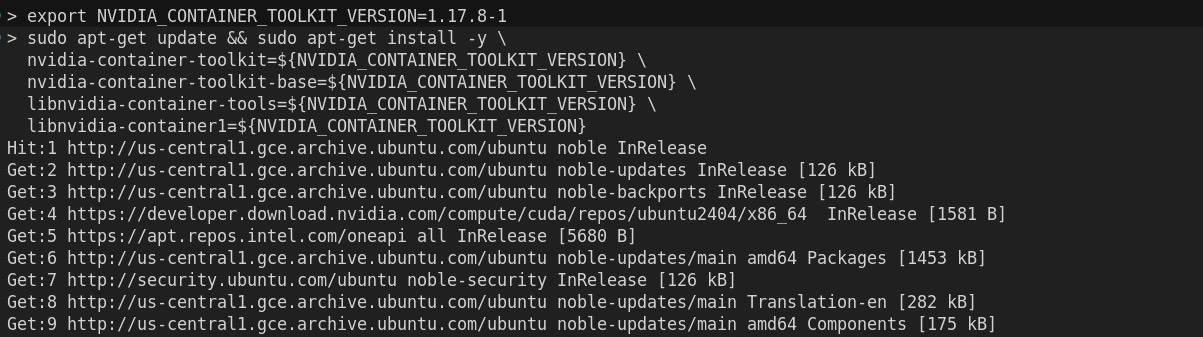
Then install [NVIDIA Container Toolkit](https://docs.nvidia.com/datacenter/cloud-native/container-toolkit/latest/install-guide.html#installation):
{% endstep %}
{% step %}
**Run the container.**
[**`unsloth/unsloth`**](https://hub.docker.com/r/unsloth/unsloth) is Unsloth's only Docker image. For [Blackwell](/docs/blog/fine-tuning-llms-with-blackwell-rtx-50-series-and-unsloth.md) and 50-series GPUs, use this same image - no separate image needed. If using DGX Spark, you'll need to follow our [DGX guide](/docs/blog/fine-tuning-llms-with-nvidia-dgx-spark-and-unsloth.md).
```bash
docker run -d -e JUPYTER_PASSWORD="mypassword" \
-p 8888:8888 -p 2222:22 \
-v $(pwd)/work:/workspace/work \
--gpus all \
unsloth/unsloth
```
{% endstep %}
{% step %}
**Access Jupyter Lab**
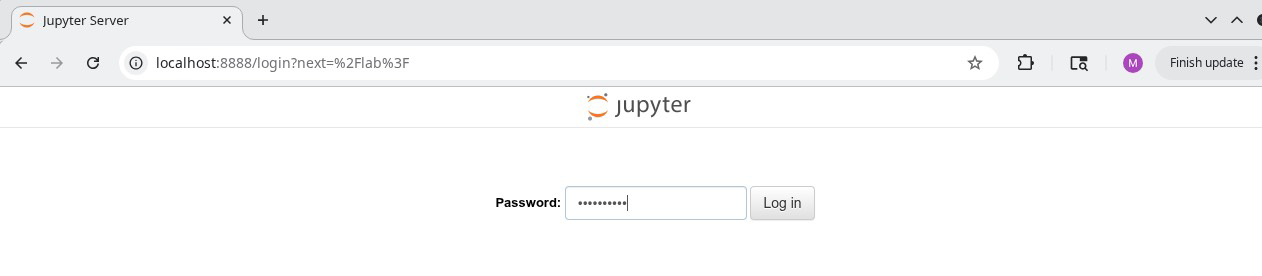
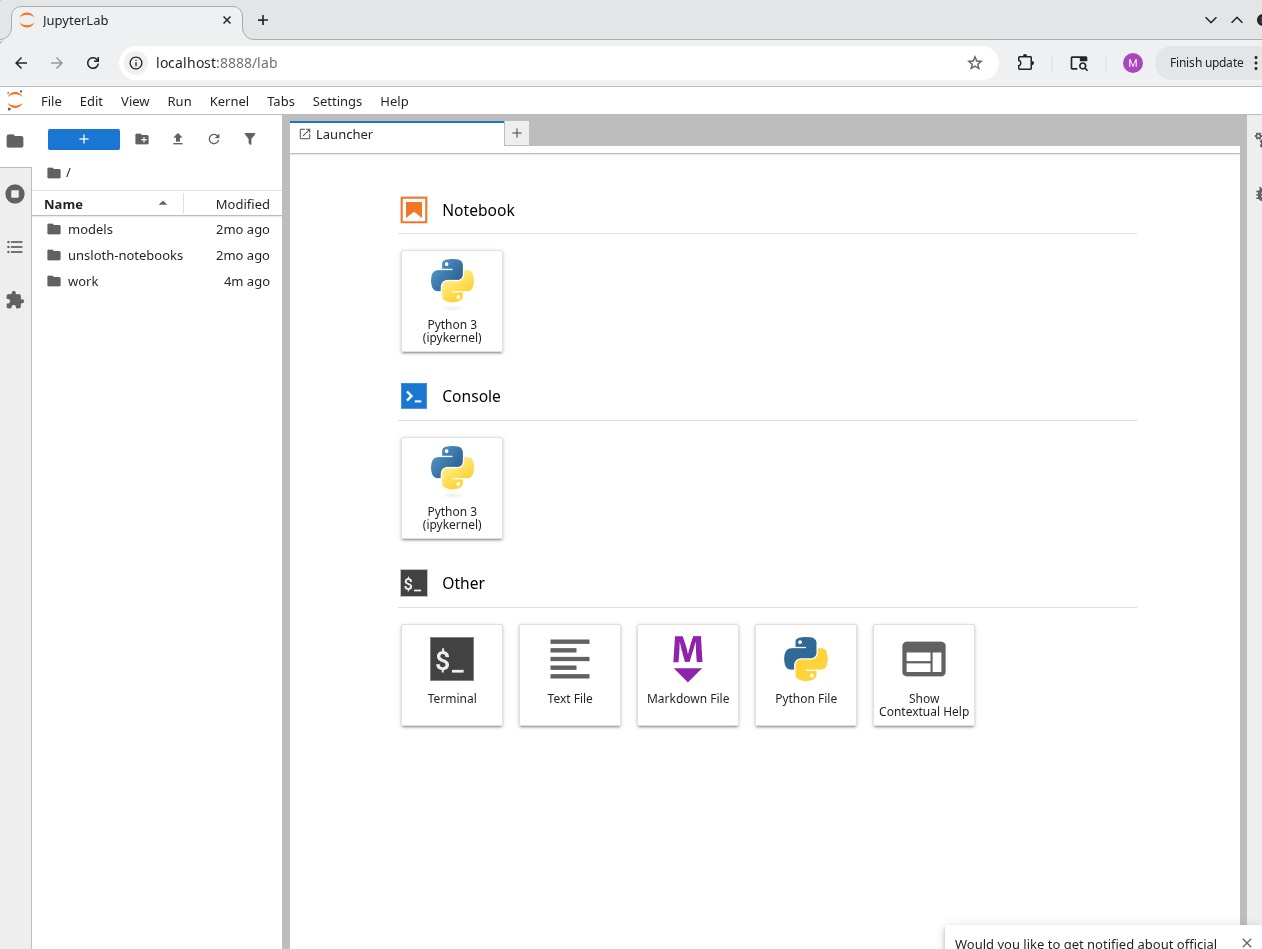
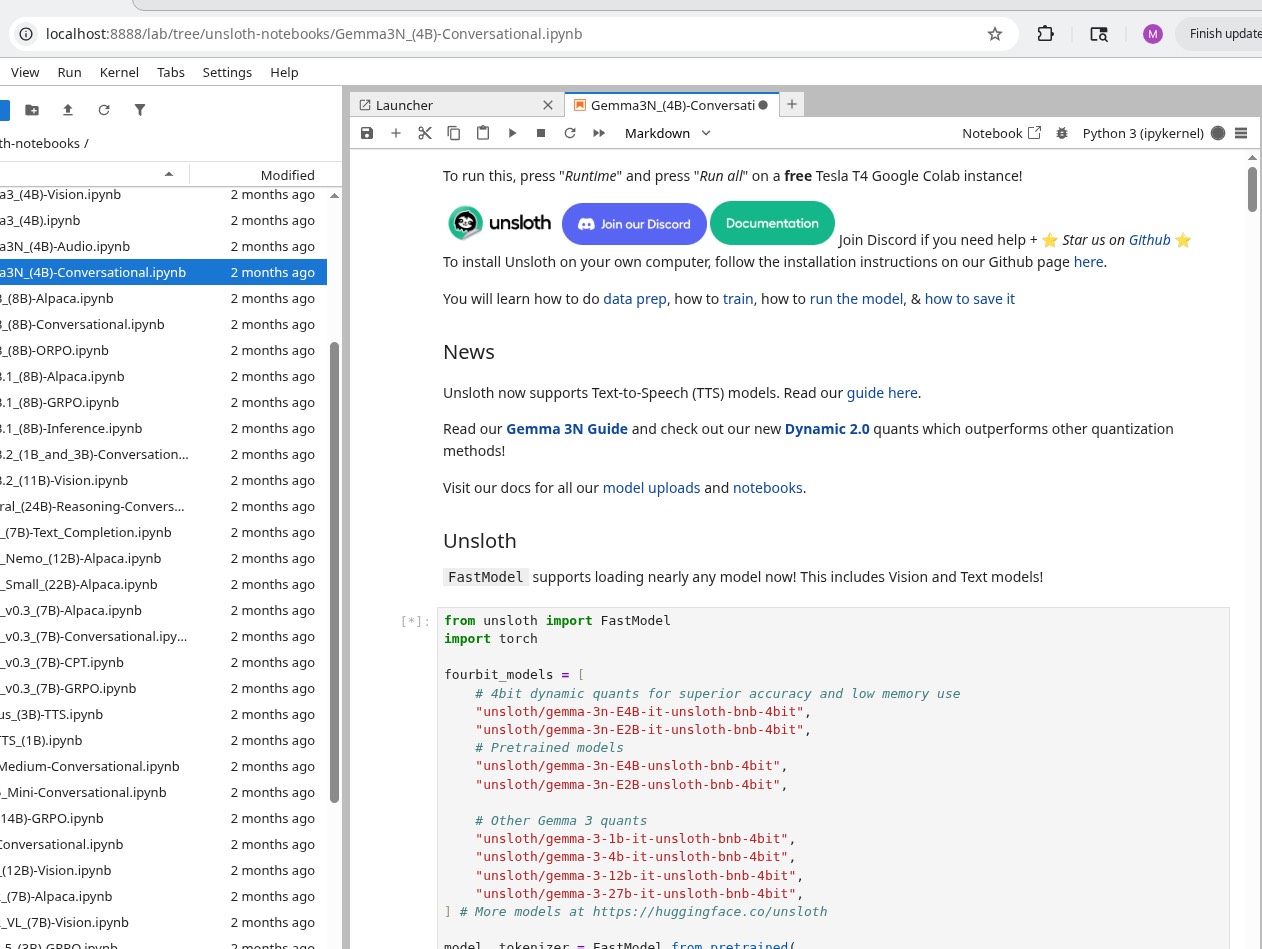
Go to [http://localhost:8888](http://localhost:8888/) and open Unsloth.
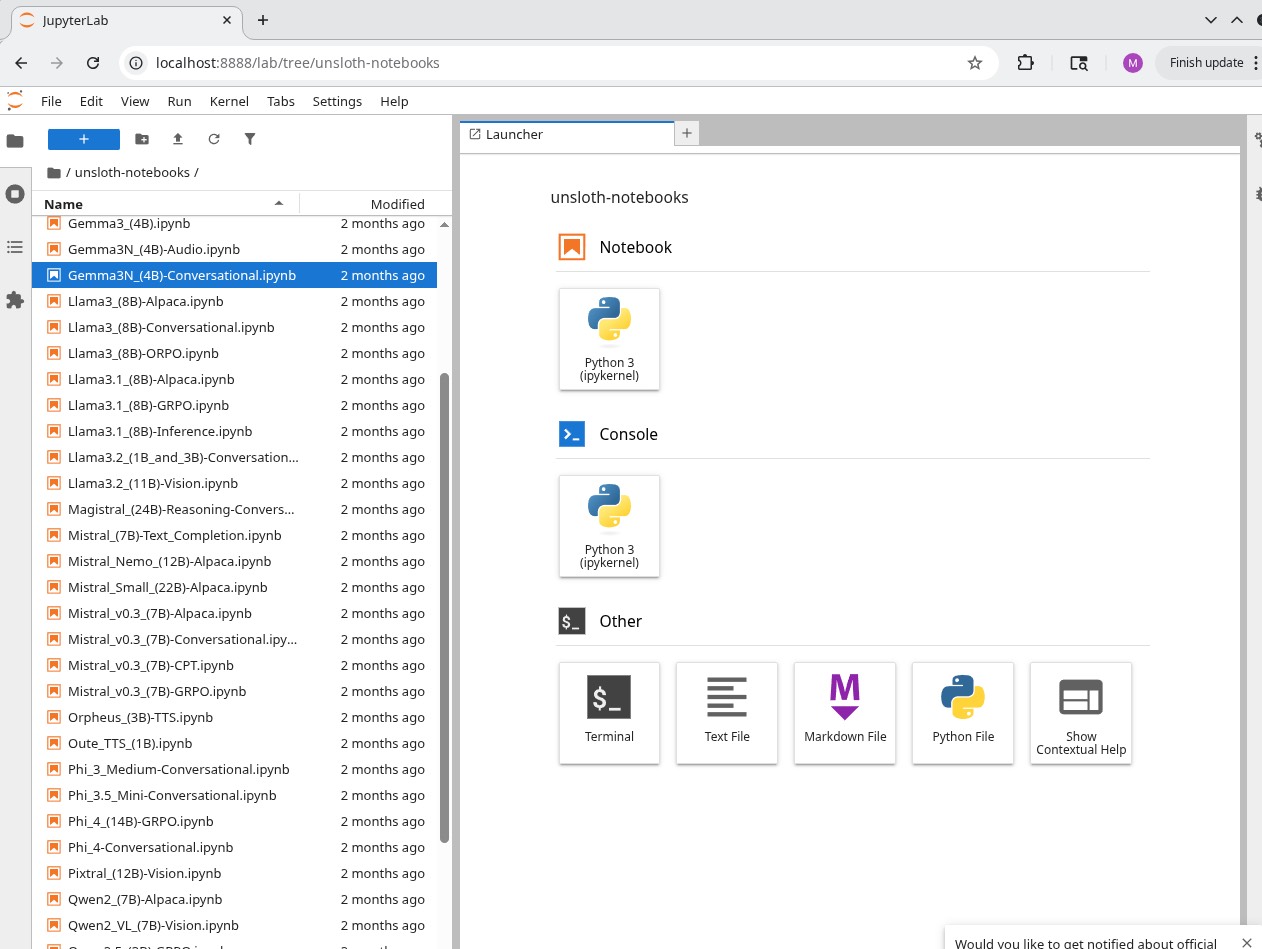
Access the `unsloth-notebooks` tabs to see Unsloth notebooks.
{% endstep %}
{% step %}
**Start training with Unsloth**
If you're new, follow our step-by-step [Fine-tuning Guide](/docs/get-started/fine-tuning-llms-guide.md), [RL Guide](/docs/get-started/reinforcement-learning-rl-guide.md) or just save/copy any of our premade [notebooks](/docs/get-started/unsloth-notebooks.md).
{% endstep %}
{% endstepper %}
#### 📂 Container Structure
* `/workspace/work/` — Your mounted work directory
* `/workspace/unsloth-notebooks/` — Example fine-tuning notebooks
* `/home/unsloth/` — User home directory
### 📖 Usage Example
#### Full Example
```bash
docker run -d -e JUPYTER_PORT=8000 \
-e JUPYTER_PASSWORD="mypassword" \
-e "SSH_KEY=$(cat ~/.ssh/container_key.pub)" \
-e USER_PASSWORD="unsloth2024" \
-p 8000:8000 -p 2222:22 \
-v $(pwd)/work:/workspace/work \
--gpus all \
unsloth/unsloth
```
#### Setting up SSH Key
If you don't have an SSH key pair:
```bash
# Generate new key pair
ssh-keygen -t rsa -b 4096 -f ~/.ssh/container_key
# Use the public key in docker run
-e "SSH_KEY=$(cat ~/.ssh/container_key.pub)"
# Connect via SSH
ssh -i ~/.ssh/container_key -p 2222 unsloth@localhost
```
### ⚙️ Advanced Settings
| Variable | Description | Default |
| ------------------ | ---------------------------------- | --------- |
| `JUPYTER_PASSWORD` | Jupyter Lab password | `unsloth` |
| `JUPYTER_PORT` | Jupyter Lab port inside container | `8888` |
| `SSH_KEY` | SSH public key for authentication | `None` |
| `USER_PASSWORD` | Password for `unsloth` user (sudo) | `unsloth` |
```bash
-p :
```
* Jupyter Lab: `-p 8000:8888`
* SSH access: `-p 2222:22`
{% hint style="warning" %}
**Important**: Use volume mounts to preserve your work between container runs.
{% endhint %}
```bash
-v :
```
```bash
docker run -d -e JUPYTER_PORT=8000 \
-e JUPYTER_PASSWORD="mypassword" \
-e "SSH_KEY=$(cat ~/.ssh/container_key.pub)" \
-e USER_PASSWORD="unsloth2024" \
-p 8000:8000 -p 2222:22 \
-v $(pwd)/work:/workspace/work \
--gpus all \
unsloth/unsloth
```
### **🔒 Security Notes**
* Container runs as non-root `unsloth` user by default
* Use `USER_PASSWORD` for sudo operations inside container
* SSH access requires public key authentication
---
# Agent Instructions
This documentation is published with GitBook. GitBook is the documentation platform designed so that both humans and AI agents can read, navigate, and reason over technical content effectively. Learn more at gitbook.com.
## Querying This Documentation
If you need additional information that is not directly available in this page, you can query the documentation by asking a question.
Perform an HTTP GET request on the following URL with the `ask` and `goal` query parameters:
```
GET https://unsloth.ai/docs/blog/how-to-fine-tune-llms-with-unsloth-and-docker.md?ask=&goal=
```
`ask` is the immediate question: it should be specific, self-contained, and written in natural language.
`goal` is what the user is ultimately trying to achieve, the reason they need the answer. Sharing it helps GitBook give you a better, more relevant answer. A goal is most helpful when it describes the outcome the user wants rather than restating the question. For example, with `ask=how do I create an API token`, a goal like `automate deployments from our CI pipeline` lets GitBook tailor the answer to that use case.
The response will contain a direct answer to the question and relevant excerpts and sources from the documentation.
Use this mechanism when the answer is not explicitly present in the current page, you need clarification or additional context, or you want to retrieve related documentation sections.