> For the complete documentation index, see [llms.txt](https://unsloth.ai/docs/llms.txt). Markdown versions of documentation pages are available by appending `.md` to page URLs; this page is available as [Markdown](https://unsloth.ai/docs/basics/tool-calling-guide-for-local-llms.md).
# Tool Calling Guide for Local LLMs
Tool calling is when a LLM is allowed to trigger specific functions (like “search my files,” “run a calculator,” or “call an API”) by emitting a structured request instead of guessing the answer in text. You use tool calls because they make outputs **more reliable and up-to-date**, and they let the model **take real actions** (query systems, validate facts, enforce schemas) rather than hallucinating.
In this tutorial, you will learn how to use local LLMs via Tool Calling with Mathematical, story, Python code and terminal function examples. Inference is done locally via llama.cpp, llama-server and OpenAI endpoints.
{% columns %}
{% column %}
Tool calling is automatically setup when you use [Unsloth Studio](/docs/new/studio/chat.md#auto-healing-tool-calling). Just select your model and toggle on or off tool-calling.
See right for an example of tool-calling being automatically applied for [Gemma 4](/docs/models/gemma-4.md). Unsloth also has self-healing tool-calling ensuring you always have working tool calls.
{% endcolumn %}
{% column %}
{% endcolumn %}
{% endcolumns %}
Our guide should work for nearly [any model](/docs/get-started/unsloth-model-catalog.md) including:
* [**Qwen3**-Coder-Next](https://unsloth.ai/docs/models/qwen3-coder-next), [Qwen3-Coder](https://unsloth.ai/docs/models/qwen3-coder-how-to-run-locally), and other **Qwen** models
* [**GLM**-4.7](https://unsloth.ai/docs/models/glm-4.7), 4.6, [GLM-4.7-Flash](https://unsloth.ai/docs/models/glm-4.7-flash) and [**Kimi K2.5**](https://unsloth.ai/docs/models/kimi-k2.5), [Kimi K2 Thinking](https://unsloth.ai/docs/models/tutorials/kimi-k2-thinking-how-to-run-locally)
* [**DeepSeek**-V3.1](https://unsloth.ai/docs/models/tutorials/deepseek-v3.1-how-to-run-locally), DeepSeek-V3.2 and **MiniMax**
* [**gpt-oss**](https://unsloth.ai/docs/models/gpt-oss-how-to-run-and-fine-tune) and [**NVIDIA Nemotron** 3 Nano](https://unsloth.ai/docs/models/tutorials/nemotron-3) and [**Devstral** 2](https://unsloth.ai/docs/models/tutorials/devstral-2)
Qwen3-Coder-Next TutorialGLM-4.7-Flash Tutorial
### :hammer:Tool Calling Setup
Our first step is to Obtain the latest `llama.cpp` on [GitHub here](https://github.com/ggml-org/llama.cpp). You can follow the build instructions below as well. Change `-DGGML_CUDA=ON` to `-DGGML_CUDA=OFF` if you don't have a GPU or just want CPU inference. **For Apple Mac / Metal devices**, set `-DGGML_CUDA=OFF` then continue as usual - Metal support is on by default.
{% code overflow="wrap" %}
```bash
apt-get update
apt-get install pciutils build-essential cmake curl libcurl4-openssl-dev -y
git clone https://github.com/ggml-org/llama.cpp
cmake llama.cpp -B llama.cpp/build \
-DBUILD_SHARED_LIBS=OFF -DGGML_CUDA=ON
cmake --build llama.cpp/build --config Release -j --clean-first --target llama-cli llama-mtmd-cli llama-server llama-gguf-split
cp llama.cpp/build/bin/llama-* llama.cpp
```
{% endcode %}
In a new terminal (if using tmux, use CTRL+B+D), we create some tools like adding 2 numbers, executing Python code, executing Linux functions and much more:
{% code expandable="true" %}
```python
import json, subprocess, random
from typing import Any
def add_number(a: float | str, b: float | str) -> float:
return float(a) + float(b)
def multiply_number(a: float | str, b: float | str) -> float:
return float(a) * float(b)
def subtract_number(a: float | str, b: float | str) -> float:
return float(a) - float(b)
def write_a_story() -> str:
return random.choice([
"A long time ago in a galaxy far far away...",
"There were 2 friends who loved sloths and code...",
"The world was ending because every sloth evolved to have superhuman intelligence...",
"Unbeknownst to one friend, the other accidentally coded a program to evolve sloths...",
])
def terminal(command: str) -> str:
if "rm" in command or "sudo" in command or "dd" in command or "chmod" in command:
msg = "Cannot execute 'rm, sudo, dd, chmod' commands since they are dangerous"
print(msg); return msg
print(f"Executing terminal command `{command}`")
try:
return str(subprocess.run(command, capture_output = True, text = True, shell = True, check = True).stdout)
except subprocess.CalledProcessError as e:
return f"Command failed: {e.stderr}"
def python(code: str) -> str:
data = {}
exec(code, data)
del data["__builtins__"]
return str(data)
MAP_FN = {
"add_number": add_number,
"multiply_number": multiply_number,
"subtract_number": subtract_number,
"write_a_story": write_a_story,
"terminal": terminal,
"python": python,
}
tools = [
{
"type": "function",
"function": {
"name": "add_number",
"description": "Add two numbers.",
"parameters": {
"type": "object",
"properties": {
"a": {
"type": "string",
"description": "The first number.",
},
"b": {
"type": "string",
"description": "The second number.",
},
},
"required": ["a", "b"],
},
},
},
{
"type": "function",
"function": {
"name": "multiply_number",
"description": "Multiply two numbers.",
"parameters": {
"type": "object",
"properties": {
"a": {
"type": "string",
"description": "The first number.",
},
"b": {
"type": "string",
"description": "The second number.",
},
},
"required": ["a", "b"],
},
},
},
{
"type": "function",
"function": {
"name": "subtract_number",
"description": "Subtract two numbers.",
"parameters": {
"type": "object",
"properties": {
"a": {
"type": "string",
"description": "The first number.",
},
"b": {
"type": "string",
"description": "The second number.",
},
},
"required": ["a", "b"],
},
},
},
{
"type": "function",
"function": {
"name": "write_a_story",
"description": "Writes a random story.",
"parameters": {
"type": "object",
"properties": {},
"required": [],
},
},
},
{
"type": "function",
"function": {
"name": "terminal",
"description": "Perform operations from the terminal.",
"parameters": {
"type": "object",
"properties": {
"command": {
"type": "string",
"description": "The command you wish to launch, e.g `ls`, `rm`, ...",
},
},
"required": ["command"],
},
},
},
{
"type": "function",
"function": {
"name": "python",
"description": "Call a Python interpreter with some Python code that will be ran.",
"parameters": {
"type": "object",
"properties": {
"code": {
"type": "string",
"description": "The Python code to run",
},
},
"required": ["code"],
},
},
},
]
```
{% endcode %}
We then use the below functions (copy and paste and execute) which will parse the function calls automatically and call the OpenAI endpoint for any model:
{% hint style="info" %}
In this example we're using Devstral 2, when switching a model, ensure you use the correct sampling parameters. You can view all of them in our [guides here](/docs/models/tutorials.md).
{% endhint %}
{% code overflow="wrap" expandable="true" %}
```python
from openai import OpenAI
def unsloth_inference(
messages,
temperature = 0.7,
top_p = 0.95,
top_k = 40,
min_p = 0.01,
repetition_penalty = 1.0,
):
messages = messages.copy()
openai_client = OpenAI(
base_url = "http://127.0.0.1:8001/v1",
api_key = "sk-no-key-required",
)
model_name = next(iter(openai_client.models.list())).id
print(f"Using model = {model_name}")
has_tool_calls = True
original_messages_len = len(messages)
while has_tool_calls:
print(f"Current messages = {messages}")
response = openai_client.chat.completions.create(
model = model_name,
messages = messages,
temperature = temperature,
top_p = top_p,
tools = tools if tools else None,
tool_choice = "auto" if tools else None,
extra_body = {"top_k": top_k, "min_p": min_p, "repetition_penalty" :repetition_penalty,}
)
tool_calls = response.choices[0].message.tool_calls or []
content = response.choices[0].message.content or ""
tool_calls_dict = [tc.to_dict() for tc in tool_calls] if tool_calls else tool_calls
messages.append({"role": "assistant", "tool_calls": tool_calls_dict, "content": content,})
for tool_call in tool_calls:
fx, args, _id = tool_call.function.name, tool_call.function.arguments, tool_call.id
out = MAP_FN[fx](**json.loads(args))
messages.append({"role": "tool", "tool_call_id": _id, "name": fx, "content": str(out),})
else:
has_tool_calls = False
return messages
```
{% endcode %}
Now we'll showcase multiple methods of running tool-calling for many different use-cases below:
### Writing a story:
```python
messages = [{
"role": "user",
"content": [{"type": "text", "text": "Could you write me a story ?"}],
}]
unsloth_inference(messages, temperature = 0.15, top_p = 1.0, top_k = -1, min_p = 0.00)
```
### Mathematical operations:
{% code overflow="wrap" %}
```python
messages = [{
"role": "user",
"content": [{"type": "text", "text": "What is today's date plus 3 days?"}],
}]
unsloth_inference(messages, temperature = 0.15, top_p = 1.0, top_k = -1, min_p = 0.00)
```
{% endcode %}
### Execute generated Python code
{% code overflow="wrap" %}
```python
messages = [{
"role": "user",
"content": [{"type": "text", "text": "Create a Fibonacci function in Python and find fib(20)."}],
}]
unsloth_inference(messages, temperature = 0.15, top_p = 1.0, top_k = -1, min_p = 0.00)
```
{% endcode %}
### Execute arbitrary terminal functions
{% code overflow="wrap" %}
```python
messages = [{
"role": "user",
"content": [{"type": "text", "text": "Write 'I'm a happy Sloth' to a file, then print it back to me."}],
}]
messages = unsloth_inference(messages, temperature = 0.15, top_p = 1.0, top_k = -1, min_p = 0.00)
```
{% endcode %}
## :stars: Qwen3-Coder-Next Tool Calling
In a new terminal, we create some tools like adding 2 numbers, executing Python code, executing Linux functions and much more:
{% code expandable="true" %}
```python
import json, subprocess, random
from typing import Any
def add_number(a: float | str, b: float | str) -> float:
return float(a) + float(b)
def multiply_number(a: float | str, b: float | str) -> float:
return float(a) * float(b)
def subtract_number(a: float | str, b: float | str) -> float:
return float(a) - float(b)
def write_a_story() -> str:
return random.choice([
"A long time ago in a galaxy far far away...",
"There were 2 friends who loved sloths and code...",
"The world was ending because every sloth evolved to have superhuman intelligence...",
"Unbeknownst to one friend, the other accidentally coded a program to evolve sloths...",
])
def terminal(command: str) -> str:
if "rm" in command or "sudo" in command or "dd" in command or "chmod" in command:
msg = "Cannot execute 'rm, sudo, dd, chmod' commands since they are dangerous"
print(msg); return msg
print(f"Executing terminal command `{command}`")
try:
return str(subprocess.run(command, capture_output = True, text = True, shell = True, check = True).stdout)
except subprocess.CalledProcessError as e:
return f"Command failed: {e.stderr}"
def python(code: str) -> str:
data = {}
exec(code, data)
del data["__builtins__"]
return str(data)
MAP_FN = {
"add_number": add_number,
"multiply_number": multiply_number,
"subtract_number": subtract_number,
"write_a_story": write_a_story,
"terminal": terminal,
"python": python,
}
tools = [
{
"type": "function",
"function": {
"name": "add_number",
"description": "Add two numbers.",
"parameters": {
"type": "object",
"properties": {
"a": {
"type": "string",
"description": "The first number.",
},
"b": {
"type": "string",
"description": "The second number.",
},
},
"required": ["a", "b"],
},
},
},
{
"type": "function",
"function": {
"name": "multiply_number",
"description": "Multiply two numbers.",
"parameters": {
"type": "object",
"properties": {
"a": {
"type": "string",
"description": "The first number.",
},
"b": {
"type": "string",
"description": "The second number.",
},
},
"required": ["a", "b"],
},
},
},
{
"type": "function",
"function": {
"name": "subtract_number",
"description": "Subtract two numbers.",
"parameters": {
"type": "object",
"properties": {
"a": {
"type": "string",
"description": "The first number.",
},
"b": {
"type": "string",
"description": "The second number.",
},
},
"required": ["a", "b"],
},
},
},
{
"type": "function",
"function": {
"name": "write_a_story",
"description": "Writes a random story.",
"parameters": {
"type": "object",
"properties": {},
"required": [],
},
},
},
{
"type": "function",
"function": {
"name": "terminal",
"description": "Perform operations from the terminal.",
"parameters": {
"type": "object",
"properties": {
"command": {
"type": "string",
"description": "The command you wish to launch, e.g `ls`, `rm`, ...",
},
},
"required": ["command"],
},
},
},
{
"type": "function",
"function": {
"name": "python",
"description": "Call a Python interpreter with some Python code that will be ran.",
"parameters": {
"type": "object",
"properties": {
"code": {
"type": "string",
"description": "The Python code to run",
},
},
"required": ["code"],
},
},
},
]
```
{% endcode %}
We then use the below functions which will parse the function calls automatically and call OpenAI endpoint for any LLM:
{% code overflow="wrap" expandable="true" %}
```python
from openai import OpenAI
def unsloth_inference(
messages,
temperature = 1.0,
top_p = 0.95,
top_k = 40,
min_p = 0.01,
repetition_penalty = 1.0,
):
messages = messages.copy()
openai_client = OpenAI(
base_url = "http://127.0.0.1:8001/v1",
api_key = "sk-no-key-required",
)
model_name = next(iter(openai_client.models.list())).id
print(f"Using model = {model_name}")
has_tool_calls = True
original_messages_len = len(messages)
while has_tool_calls:
print(f"Current messages = {messages}")
response = openai_client.chat.completions.create(
model = model_name,
messages = messages,
temperature = temperature,
top_p = top_p,
tools = tools if tools else None,
tool_choice = "auto" if tools else None,
extra_body = {"top_k": top_k, "min_p": min_p, "repetition_penalty" :repetition_penalty,}
)
tool_calls = response.choices[0].message.tool_calls or []
content = response.choices[0].message.content or ""
tool_calls_dict = [tc.to_dict() for tc in tool_calls] if tool_calls else tool_calls
messages.append({"role": "assistant", "tool_calls": tool_calls_dict, "content": content,})
for tool_call in tool_calls:
fx, args, _id = tool_call.function.name, tool_call.function.arguments, tool_call.id
out = MAP_FN[fx](**json.loads(args))
messages.append({"role": "tool", "tool_call_id": _id, "name": fx, "content": str(out),})
else:
has_tool_calls = False
return messages
```
{% endcode %}
Now we'll showcase multiple methods of running tool-calling for many different use-cases below:
#### Execute generated Python code
messages = [{
    "role": "user",
    "content": [{"type": "text", "text": "Create a Fibonacci function in Python and find fib(20)."}],
}]
unsloth_inference(messages, temperature = 1.0, top_p = 0.95, top_k = 40, min_p = 0.00)
#### Execute arbitrary terminal functions
{% code overflow="wrap" %}
```python
messages = [{
"role": "user",
"content": [{"type": "text", "text": "Write 'I'm a happy Sloth' to a file, then print it back to me."}],
}]
messages = unsloth_inference(messages, temperature = 1.0, top_p = 1.0, top_k = 40, min_p = 0.00)
```
{% endcode %}
We confirm the file was created and it was!
## :zap: GLM-4.7-Flash + GLM 4.7 Calling
We first download [GLM-4.7](/docs/models/tutorials/glm-4.7.md) or [GLM-4.7-Flash](/docs/models/tutorials/glm-4.7-flash.md) via some Python code, then launch it via llama-server in a separate terminal (like using tmux). In this example we download the large GLM-4.7 model:
```python
# !pip install huggingface_hub hf_transfer
import os
os.environ["HF_HUB_ENABLE_HF_TRANSFER"] = "1"
from huggingface_hub import snapshot_download
snapshot_download(
repo_id = "unsloth/GLM-4.7-GGUF",
local_dir = "unsloth/GLM-4.7-GGUF",
allow_patterns = ["*UD-Q2_K_XL*",], # For Q2_K_XL
)
```
If you ran it successfully, you should see:
Now launch it via llama-server in a new terminal. Use tmux if you want:
{% code overflow="wrap" %}
```bash
./llama.cpp/llama-server \
--model unsloth/GLM-4.7-GGUF/UD-Q2_K_XL/GLM-4.7-UD-Q2_K_XL-00001-of-00003.gguf \
--alias "unsloth/GLM-4.7" \
--threads -1 \
--fit on \
--prio 3 \
--min-p 0.01 \
--ctx-size 16384 \
--port 8001 \
--jinja
```
{% endcode %}
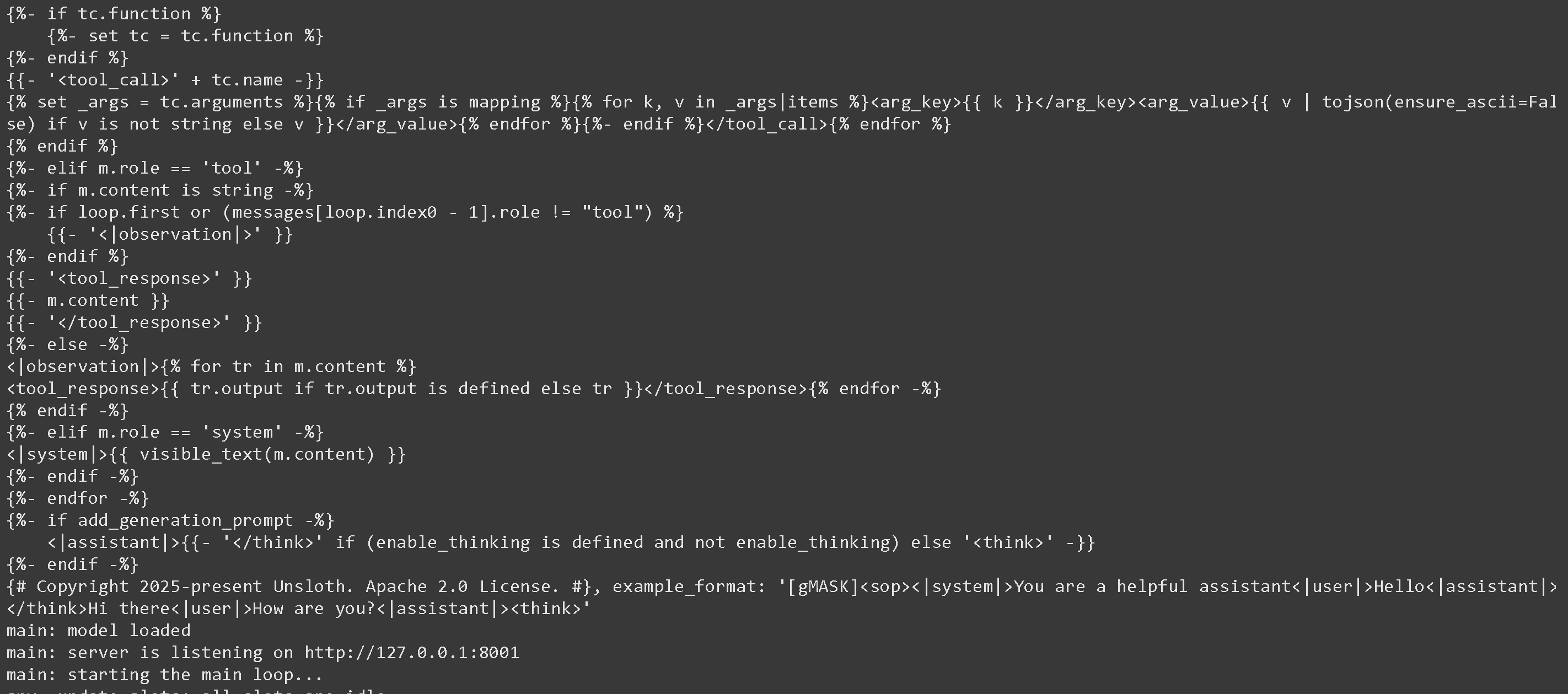
And you will get:
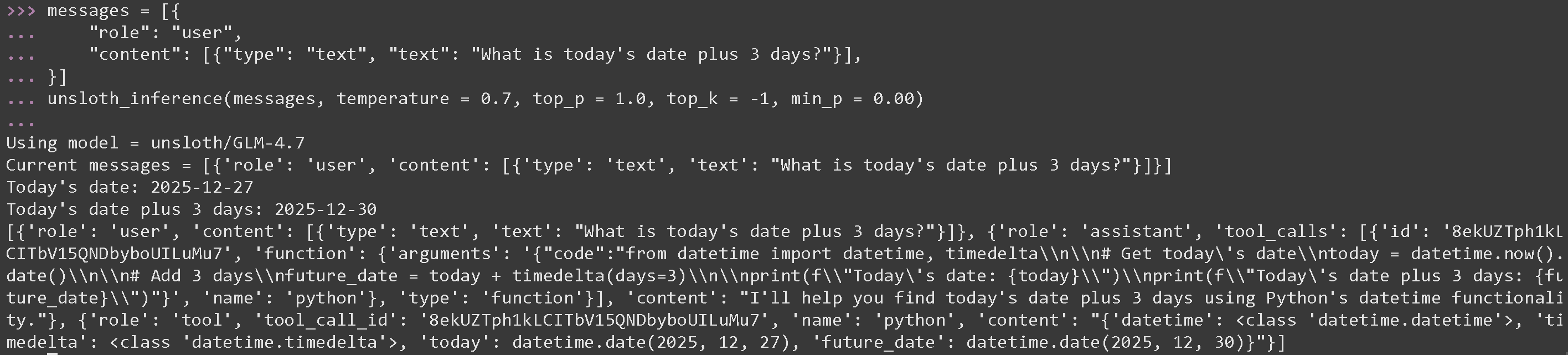
Now in a new terminal and executing Python code, reminder to run [#tool-calling-setup](#tool-calling-setup "mention") We use GLM 4.7's optimal parameters of temperature = 0.7 and top\_p = 1.0
#### Tool Call for mathematical operations for GLM 4.7
{% code overflow="wrap" %}
```python
messages = [{
"role": "user",
"content": [{"type": "text", "text": "What is today's date plus 3 days?"}],
}]
unsloth_inference(messages, temperature = 0.7, top_p = 1.0, top_k = -1, min_p = 0.00)
```
{% endcode %}
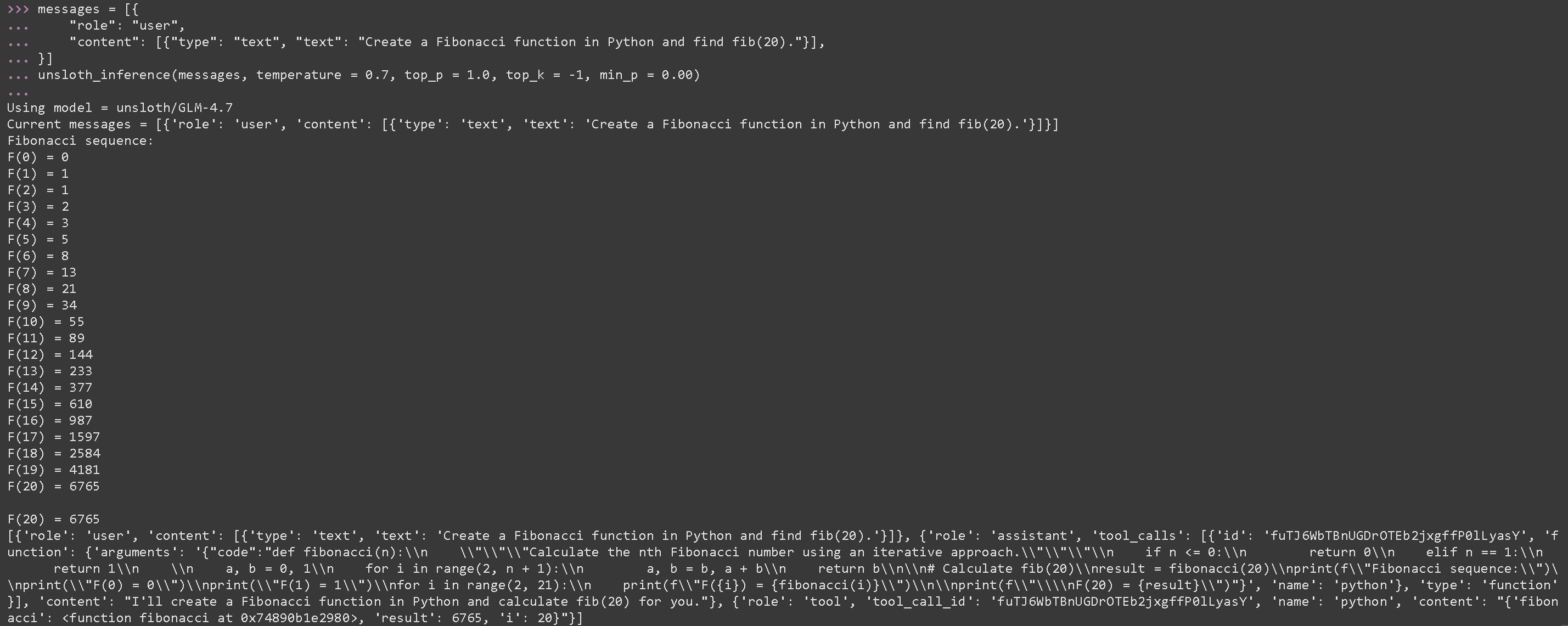
#### Tool Call to execute generated Python code for GLM 4.7
{% code overflow="wrap" %}
```python
messages = [{
"role": "user",
"content": [{"type": "text", "text": "Create a Fibonacci function in Python and find fib(20)."}],
}]
unsloth_inference(messages, temperature = 0.7, top_p = 1.0, top_k = -1, min_p = 0.00)
```
{% endcode %}
{% code expandable="true" %}
```python
import json, subprocess, random
from typing import Any
def add_number(a: float | str, b: float | str) -> float:
return float(a) + float(b)
def multiply_number(a: float | str, b: float | str) -> float:
return float(a) * float(b)
def subtract_number(a: float | str, b: float | str) -> float:
return float(a) - float(b)
def write_a_story() -> str:
return random.choice([
"A long time ago in a galaxy far far away...",
"There were 2 friends who loved sloths and code...",
"The world was ending because every sloth evolved to have superhuman intelligence...",
"Unbeknownst to one friend, the other accidentally coded a program to evolve sloths...",
])
def terminal(command: str) -> str:
if "rm" in command or "sudo" in command or "dd" in command or "chmod" in command:
msg = "Cannot execute 'rm, sudo, dd, chmod' commands since they are dangerous"
print(msg); return msg
print(f"Executing terminal command `{command}`")
try:
return str(subprocess.run(command, capture_output = True, text = True, shell = True, check = True).stdout)
except subprocess.CalledProcessError as e:
return f"Command failed: {e.stderr}"
def python(code: str) -> str:
data = {}
exec(code, data)
del data["__builtins__"]
return str(data)
MAP_FN = {
"add_number": add_number,
"multiply_number": multiply_number,
"subtract_number": subtract_number,
"write_a_story": write_a_story,
"terminal": terminal,
"python": python,
}
tools = [
{
"type": "function",
"function": {
"name": "add_number",
"description": "Add two numbers.",
"parameters": {
"type": "object",
"properties": {
"a": {
"type": "string",
"description": "The first number.",
},
"b": {
"type": "string",
"description": "The second number.",
},
},
"required": ["a", "b"],
},
},
},
{
"type": "function",
"function": {
"name": "multiply_number",
"description": "Multiply two numbers.",
"parameters": {
"type": "object",
"properties": {
"a": {
"type": "string",
"description": "The first number.",
},
"b": {
"type": "string",
"description": "The second number.",
},
},
"required": ["a", "b"],
},
},
},
{
"type": "function",
"function": {
"name": "subtract_number",
"description": "Subtract two numbers.",
"parameters": {
"type": "object",
"properties": {
"a": {
"type": "string",
"description": "The first number.",
},
"b": {
"type": "string",
"description": "The second number.",
},
},
"required": ["a", "b"],
},
},
},
{
"type": "function",
"function": {
"name": "write_a_story",
"description": "Writes a random story.",
"parameters": {
"type": "object",
"properties": {},
"required": [],
},
},
},
{
"type": "function",
"function": {
"name": "terminal",
"description": "Perform operations from the terminal.",
"parameters": {
"type": "object",
"properties": {
"command": {
"type": "string",
"description": "The command you wish to launch, e.g `ls`, `rm`, ...",
},
},
"required": ["command"],
},
},
},
{
"type": "function",
"function": {
"name": "python",
"description": "Call a Python interpreter with some Python code that will be ran.",
"parameters": {
"type": "object",
"properties": {
"code": {
"type": "string",
"description": "The Python code to run",
},
},
"required": ["code"],
},
},
},
]
```
{% endcode %}
### :orange\_book: Devstral 2 Tool Calling
We first download [Devstral 2](/docs/models/tutorials/devstral-2.md) via some Python code, then launch it via llama-server in a separate terminal (like using tmux):
```python
# !pip install huggingface_hub hf_transfer
import os
os.environ["HF_HUB_ENABLE_HF_TRANSFER"] = "1"
from huggingface_hub import snapshot_download
snapshot_download(
repo_id = "unsloth/Devstral-Small-2-24B-Instruct-2512-GGUF",
local_dir = "unsloth/Devstral-Small-2-24B-Instruct-2512-GGUF",
allow_patterns = ["*UD-Q4_K_XL*", "*mmproj-F16*"], # For Q4_K_XL
)
```
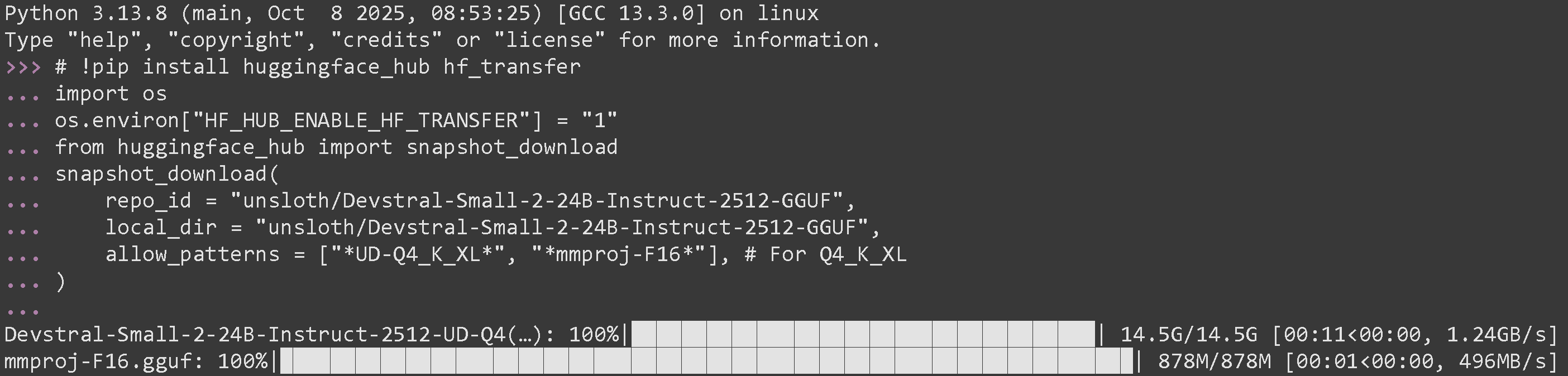
If you ran it successfully, you should see:
Now launch it via llama-server in a new terminal. Use tmux if you want:
{% code overflow="wrap" %}
```bash
./llama.cpp/llama-server \
--model unsloth/Devstral-Small-2-24B-Instruct-2512-GGUF/Devstral-Small-2-24B-Instruct-2512-UD-Q4_K_XL.gguf \
--mmproj unsloth/Devstral-Small-2-24B-Instruct-2512-GGUF/mmproj-F16.gguf \
--alias "unsloth/Devstral-Small-2-24B-Instruct-2512" \
--threads -1 \
--fit on \
--prio 3 \
--min-p 0.01 \
--ctx-size 16384 \
--port 8001 \
--jinja
```
{% endcode %}
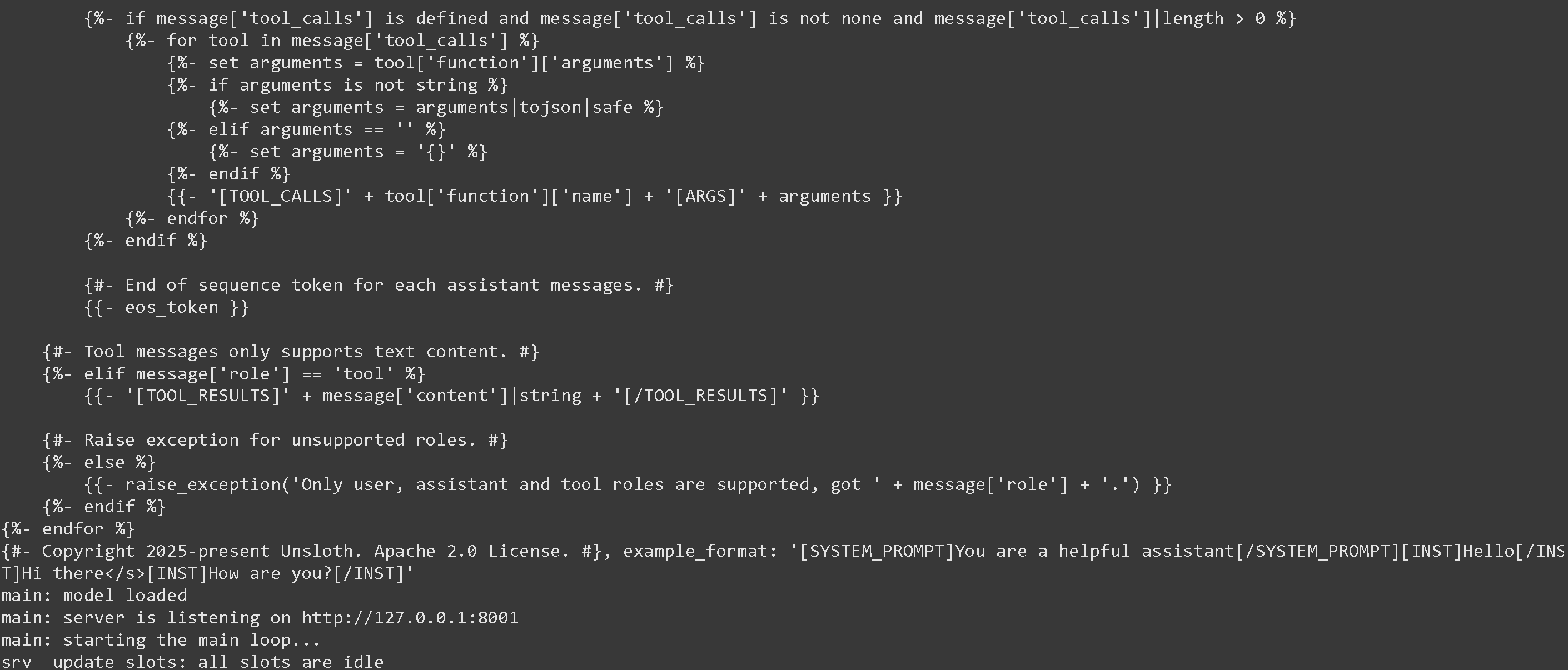
You will see the below if it succeeded:
We then call the model with the following message and with Devstral's suggested parameters of temperature = 0.15 only. Reminder to run [#tool-calling-setup](#tool-calling-setup "mention")
---
# Agent Instructions
This documentation is published with GitBook. GitBook is the documentation platform designed so that both humans and AI agents can read, navigate, and reason over technical content effectively. Learn more at gitbook.com.
## Querying This Documentation
If you need additional information that is not directly available in this page, you can query the documentation by asking a question.
Perform an HTTP GET request on the following URL with the `ask` and `goal` query parameters:
```
GET https://unsloth.ai/docs/basics/tool-calling-guide-for-local-llms.md?ask=&goal=
```
`ask` is the immediate question: it should be specific, self-contained, and written in natural language.
`goal` is what the user is ultimately trying to achieve, the reason they need the answer. Sharing it helps GitBook give you a better, more relevant answer. A goal is most helpful when it describes the outcome the user wants rather than restating the question. For example, with `ask=how do I create an API token`, a goal like `automate deployments from our CI pipeline` lets GitBook tailor the answer to that use case.
The response will contain a direct answer to the question and relevant excerpts and sources from the documentation.
Use this mechanism when the answer is not explicitly present in the current page, you need clarification or additional context, or you want to retrieve related documentation sections.




.png?alt=media&token=689114b7-5b50-41c9-8678-88f8f5da87a7)