> For the complete documentation index, see [llms.txt](https://unsloth.ai/docs/llms.txt). Markdown versions of documentation pages are available by appending `.md` to page URLs; this page is available as [Markdown](https://unsloth.ai/docs/blog/comfyui.md).
# How to Run Diffusion Image GGUFs in ComfyUI
Guide for running Unsloth Diffusion GGUF models in ComfyUI.
ComfyUI is an open-source diffusion model GUI, API, and backend that uses a node-based (graph/flowchart) interface. [ComfyUI](https://github.com/comfyanonymous/ComfyUI) is the most popular way to run workflows for image models like Qwen-Image-Edit or FLUX.
GGUF is of the best and efficient formats for running diffusion models locally, and [Unsloth Dynamic](/docs/basics/dynamic-3.0-ggufs.md) GGUFs uses smart quantization to preserve accuracy even at low-bits.
You'll learn how to install ComfyUI (Windows, Linux, macOS), build workflows, and tune [hyperparameters](#workflow-and-hyperparameters-1) in this step-by-step tutorial.
#### Prerequisites & Requirements
You don’t need a GPU to run diffusion GGUFs, just a CPU with RAM. VRAM isn’t required but will make inference much faster. For best results, ensure your total usable memory (RAM + VRAM / unified) is slightly larger than the GGUF size; for example, the 4-bit (Q4\_K\_M) `unsloth/Qwen-Image-Edit-2511-GGUF` is 13.1 GB, so you should have at least \~13.2 GB of combined memory. You can find all Unsloth diffusion GGUFs in [our Collection](https://huggingface.co/collections/unsloth/unsloth-diffusion-ggufs).
We recommend at least 3-bit quantization for diffusion models, since their layers, especially the vision components, are very sensitive to quantization. Unsloth Dynamic quants upcasts important layers to recover as much accuracy as possible.
## 📖 ComfyUI Tutorial
ComfyUI represents the entire image generation pipeline as a graph of connected nodes. This guide will focus on machines with CUDA, but instructions to build with on Apple or CPU are similar.
### #1. Install & Setup
To install ComfyUI, you can download the desktop app on Windows or Mac devices [here](https://www.comfy.org/download). Otherwise, to setup ComfyUI for running GGUF models run the following:
```bash
mkdir comfy_ggufs
cd comfy_ggufs
python -m venv .venv
source .venv/bin/activate
git clone https://github.com/comfyanonymous/ComfyUI.git
cd ComfyUI
pip install -r requirements.txt
cd custom_nodes
git clone https://github.com/city96/ComfyUI-GGUF
cd ComfyUI-GGUF
pip install -r requirements.txt
cd ../..
```
### #2. Download Models
Diffusion models typically need 3 models. A Variational AutoEncoder (VAE) that encodes image pixel space to latent space, a text encoder to translate text to input embeddings, and the actual diffusion transformer. You can find all Unsloth diffusion GGUFs in our [Collection here](https://huggingface.co/collections/unsloth/unsloth-diffusion-ggufs).
Both the diffusion model and text encoder can be GGUF format while we typically use safetensors for the vae. Let's download the models we will use.
```bash
cd models
curl -L -C - -o vae/flux2-vae.safetensors \
https://huggingface.co/Comfy-Org/flux2-dev/resolve/main/split_files/vae/flux2-vae.safetensors
curl -L -C - -o text_encoders/Mistral-Small-3.2-24B-Instruct-2506-UD-Q4_K_XL.gguf \
https://huggingface.co/unsloth/Mistral-Small-3.2-24B-Instruct-2506-GGUF/resolve/main/Mistral-Small-3.2-24B-Instruct-2506-UD-Q4_K_XL.gguf
curl -L -C - -o text_encoders/Mistral-Small-3.2-24B-Instruct-2506-mmproj-BF16.gguf \
https://huggingface.co/unsloth/Mistral-Small-3.2-24B-Instruct-2506-GGUF/resolve/main/mmproj-BF16.gguf
curl -L -C - -o unet/flux2-dev-Q4_K_M.gguf \
https://huggingface.co/unsloth/FLUX.2-dev-GGUF/resolve/main/flux2-dev-Q4_K_M.gguf
```
See GGUF uploads for: [Qwen-Image-Edit-2511](https://huggingface.co/unsloth/Qwen-Image-Edit-2511-GGUF), [FLUX.2-dev](https://huggingface.co/unsloth/FLUX.2-dev-GGUF) and [Qwen-Image-Layered](https://huggingface.co/unsloth/Qwen-Image-Layered-GGUF)
{% hint style="warning" %}
The format of the vae and diffusion model might be different than the diffusers checkpoints. Only use checkpoints that are compatible with ComfyUI.
{% endhint %}
These files must be in the correct folders for ComfyUI to see them. In addition the vision tower in the mmproj file must use the same prefix as the text encoder.
Download reference images to be used later as well.
```bash
curl -L -C - -o ../input/sloth1.jpg \
https://unsloth.ai/cgi/image/_1d5a5685-2d88-44ca-b50f-ba432cd646ef_9CGCY8lvw4D9JkOdueqsk.jpeg?width=1920&quality=80&format=auto
curl -L -C - -o ../input/sloth2.jpg \
https://unsloth.ai/cgi/image/UnSloth_GPU_Front_-_Confetti_ArcSk-MR4MMN215UutOFZ.png?width=1920&quality=80&format=auto
```
#### Workflow and Hyperparameters
You can also view our detailed [#workflow-and-hyperparameters-1](#workflow-and-hyperparameters-1 "mention") Guide.
Navigate to the ComfyUI directory and run:
```bash
python main.py
```
This will launch a web server that allows you to access `https://127.0.0.1:8188` . If you are running this on the cloud, you'll need to make sure port forwarding is setup to access on your local machine.
Workflows are saved as JSON files embedded in output images (PNG metadata) or as separate `.json` files. You can:
* Drag & drop an image into ComfyUI to load its workflow
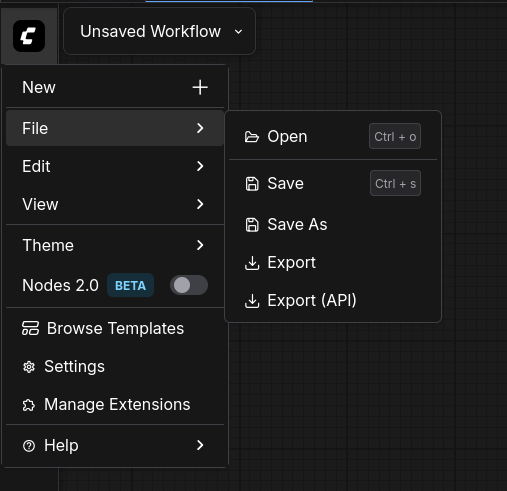
* Export/import workflows via the menu
* Share workflows as JSON files
Below are two examples of FLUX 2 json files which you can download and use:
{% file src="/files/6gEFgW7sGDbe2TGervx8" %}
{% file src="/files/X4IAl3G2vI5WzDbUtaSZ" %}
{% columns %}
{% column %}
Instead of setting up the workflow from scratch you can download the workflow here.
Load it into the browser page by clicking the Comfy Logo -> File -> Open -> Then choose the `unsloth_flux2_t2i_gguf.json` file you just downloaded. It should look like the below:
{% endcolumn %}
{% column %}
{% endcolumn %}
{% endcolumns %}
This workflow is based on the official ComfyUI published workflow except it uses the GGUF loader extension, and is simplified to illustrate text to image functionality.
### #3. Inference
ComfyUI is highly customizable. You can mix models and create extremely complex pipelines. For a basic text to image setup we need to load the model, specify prompt and image details, and decide on a sampling strategy.
**Upload Models + Set Prompt**
We already downloaded the models, so we just need to pick the correct ones. For Unet Loader pick `flux2-dev-Q4_K_M.gguf`, for CLIPLoader pick `Mistral-Small-3.2-24B-Instruct-2506-UD-Q4_K_XL.gguf`, and for Load VAE pick `flux2-vae.safetensors`.
You can set any prompt you'd like. Since classifier free guidance is baked into the model we do not need to specify a negative prompt.
**Image Size + Sampler Parameters**
Flux2-dev supports different image sizes. You can make rectangular shapes by setting the values of width and height. For sampler parameters, you can experiment with different samplers other than euler, and more or less sampling steps. Change the RandomNoise setting from randomize to fixed if you want to see how different settings change outputs.
**Run**
Click Run and an image will be generated in 45-60 seconds. That output image can be saved. The interesting part is that the metadata for the entire comfy workflow is saved in the image. You can share and anyone can see how it was created by loading it in the UI.
**Multi Reference Generation**
A key feature of Flux2 is multi reference generation where you can supply multiple images to use to help control generation. This time load the `unsloth_flux2_i2i_gguf.json`. We will use the same models, the only difference this time are extra nodes to select images to reference, which we've downloaded earlier. You'll notice the prompt refers to both `image 1` and `image 2` which are prompt anchors for the images. Once loaded click Run, and you'll see an output that creates our two unique sloth characters together while preserving their likeness.
## 🎯 Workflow and Hyperparameters
For text to image workflows we need to specify a prompt, sampling parameters, image size, guidance scale, and any optimization configs.
#### **Sampling**
Sampling works differently from LLM's. Instead of sampling one token at a time we sample the whole image over multiple steps. Each step progressively "denoises" the image, which means that when you run for more steps, the image tends to be higher quality. There are also different sampling algorithms which range from first order and second order algorithms to deterministic and stochastic algorithms. For this tutorial we will use euler which a standard sampler that balances quality and speed.
#### **Guidance**
Guidance is another important hyperparameter for diffusion models. There are many flavors of guidance but the two most widely used forms are **classifier free guidance (CFG)** and guidance distillation. The concept of classifier free guidance stems from [Classifier-Free Diffusion Guidance](https://arxiv.org/abs/2207.12598). Historically you needed a separate classifier model to guide the model to match the input condition, but this paper actually shows CFG uses the difference between the model’s conditional and unconditional predictions to form a guidance direction.
In practice it's not an unconditional prediction but a negative prompt prediction, meaning it's a prompt we definitely don't want and we should steer away from. When using CFG you do not need a separate model, but you need a second inference step from the unconditional or negative prompt. Other models have CFG baked in during training, but you can still set the strength of the guidance. This is separate from CFG since it does not need a second inference step, but it's still a tunable hyperparameter to set how strong its effect is.
#### **Conclusion**
Putting it all together, you set a prompt to tell the model what to produce, the text encoder encodes the text, the VAE encodes the image, both embeddings are stepped through the diffusion model according to the sampling parameters + guidance, and finally the output is decoded by the VAE which results in a usable image.
### Key Concepts & Glossary
* **Latent**: Compressed image representation (what the model operates on).
* **Conditioning**: Text/image information that guides generation.
* **Diffusion Model / UNet**: Neural network that performs the denoising.
* **VAE**: Encoder/decoder between pixel space and latent space.
* **CLIP (text encoder)**: Converts a prompt into embeddings.
* **Sampler**: Algorithm that iteratively denoises the latent.
* **Scheduler**: Controls the noise schedule across steps.
* **Nodes**: Operations (load model, encode text, sample, decode, etc.).
* **Edges**: Data flowing between nodes.
---
# Agent Instructions
This documentation is published with GitBook. GitBook is the documentation platform designed so that both humans and AI agents can read, navigate, and reason over technical content effectively. Learn more at gitbook.com.
## Querying This Documentation
If you need additional information that is not directly available in this page, you can query the documentation by asking a question.
Perform an HTTP GET request on the following URL with the `ask` and `goal` query parameters:
```
GET https://unsloth.ai/docs/blog/comfyui.md?ask=&goal=
```
`ask` is the immediate question: it should be specific, self-contained, and written in natural language.
`goal` is what the user is ultimately trying to achieve, the reason they need the answer. Sharing it helps GitBook give you a better, more relevant answer. A goal is most helpful when it describes the outcome the user wants rather than restating the question. For example, with `ask=how do I create an API token`, a goal like `automate deployments from our CI pipeline` lets GitBook tailor the answer to that use case.
The response will contain a direct answer to the question and relevant excerpts and sources from the documentation.
Use this mechanism when the answer is not explicitly present in the current page, you need clarification or additional context, or you want to retrieve related documentation sections.