> For the complete documentation index, see [llms.txt](https://unsloth.ai/docs/llms.txt). Markdown versions of documentation pages are available by appending `.md` to page URLs; this page is available as [Markdown](https://unsloth.ai/docs/zh/mo-xing/tutorials/glm-4.7-flash.md).
# GLM-4.7-Flash:如何本地运行
在你的设备上本地运行并微调 GLM-4.7-Flash!
GLM-4.7-Flash 是 Z.ai 全新的 30B MoE 推理模型,专为本地部署打造,在编码、智能体工作流和聊天方面提供同类最佳性能。它使用约 3.6B 参数,支持 200K 上下文,并在 SWE-Bench、GPQA 以及推理/聊天基准测试中领先。
GLM-4.7-Flash 运行于 **24GB RAM**/VRAM/统一内存(完整精度需要 32GB),而且现在你可以使用 Unsloth 进行微调。要通过 vLLM 运行 GLM 4.7 Flash,请参见 [#glm-4.7-flash-in-vllm](#glm-4.7-flash-in-vllm "mention")
{% hint style="success" %}
1 月 21 日更新: `llama.cpp` 修复了一个指定错误的 bug `scoring_func`: `"softmax"` (应为 `"sigmoid"`)。这导致了循环和较差的输出。我们已更新 GGUF 文件——请重新下载模型以获得好得多的输出。
你现在可以使用 Z.ai 推荐的参数并获得很棒的结果:
* **对于通用场景:** `--temp 1.0 --top-p 0.95`
* **对于工具调用:** `--temp 0.7 --top-p 1.0`
* **重复惩罚:** 禁用它,或者设置 `--repeat-penalty 1.0`
1 月 22 日:随着 CUDA 的 FA 修复现已合并,更快的推理已经到来。
{% endhint %}
运行教程微调
运行 GLM-4.7-Flash GGUF: [unsloth/GLM-4.7-Flash-GGUF](https://huggingface.co/unsloth/GLM-4.7-Flash-GGUF)
### ⚙️ 使用指南
为了获得最佳性能,请确保你的可用总内存(VRAM + 系统内存)大于你正在下载的量化模型文件大小。如果不足,llama.cpp 仍可通过 SSD/HDD 卸载运行,但推理会更慢。
在与 Z.ai 团队沟通后,他们建议使用其 GLM-4.7 采样参数:
| 默认设置(大多数任务) | Terminal Bench、SWE Bench Verified |
| ------------------------------------------------------------------ | ------------------------------------------------------------------ |
| **temperature = 1.0** | **temperature = 0.7** |
| **top\_p = 0.95** | **top\_p = 1.0** |
| 重复惩罚 = 已禁用或 1.0 | 重复惩罚 = 已禁用或 1.0 |
* 对于通用场景: `--temp 1.0 --top-p 0.95`
* 对于工具调用: `--temp 0.7 --top-p 1.0`
* 如果使用 llama.cpp,请设置 `--min-p 0.01` 因为 llama.cpp 的默认值是 0.05
* 有时你需要试验哪些数值最适合你的用例。
{% hint style="warning" %}
目前,我们 **不建议** 使用 **Ollama** 来运行这个 GGUF,因为可能存在聊天模板兼容性问题。该 GGUF 在 llama.cpp(或诸如 LM Studio、Jan 等后端)上运行良好。
**记得禁用重复惩罚!或者设置** `--repeat-penalty 1.0`
{% endhint %}
* **最大上下文窗口:** `202,752`
### 🖥️ 运行 GLM-4.7-Flash
根据你的使用场景,你需要使用不同的设置。有些 GGUF 的大小会很接近,因为模型架构(例如 [gpt-oss](/docs/zh/mo-xing/gpt-oss-how-to-run-and-fine-tune.md))的维度不能被 128 整除,因此部分内容无法量化到更低位。
因为本指南使用 4-bit,你将需要大约 18GB RAM/统一内存。为了获得最佳性能,我们建议至少使用 4-bit 精度。
{% hint style="warning" %}
目前,我们 **不建议** 使用 **Ollama** 来运行这个 GGUF,因为可能存在聊天模板兼容性问题。该 GGUF 在 llama.cpp(或诸如 LM Studio、Jan 等后端)上运行良好。
**记得禁用重复惩罚!或者设置** `--repeat-penalty 1.0`
{% endhint %}
#### 🦥 Unsloth Studio 指南
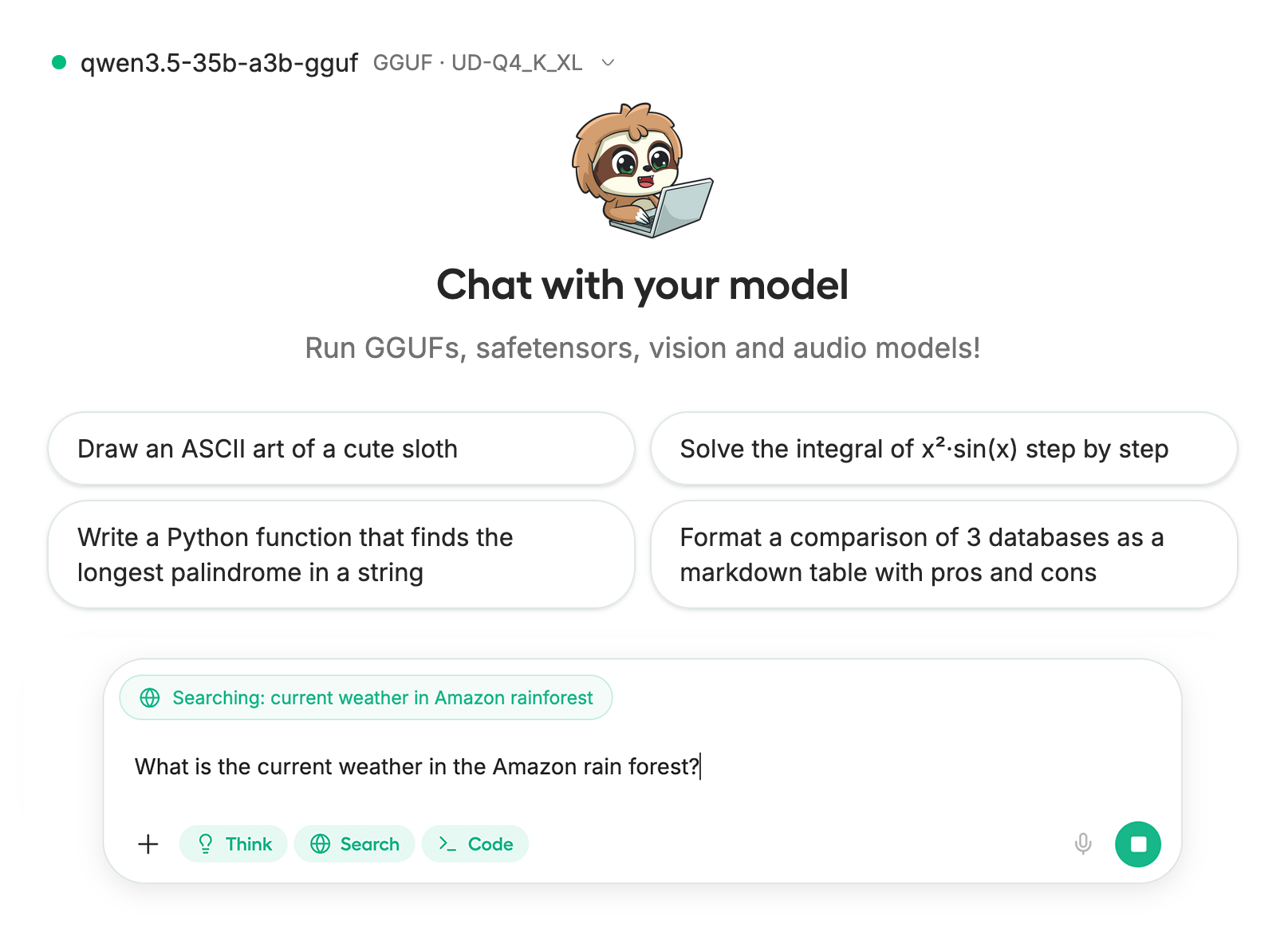
GLM-4.7-Flash 可以在 [Unsloth Studio](/docs/zh/xin/studio.md),这是我们新的本地 AI 开源 Web UI。借助 Unsloth Studio,你可以在以下平台本地运行模型 **MacOS、Windows**、Linux 以及:
{% columns %}
{% column %}
* 搜索、下载、 [运行 GGUF](/docs/zh/xin/studio.md#run-models-locally) 和 safetensor 模型
* [**自修复** 工具调用](/docs/zh/xin/studio.md#execute-code--heal-tool-calling) + **网页搜索**
* [**代码执行**](/docs/zh/xin/studio.md#run-models-locally) (Python、Bash)
* [自动推理](https://unsloth.ai/docs/desktop#feature-deep-dive) 参数调优(温度、top-p 等)
* 通过 llama.cpp 实现快速 CPU + GPU 推理
* [训练 LLM](/docs/zh/xin/studio.md#no-code-training) 速度快 2 倍,VRAM 占用减少 70%
{% endcolumn %}
{% column %}
{% endcolumn %}
{% endcolumns %}
{% stepper %}
{% step %}
**安装 Unsloth**
在你的终端中运行:
MacOS、Linux、WSL:
```bash
curl -fsSL https://unsloth.ai/install.sh | sh
```
Windows PowerShell:
```bash
irm https://unsloth.ai/install.ps1 | iex
```
{% hint style="success" %}
**安装会很快,约需 1-2 分钟。**
{% endhint %}
{% endstep %}
{% step %}
**启动 Unsloth**
MacOS、Linux、WSL 和 Windows:
```bash
unsloth studio -H 0.0.0.0 -p 8888
```
然后打开 `http://localhost:8888` 在你的浏览器中。
{% endstep %}
{% step %}
**搜索并下载 GLM-4.7-Flash**
首次启动时,你需要创建一个密码来保护你的账户,并在之后重新登录。然后你会看到一个简短的引导向导,用于选择模型、数据集和基本设置。你可以随时跳过。
然后前往 [Unsloth Chat](/docs/zh/xin/studio/chat.md) 标签页并搜索 **GLM-4.7-Flash** 在搜索栏中输入,并下载你想要的模型和量化版本。
{% endstep %}
{% step %}
**运行 GLM-4.7-Flash**
在使用 Unsloth Studio 时,推理参数应自动设置,不过你仍然可以手动更改。你也可以编辑上下文长度、聊天模板和其他设置。
更多信息请查看我们的 [Unsloth Studio 推理指南](/docs/zh/xin/studio/chat.md).
{% endstep %}
{% endstepper %}
#### Llama.cpp 教程(GGUF):
在 llama.cpp 中运行的说明(注意:为了适配大多数设备,我们将使用 4-bit):
{% stepper %}
{% step %}
获取最新的 `llama.cpp` 在 [GitHub 上获取](https://github.com/ggml-org/llama.cpp)。你也可以按照下面的构建说明进行操作。将 `-DGGML_CUDA=ON` 改为 `-DGGML_CUDA=OFF` 如果你没有 GPU,或者只想使用 CPU 推理。 **对于 Apple Mac / Metal 设备**,设置 `-DGGML_CUDA=OFF` 然后按常规继续——Metal 支持默认开启。
{% code overflow="wrap" %}
```bash
apt-get update
apt-get install pciutils build-essential cmake curl libcurl4-openssl-dev -y
git clone https://github.com/ggml-org/llama.cpp
cmake llama.cpp -B llama.cpp/build \\
-DBUILD_SHARED_LIBS=OFF -DGGML_CUDA=ON
cmake --build llama.cpp/build --config Release -j --clean-first --target llama-cli llama-mtmd-cli llama-server llama-gguf-split
cp llama.cpp/build/bin/llama-* llama.cpp
```
{% endcode %}
{% endstep %}
{% step %}
你可以直接从 Hugging Face 拉取。随着你的 RAM/VRAM 允许,还可以将上下文增加到 200K。
你也可以尝试 Z.ai 推荐的 GLM-4.7 采样参数:
* 对于通用场景: `--temp 1.0 --top-p 0.95`
* 对于工具调用: `--temp 0.7 --top-p 1.0`
* **记得禁用重复惩罚!**
按照以下内容进行 **通用指令** 场景:
```bash
./llama.cpp/llama-cli \\
-hf unsloth/GLM-4.7-Flash-GGUF:UD-Q4_K_XL \
--ctx-size 16384 \
--temp 1.0 --top-p 0.95 --min-p 0.01
```
按照以下内容进行 **工具调用** 场景:
```bash
./llama.cpp/llama-cli \\
-hf unsloth/GLM-4.7-Flash-GGUF:UD-Q4_K_XL \
--ctx-size 16384 \
--temp 0.7 --top-p 1.0 --min-p 0.01
```
{% endstep %}
{% step %}
通过以下方式下载模型(在安装 `pip install huggingface_hub`之后)。你可以选择 `UD-Q4_K_XL` 或其他量化版本。如果下载卡住,请参见 [Hugging Face Hub、XET 调试](/docs/zh/ji-chu-zhi-shi/troubleshooting-and-faqs/hugging-face-hub-xet-debugging.md)
{% code overflow="wrap" %}
```bash
pip install -U huggingface_hub
hf download unsloth/GLM-4.7-Flash-GGUF \
--local-dir unsloth/GLM-4.7-Flash-GGUF \
--include "*UD-Q2_K_XL*"
```
{% endcode %}
{% endstep %}
{% step %}
然后在对话模式下运行模型:
{% code overflow="wrap" %}
```bash
./llama.cpp/llama-cli \\
--model unsloth/GLM-4.7-Flash-GGUF/GLM-4.7-Flash-UD-Q4_K_XL.gguf \
--ctx-size 16384 \
--seed 3407 \
--temp 1.0 \\
--top-p 0.95 \\
--min-p 0.01
```
{% endcode %}
另外,还要调整 **上下文窗口** 按需,最高可达 `202752`
{% endstep %}
{% endstepper %}
### :loop:减少重复和循环
{% hint style="success" %}
**1 月 21 日更新:llama.cpp 修复了一个指定错误的 bug** `"scoring_func": "softmax"` **导致了循环和较差的输出(应为 sigmoid)我们已更新 GGUF 文件。请重新下载模型以获得好得多的输出。**
{% endhint %}
这意味着你现在可以使用 Z.ai 推荐的参数并获得很棒的结果:
* 对于通用场景: `--temp 1.0 --top-p 0.95`
* 对于工具调用: `--temp 0.7 --top-p 1.0`
* 如果使用 llama.cpp,请设置 `--min-p 0.01` 因为 llama.cpp 的默认值是 0.05
* **记得禁用重复惩罚!或者设置** `--repeat-penalty 1.0`
我们添加了 `"scoring_func": "sigmoid"` 改为 `config.json` 用于主模型 - [参见](https://huggingface.co/unsloth/GLM-4.7-Flash/commit/3fd53b491e04f707f307aef2f70f8a7520511e6d).
{% hint style="warning" %}
目前,我们 **不建议** 使用 **Ollama** 来运行这个 GGUF,因为可能存在聊天模板兼容性问题。该 GGUF 在 llama.cpp(或诸如 LM Studio、Jan 等后端)上运行良好。
{% endhint %}
### :bird:使用 UD-Q4\_K\_XL 的 Flappy Bird 示例
作为示例,我们通过以下方式使用 UD-Q4\_K\_XL 完成了如下长对话: `./llama.cpp/llama-cli --model unsloth/GLM-4.7-Flash-GGUF/GLM-4.7-Flash-UD-Q4_K_XL.gguf --fit on --temp 1.0 --top-p 0.95 --min-p 0.01` :
```
你好
2+2 等于多少
创建一个 Python Flappy Bird 游戏
用 Rust 创建一个完全不同的游戏
找出两者中的 bug
把我提到的第一个游戏做成一个独立的 HTML 文件
找出 bug 并展示修复后的游戏
```
从而渲染出了以下 HTML 形式的 Flappy Bird 游戏:
HTML 中的 Flappy Bird 游戏(可展开)
```html
修复后的 Flappy Bird
```
而且我们还截了几张图(4bit 可用):


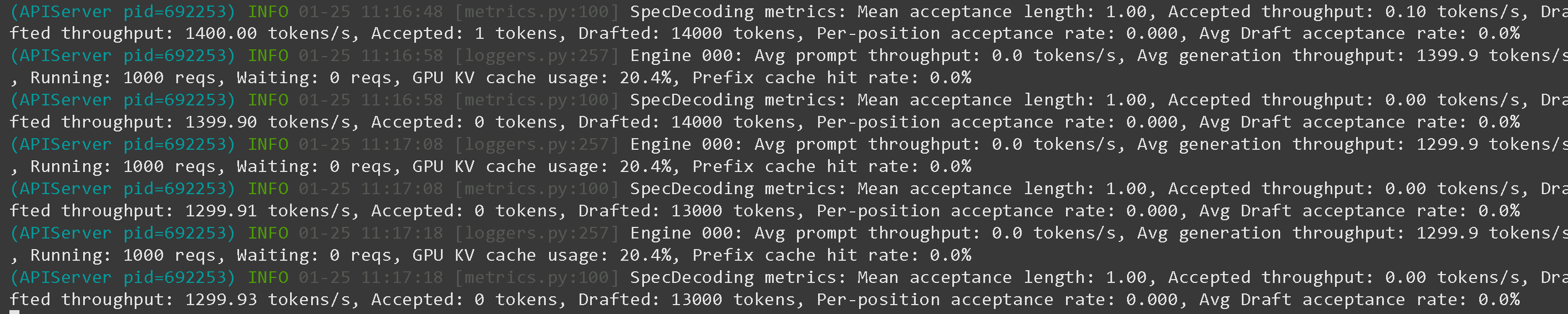 而在 1xB200 上吞吐量为 13,000 tokens/s(每个用户解码仍为 130 token/s)
 ### :hammer:使用 GLM-4.7-Flash 进行工具调用
请看 [Tool Calling Guide](/docs/zh/ji-chu-zhi-shi/tool-calling-guide-for-local-llms.md) 有关如何进行工具调用的更多细节。在一个新的终端中(如果使用 tmux,请按 CTRL+B+D),我们创建一些工具,比如两个数相加、执行 Python 代码、执行 Linux 函数等等:
{% code expandable="true" %}
```python
import json, subprocess, random
from typing import Any
def add_number(a: float | str, b: float | str) -> float:
return float(a) + float(b)
def multiply_number(a: float | str, b: float | str) -> float:
return float(a) * float(b)
def subtract_number(a: float | str, b: float | str) -> float:
return float(a) - float(b)
def write_a_story() -> str:
return random.choice([
"很久很久以前,在一个遥远遥远的星系……",
"有两个朋友喜欢树懒和代码……",
"世界正在毁灭,因为每只树懒都进化出了超人的智慧……",
"其中一位朋友并不知道,另一位朋友不小心编写了一个让树懒进化的程序……",
])
def terminal(command: str) -> str:
if "rm" in command or "sudo" in command or "dd" in command or "chmod" in command:
msg = "由于这些命令很危险,无法执行 'rm, sudo, dd, chmod' 命令"
print(msg); return msg
print(f"正在执行终端命令 `{command}`")
try:
return str(subprocess.run(command, capture_output = True, text = True, shell = True, check = True).stdout)
except subprocess.CalledProcessError as e:
return f"命令失败:{e.stderr}"
def python(code: str) -> str:
data = {}
exec(code, data)
del data["__builtins__"]
return str(data)
MAP_FN = {
"add_number": add_number,
"multiply_number": multiply_number,
"subtract_number": subtract_number,
"write_a_story": write_a_story,
"terminal": terminal,
"python": python,
}
tools = [
{
"type": "function",
"function": {
"name": "add_number",
"description": "将两个数字相加。",
"parameters": {
"type": "object",
"properties": {
"a": {
"type": "string",
"description": "第一个数字。",
},
"b": {
"type": "string",
"description": "第二个数字。",
},
},
"required": ["a", "b"],
},
},
},
{
"type": "function",
"function": {
"name": "multiply_number",
"description": "将两个数字相乘。",
"parameters": {
"type": "object",
"properties": {
"a": {
"type": "string",
"description": "第一个数字。",
},
"b": {
"type": "string",
"description": "第二个数字。",
},
},
"required": ["a", "b"],
},
},
},
{
"type": "function",
"function": {
"name": "subtract_number",
"description": "将两个数字相减。",
"parameters": {
"type": "object",
"properties": {
"a": {
"type": "string",
"description": "第一个数字。",
},
"b": {
"type": "string",
"description": "第二个数字。",
},
},
"required": ["a", "b"],
},
},
},
{
"type": "function",
"function": {
"name": "write_a_story",
"description": "编写一个随机故事。",
"parameters": {
"type": "object",
"properties": {},
"required": [],
},
},
},
{
"type": "function",
"function": {
"name": "terminal",
"description": "执行终端操作。",
"parameters": {
"type": "object",
"properties": {
"command": {
"type": "string",
"description": "你想要执行的命令,例如 `ls`、`rm`,...",
},
},
"required": ["command"],
},
},
},
{
"type": "function",
"function": {
"name": "python",
"description": "使用一些将要运行的 Python 代码调用 Python 解释器。",
"parameters": {
"type": "object",
"properties": {
"code": {
"type": "string",
"description": "要运行的 Python 代码",
},
},
"required": ["code"],
},
},
},
]
```
{% endcode %}
然后我们使用下面这些函数(复制、粘贴并执行),它们会自动解析函数调用,并针对任何模型调用 OpenAI 端点:
{% code overflow="wrap" expandable="true" %}
```python
from openai import OpenAI
def unsloth_inference(
messages,
temperature = 0.7,
top_p = 1.0,
top_k = -1,
repetition_penalty = 0.0,
):
messages = messages.copy()
openai_client = OpenAI(
base_url = "http://127.0.0.1:8001/v1",
api_key = "sk-no-key-required",
)
model_name = next(iter(openai_client.models.list())).id
print(f"正在使用模型 = {model_name}")
has_tool_calls = True
original_messages_len = len(messages)
while has_tool_calls:
print(f"Current messages = {messages}")
response = openai_client.chat.completions.create(
model = model_name,
messages = messages,
temperature = temperature,
top_p = top_p,
tools = tools if tools else None,
tool_choice = "auto" if tools else None,
extra_body = {"top_k": top_k, "min_p": min_p, "dry_multiplier" :repetition_penalty,}
)
tool_calls = response.choices[0].message.tool_calls or []
content = response.choices[0].message.content or ""
tool_calls_dict = [tc.to_dict() for tc in tool_calls] if tool_calls else tool_calls
messages.append({"role": "assistant", "tool_calls": tool_calls_dict, "content": content,})
for tool_call in tool_calls:
fx, args, _id = tool_call.function.name, tool_call.function.arguments, tool_call.id
out = MAP_FN[fx](**json.loads(args))
messages.append({"role": "tool", "tool_call_id": _id, "name": fx, "content": str(out),})
else:
has_tool_calls = False
return messages
```
{% endcode %}
通过以下方式启动 GLM-4.7-Flash 之后 `llama-server` 就像在 [#deploy-with-llama-server-and-openais-completion-library](#deploy-with-llama-server-and-openais-completion-library "mention") 或参见 [Tool Calling Guide](/docs/zh/ji-chu-zhi-shi/tool-calling-guide-for-local-llms.md) 以了解更多细节,然后我们就可以进行一些工具调用:
**GLM 4.7 的数学运算工具调用**
{% code overflow="wrap" %}
```python
messages = [{
"role": "user",
"content": [{"type": "text", "text": "今天的日期加 3 天是多少?"}],
}]
unsloth_inference(messages, temperature = 1.0, top_p = 0.95, top_k = -1, min_p = 0.01)
```
{% endcode %}
### :hammer:使用 GLM-4.7-Flash 进行工具调用
请看 [Tool Calling Guide](/docs/zh/ji-chu-zhi-shi/tool-calling-guide-for-local-llms.md) 有关如何进行工具调用的更多细节。在一个新的终端中(如果使用 tmux,请按 CTRL+B+D),我们创建一些工具,比如两个数相加、执行 Python 代码、执行 Linux 函数等等:
{% code expandable="true" %}
```python
import json, subprocess, random
from typing import Any
def add_number(a: float | str, b: float | str) -> float:
return float(a) + float(b)
def multiply_number(a: float | str, b: float | str) -> float:
return float(a) * float(b)
def subtract_number(a: float | str, b: float | str) -> float:
return float(a) - float(b)
def write_a_story() -> str:
return random.choice([
"很久很久以前,在一个遥远遥远的星系……",
"有两个朋友喜欢树懒和代码……",
"世界正在毁灭,因为每只树懒都进化出了超人的智慧……",
"其中一位朋友并不知道,另一位朋友不小心编写了一个让树懒进化的程序……",
])
def terminal(command: str) -> str:
if "rm" in command or "sudo" in command or "dd" in command or "chmod" in command:
msg = "由于这些命令很危险,无法执行 'rm, sudo, dd, chmod' 命令"
print(msg); return msg
print(f"正在执行终端命令 `{command}`")
try:
return str(subprocess.run(command, capture_output = True, text = True, shell = True, check = True).stdout)
except subprocess.CalledProcessError as e:
return f"命令失败:{e.stderr}"
def python(code: str) -> str:
data = {}
exec(code, data)
del data["__builtins__"]
return str(data)
MAP_FN = {
"add_number": add_number,
"multiply_number": multiply_number,
"subtract_number": subtract_number,
"write_a_story": write_a_story,
"terminal": terminal,
"python": python,
}
tools = [
{
"type": "function",
"function": {
"name": "add_number",
"description": "将两个数字相加。",
"parameters": {
"type": "object",
"properties": {
"a": {
"type": "string",
"description": "第一个数字。",
},
"b": {
"type": "string",
"description": "第二个数字。",
},
},
"required": ["a", "b"],
},
},
},
{
"type": "function",
"function": {
"name": "multiply_number",
"description": "将两个数字相乘。",
"parameters": {
"type": "object",
"properties": {
"a": {
"type": "string",
"description": "第一个数字。",
},
"b": {
"type": "string",
"description": "第二个数字。",
},
},
"required": ["a", "b"],
},
},
},
{
"type": "function",
"function": {
"name": "subtract_number",
"description": "将两个数字相减。",
"parameters": {
"type": "object",
"properties": {
"a": {
"type": "string",
"description": "第一个数字。",
},
"b": {
"type": "string",
"description": "第二个数字。",
},
},
"required": ["a", "b"],
},
},
},
{
"type": "function",
"function": {
"name": "write_a_story",
"description": "编写一个随机故事。",
"parameters": {
"type": "object",
"properties": {},
"required": [],
},
},
},
{
"type": "function",
"function": {
"name": "terminal",
"description": "执行终端操作。",
"parameters": {
"type": "object",
"properties": {
"command": {
"type": "string",
"description": "你想要执行的命令,例如 `ls`、`rm`,...",
},
},
"required": ["command"],
},
},
},
{
"type": "function",
"function": {
"name": "python",
"description": "使用一些将要运行的 Python 代码调用 Python 解释器。",
"parameters": {
"type": "object",
"properties": {
"code": {
"type": "string",
"description": "要运行的 Python 代码",
},
},
"required": ["code"],
},
},
},
]
```
{% endcode %}
然后我们使用下面这些函数(复制、粘贴并执行),它们会自动解析函数调用,并针对任何模型调用 OpenAI 端点:
{% code overflow="wrap" expandable="true" %}
```python
from openai import OpenAI
def unsloth_inference(
messages,
temperature = 0.7,
top_p = 1.0,
top_k = -1,
repetition_penalty = 0.0,
):
messages = messages.copy()
openai_client = OpenAI(
base_url = "http://127.0.0.1:8001/v1",
api_key = "sk-no-key-required",
)
model_name = next(iter(openai_client.models.list())).id
print(f"正在使用模型 = {model_name}")
has_tool_calls = True
original_messages_len = len(messages)
while has_tool_calls:
print(f"Current messages = {messages}")
response = openai_client.chat.completions.create(
model = model_name,
messages = messages,
temperature = temperature,
top_p = top_p,
tools = tools if tools else None,
tool_choice = "auto" if tools else None,
extra_body = {"top_k": top_k, "min_p": min_p, "dry_multiplier" :repetition_penalty,}
)
tool_calls = response.choices[0].message.tool_calls or []
content = response.choices[0].message.content or ""
tool_calls_dict = [tc.to_dict() for tc in tool_calls] if tool_calls else tool_calls
messages.append({"role": "assistant", "tool_calls": tool_calls_dict, "content": content,})
for tool_call in tool_calls:
fx, args, _id = tool_call.function.name, tool_call.function.arguments, tool_call.id
out = MAP_FN[fx](**json.loads(args))
messages.append({"role": "tool", "tool_call_id": _id, "name": fx, "content": str(out),})
else:
has_tool_calls = False
return messages
```
{% endcode %}
通过以下方式启动 GLM-4.7-Flash 之后 `llama-server` 就像在 [#deploy-with-llama-server-and-openais-completion-library](#deploy-with-llama-server-and-openais-completion-library "mention") 或参见 [Tool Calling Guide](/docs/zh/ji-chu-zhi-shi/tool-calling-guide-for-local-llms.md) 以了解更多细节,然后我们就可以进行一些工具调用:
**GLM 4.7 的数学运算工具调用**
{% code overflow="wrap" %}
```python
messages = [{
"role": "user",
"content": [{"type": "text", "text": "今天的日期加 3 天是多少?"}],
}]
unsloth_inference(messages, temperature = 1.0, top_p = 0.95, top_k = -1, min_p = 0.01)
```
{% endcode %}
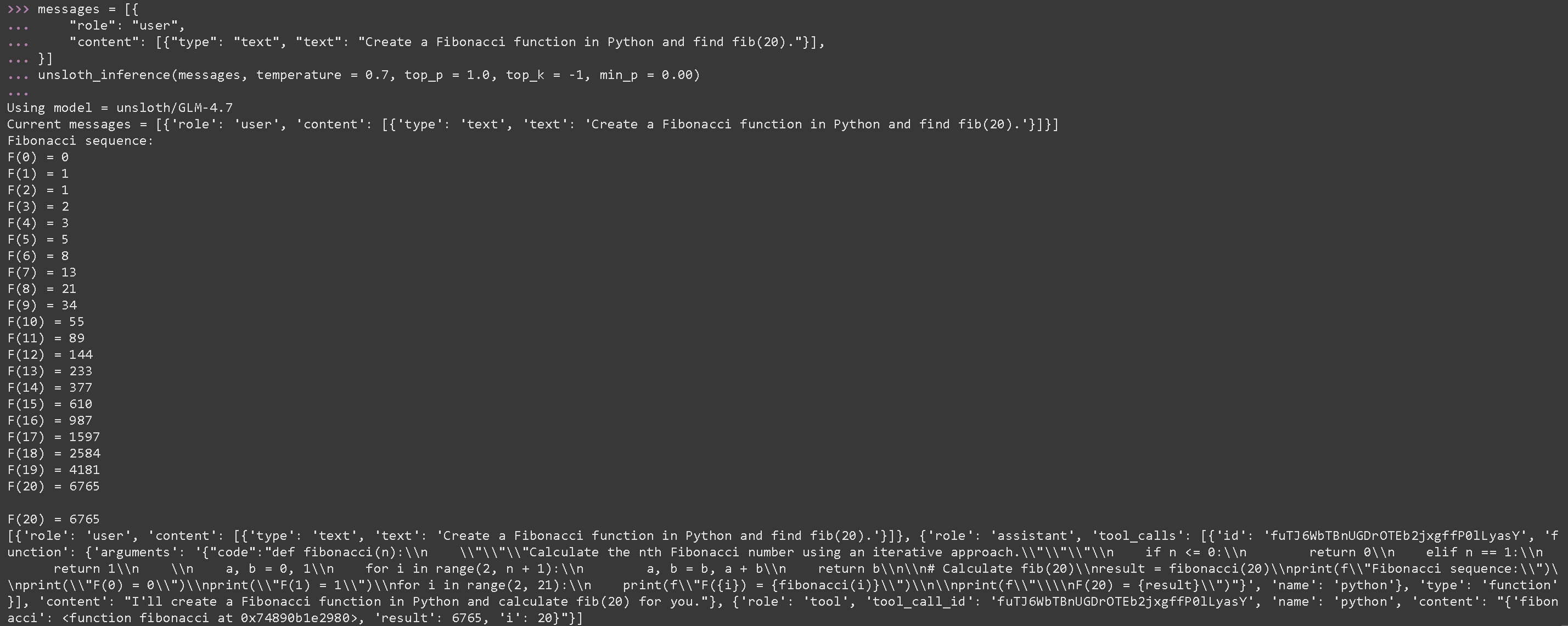
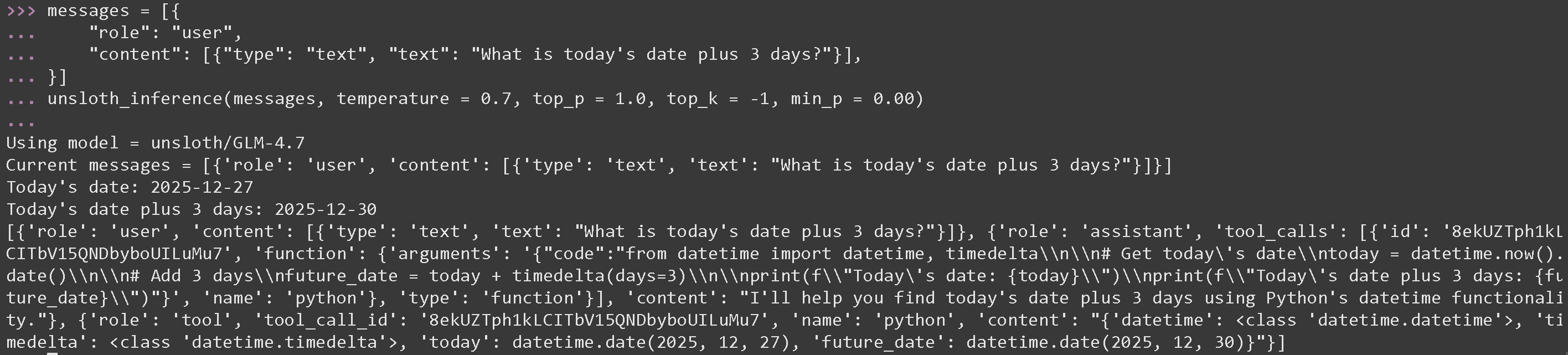 **用于执行生成的 Python 代码的工具调用,适用于 GLM-4.7-Flash**
{% code overflow="wrap" %}
```python
messages = [{
"role": "user",
"content": [{"type": "text", "text": "用 Python 创建一个斐波那契函数并求 fib(20)。"}],
}]
unsloth_inference(messages, temperature = 1.0, top_p = 0.95, top_k = -1, min_p = 0.01)
```
{% endcode %}
**用于执行生成的 Python 代码的工具调用,适用于 GLM-4.7-Flash**
{% code overflow="wrap" %}
```python
messages = [{
"role": "user",
"content": [{"type": "text", "text": "用 Python 创建一个斐波那契函数并求 fib(20)。"}],
}]
unsloth_inference(messages, temperature = 1.0, top_p = 0.95, top_k = -1, min_p = 0.01)
```
{% endcode %}
 ### 基准测试
除 AIME 25 外,GLM-4.7-Flash 在所有基准测试中都是表现最好的 30B 模型。
### 基准测试
除 AIME 25 外,GLM-4.7-Flash 在所有基准测试中都是表现最好的 30B 模型。
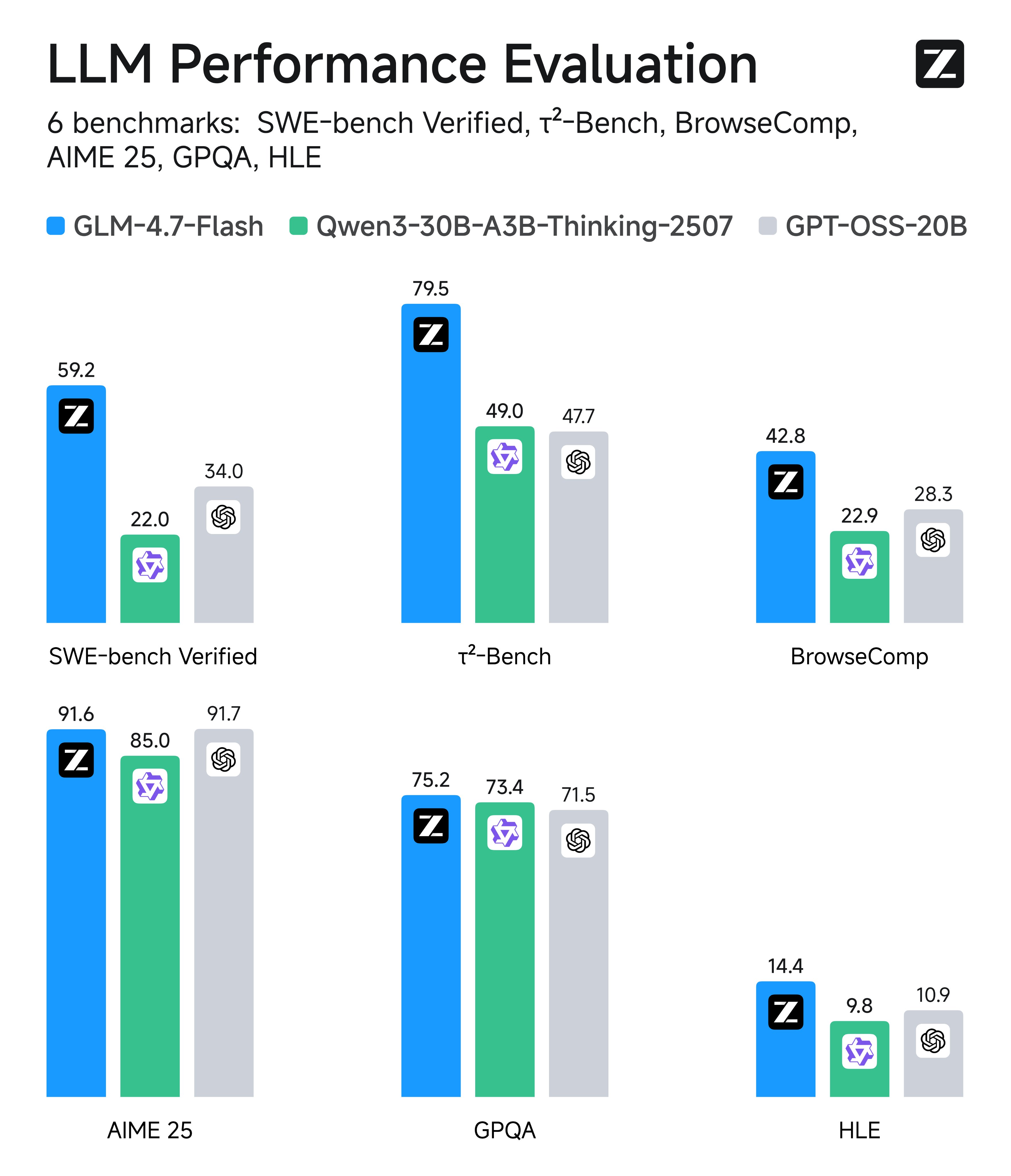 | 基准 | GLM-4.7-Flash | Qwen3-30B-A3B-Thinking-2507 | GPT-OSS-20B |
| ------------- | ------------- | --------------------------- | ----------- |
| AIME 25 | 91.6 | 85.0 | 91.7 |
| GPQA | 75.2 | 73.4 | 71.5 |
| LCB v6 | 64.0 | 66.0 | 61.0 |
| HLE | 14.4 | 9.8 | 10.9 |
| SWE-bench 验证版 | 59.2 | 22.0 | 34.0 |
| τ²-Bench | 79.5 | 49.0 | 47.7 |
| BrowseComp | 42.8 | 2.29 | 28.3 |
---
# Agent Instructions
This documentation is published with GitBook. GitBook is the documentation platform designed so that both humans and AI agents can read, navigate, and reason over technical content effectively. Learn more at gitbook.com.
## Querying This Documentation
If you need additional information that is not directly available in this page, you can query the documentation by asking a question.
Perform an HTTP GET request on the following URL with the `ask` and `goal` query parameters:
```
GET https://unsloth.ai/docs/zh/mo-xing/tutorials/glm-4.7-flash.md?ask=&goal=
```
`ask` is the immediate question: it should be specific, self-contained, and written in natural language.
`goal` is what the user is ultimately trying to achieve, the reason they need the answer. Sharing it helps GitBook give you a better, more relevant answer. A goal is most helpful when it describes the outcome the user wants rather than restating the question. For example, with `ask=how do I create an API token`, a goal like `automate deployments from our CI pipeline` lets GitBook tailor the answer to that use case.
The response will contain a direct answer to the question and relevant excerpts and sources from the documentation.
Use this mechanism when the answer is not explicitly present in the current page, you need clarification or additional context, or you want to retrieve related documentation sections.
| 基准 | GLM-4.7-Flash | Qwen3-30B-A3B-Thinking-2507 | GPT-OSS-20B |
| ------------- | ------------- | --------------------------- | ----------- |
| AIME 25 | 91.6 | 85.0 | 91.7 |
| GPQA | 75.2 | 73.4 | 71.5 |
| LCB v6 | 64.0 | 66.0 | 61.0 |
| HLE | 14.4 | 9.8 | 10.9 |
| SWE-bench 验证版 | 59.2 | 22.0 | 34.0 |
| τ²-Bench | 79.5 | 49.0 | 47.7 |
| BrowseComp | 42.8 | 2.29 | 28.3 |
---
# Agent Instructions
This documentation is published with GitBook. GitBook is the documentation platform designed so that both humans and AI agents can read, navigate, and reason over technical content effectively. Learn more at gitbook.com.
## Querying This Documentation
If you need additional information that is not directly available in this page, you can query the documentation by asking a question.
Perform an HTTP GET request on the following URL with the `ask` and `goal` query parameters:
```
GET https://unsloth.ai/docs/zh/mo-xing/tutorials/glm-4.7-flash.md?ask=&goal=
```
`ask` is the immediate question: it should be specific, self-contained, and written in natural language.
`goal` is what the user is ultimately trying to achieve, the reason they need the answer. Sharing it helps GitBook give you a better, more relevant answer. A goal is most helpful when it describes the outcome the user wants rather than restating the question. For example, with `ask=how do I create an API token`, a goal like `automate deployments from our CI pipeline` lets GitBook tailor the answer to that use case.
The response will contain a direct answer to the question and relevant excerpts and sources from the documentation.
Use this mechanism when the answer is not explicitly present in the current page, you need clarification or additional context, or you want to retrieve related documentation sections.