{% endstep %}
{% step %}
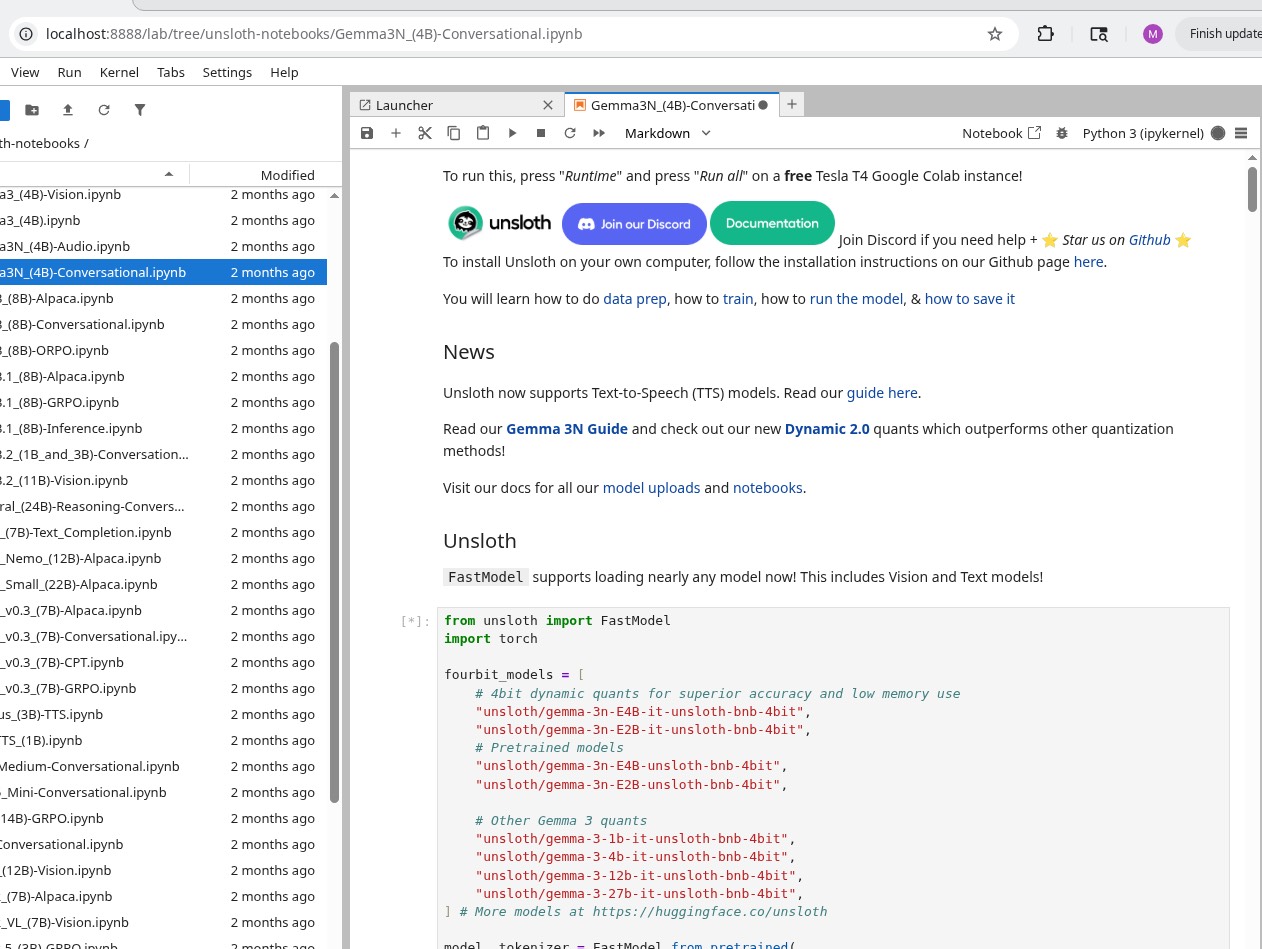
**使用 Unsloth 开始训练**
如果你是新手,请按照我们的逐步 [微调指南](/docs/zh/kai-shi-shi-yong/fine-tuning-llms-guide.md), [RL 指南](/docs/zh/kai-shi-shi-yong/reinforcement-learning-rl-guide.md) 或者直接保存/复制我们任何预制的 [笔记本](/docs/zh/kai-shi-shi-yong/unsloth-notebooks.md).
{% endstep %}
{% endstepper %}
#### 📂 容器结构
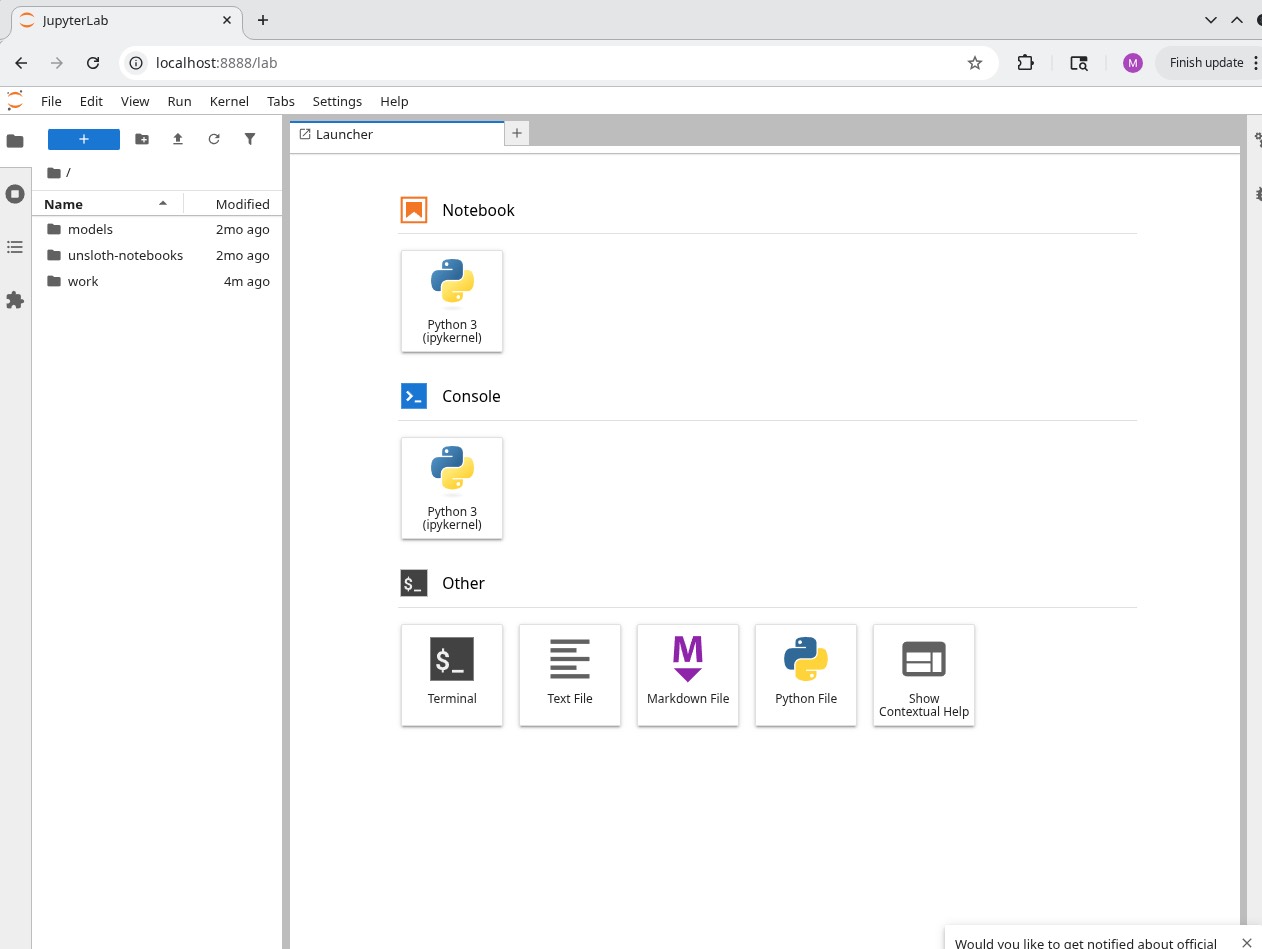
* `/workspace/work/` — 你挂载的工作目录
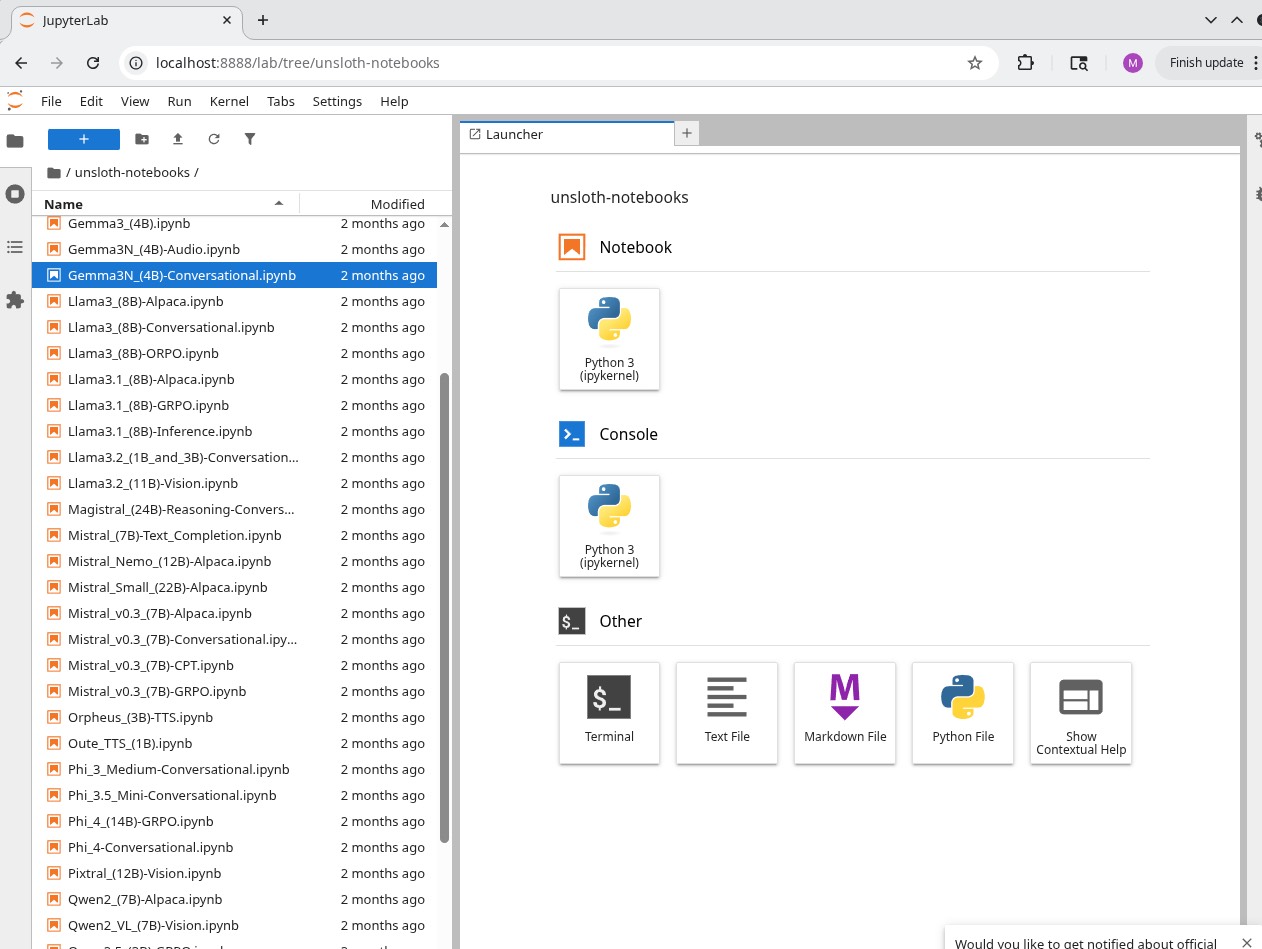
* `/workspace/unsloth-notebooks/` — 示例微调笔记本
* `/home/unsloth/` — 用户主目录
### 📖 使用示例
#### 完整示例
```bash
docker run -d -e JUPYTER_PORT=8000 \\
-e JUPYTER_PASSWORD="mypassword" \\
-e "SSH_KEY=$(cat ~/.ssh/container_key.pub)" \\
-e USER_PASSWORD="unsloth2024" \\
-p 8000:8000 -p 2222:22 \\
-v $(pwd)/work:/workspace/work \\
--gpus all \\
unsloth/unsloth
```
#### 设置 SSH 密钥
如果你没有 SSH 密钥对:
```bash
# 生成新的密钥对
ssh-keygen -t rsa -b 4096 -f ~/.ssh/container_key
# 在 docker run 中使用公钥
-e "SSH_KEY=$(cat ~/.ssh/container_key.pub)"
# 通过 SSH 连接
ssh -i ~/.ssh/container_key -p 2222 unsloth@localhost
```
### 🦥为什么选择 Unsloth 容器?
* **可靠**:精心维护的环境,软件包版本稳定且持续维护。压缩后仅 7 GB(其他地方为 10–11 GB)
* **开箱即用**:预装的 notebooks 位于 `/workspace/unsloth-notebooks/`
* **安全**:以非 root 用户安全运行
* **通用**:兼容所有基于 transformer 的模型(TTS、BERT 等)
### **Unsloth 没有检测到或使用我的 GPU**
如果模型在 Docker 中没有专门使用你的 GPU,请尝试:
手动拉取最新镜像:
```bash
docker pull unsloth/unsloth:latest
```
* 使用 GPU 访问启动容器:
* `docker run`: `--gpus all`
* Docker Compose: `capabilities: [gpu]`
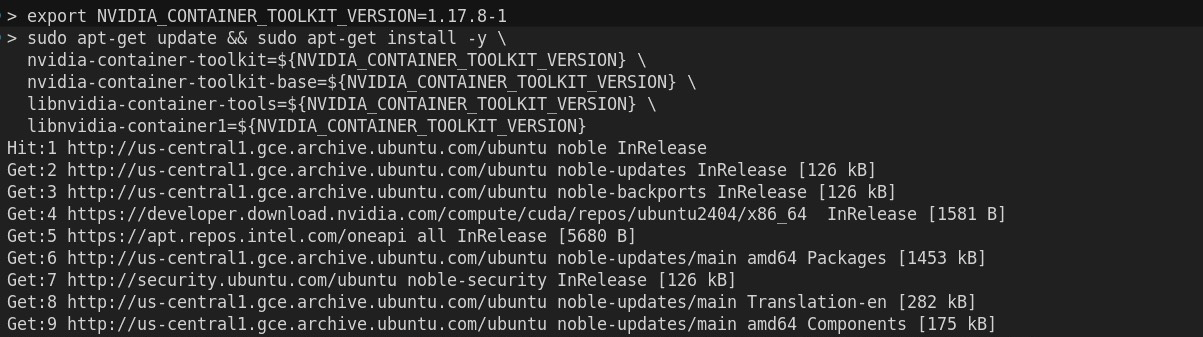
* 在 Linux 上,请确保已安装 NVIDIA Container Toolkit。
* 在 Windows 上:
* 检查 `nvcc --version` 与以下命令显示的 CUDA 版本一致 `nvidia-smi`
* 参见:
### ⚙️ 高级设置
```bash
# 生成 SSH 密钥对
ssh-keygen -t rsa -b 4096 -f ~/.ssh/container_key
# 连接到容器
ssh -i ~/.ssh/container_key -p 2222 unsloth@localhost
```
| 变量 | 描述 | 默认值 |
| ------------------ | ---------------------------- | --------- |
| `JUPYTER_PASSWORD` | Jupyter Lab 密码 | `unsloth` |
| `JUPYTER_PORT` | 容器内的 Jupyter Lab 端口 | `8888` |
| `SSH_KEY` | 用于身份验证的 SSH 公钥 | `无` |
| `USER_PASSWORD` | 用于以下对象的密码 `unsloth` 用户(sudo) | `unsloth` |
```bash
-p :
```
* Jupyter Lab: `-p 8000:8888`
* SSH 访问: `-p 2222:22`
{% hint style="warning" %}
**重要**:使用卷挂载以在容器运行之间保留你的工作。
{% endhint %}
```bash
-v :
```
```bash
docker run -d -e JUPYTER_PORT=8000 \\
-e JUPYTER_PASSWORD="mypassword" \\
-e "SSH_KEY=$(cat ~/.ssh/container_key.pub)" \\
-e USER_PASSWORD="unsloth2024" \\
-p 8000:8000 -p 2222:22 \\
-v $(pwd)/work:/workspace/work \\
--gpus all \\
unsloth/unsloth
```
### **🔒 安全说明**
* 容器默认以非 root `unsloth` 用户运行
* 使用 `USER_PASSWORD` 用于在容器内执行 sudo 操作
* SSH 访问需要公钥认证
---
# Agent Instructions
This documentation is published with GitBook. GitBook is the documentation platform designed so that both humans and AI agents can read, navigate, and reason over technical content effectively. Learn more at gitbook.com.
## Querying This Documentation
If you need additional information that is not directly available in this page, you can query the documentation dynamically by asking a question.
Perform an HTTP GET request on the current page URL with the `ask` query parameter, and the optional `goal` query parameter:
```
GET https://unsloth.ai/docs/zh/kai-shi-shi-yong/install/docker.md?ask=&goal=
```
`ask` is the immediate question: it should be specific, self-contained, and written in natural language.
`goal` is optional and describes the broader end goal you are ultimately trying to accomplish on behalf of the user. GitBook uses it to tailor the answer towards what is most useful for that goal.
The response will contain a direct answer to the question and relevant excerpts and sources from the documentation.
Use this mechanism when the answer is not explicitly present in the current page, you need clarification or additional context, or you want to retrieve related documentation sections.