> For the complete documentation index, see [llms.txt](https://unsloth.ai/docs/llms.txt). Markdown versions of documentation pages are available by appending `.md` to page URLs; this page is available as [Markdown](https://unsloth.ai/docs/zh/ji-chu/lan.md).

# 如何使用 Unsloth LAN Access 从网络中的任何设备提供本地 AI 模型服务

你可以在家中或办公室的任何支持 LAN 访问的设备上运行本地 AI 模型，使用 [Unsloth](https://github.com/unslothai/unsloth)。启用后，本地模型可从同一 Wi‑Fi 或有线网络上的手机、笔记本电脑或另一台电脑访问，而无需将任何内容发送到云端。不需要公网 URL 或互联网连接——你的 AI 会留在你的机器和你的网络中。

{% columns %}
{% column %}
LAN 访问是从另一台设备使用本地模型的最快方式。流量不会离开你的网络，因此延迟很低。

开启 LAN 访问后，Unsloth 会在你机器的网络地址上响应，例如 `http://192.168.1.42:8888`。在你的手机、笔记本电脑或同一网络中的任何设备上打开它。

它是免费的，而且可离线运行。没有任何内容会离开你的网络，你也无需接触路由器或防火墙。若要从网络外部访问，请使用 [远程访问](/docs/zh/ji-chu/ru-he-zai-ren-he-di-fang-ti-gong-ben-di-llm-fu-wu-shi-yong-cloudflare-he-unsloth-jin-xing-an-quan-yu.md) 。
{% endcolumn %}

{% column %}

<figure><img src="https://3215535692-files.gitbook.io/~/files/v0/b/gitbook-x-prod.appspot.com/o/spaces%2FxhOjnexMCB3dmuQFQ2Zq%2Fuploads%2FD2v8S0MkS1xAeEVersl2%2Fmobile_studio1.gif?alt=media&#x26;token=7cd8a534-d82f-4f05-8d5a-9b7277f7eac0" alt="" width="180"><figcaption></figcaption></figure>
{% endcolumn %}
{% endcolumns %}

有两种开启方式：

* **启动 Unsloth 时：** 添加 `-H 0.0.0.0` 到你的 `unsloth studio` 命令
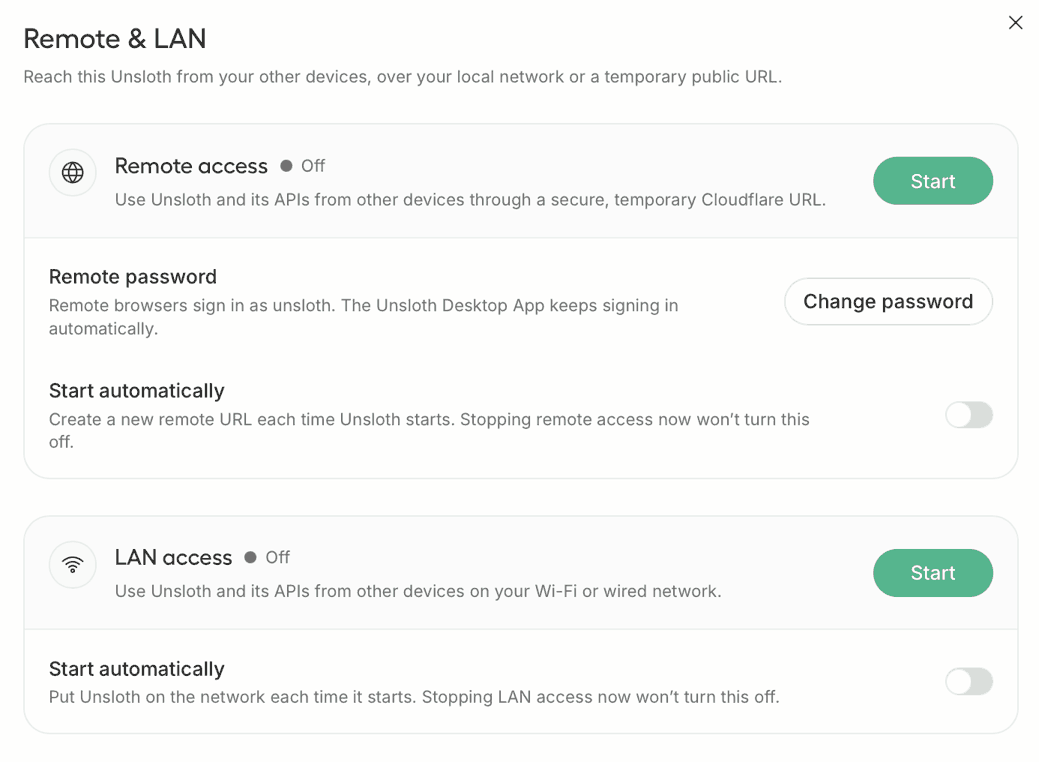
* **在 Unsloth 运行时：** 前往 设置 → API → **远程与 LAN**，找到 **LAN 访问** 卡片，然后按 **启动**

### ⚡ 快速开始

首先，我们需要下载 [Unsloth Desktop](https://unsloth.ai/download) 应用。

1. 安装适用于 [macOS](https://unsloth.ai/download/mac)、Windows 或 [Linux](https://unsloth.ai/download/linux)
2. 启动应用
3. 然后前往 设置 → API → **远程与 LAN**.

<div data-with-frame="true"><figure><img src="https://3215535692-files.gitbook.io/~/files/v0/b/gitbook-x-prod.appspot.com/o/spaces%2FxhOjnexMCB3dmuQFQ2Zq%2Fuploads%2FcMQ75NHKaf3xosAL87cq%2Fremote-lan-settings2.png?alt=media" alt=""><figcaption></figcaption></figure></div>

当 Unsloth 已在运行，并且你想在同一建筑内的另一台设备上使用它时，请使用此方法。按 **启动** 位于 **LAN 访问** 卡片上的按钮。 `在线` 表示该地址已经有响应，而不只是被请求过。

#### 自动启动

该 **自动启动** LAN 访问卡片下方的开关会让 Unsloth 每次启动时都加入网络。现在停止 LAN 访问不会关闭它；该开关是一个独立于运行状态的偏好设置。

### CLI：LAN 方式

手动安装 Unsloth 后，请在终端中运行：

```bash
unsloth studio -H 0.0.0.0 -p 8888
```

Unsloth 会绑定到每个接口，因此原始端口可从你的网络访问。不会发布公开的 Cloudflare URL， `-H 0.0.0.0` 单独使用即可让你停留在 LAN 中。打印出的第一行是其他设备使用的地址：

```
正在 http://[<你的机器的网络地址>]:8888 上启动 Unsloth Studio
```

该地址可能是 IPv6，像上面一样用方括号括起来。请连同方括号一起复制整个 URL。

#### CLI：LAN 加公开链接

```bash
unsloth studio -H 0.0.0.0 --cloudflare -p 8888
```

原始端口仍可在你的网络中访问 *并且* 会发布一个公开的 Cloudflare URL。横幅正是为此提醒你，因为这是隐私性最低的模式。 [远程访问页面](/docs/zh/ji-chu/ru-he-zai-ren-he-di-fang-ti-gong-ben-di-llm-fu-wu-shi-yong-cloudflare-he-unsloth-jin-xing-an-quan-yu.md) 中有说明。

#### UI：将一个已在网络上运行的服务器

1. 打开 **设置 → API → 远程与 LAN**.
2. 找到 **LAN 访问** 卡片上的按钮。
3. 点击 **启动**.
4. 当状态显示 **在线**时，请在同一网络中的任意设备上打开所示地址。

#### 每种启动方式实际暴露的内容

<table><thead><tr><th width="391">启动</th><th>可从以下位置访问</th></tr></thead><tbody><tr><td><code>unsloth studio</code></td><td>仅此机器</td></tr><tr><td><code>unsloth studio -H 0.0.0.0</code></td><td>你的网络</td></tr><tr><td><code>unsloth studio -H 0.0.0.0 --cloudflare</code></td><td>你的网络，以及一个公开的 Cloudflare URL</td></tr><tr><td><code>unsloth studio --secure</code></td><td>仅公开的 Cloudflare URL，LAN 保持关闭</td></tr></tbody></table>

`--secure` 与 LAN 访问是相反的： `--secure` 会强制进行 loopback 绑定，因此你网络中的任何内容都无法访问原始端口。

### 🔒 安全性

将 Unsloth 放到网络上意味着该网络中的每台设备都能看到它。

* **连接未加密。** LAN 流量是明文 HTTP。同一网络段上的任何人都可以读取它。在你无法控制的网络上，请使用 [远程访问](/docs/zh/ji-chu/ru-he-zai-ren-he-di-fang-ti-gong-ben-di-llm-fu-wu-shi-yong-cloudflare-he-unsloth-jin-xing-an-quan-yu.md) 代替；Cloudflare 链接是 HTTPS。
* **服务器端工具将以你的用户身份运行。** 网页搜索、Python 和终端执行默认已开启，因此任何拿到你的 API 密钥并访问服务器的人都可以在那台机器上运行代码。传入 `--disable-tools` 在暴露 Unsloth 时使用，并妥善保管 API 密钥。每一种可通过网络访问的启动方式都会在横幅中提示这一点。
* **Unsloth 会检查端口是否越过路由器泄露到外网。** 在通配绑定下，可达性探测会测试原始端口是否意外可从互联网访问，如果是，启动横幅会提示这一点。该探测会联系 `ifconfig.me` 并且 `check-host.net`；设置 `UNSLOTH_STUDIO_DISABLE_PUBLIC_CHECK` 即可跳过这两项。

### ❔ 故障排查

* **`错误：Unsloth Studio 已在端口 8888 上运行（PID ...）`.** 另一个实例占用了该端口。先运行 `unsloth studio stop` ，或者将此实例启动到不同的 `--port`.
* **该地址无法从另一台设备上响应。** 两台设备必须在同一网络中。访客 Wi‑Fi、客户端隔离（“AP 隔离”）和 VPN 通常是罪魁祸首。还要检查该机器自身的防火墙是否允许该端口的入站连接。
* **地址已更改。** LAN IP 由路由器分配，可能会变化。请在路由器设置中为这台机器分配静态 IP 或 DHCP 保留，以获得稳定地址。
* **UI 中的“启动”按钮是灰色的。** 查看卡片下方的消息，其中会说明阻止原因。

### 🌱 环境变量

| 变量                                    | 用途                                    |
| ------------------------------------- | ------------------------------------- |
| `UNSLOTH_STUDIO_DISABLE_PUBLIC_CHECK` | `1` 在通配绑定时跳过第三方原始端口可达性探测。             |
| `UNSLOTH_STUDIO_TRUST_FORWARDED`      | `1` 遵循 `X-Forwarded-For` 在你自己的反向代理后面。 |

### 🌐 HTTP API

这四项都需要一个 **UI 会话，** API 密钥会被拒绝。被拒绝的操作会返回 `409` ，并将阻止原因作为 detail。

<table><thead><tr><th width="100">方法</th><th>路径</th><th>用途</th></tr></thead><tbody><tr><td><code>GET</code></td><td><code>/api/settings/lan-access</code></td><td>当前状态、地址， <code>can_start</code> / <code>can_stop</code>, <code>block_reason</code>.</td></tr><tr><td><code>POST</code></td><td><code>/api/settings/lan-access/start</code></td><td>安排由设置管理的启动。幂等。</td></tr><tr><td><code>POST</code></td><td><code>/api/settings/lan-access/stop</code></td><td>安排由设置管理的停止。不会更改自动启动偏好。</td></tr><tr><td><code>PUT</code></td><td><code>/api/settings/lan-access/auto-start</code></td><td><code>{"enabled": true|false}</code>.</td></tr></tbody></table>


---

# Agent Instructions
This documentation is published with GitBook. GitBook is the documentation platform designed so that both humans and AI agents can read, navigate, and reason over technical content effectively. Learn more at gitbook.com.

## Querying This Documentation
If you need additional information that is not directly available in this page, you can query the documentation dynamically by asking a question.

Perform an HTTP GET request on the current page URL with the `ask` query parameter, and the optional `goal` query parameter:

```
GET https://unsloth.ai/docs/zh/ji-chu/lan.md?ask=<question>&goal=<endgoal>
```

`ask` is the immediate question: it should be specific, self-contained, and written in natural language.
`goal` is optional and describes the broader end goal you are ultimately trying to accomplish on behalf of the user. GitBook uses it to tailor the answer towards what is most useful for that goal.

The response will contain a direct answer to the question and relevant excerpts and sources from the documentation.

Use this mechanism when the answer is not explicitly present in the current page, you need clarification or additional context, or you want to retrieve related documentation sections.
