> For the complete documentation index, see [llms.txt](https://unsloth.ai/docs/llms.txt). Markdown versions of documentation pages are available by appending `.md` to page URLs; this page is available as [Markdown](https://unsloth.ai/docs/zh/ji-chu-zhi-shi/inference-and-deployment/lm-studio/how-to-install-lm-studio-cli-in-linux-terminal.md).
# 如何在 Linux 终端中安装 LM Studio CLI
在终端实例中无 UI 安装 LM Studio CLI 的指南。
1. 打开一个新的终端来运行 LM Studio CLI,或者使用 `tmux`
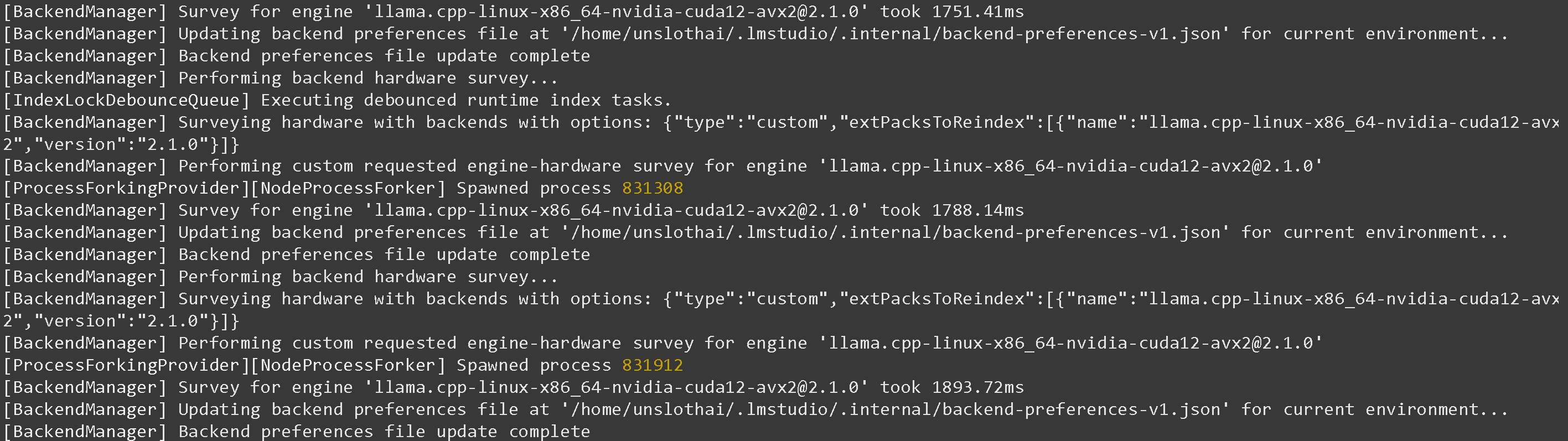
2. 获取 [LM Studio](https://lmstudio.ai/download) 或者运行下面的命令(下载大小大约 1GB)
{% code overflow="wrap" %}
```bash
wget https://lmstudio.ai/download/latest/linux/x64?format=AppImage -O 'LM_Studio.AppImage'
chmod u+x ./LM_Studio.AppImage
```
{% endcode %}
2. 通过以下方式运行 LM Studio:
```bash
./LM_Studio.AppImage
```
你可能会看到下面的内容:
{% code overflow="wrap" %}
```
[802435:0215/073628.027773:FATAL:sandbox/linux/suid/client/setuid_sandbox_host.cc:166] 找到了 SUID sandbox 辅助二进制文件,但配置不正确。我现在不运行沙盒而是直接中止。
```
{% endcode %}
如果是这样,请改用下面的方式:
```bash
./LM_Studio.AppImage --no-sandbox
```
3. 然后你可能会看到下面的内容,尤其是在没有桌面的云实例中:
{% code overflow="wrap" %}
```
[807101:0215/073740.801969:ERROR:ui/ozone/platform/x11/ozone_platform_x11.cc:249] 缺少 X 服务器或 $DISPLAY
[807101:0215/073740.802000:ERROR:ui/aura/env.cc:257] 平台初始化失败。正在退出。
段错误(核心已转储)
```
{% endcode %}
如果是这样,请在终端中安装一个“虚拟”桌面模拟器:
```bash
sudo apt-get install xvfb
```
4. 然后使用 `xvfb` 并启动 LM Studio:
```bash
xvfb-run --auto-servernum ./LM_Studio.AppImage --no-sandbox
```
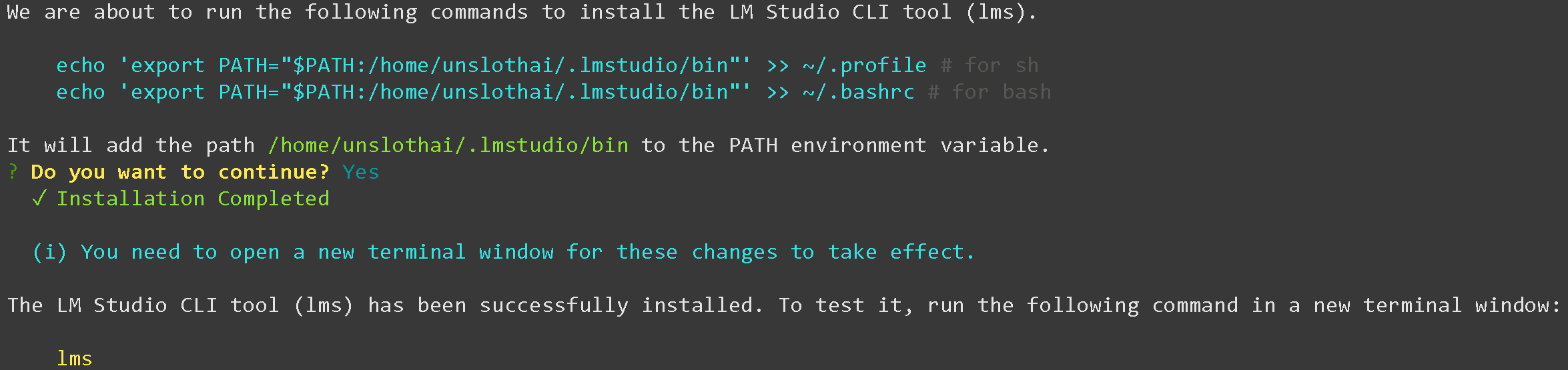
5. 然后在另一个终端中获取 LM Studio 的 LMS / CLI,或者在按 CTRL+B+D 之后使用 `tmux`
```bash
~/.lmstudio/bin/lms bootstrap
```
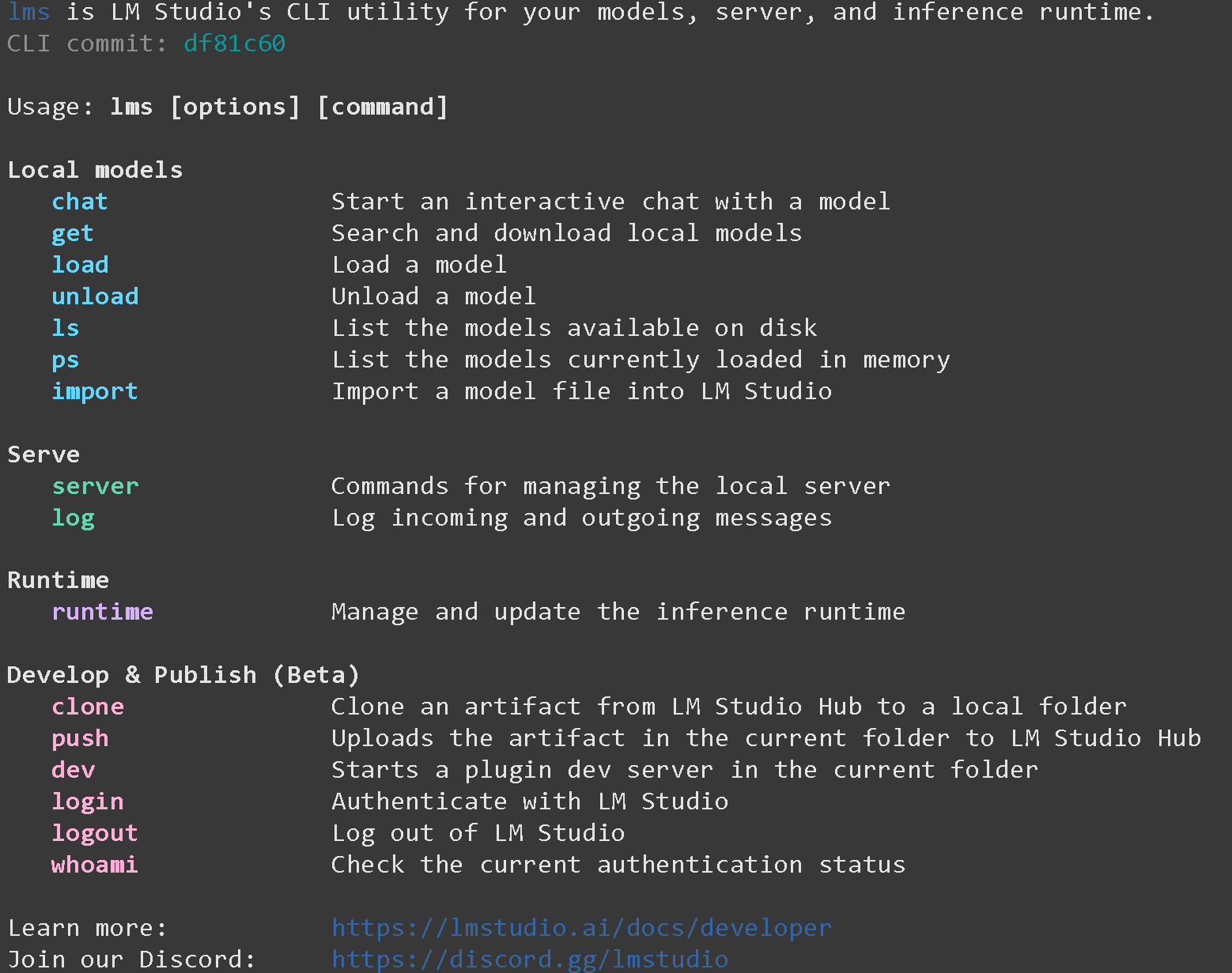
6. 打开一个新的终端或者 `tmux` 然后运行:
```bash
lms
```
如果你看到 `-bash: lms: command not found` 请运行 `lms` 在一个新的终端窗口中!
7. 现在下载一个模型,例如 [Qwen3-Coder-Next](/docs/zh/mo-xing/qwen3-coder-next.md) 如下所示。如果下载卡住,请参见 [Hugging Face Hub、XET 调试](/docs/zh/ji-chu-zhi-shi/troubleshooting-and-faqs/hugging-face-hub-xet-debugging.md)
{% code overflow="wrap" %}
```bash
pip install -U huggingface_hub
hf download unsloth/Qwen3-Coder-Next-GGUF \
--local-dir unsloth/Qwen3-Coder-Next-GGUF \
--include "*UD-Q4_K_XL*"
```
{% endcode %}
8. 然后我们通过以下方式导入模型:
{% code overflow="wrap" %}
```bash
lms import \
unsloth/Qwen3-Coder-Next-GGUF/Qwen3-Coder-Next-UD-Q4_K_XL.gguf \
--symbolic-link --user-repo "unsloth/Qwen3-Coder-Next-GGUF" -y
```
{% endcode %}
你可能会看到 `EEXIST: 文件已存在,符号链接 'unsloth/Qwen3-Coder-Next-GGUF/UD-Q6_K_XL/Qwen3-Coder-Next-UD-Q6_K_XL-00001-of-00003.gguf' -> '~/.lmstudio/models/unsloth/Qwen3-Coder-Next-GGUF/Qwen3-Coder-Next-UD-Q6_K_XL-00001-of-00003.gguf'` 这只意味着你已经在 LM Studio 中加载了该模型。
你还可以通过以下方式查看所有 LM Studio 模型:
```bash
ls ~/.lmstudio/models
```
8. 你也可以通过以下方式获取模型: `lms get` 如下:
```bash
lms get https://huggingface.co/unsloth/Qwen3-Coder-Next-GGUF@Q4_K_XL
```
然后你会看到:
```
正在完成下载……
下载完成。你可以使用以下命令加载该模型:
lms load qwen3-coder-next
```
然后加载 `lms load qwen3-coder-next`:
9. 然后启动 LM Studio 的服务器:
```bash
lms server start --port 8001 --bind 127.0.0.1
```
你会看到 `成功!服务器现在正在端口 8001 上运行`
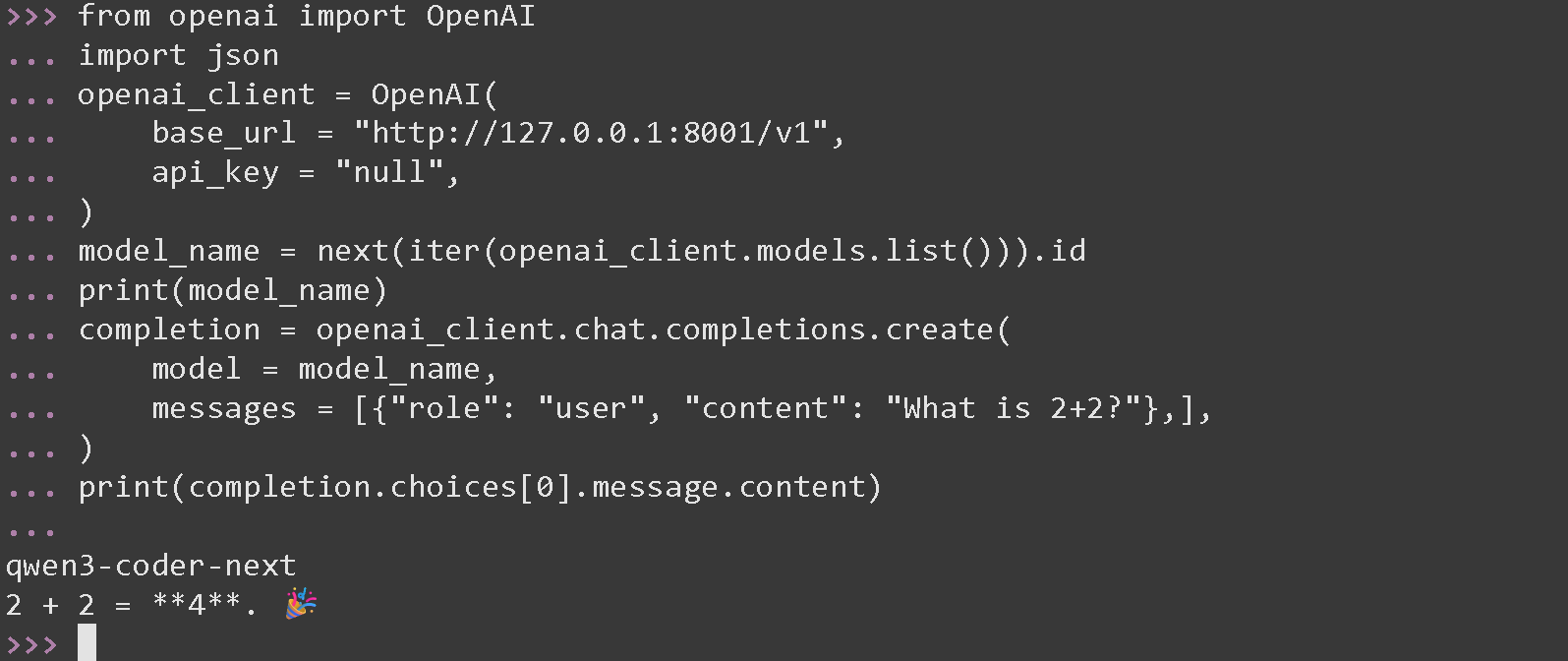
9. 然后在一个新的终端中,通过与 OpenAI 兼容的端点使用该模型:
```python
from openai import OpenAI
import json
openai_client = OpenAI(
base_url = "http://127.0.0.1:8001/v1",
api_key = "null",
)
model_name = next(iter(openai_client.models.list())).id
print(model_name)
completion = openai_client.chat.completions.create(
model = model_name,
messages = [{"role": "user", "content": "2+2 等于多少?"},],
)
print(completion.choices[0].message.content)
```
就完成了!
---
# Agent Instructions
This documentation is published with GitBook. GitBook is the documentation platform designed so that both humans and AI agents can read, navigate, and reason over technical content effectively. Learn more at gitbook.com.
## Querying This Documentation
If you need additional information that is not directly available in this page, you can query the documentation by asking a question.
Perform an HTTP GET request on the following URL with the `ask` and `goal` query parameters:
```
GET https://unsloth.ai/docs/zh/ji-chu-zhi-shi/inference-and-deployment/lm-studio/how-to-install-lm-studio-cli-in-linux-terminal.md?ask=&goal=
```
`ask` is the immediate question: it should be specific, self-contained, and written in natural language.
`goal` is what the user is ultimately trying to achieve, the reason they need the answer. Sharing it helps GitBook give you a better, more relevant answer. A goal is most helpful when it describes the outcome the user wants rather than restating the question. For example, with `ask=how do I create an API token`, a goal like `automate deployments from our CI pipeline` lets GitBook tailor the answer to that use case.
The response will contain a direct answer to the question and relevant excerpts and sources from the documentation.
Use this mechanism when the answer is not explicitly present in the current page, you need clarification or additional context, or you want to retrieve related documentation sections.