> For the complete documentation index, see [llms.txt](https://unsloth.ai/docs/llms.txt). Markdown versions of documentation pages are available by appending `.md` to page URLs; this page is available as [Markdown](https://unsloth.ai/docs/new/studio/start.md).
# Get started with Unsloth Studio
A guide for getting started with the fine-tuning studio, data recipes, model exporting, and chat.
Unsloth Studio is a local, browser-based GUI for fine-tuning LLMs without writing any code. It wraps the training pipeline in a clean interface that handles model loading, dataset formatting, hyperparameter configuration, and live training monitoring.
UnslothData RecipeExportChat
#### Setup Unsloth Studio
**Install with Unsloth Desktop.** The easiest way to install Unsloth Studio is with the native Desktop app. Download it for your operating system:
* :apple: [Download for macOS](https://unsloth.ai/download/mac)
* :windows: [Download for Windows](https://unsloth.ai/download/windows)
* :linux: [Download for Linux](https://unsloth.ai/download/linux)
First, launch Unsloth Studio using either a local install or a cloud option. Follow the [install instructions](/docs/new/studio/install.md) for your setup, or use our [free Colab](/docs/new/studio.md#google-colab-notebook) notebook. For a local setup, run:
```bash
unsloth studio -H 0.0.0.0 -p 8888
```
{% columns %}
{% column width="50%" %}
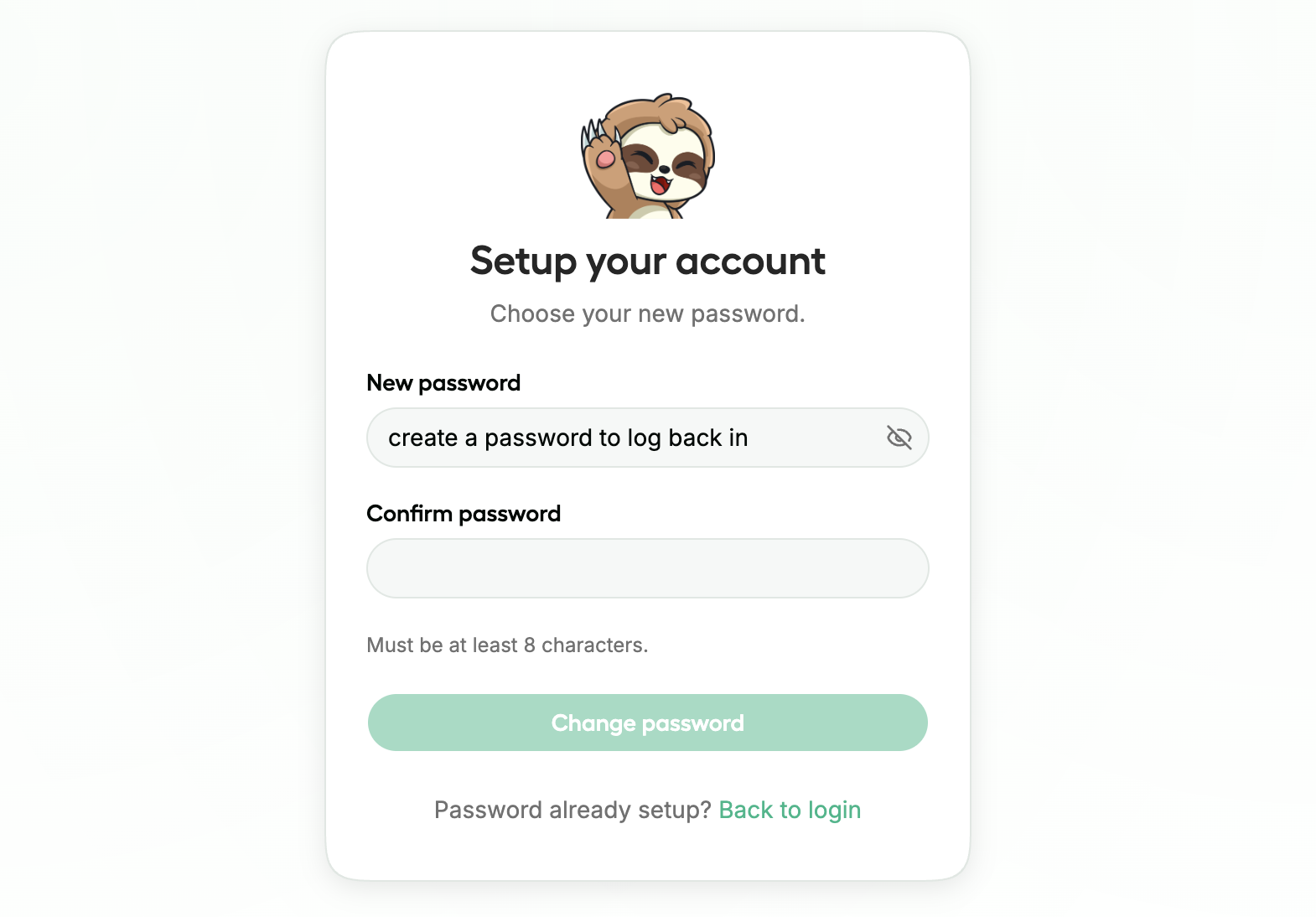
Open your browser of choice go to `http://127.0.0.1:8888`. You will need to create a new password.
**Launch Unsloth securely with HTTPS and Cloudflare.** Unsloth now provides a secure way to launch Unsloth over HTTPS through a free Cloudflare tunnel. Use the below (works in Windows, Mac & Linux):
```bash
unsloth studio --secure
```
{% endcolumn %}
{% column width="50%" %}
{% endcolumn %}
{% endcolumns %}
## :comment-dots: Chat - Quickstart
[Unsloth Studio Chat](/docs/new/studio/chat.md) lets you run models 100% offline on your computer. Run model formats like GGUF and safetensors from Hugging Face or from your local files.
* **Download + Run** any model like GGUFs, fine-tuned adapters, safetensors etc.
* [**Compare** different model](#model-arena) outputs side-by-side
* **Upload** documents, images, and audio in your prompts
* [**Tune** inference](#generation-settings) settings like: temperature, top-p, top-k and system prompt
You can read our detailed tutorial / guide about running models with Unsloth Studio here:
{% content-ref url="/pages/FdMvLj95MbkAR4aHURvS" %}
[Studio Chat](/docs/new/studio/chat.md)
{% endcontent-ref %}
### Model Loading Guide
Before using the API, you need to **load the model** you want to use in **Unsloth.** Open the **Select model** dropdown in the top-left corner of the chat page.
{% hint style="info" %}
On a different page? Use the left sidebar and click `New Chat` to return to the chat page.
{% endhint %}
{% columns %}
{% column width="50%" %}
#### Select Model
Use the search bar to find the model you want to load into Unsloth.
Browse recommended models, search Hugging Face models directly, or set a custom model directory.
Locally trained and exported models can be loaded from the \`Fine-tuned\` tab.
{% endcolumn %}
{% column width="50%" %}
{% endcolumn %}
{% endcolumns %}
{% columns %}
{% column %}
#### GGUF Selection
Model repos contain multiple quantizations. Select the quantization most suitable for your available RAM / VRAM.\
\
In this guide we'll use `unsloth/gemma-4-26B-A4B-it-GGUF` and select the recommended `UD-Q4_K_XL` variant
{% endcolumn %}
{% column %}
{% endcolumn %}
{% endcolumns %}
#### Downloading the model
{% columns %}
{% column %}
Search for the model you want to use, then **click it** to begin downloading and loading it.
After selecting a model variant, Unsloth will begin downloading and loading the model into memory.
Once loading is complete you will see the following confirmation:
{% endcolumn %}
{% column %}
{% endcolumn %}
{% endcolumns %}
The model is loaded and ready to use. You can now chat with the model directly in Unsloth or connect it to tools such as [Claude Code](/docs/basics/claude-code.md) and [Codex](/docs/basics/codex.md).
## :bolt: Unsloth - Quickstart
Unsloth Studio homepage has 4 main areas: [Model](#id-1.-select-model-and-method), [Dataset](#id-2.-dataset), [Parameters](#id-3.-hyperparameters), and [Training/Config](#id-4.-training-and-config)
* **Easy setup for models and data** from Hugging Face or local files
* **Flexible training choices** like QLoRA, LoRA, or full fine-tuning, with defaults filled in
* **Helpful config tools** for splits, column mapping, hyperparameters and YAML configs
* **Great training visibility** with live progress, GPU stats, charts, startup status
### 1. Select model and method
#### **Model Type**
Select the modality that matches your use-case:
| Type | Use case |
| -------------- | --------------------------------------- |
| **Text** | Chat, instruction following, completion |
| **Vision** | Image + text (VLMs) |
| **Audio** | Speech / audio understanding |
| **Embeddings** | Sentence embeddings, retrieval |
#### **Training Method**
Three methods are available, toggled with a pill selector:
| Method | Description | VRAM |
| -------------------- | ----------------------------------------- | ------- |
| **QLoRA** | 4-bit quantized base model + LoRA adapter | Lowest |
| **LoRA** | Full-precision base model + LoRA adapter | Medium |
| **Full Fine-tuning** | All weights are trained | Highest |
Type any Hugging Face model name or search the Hub directly from the combobox. Local models stored in `~/.unsloth/studio/models` and your Hugging Face cache also appear in the list.
{% hint style="warning" %}
GGUF format models are excluded from training - they are inference only.
{% endhint %}
When you pick a model the Unsloth automatically fetches its configuration from the backend and pre-fills sensible defaults for all hyperparameters.
**HuggingFace Token**
Paste your Hugging Face access token here if the model is gated (e.g. Llama, Gemma). The token is validated in real-time and an error is shown inline if it is invalid.
### 2. Dataset
{% columns %}
{% column %}
Switch between two tabs to choose where your data comes from:
* **HuggingFace Hub** - live search against the Hub. The last-updated date is shown for each result.
* **Local** - drag-and-drop or click to upload a file unstructured or structured files like: `PDF`, `DOCX`, `JSONL`, `JSON`, `CSV`, or `Parquet` format. Previously uploaded datasets appear in a list that refreshes automatically.
You can view our detailed [Datasets Guide here](/docs/get-started/fine-tuning-llms-guide/datasets-guide.md).
Prompt Unsloth how to interpret and format your data:
{% endcolumn %}
{% column %}
{% endcolumn %}
{% endcolumns %}
| Format | When to use |
| ---------- | ------------------------------------------- |
| `auto` | Let Unsloth detect the format automatically |
| `alpaca` | `instruction` / `input` / `output` columns |
| `chatml` | OpenAI-style `messages` array |
| `sharegpt` | ShareGPT-style conversations |
**Splits and Slicing**
* **Subset** - automatically populated from the dataset card.
* **Train split / Eval split** - choose which splits to use. Setting an eval split enables the **Eval Loss** chart during training.
* **Dataset slice** - optionally restrict training to a row range (start index / end index) for quick experiments.
**Column Mapping**
If the Unsloth cannot automatically map your dataset columns to the correct roles a **Dataset Preview dialog** opens. It shows sample rows and lets you assign each column to `instruction`, `input`, `output`, `image`, etc. Suggested mappings are pre-filled where possible.
### 3. Hyperparameters
Parameters are grouped into collapsible sections. You can view our detailed [LoRA hyperparameters guide](/docs/get-started/fine-tuning-llms-guide/lora-hyperparameters-guide.md) here:
{% content-ref url="/pages/y6obKRSk8TwyjIrCjuGE" %}
[Hyperparameters Guide](/docs/get-started/fine-tuning-llms-guide/lora-hyperparameters-guide.md)
{% endcontent-ref %}
| Parameter | Default | Notes |
| ------------------ | ------- | ---------------------------- |
| **Max Steps** | `0` | `0` means use Epochs instead |
| **Context Length** | `2048` | Options: 512 → 32768 |
| **Learning Rate** | `2e-4` | |
**LoRA Settings**
*(Hidden when Full Fine-tuning is selected)*
| Parameter | Default | Notes |
| ------------------ | ------- | --------------------------------------------------------------------------- |
| **Rank** | `16` | Slider 4–128 |
| **Alpha** | `32` | Slider 4–256 |
| **Dropout** | `0.05` | |
| **LoRA Variant** | `LoRA` | `LoRA` / `RS-LoRA` / `LoftQ` |
| **Target Modules** | All on | `q_proj`, `k_proj`, `v_proj`, `o_proj`, `gate_proj`, `up_proj`, `down_proj` |
For **Vision** models with an image dataset, four additional checkboxes appear. Fine-tune:
| Vision Layers | Language Layers | Attention Modules | MLP Modules |
| ------------- | --------------- | ----------------- | ----------- |
**Training Hyperparameters**
Organized into three tabs:
{% tabs %}
{% tab title="Optimization" %}
| Parameter | Default |
| --------------------- | ----------- |
| Epochs | 3 |
| Batch Size | 4 |
| Gradient Accumulation | 8 |
| Weight Decay | 0.01 |
| Optimizer | AdamW 8-bit |
{% endtab %}
{% tab title="Schedule" %}
| Parameter | Default |
| ---------------------- | ------- |
| LR Scheduler | linear |
| Warmup Steps | 5 |
| Gradient Checkpointing | unsloth |
| Random Seed | 3407 |
| Save Steps | 0 |
| Eval Steps | 0 |
| Packing | false |
| Train on Completions | false |
| {% endtab %} | |
{% tab title="Logging" %}
| Parameter | Default |
| ------------------ | -------------- |
| Enable W\&B | false |
| W\&B Project | llm-finetuning |
| Enable TensorBoard | false |
| TensorBoard Dir | runs |
| Log Frequency | 10 |
| {% endtab %} | |
| {% endtabs %} | |
{% hint style="info" %}
[**Unsloth Gradient Checkpointing**](/docs/blog/500k-context-length-fine-tuning.md#unsloth-gradient-checkpointing-enhancements)**: `unsloth`** uses Unsloth's custom memory-efficient implementation, which can reduce VRAM usage significantly compared to the standard PyTorch option. It is the recommended default.
{% endhint %}
### 4. Training and Config
The bottom-right card has three config management buttons and the **Start Training** button.
| Button | Action |
| ---------- | --------------------------------------------- |
| **Upload** | Load a previously saved `.yaml` config file |
| **Save** | Export the current config to YAML |
| **Reset** | Revert all parameters to the model's defaults |
The Start Training button stays disabled until a model and dataset are both configured. Validation errors appear inline - for example, setting eval steps without choosing an eval split, or pairing a text-only model with a vision dataset.
#### Loading Screen
{% columns %}
{% column %}
After you click **Start Training**, a full-page overlay appears while the backend prepares everything.
{% endcolumn %}
{% column %}
The overlay shows an animated terminal with live phase updates:
* Blue: Downloading model / dataset
* Amber: Loading model / dataset
* Blue: Configuring
* Green: Training
You can cancel at any time using the **×** button in the corner. A confirmation dialog will appear before anything is stopped.
{% endcolumn %}
{% endcolumns %}
### Training Progress and Observability
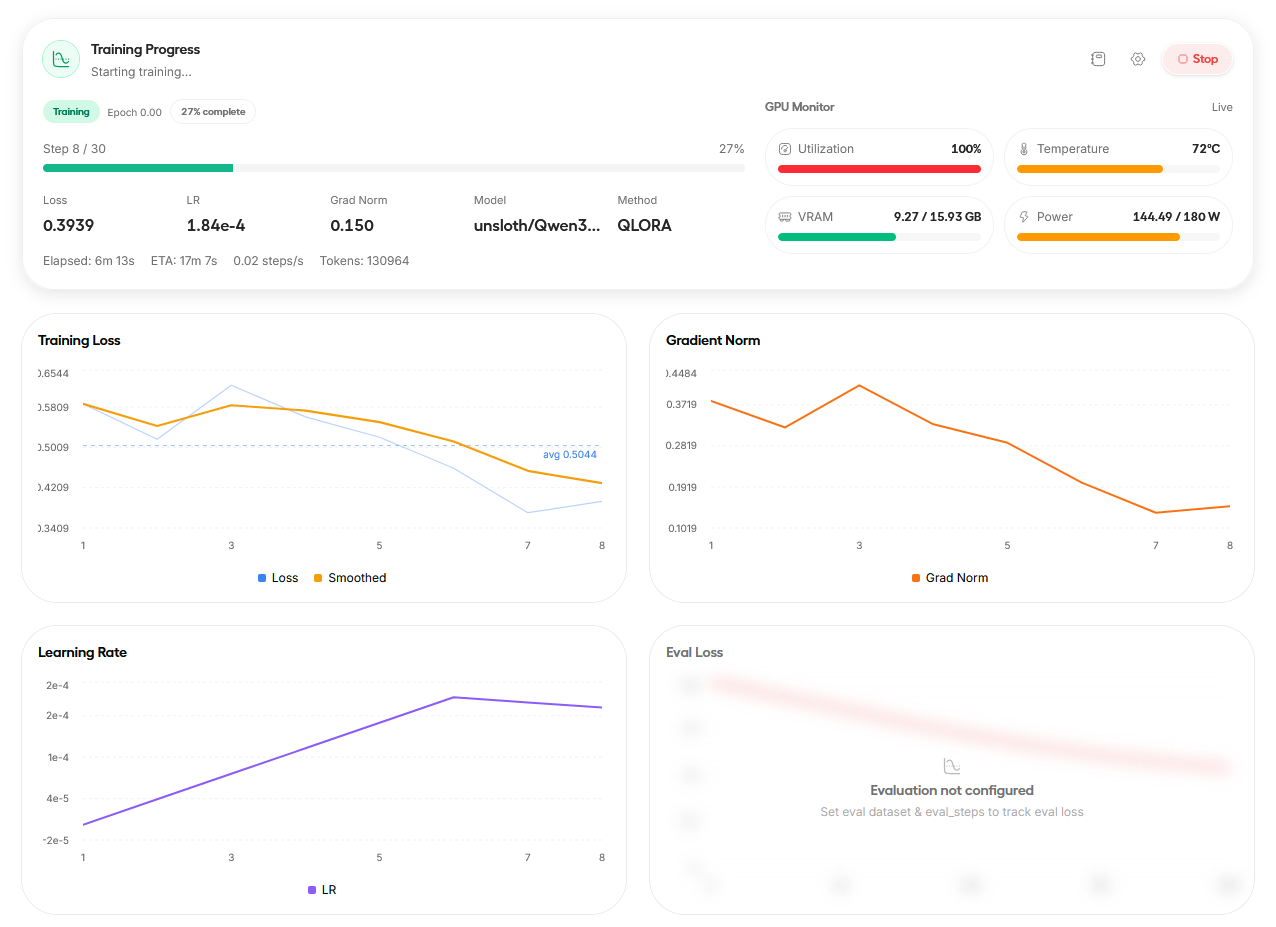
Once the first training step arrives the overlay dismisses and the live training view is revealed. The fine-tuning process is complete when steps reach 100% on the progress bar. You can view the elapsed time and tokens.
{% columns %}
{% column %}
#### Status Panel
The left column shows:
* **Epoch** - current fractional epoch (e.g. `Epoch 1.23`)
* **Progress bar** - step-based, with percentage
* **Key metrics**:
* **Loss** - training loss to 4 decimal places
* **LR** - current learning rate in scientific notation
* **Grad Norm** - gradient norm
* **Model** - the model being trained
* **Method** - `QLoRA` / `LoRA` / `Full`
* **Timing row** - elapsed time, ETA, steps per second, and total tokens processed
{% endcolumn %}
{% column %}
#### GPU Monitor
The right column shows live GPU stats polled every few seconds:
* **Utilization** - percentage bar
* **Temperature** - °C bar
* **VRAM** - used / total GB
* **Power** - draw / limit in watts
#### Stopping Training
Use the **Stop Training** button in the top-right of the progress card. A dialog gives you two choices:
* **Stop & Save** - saves a checkpoint before stopping
* **Cancel** - stops immediately with no checkpoint
{% endcolumn %}
{% endcolumns %}
{% columns %}
{% column %}
#### Charts
Four live charts update as training progresses:
1. **Training Loss** - raw values plus an EMA-smoothed line and a running average reference line
2. **Learning Rate** - the LR schedule curve
3. **Gradient Norm** - gradient norm over steps
4. **Eval Loss** - only shown when you configured an eval split
{% endcolumn %}
{% column %}
{% endcolumn %}
{% endcolumns %}
{% columns %}
{% column %}
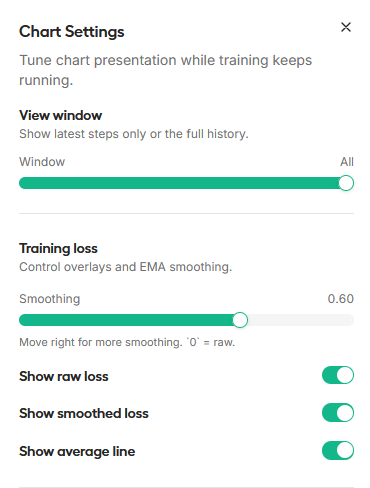
Each chart has settings (gear icon) with:
| Option | Default |
| ------------------ | ------------------- |
| Viewing window | Last N steps slider |
| EMA Smoothing | `0.6` |
| Show Raw | On |
| Show Smoothed | On |
| Show Average line | On |
| Scale (per series) | Linear / Log |
| Outlier clipping | No clip / p99 / p95 |
| {% endcolumn %} | |
{% column %}
{% endcolumn %}
{% endcolumns %}
#### Config Files
{% columns %}
{% column %}
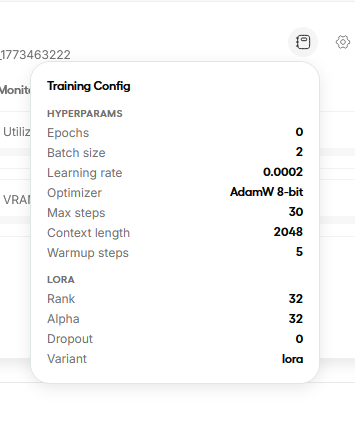
All training configurations can be saved and reloaded as YAML files. Files are named automatically as:
```
{model}_{method}_{dataset}_{timestamp}.yaml
```
{% endcolumn %}
{% column %}
{% endcolumn %}
{% endcolumns %}
The YAML is structured into three sections:
{% code expandable="true" %}
```yaml
training:
max_steps: 0
num_train_epochs: 3
per_device_train_batch_size: 4
...
lora:
r: 16
lora_alpha: 32
...
logging:
report_to: none
...
```
{% endcode %}
This makes it easy to reproduce runs, share configurations, or version-control your experiments.
## :hat-chef: Data Recipes - Quickstart
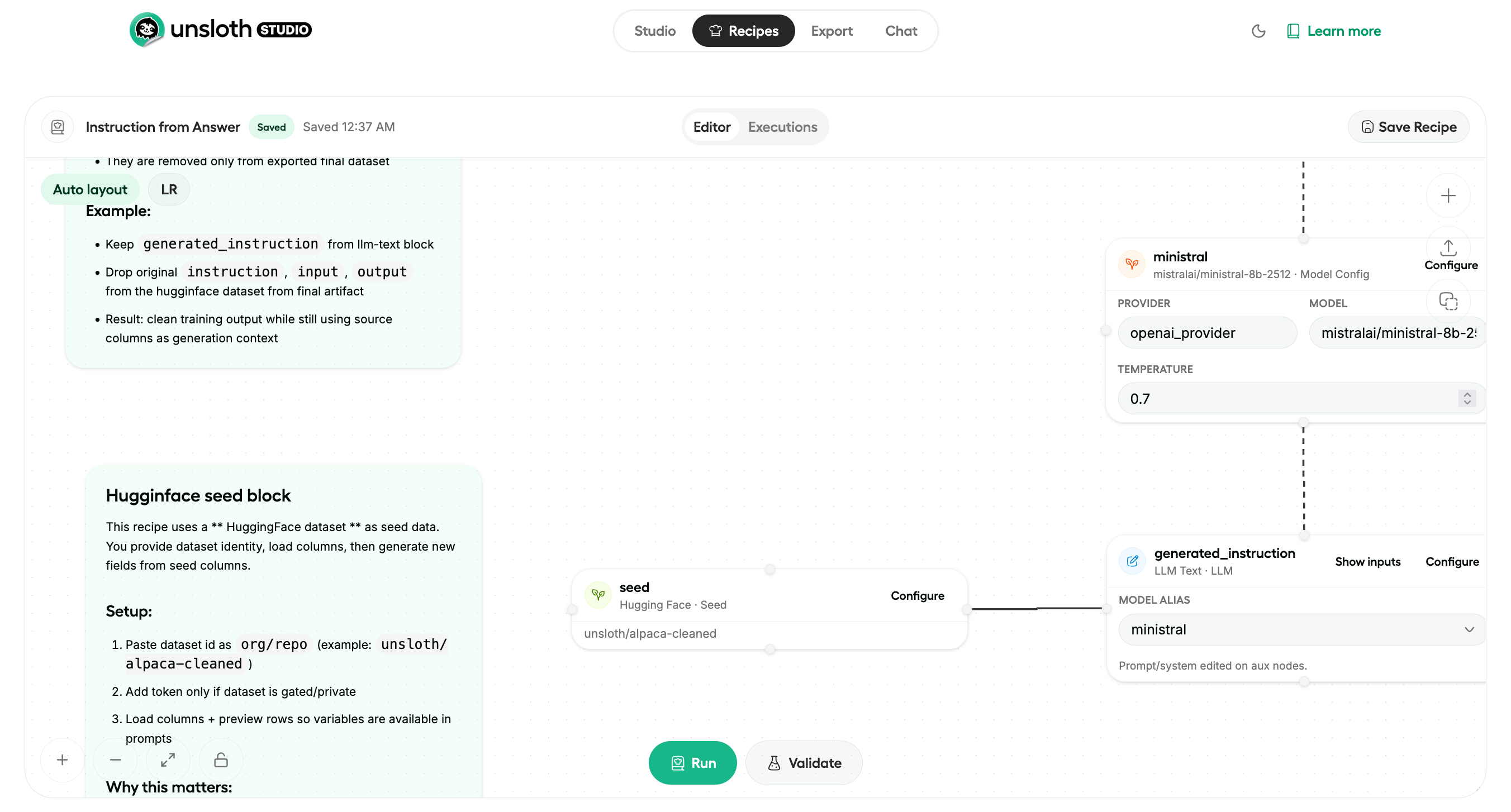
[Unsloth Data Recipes](/docs/new/studio/data-recipe.md) lets you upload documents like PDFs or CSVs files and transforms them into useable datasets. Create and edit datasets visually via a graph-node workflow.
The recipes page is the main entry point. Recipes are stored locally in the browser, so you come back to saved work later. From here, you can create a blank recipe or open a guided learning recipe.
Data Recipes follows the same basic path. You open the recipes page, create or pick a recipe, build the workflow in the editor, validate it run a preview, then run the full dataset once the output looks right. Add seed data and generation blocks, validate the workflow, preview sample output, then run a full dataset build. Unsloth Data Recipes is powered by NVIDIA [DataDesigner](https://github.com/NVIDIA-NeMo/DataDesigner).
At a glance a usual workflow should look like this:
1. Open the recipes page.
2. Create a new recipe or open an existing one.
3. Add blocks to define your dataset workflow.
4. Click **Validate** to catch configuration issues early.
5. Run a preview to inspect sample rows quickly.
6. Run a full dataset build when the recipe is ready.
7. Review progress and output live in graph or in **Executions** view for mode details.
8. Select the resulting dataset in **Unsloth** and fine tune a model.
## :box-isometric: Export - Quickstart
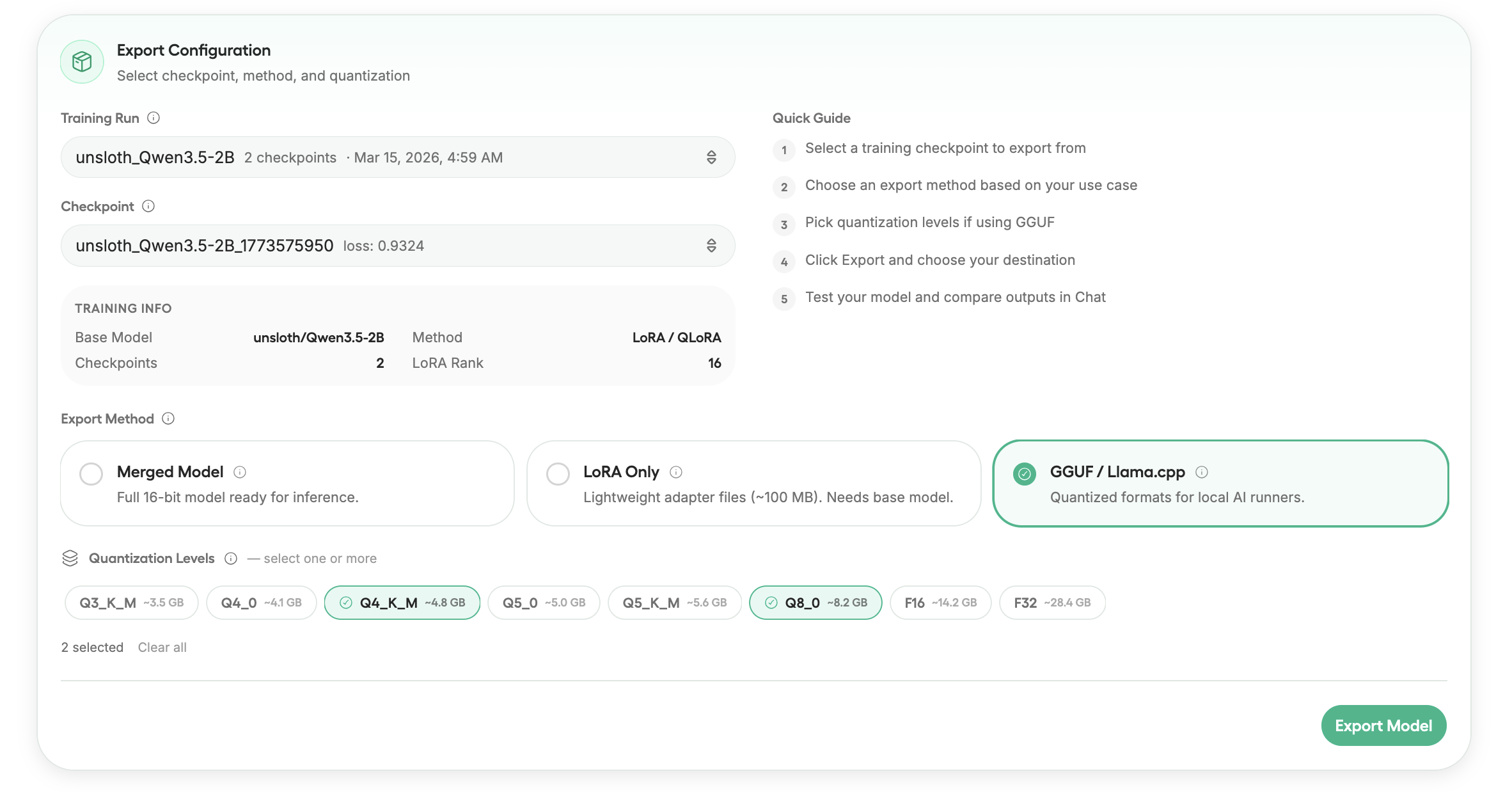
Use Unsloth Studio 'Export' to export, save, or convert models to GGUF, Safetensors, or LoRA for deployment, sharing, or local inference in Unsloth, llama.cpp, Ollama, vLLM, and more. Export a trained checkpoint or convert any existing model.
You can read our detailed tutorial / guide about exporting models with Unsloth Studio here:
{% content-ref url="/pages/5ZU2kPF2eJ7VK0GeEUhu" %}
[Model Export](/docs/new/studio/export.md)
{% endcontent-ref %}
## :video: Video Tutorial
{% hint style="warning" %}
The Unsloth Studio versions shown in the videos are old and are not reflective of the current version.
{% endhint %}
{% columns %}
{% column %}
{% embed url="" %}
Here is a video tutorial created by NVIDIA to get you started with Unsloth:
{% endcolumn %}
{% column %}
{% embed url="" %}
How to Install Unsloth Studio Video Tutorial
{% endcolumn %}
{% endcolumns %}
## Advanced Settings
### CLI Commands
The Unsloth CLI (`cli.py`) provides the following commands:
```
Usage: cli.py [COMMAND]
Commands:
train Fine-tune a model
inference Run inference on a trained model
export Export a trained adapter
list-checkpoints List saved checkpoints
ui Launch the Unsloth Studio web UI
studio Launch the studio (alias)
```
### Project Structure
{% code expandable="true" %}
```
new-ui-prototype/
├── cli.py # CLI entry point
├── cli/ # Typer CLI commands
│ └── commands/
│ ├── train.py
│ ├── inference.py
│ ├── export.py
│ ├── ui.py
│ └── studio.py
├── setup.sh # Bootstrap script (Linux / WSL / Colab)
├── setup.ps1 # Bootstrap script (Windows native)
├── setup.bat # Wrapper to launch setup.ps1 via double-click
├── install_python_stack.py # Cross-platform Python dependency installer
└── studio/
├── backend/
│ ├── main.py # FastAPI app & middleware
│ ├── run.py # Server launcher (uvicorn)
│ ├── auth/ # Auth storage & JWT logic
│ ├── routes/ # API route handlers
│ │ ├── training.py
│ │ ├── models.py
│ │ ├── inference.py
│ │ ├── datasets.py
│ │ └── auth.py
│ ├── models/ # Pydantic request/response schemas
│ ├── core/ # Training engine & config
│ ├── utils/ # Hardware detection, helpers
│ └── requirements.txt
├── frontend/
│ ├── src/
│ │ ├── features/ # Feature modules
│ │ │ ├── auth/ # Login / signup flow
│ │ │ ├── training/ # Training config & monitoring
│ │ │ ├── studio/ # Main studio workspace
│ │ │ ├── chat/ # Inference chat UI
│ │ │ ├── export/ # Model export flow
│ │ │ └── onboarding/# Onboarding wizard
│ │ ├── components/ # Shared UI components (shadcn)
│ │ ├── hooks/ # Custom React hooks
│ │ ├── stores/ # Zustand state stores
│ │ └── types/ # TypeScript type definitions
│ ├── package.json
│ └── vite.config.ts
└── tests/ # Backend test suite
```
{% endcode %}
### API Reference
All endpoints require a valid JWT `Authorization: Bearer ` header (except `/api/auth/*` and `/api/health`).
| Method | Endpoint | Description |
| ------ | --------------------- | -------------------------------------------------- |
| `GET` | `/api/health` | Health check |
| `GET` | `/api/system` | System info (GPU, CPU, memory) |
| `POST` | `/api/auth/signup` | Create account (requires setup token on first run) |
| `POST` | `/api/auth/login` | Login and receive JWT tokens |
| `POST` | `/api/auth/refresh` | Refresh an expired access token |
| `GET` | `/api/auth/status` | Check if auth is initialized |
| `POST` | `/api/train/start` | Start a training job |
| `POST` | `/api/train/stop` | Stop a running training job |
| `POST` | `/api/train/reset` | Reset training state |
| `GET` | `/api/train/status` | Get current training status |
| `GET` | `/api/train/metrics` | Get training metrics (loss, LR, steps) |
| `GET` | `/api/train/stream` | SSE stream of real-time training progress |
| `GET` | `/api/models/` | List available models |
| `POST` | `/api/inference/chat` | Send a chat message for inference |
| `GET` | `/api/datasets/` | List / manage datasets |
---
# Agent Instructions
This documentation is published with GitBook. GitBook is the documentation platform designed so that both humans and AI agents can read, navigate, and reason over technical content effectively. Learn more at gitbook.com.
## Querying This Documentation
If you need additional information that is not directly available in this page, you can query the documentation by asking a question.
Perform an HTTP GET request on the following URL with the `ask` and `goal` query parameters:
```
GET https://unsloth.ai/docs/new/studio/start.md?ask=&goal=
```
`ask` is the immediate question: it should be specific, self-contained, and written in natural language.
`goal` is what the user is ultimately trying to achieve, the reason they need the answer. Sharing it helps GitBook give you a better, more relevant answer. A goal is most helpful when it describes the outcome the user wants rather than restating the question. For example, with `ask=how do I create an API token`, a goal like `automate deployments from our CI pipeline` lets GitBook tailor the answer to that use case.
The response will contain a direct answer to the question and relevant excerpts and sources from the documentation.
Use this mechanism when the answer is not explicitly present in the current page, you need clarification or additional context, or you want to retrieve related documentation sections.