Unsloth Data Recipes
Learn how to create, build and edit datasets with Unsloth Studio's Data Recipes.
Unsloth Studio's Data Recipes lets you upload documents like PDFs or CSVs files and transforms them into useable / synthetic datasets. Create and edit datasets visually via a graph-node workflow. This guide will get you started with the basics before you dive into Unsloth Data Recipes.

How Data Recipes works
Data Recipes follows the same basic path. You open the recipes page, create or pick a recipe, build the workflow in the editor, validate it run a preview, then run the full dataset once the output looks right. Add seed data and generation blocks, validate the workflow, preview sample output, then run a full dataset build. Unsloth Data Recipes is powered by NVIDIA DataDesigner.

At a glance a usual workflow should look like this:
Open the recipes page.
Create a new recipe or open an existing one.
Add blocks to define your dataset workflow.
Click Validate to catch configuration issues early.
Run a preview to inspect sample rows quickly.
Run a full dataset build when the recipe is ready.
Review progress and output live in graph or in Executions view for mode details.
Select the resulting dataset in Studio and fine tune a model.
Get Started
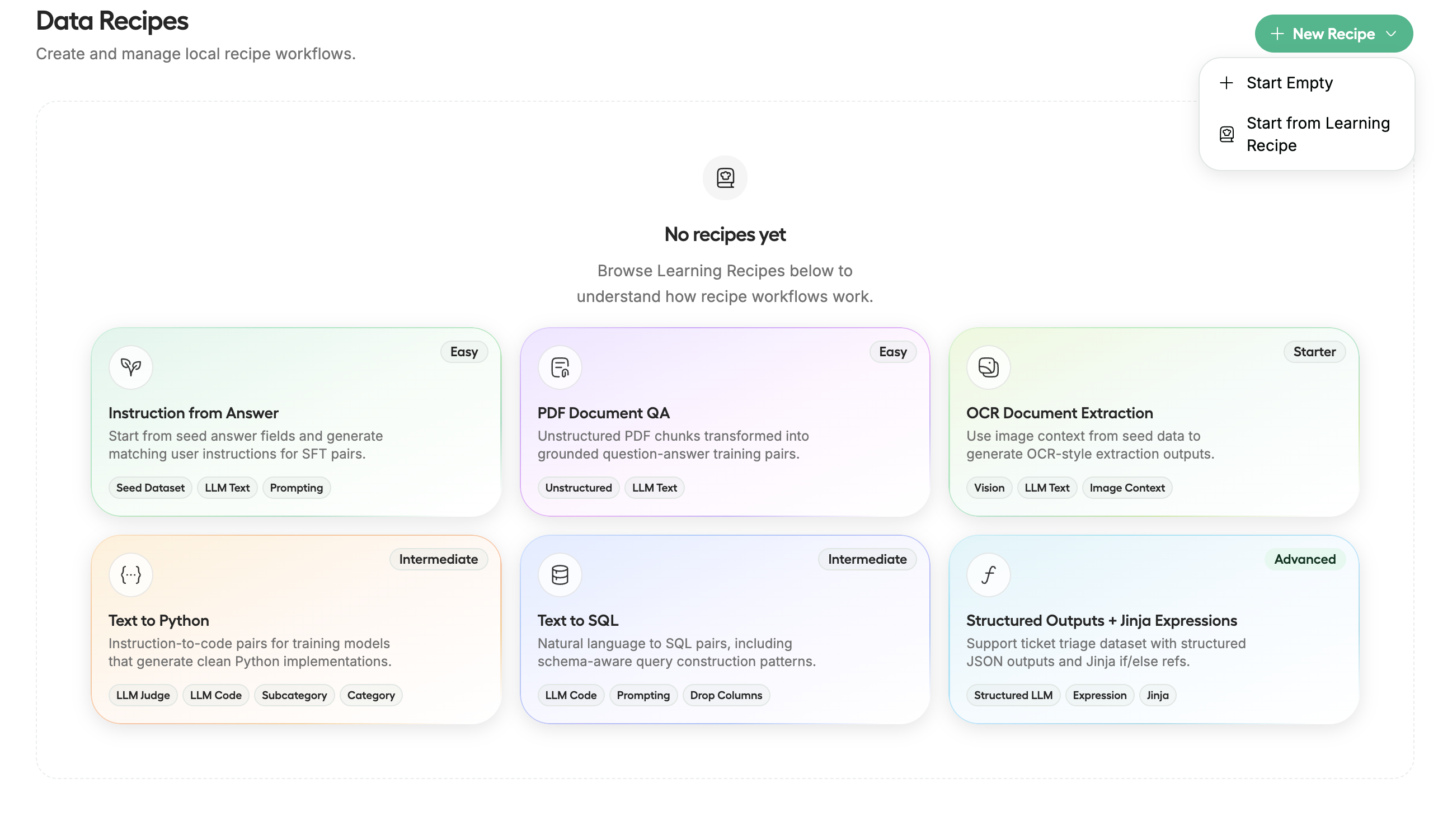
The recipes page is the main entry point. Recipes are stored locally in the browser, so you come back to saved work later. From here, you can create a blank recipe or open a guided learning recipe.
Recipes can be exported and imported, so it is easy to share workflows with other Unsloth users 🎉. If you are trying to build a specific dataset pattern, ask in Unsloth Discord. Someone may already have a recipe they can share.

If you are new to concept of workflows, learning recipes are the fastest way to see how seed data, prompts, expressions, and validators fit together in one working example. If you already know the shape of dataset you want, starting empty is usually quicker.
Choose a starting path
Build a custom workflow quickly
Start Empty
Learn the product from an example
Start from Learning Recipe
Continue previous work
Open a saved recipe
What you build in the editor
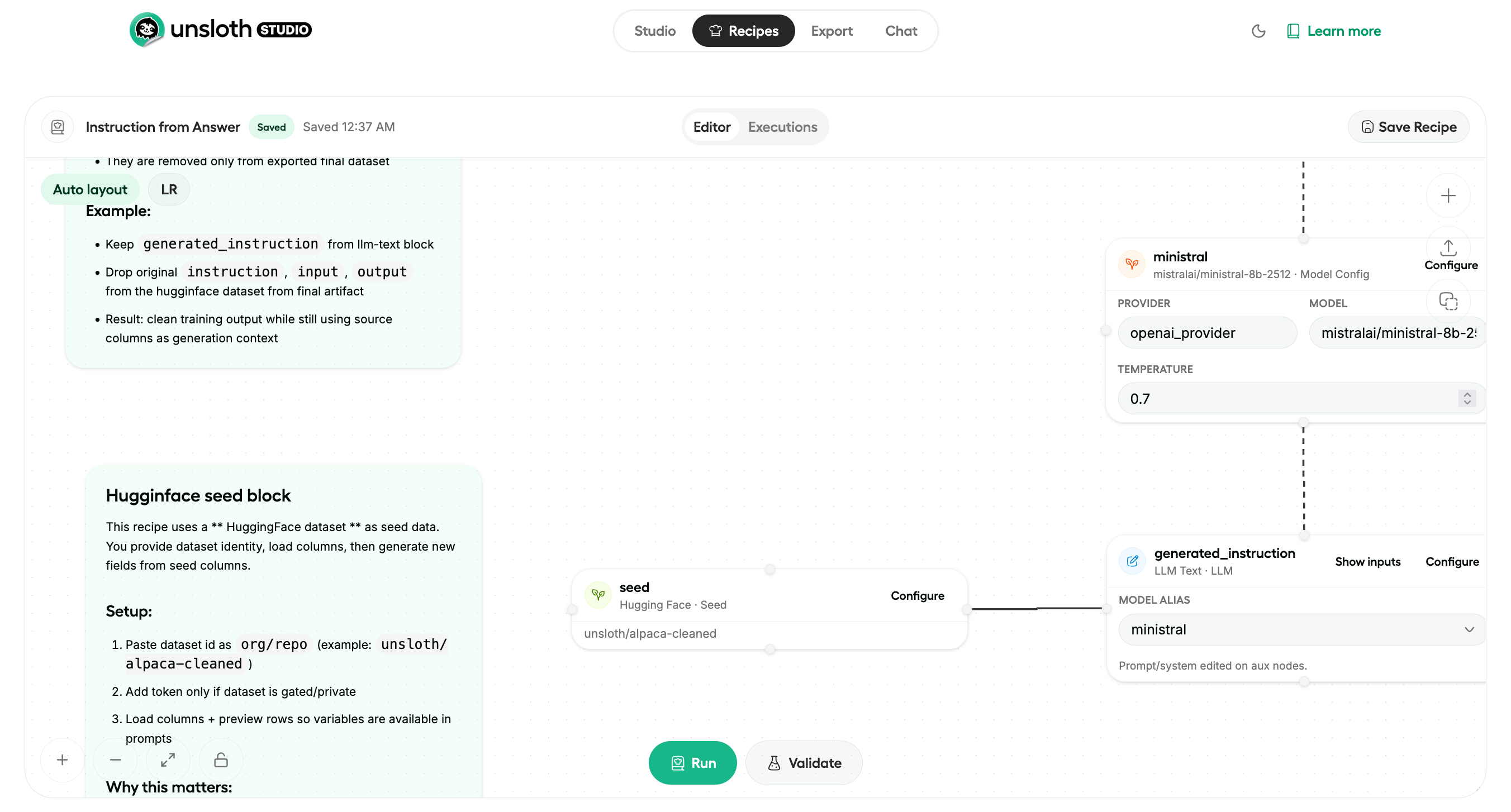
The editor is where the recipe takes shape. You add blocks from the block sheet, configure them in dialogs, connect them on the canvas, and then validate or run the workflow.

The editor has a few core parts:
The recipe header, where you rename the recipe and switch between Editor and Executions
The canvas, where the recipe graph is shown
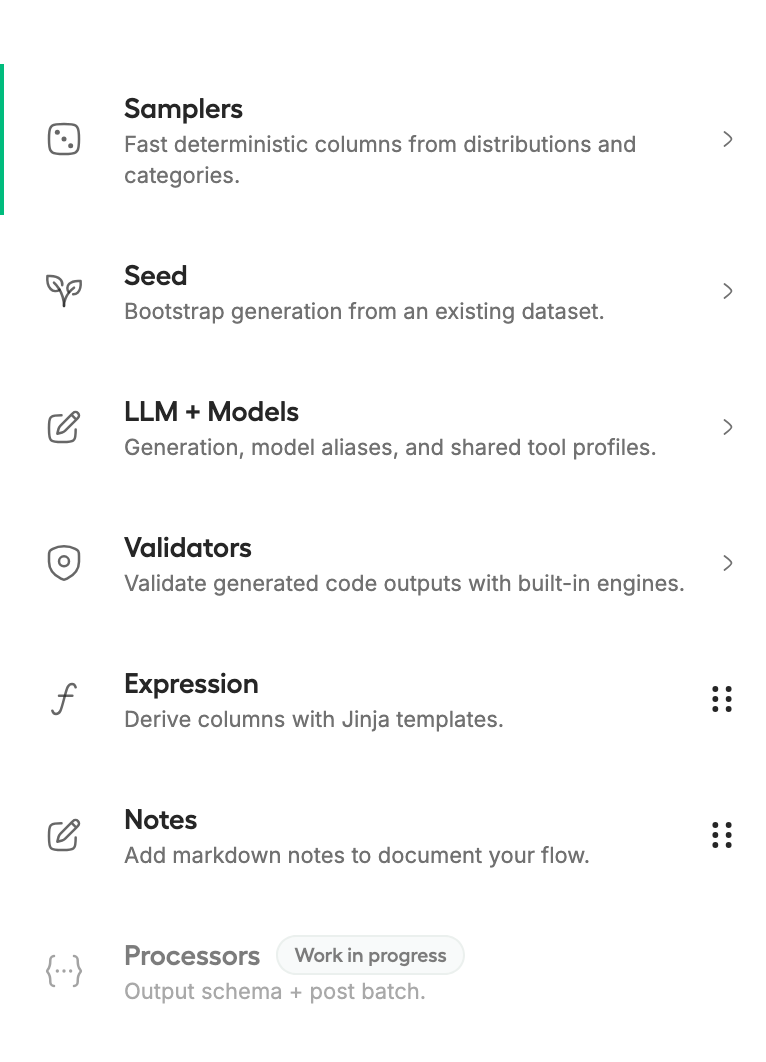
The block sheet, where you add new blocks
Configuration dialogs, where you define prompts, references, model aliases, validators and seed settings.
The floating Run and Validate controls
need to add more here
The most common blocks in reciper are:
Seed for input data from hugginface, local structured files (or unstructured documents that get chunked into rows.
LLM + Models for providers, model configs, LLM generation blocks, and shared tool profiles.
Expression for jinja2-based transforms that do not require an LLM call.
Validators for filtering bad generated code with built in linters for Python, SQL, and Javascript/Typescript.
Samplers for deterministic columns such as categories and subcategories.
How references work
Most blocks that produce data (with some exceptions) becomes a reference for later blocks. That is one of the main ideas behind Data Recipes. You create a value once, then reuse it in prompts, expressions, structured outputs, and validation steps.
Jinja Expressions help you work with values that arleady exist in the recipe. You can reference nested fields like {{customer.first_name}} , join values like {{customer.first_name}} {{customer.last_name}} and add conditional logic with patterns such as {% if condition %}...{% endif %}

For example:
A category block named
domaincan be references as{{ domain }}a seed column can be used directly in an LLM prompt, the columns in your seed data (eg. HF dataset columns, csv)
a structured LLM output can expose fileds for later prompts
an expression block can combine earlyier values without another model call
What happens after?
Preview runs are for quick iteration. They return sample rows and analysis in the editor so you can inspect the generated data before commiting to a full run.
Full runs create a persisted local dataset artifact. That output later appears in Studio's local dataset picker, where you can inspect it again and use it for fine-tuning. Optionally you can publish your dataset to you hugginface repo.
Core building blocks


Model setup is split into two usable layers:
Model provider defines the endpoint and authentifcation
Model Config defines the model name and inference settings
This setup works with hosted providers, self-hosted endpoints, vLLM , llama.cpp , or any OpenAI-compatible API that you run outside Studio.
Recipes are not limited to one model. You can add multiple Model providers and Model config blocks, then use different models for different steps, such as one for coding and another for general text tasks.
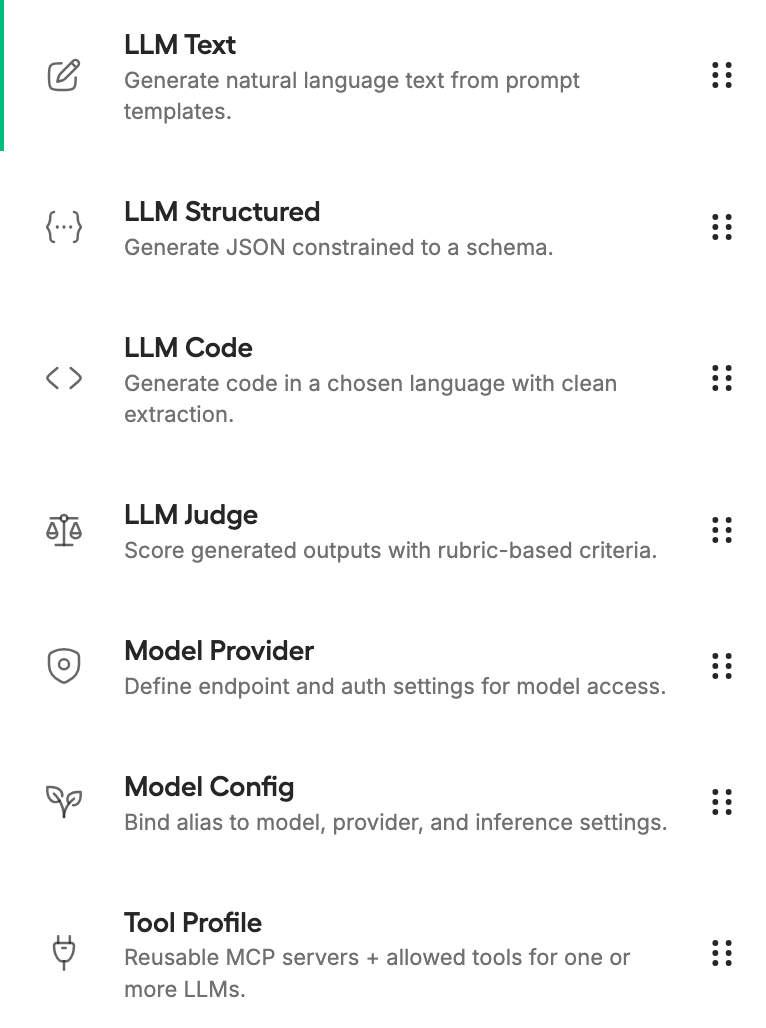
After model setup, you can use Four LLM block types:
LLM Text
Free-form text
Instructions, explanations, conversations, and descriptions
LLM Structured
JSON
Output that need fixed fields and predictable structure
LLM Code
Code
Python, SQL, Typescript and other code generation tasks
LLM Judge
Scored evaluation
Grading outputs with one or more user-defined score
Tool Profiles
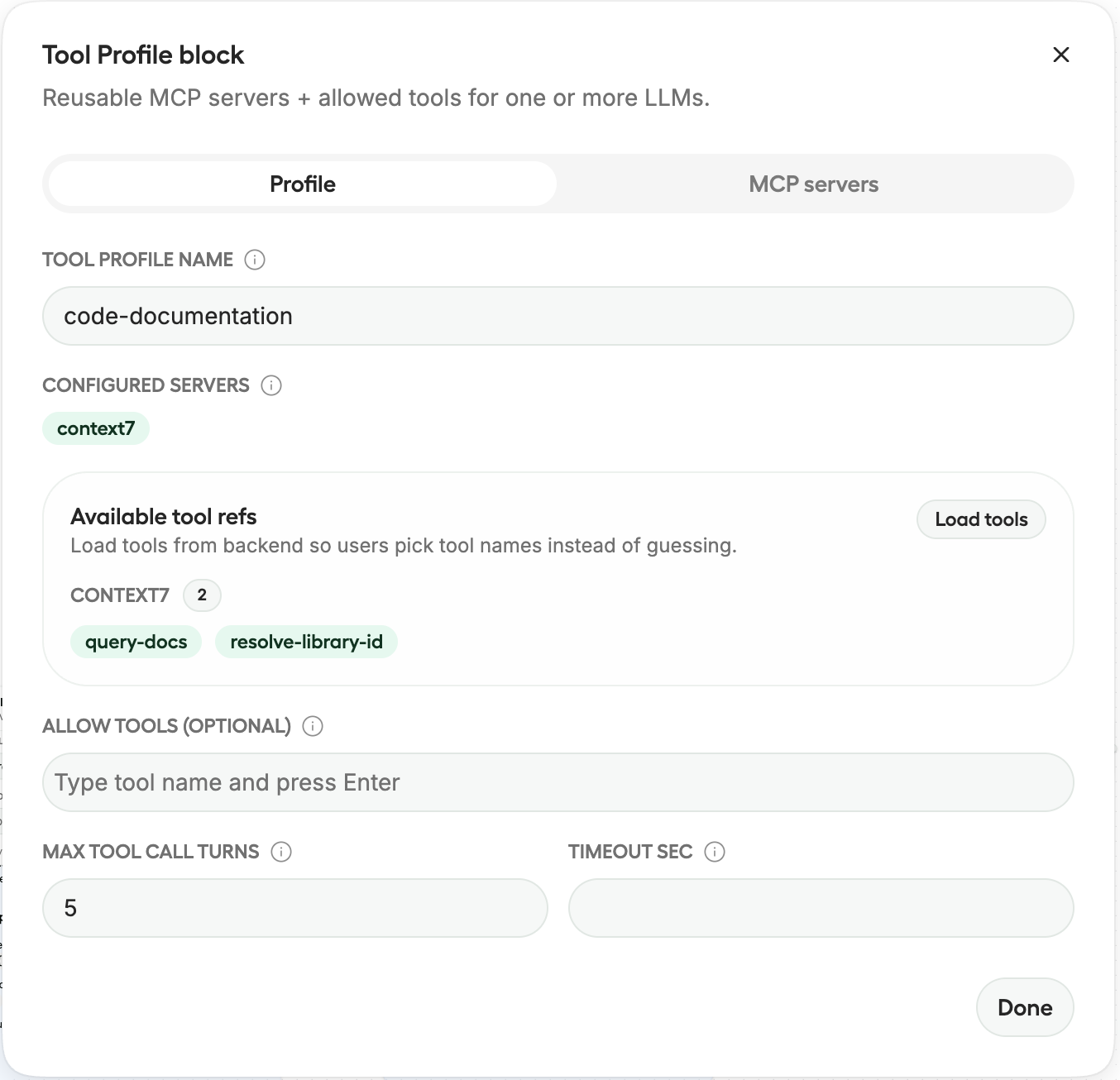
Tool profile blocks defines shared MCP based tool access for one or more LLM blocks. Use them when a generation step needs tools, such as looking up code documentation through Context7.
Image to the left shows Context7 MCP added and configured in Tool Profile block dialog:

Validators
Validor block primarly target LLM code block by running generated code outputs through Linter and syntax validation, this helps you keep bad or invalid code rows out of the final dataset by filtering them out. The built-in options cover Python, SQL, and JavaScript/TypeScript validation.

Validate, preview and run
Once the recipe workflow is in place, the next step is execution. The reccomended pattern is: validate first, preview for quick feedback and inspect the generated data in executions view, then run the full dataset when you feel the output satisfies your plan.
Use the execution controls in third order:

Last updated
Was this helpful?