> For the complete documentation index, see [llms.txt](https://unsloth.ai/docs/llms.txt). Markdown versions of documentation pages are available by appending `.md` to page URLs; this page is available as [Markdown](https://unsloth.ai/docs/new/studio/chat.md).
# How to Run models with Unsloth
Run AI models, LLMs and GGUFs locally with Unsloth Studio.
[Unsloth Studio](/docs/new/studio.md) and Unsloth Desktop lets you run AI models 100% offline on your computer. Run model formats like GGUF and safetensors from Hugging Face or from your local files.
* **Works on all MacOS, CPU, Windows, Linux, WSL setups! No GPU required**
* [**Self-healing tool calling**](#auto-healing-tool-calling)**,** advanced [**web search**](#advanced-web-search), [**code execution**](#code-execution)
* Use Unsloth as an OpenAI-compatible inference [**API endpoint**](/docs/basics/api.md) or connect a [provider](/docs/integrations/connections.md)
* Search + Download + Run + [Compare](#model-arena) any model like GGUFs, LoRA adapters, safetensors etc.
* [**Auto inference parameter**](#auto-parameter-tuning) tuning (temp, top-p etc.) and edit chat templates
* Upload images, audio, PDFs, code, DOCX and more file types to chat with.
### Using Unsloth Studio Chat
{% hint style="success" %}
Unsloth Studio Chat automatically works on **multi-GPU setups** for inference.
{% endhint %}
{% columns %}
{% column %}
#### Code execution
Unsloth Studio lets LLMs run Bash and Python, not just JavaScript. It also sandboxes programs like Claude Artifacts so models can test code, generate files, and verify answers with real computation.
This makes answers from models more reliable and accurate.
{% endcolumn %}
{% column %}
{% endcolumn %}
{% endcolumns %}
{% columns %}
{% column %}
#### Auto-healing tool calling
Unsloth Studio not only allows [tool calling](#id-50-tool-calling-accuracy), but also auto-fixes malformed or broken tool-calls by 50%.
This means you'll always get inference outputs **without** broken tool calling.
E.g. Qwen3.5-4B searched 20+ websites and cited sources, with web search happening inside its thinking trace.
{% endcolumn %}
{% column %}
{% endcolumn %}
{% endcolumns %}
{% columns %}
{% column %}
#### Advanced Web Search
Unsloth's unlimited and secure web search actually visits pages directly to collect relevant information and data and doesn't just scan through website summaries. This provides outputs much more accurate / in-depth info and context. Search uses DuckDuckGo's private and secure API.
{% endcolumn %}
{% column %}
{% endcolumn %}
{% endcolumns %}
{% columns %}
{% column %}
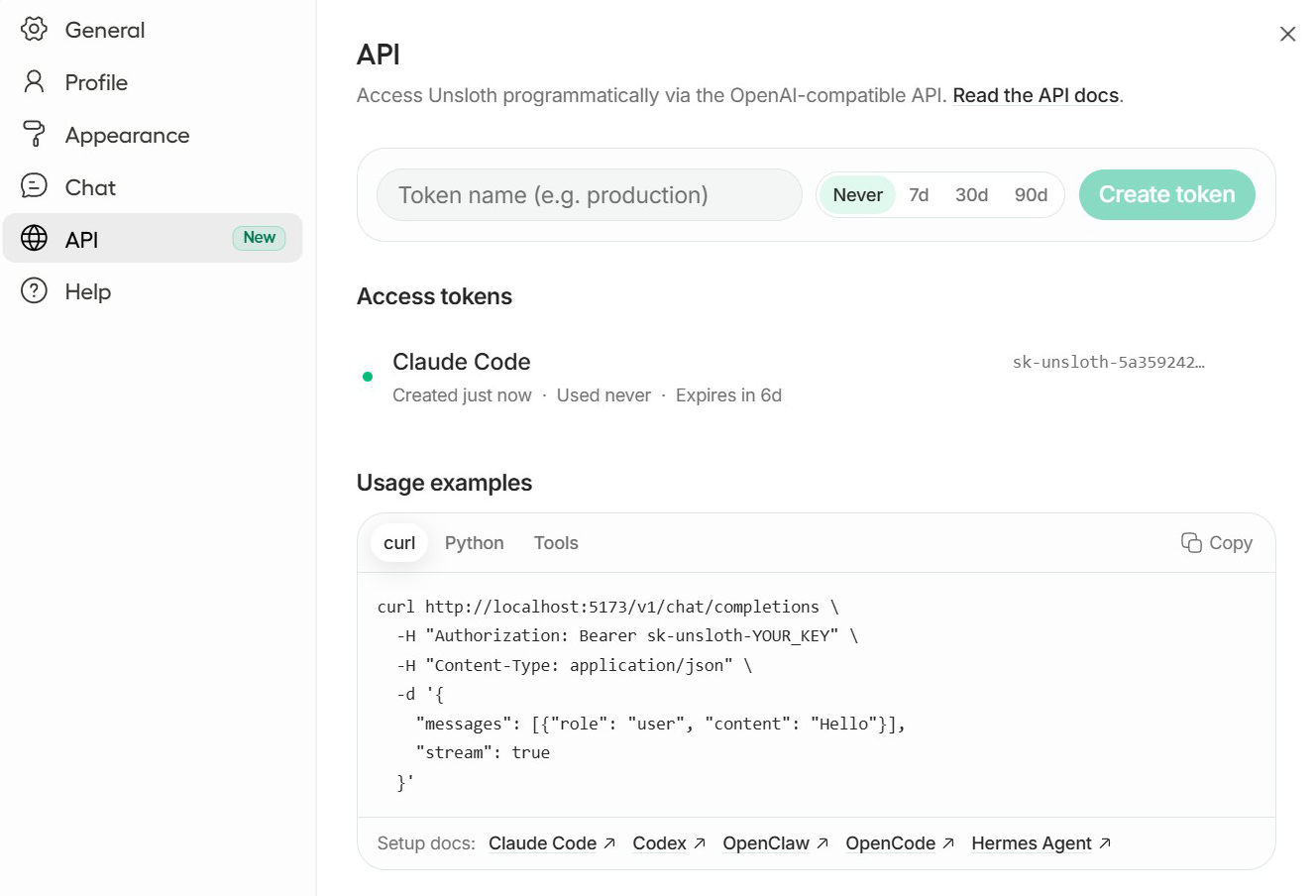
#### Use Unsloth as an API endpoint
You can now use local LLMs via tools like [Claude Code](/docs/basics/claude-code.md) and [Codex](/docs/basics/codex.md) by connecting it to Unsloth's [API endpoint](#use-unsloth-as-an-api-endpoint). This means you'll be able to directly run Qwen and Gemma models in those tools with Unsloth's inference which includes features like self-healing tool-calling, websearch etc.
{% endcolumn %}
{% column %}
{% endcolumn %}
{% endcolumns %}
{% columns %}
{% column %}
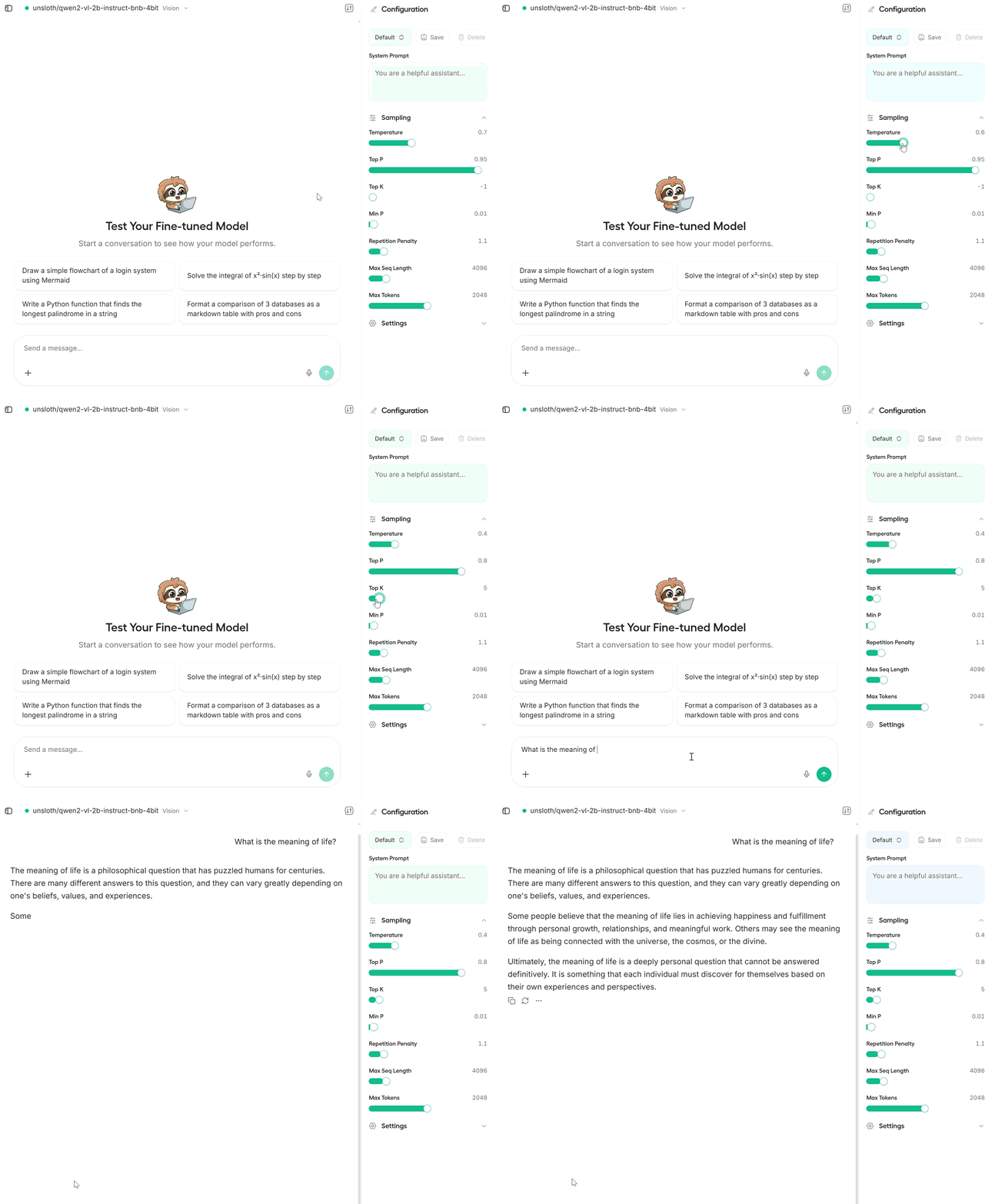
#### Automatic inference settings
Inference parameters like **temperature**, **top-p**, **top-k**, [**MTP**](/docs/models/qwen3.6.md#mtp-guide) are automatically pre-set for new models like Qwen3.5 so you can get the best outputs without worrying about settings. You can also adjust parameters manually and edit the system prompt.
Context length adjustment is no longer necessary with llama.cpp’s smart auto context, which uses only the context you need without loading anything extra.
{% endcolumn %}
{% column %}
{% endcolumn %}
{% endcolumns %}
{% columns %}
{% column %}
#### Connect Providers
[Unsloth connects](/docs/integrations/connections.md) to OpenAI, Anthropic, Ollama, llama.cpp, vLLM, and others.
Add API keys or model server URLs, then use external models in the same chat interface as local + cloud models. Run with [prompt caching](/docs/integrations/connections.md#prompt-caching), tool-calling, thinking, and provider-native features like OpenAI's [web search](#web-search-and-thinking) and [code execution](#code-execution).
{% endcolumn %}
{% column %}
{% endcolumn %}
{% endcolumns %}
{% columns %}
{% column %}
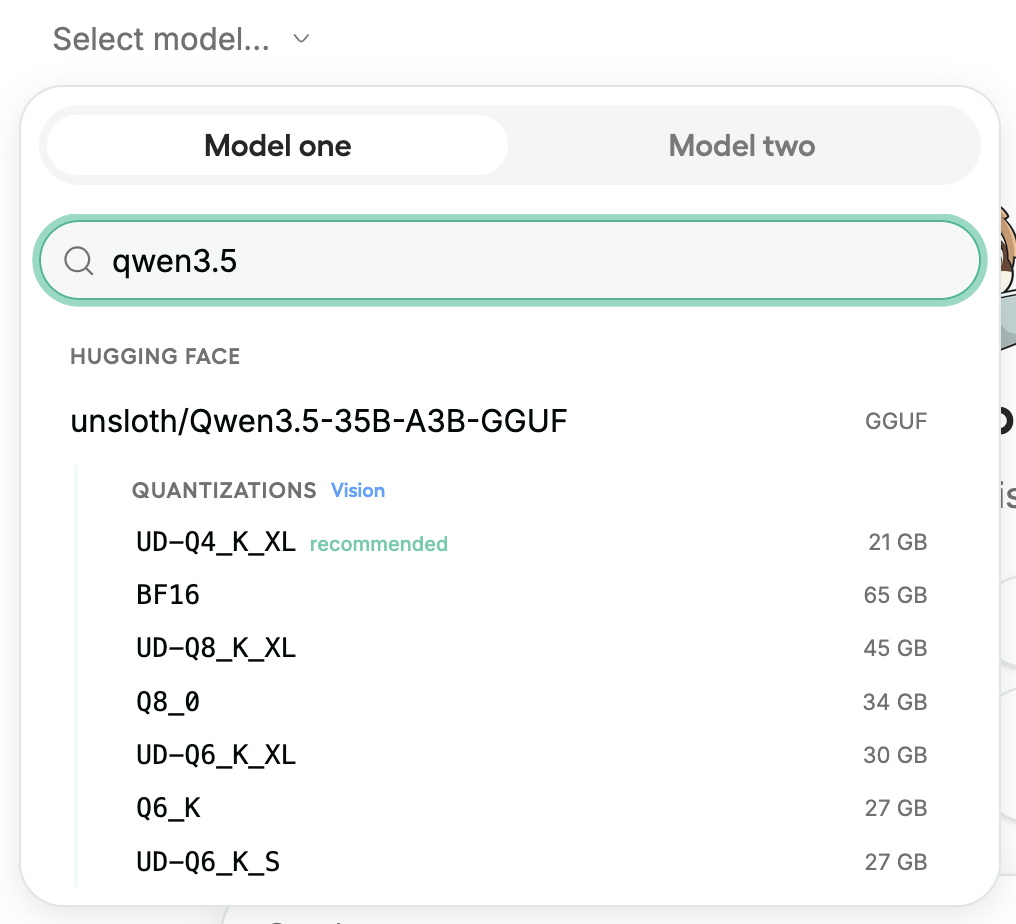
#### Search and run models
You can search and download any model via Hugging Face or use local files.
Unsloth supports a wide range of model types, including **GGUF**, vision-language, and text-to-speech models. Run the latest models like [Qwen3.5](/docs/models/qwen3.5.md) or NVIDIA [Nemotron 3](/docs/models/nemotron-3.md).
Upload images, audio, PDFs, code, DOCX and more file types to chat with.
{% endcolumn %}
{% column %}
{% endcolumn %}
{% endcolumns %}
{% columns %}
{% column %}
#### Chat Workspace
Enter prompts, attach any documents, images (webp, png), code files, txt, or audio as additional context, and see the model’s responses in real time.
Toggle on or off: Thinking + Web search.
{% endcolumn %}
{% column %}
{% endcolumn %}
{% endcolumns %}
### **+50% Tool Calling Accuracy**
Unsloth offers several unique features that improve tool calling, including:
* Tool calls across all models in Unsloth are **30% to 80% more accurate**.
* Web search retrieves actual web content instead of only summaries.
* The maximum number of allowed tool calls is **more than 25.**
* Tool calls terminate more reliably, reducing loops and repeated calls.
* Improved tool-call healing and deduplication logic helps prevent XML from leaking into outputs.
See test results with `unsloth/Qwen3.5-4B-GGUF (UD-Q4_K_XL)` with web search, code execution, and thinking enabled:
| Metric | Normal Tool-calling | Unsloth Tool-calling |
| ---------------------------- | ------------------- | -------------------- |
| XML leaks in response | 10/10 | 0/10 |
| URL fetches used | 0 | 4/10 runs |
| Runs with correct song names | 0/10 | 2/10 |
| Avg tool calls | 5.5 | 3.8 |
| Avg response time | 12.3s | 9.8s |
### Model Arena
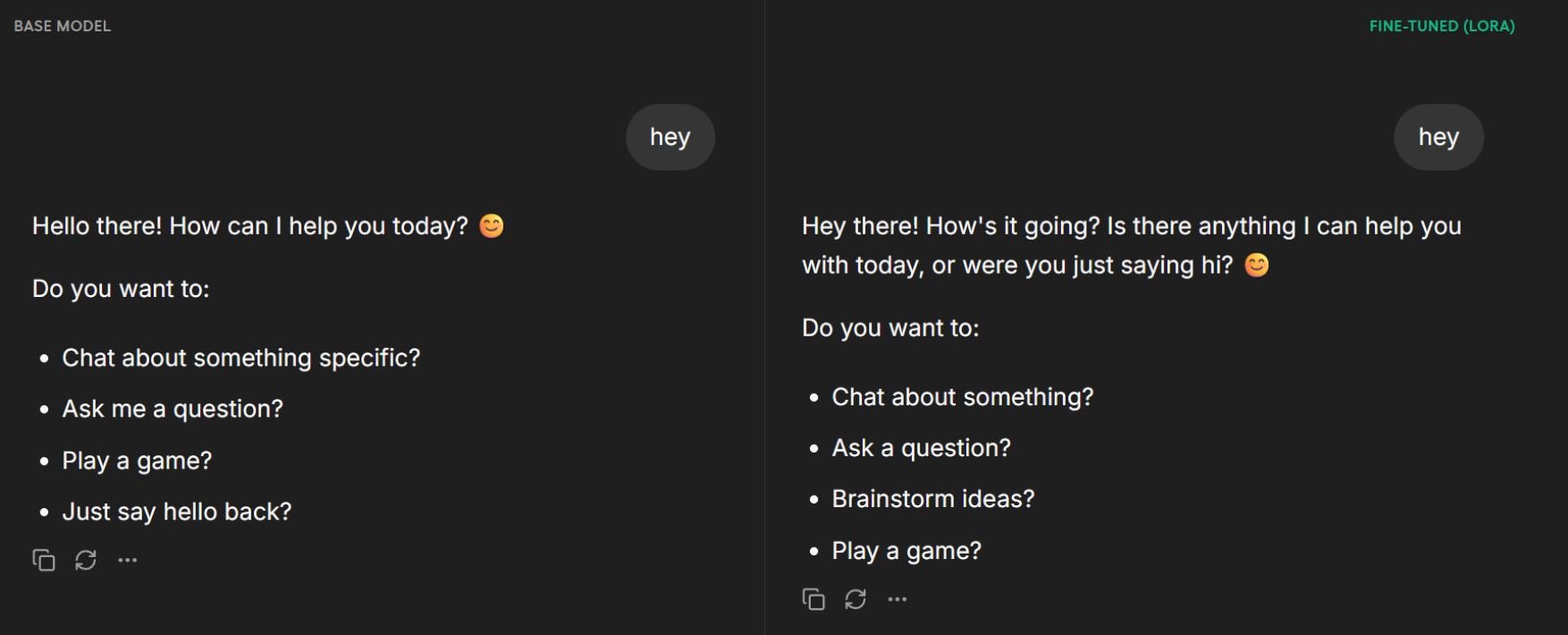
Unsloth Chat lets you compare any two models side-by-side using the same prompt. E.g. compare the base model and LoRa adapter. Inference will firstly load for one model, then the second one (parallel inference is being worked on).
{% columns %}
{% column %}
After training, you can compare the base and fine-tuned models side by side with the same prompt to see what changed and whether results improved.
This workflow makes it easy to see how your fine-tuning changed the model’s responses and whether it improved results for your use case.
{% endcolumn %}
{% column %}
{% endcolumn %}
{% endcolumns %}
{% hint style="success" %}
Unsloth Studio Chat auto works on **multi-GPU setups** for inference.
{% endhint %}
### Using old / existing GGUF models
{% columns %}
{% column %}
**Apr 1 update:** You can now select an existing folder for Unsloth to detect from.
**Mar 27 update:** Unsloth Studio now **automatically detects older / pre-existing models** downloaded from Hugging Face, LM Studio etc.
{% endcolumn %}
{% column %}
{% endcolumn %}
{% endcolumns %}
**Manual instructions:** Unsloth Studio detects models downloaded to your Hugging Face Hub cache `(C:\Users{your_username}.cache\huggingface\hub)`. If you have GGUF models downloaded through LM Studio, note that these are stored in `C:\Users\{your_username}.cache\lm-studio\models` ***OR*** `C:\Users{your_username}\lm-studio\models` and are not visible to llama.cpp by default - you will need to move or copy those .gguf files into your Hugging Face Hub cache directory (or another path accessible to llama.cpp) for Unsloth Studio to load them.
After fine-tuning a model or adapter in Unsloth, you can export it to GGUF and run local inference with **llama.cpp** directly in Unsloth Chat. Unsloth Studio is powered by llama.cpp and Hugging Face.
### Adding Files as Context
Unsloth Chat supports multimodal inputs directly in the conversation. You can attach documents, images, or audio as additional context for a prompt.
This makes it easy to test how a model handles real-world inputs such as PDFs, screenshots, or reference material. Files are processed locally and included as context for the model.
### **Deleting model files**
You can delete old model files either from the bin icon in model search or by removing the relevant cached model folder from the default Hugging Face cache directory. By default, Hugging Face uses `~/.cache/huggingface/hub/` on macOS/Linux/WSL and `C:\Users\\.cache\huggingface\hub\` on Windows.
* **MacOS, Linux, WSL:** `~/.cache/huggingface/hub/`
* **Windows:** `%USERPROFILE%\.cache\huggingface\hub\`
If `HF_HUB_CACHE` or `HF_HOME` is set, use that location instead. On Linux and WSL, `XDG_CACHE_HOME` can also change the default cache root.
### **Unsloth not detecting or using my GPU**
If the model is not using your GPU specifically for Docker, try:
Pulling the latest image manually:
```bash
docker pull unsloth/unsloth:latest
```
* Start the container with GPU access:
* `docker run`: `--gpus all`
* Docker Compose: `capabilities: [gpu]`
* On Linux, make sure the NVIDIA Container Toolkit is installed.
* On Windows:
* Check that `nvcc --version` matches the CUDA version shown in `nvidia-smi`
* Follow:
---
# Agent Instructions
This documentation is published with GitBook. GitBook is the documentation platform designed so that both humans and AI agents can read, navigate, and reason over technical content effectively. Learn more at gitbook.com.
## Querying This Documentation
If you need additional information that is not directly available in this page, you can query the documentation by asking a question.
Perform an HTTP GET request on the following URL with the `ask` and `goal` query parameters:
```
GET https://unsloth.ai/docs/new/studio/chat.md?ask=&goal=
```
`ask` is the immediate question: it should be specific, self-contained, and written in natural language.
`goal` is what the user is ultimately trying to achieve, the reason they need the answer. Sharing it helps GitBook give you a better, more relevant answer. A goal is most helpful when it describes the outcome the user wants rather than restating the question. For example, with `ask=how do I create an API token`, a goal like `automate deployments from our CI pipeline` lets GitBook tailor the answer to that use case.
The response will contain a direct answer to the question and relevant excerpts and sources from the documentation.
Use this mechanism when the answer is not explicitly present in the current page, you need clarification or additional context, or you want to retrieve related documentation sections.