> For the complete documentation index, see [llms.txt](https://unsloth.ai/docs/llms.txt). Markdown versions of documentation pages are available by appending `.md` to page URLs; this page is available as [Markdown](https://unsloth.ai/docs/models/tutorials/qwen-image-2512.md).
# How to Run Qwen-Image-2512 Locally in ComfyUI
Step-by-step tutorial for running Qwen-Image-2512 on your local device with ComfyUI.
**Qwen-Image-2512** is the December update to Qwen's text-to-image foundational models. The model is the top performing open-source diffusion model and this guide will teach you how to run it locally via [Unsloth](https://github.com/unslothai/unsloth) GGUF and ComfyUI.
Qwen-Image-2512 features: more realistic looking people; richer details in landscapes/textures; and more accurate text rendering. **Uploads:** [GGUF](https://huggingface.co/unsloth/Qwen-Image-2512-GGUF) • [FP8](https://huggingface.co/unsloth/Qwen-Image-2512-FP8) • [4-bit BnB](https://huggingface.co/unsloth/Qwen-Image-2512-unsloth-bnb-4bit)
The quants use [Unsloth Dynamic](/docs/basics/dynamic-3.0-ggufs.md) methodology which upcasts important layers to higher precision to recover more accuracy. Thank you Qwen for allowing Unsloth day 0 support.
## 📖 ComfyUI Tutorial
To run, you don't need a GPU, just a CPU with RAM will work. For best results, ensure your total usable memory (RAM + VRAM / unified) is larger than the GGUF size; e.g. 4-bit (Q4\_K\_M) `unsloth/Qwen-Image-Edit-2512-GGUF` is 13.1 GB, so you should have 13.2+ GB of combined memory.
[ComfyUI](https://github.com/Comfy-Org/ComfyUI) is an open-source diffusion model GUI, API, and backend that uses a node-based (graph/flowchart) interface. This guide will focus on machines with CUDA, but instructions to build with on Apple or CPU are similar.
### #1. Install & Setup
To install ComfyUI, you can download the desktop app on Windows or Mac devices [here](https://www.comfy.org/download). Otherwise, to setup ComfyUI for running GGUF models run the following:
```bash
mkdir comfy_ggufs
cd comfy_ggufs
python -m venv .venv
source .venv/bin/activate
git clone https://github.com/Comfy-Org/ComfyUI.git
cd ComfyUI
pip install -r requirements.txt
cd custom_nodes
git clone https://github.com/city96/ComfyUI-GGUF
cd ComfyUI-GGUF
pip install -r requirements.txt
cd ../..
```
### #2. Download Models
Diffusion models typically need 3 models. A Variational AutoEncoder (VAE) that encodes image pixel space to latent space, a text encoder to translate text to input embeddings, and the actual diffusion transformer. You can find all Unsloth diffusion GGUFs in our [Collection here](https://huggingface.co/collections/unsloth/unsloth-diffusion-ggufs).
Both the diffusion model and text encoder can be GGUF format while we typically use safetensors for the vae. According to [Qwen's repo](https://huggingface.co/Qwen/Qwen-Image-2512/blob/main/text_encoder/config.json), we shall use Qwen2.5-VL and not [Qwen3-VL](/docs/models/tutorials/qwen3-how-to-run-and-fine-tune/qwen3-vl-how-to-run-and-fine-tune.md). Let's download the models we will use (Note: You can also also use our [FP8 upload](https://huggingface.co/unsloth/Qwen-Image-2512-FP8) in ComfyUI):
```bash
cd models
## Diffusion Models
curl -L -C - -o unet/qwen-image-2512-Q4_K_M.gguf \
https://huggingface.co/unsloth/Qwen-Image-2512-GGUF/resolve/main/qwen-image-2512-Q4_K_M.gguf
curl -L -C - -o unet/qwen-image-edit-2511-Q4_K_M.gguf \
https://huggingface.co/unsloth/Qwen-Image-Edit-2511-GGUF/resolve/main/qwen-image-edit-2511-Q4_K_M.gguf
## Text Encoder + Vision Tower + VAE
curl -L -C - -o text_encoders/Qwen2.5-VL-7B-Instruct-UD-Q4_K_XL.gguf \
https://huggingface.co/unsloth/Qwen2.5-VL-7B-Instruct-GGUF/resolve/main/Qwen2.5-VL-7B-Instruct-UD-Q4_K_XL.gguf
curl -L -C - -o text_encoders/Qwen2.5-VL-7B-Instruct-mmproj-BF16.gguf \
https://huggingface.co/unsloth/Qwen2.5-VL-7B-Instruct-GGUF/resolve/main/mmproj-BF16.gguf
curl -L -C - -o vae/qwen_image_vae.safetensors \
https://huggingface.co/Comfy-Org/Qwen-Image_ComfyUI/resolve/main/split_files/vae/qwen_image_vae.safetensors
```
See GGUF uploads for: [Qwen-Image-2512](https://huggingface.co/unsloth/Qwen-Image-2512-GGUF), [Qwen-Image-Edit-2511](https://huggingface.co/unsloth/Qwen-Image-Edit-2511-GGUF), and [Qwen-Image-Layered](https://huggingface.co/unsloth/Qwen-Image-Layered-GGUF)
{% hint style="warning" %}
The format of the vae and diffusion model might be different than the diffusers checkpoints if using checkpoints other than the ones above. Only use checkpoints that are compatible with ComfyUI.
{% endhint %}
These files must be in the correct folders for ComfyUI to see them. In addition the vision tower stored in the mmproj file must use the same prefix as the text encoder.
Download reference images to be used later as well:
```bash
curl -L -C - -o ../input/sloth1.jpg \
"https://unsloth.ai/cgi/image/_1d5a5685-2d88-44ca-b50f-ba432cd646ef_9CGCY8lvw4D9JkOdueqsk.jpeg?width=1920&quality=80&format=jpeg"
curl -L -C - -o ../input/sloth2.jpg \
"https://unsloth.ai/cgi/image/UnSloth_GPU_Front_-_Confetti_ArcSk-MR4MMN215UutOFZ.png?width=1920&quality=80&format=jpeg"
```
### #3. Workflow and Hyperparameters
For more info you can also view our detailed [Run GGUFs in ComfyUI](/docs/blog/comfyui.md#workflow-and-hyperparameters-1) Guide.
Navigate to the main ComfyUI directory and run:
```bash
python main.py
```
{% hint style="info" %}
`python main.py --cpu` to run with CPU, but will be slow.
{% endhint %}
This will launch a web server that allows you to access `https://127.0.0.1:8188` . If you are running this on the cloud, you'll need to make sure port forwarding is setup to access on your local machine.
Workflows are saved as JSON files embedded in output images (PNG metadata) or as separate `.json` files. You can:
* Drag & drop an image into ComfyUI to load its workflow
* Export/import workflows via the menu
* Share workflows as JSON files
Below are two examples of Qwen-Image-2512 and Qwen-Image-Edit-2511 json files which you can download and use:
{% file src="/files/GEtfTCPAWM4rFYgNvYfd" %}
For our workflow, we default to **1024×1024** as a practical middle ground. While the model supports native resolution (1328×1328), generating at native typically increases runtime by **\~50%**. Since GGUF adds overhead and 40 steps is a relatively long run, 1024×1024 keeps generation time reasonable. If needed, you can increase resolution to 1328.
{% hint style="warning" %}
For more realistic results, skip keywords like “photorealistic” or “digital rendering” or “3d render” and use terms like “photograph” instead.
{% endhint %}
{% hint style="info" %}
For negative prompts, it’s best to use an NLP-style approach: describe in **natural language** what you *don’t* want in the image. Packing in too many keywords can hurt results instead of making it more specific.
{% endhint %}
{% file src="/files/Z0JySsOLKNNUZb6tzGDk" %}
{% columns %}
{% column %}
Instead of setting up the workflow from scratch you can download the workflow here.
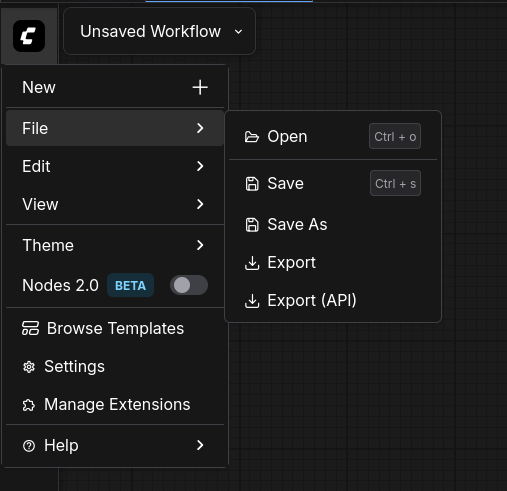
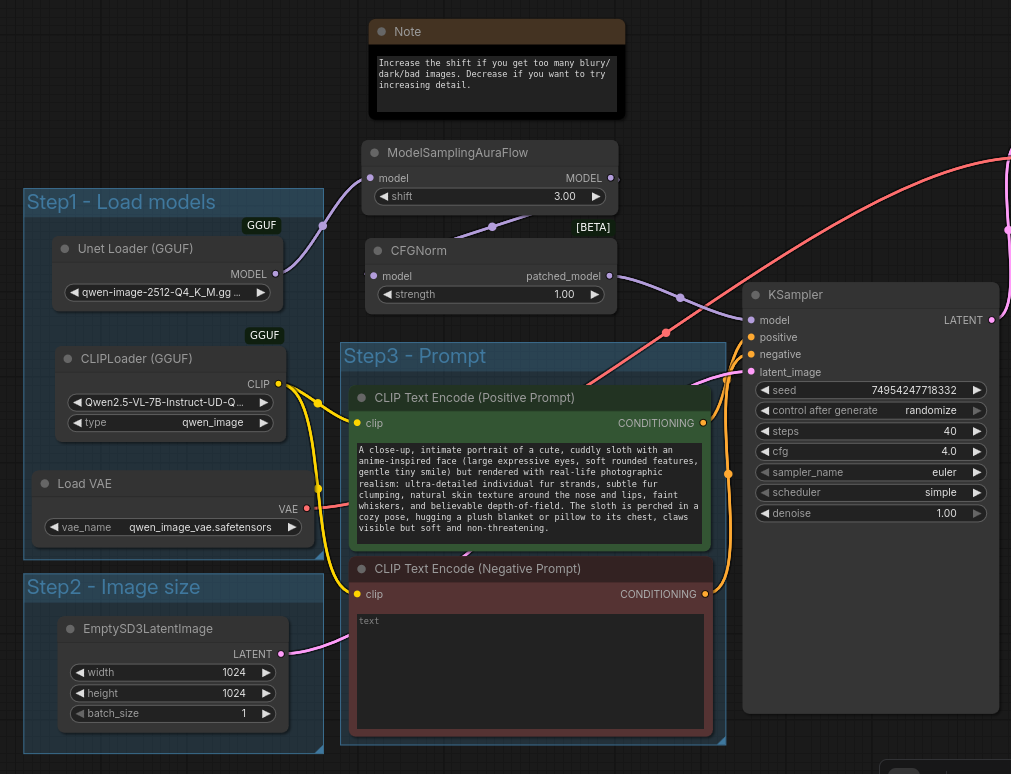
Load it into the browser page by clicking the Comfy Logo -> File -> Open -> Then choose the `unsloth_qwen_image_2512.json` file you just downloaded. It should look like the below:
{% endcolumn %}
{% column %}
{% endcolumn %}
{% endcolumns %}
This workflow is based on the official ComfyUI published workflow except it uses the GGUF loader extension, and is simplified to illustrate text to image functionality.
### #4. Inference
ComfyUI is highly customizable. You can mix models and create extremely complex pipelines. For a basic text to image setup we need to load the model, specify prompt and image details, and decide on a sampling strategy.
#### **Upload Models + Set Prompt**
We already downloaded the models, so we just need to pick the correct ones. For Unet Loader pick `qwen-image-2512-Q4_K_M.gguf`, for CLIPLoader pick `Qwen2.5-VL-7B-Instruct-UD-Q4_K_XL.gguf`, and for Load VAE pick `qwen_image_vae.safetensors`.
{% hint style="info" %}
For more realistic results, skip keywords like “photorealistic” or “digital rendering” or “3d render” and use terms like “photograph” instead.
{% endhint %}
You can set any prompt you'd like, and also specify a negative prompt. The negative prompt helps by telling the model where to steer away from.
{% hint style="info" %}
For negative prompts, it’s best to use an NLP-style approach: describe in **natural language** what you *don’t* want in the image. Packing in too many keywords can hurt results instead of making it more specific.
{% endhint %}
#### **Image Size + Sampler Parameters**
The Qwen Image model series supports different image sizes. You can make rectangular shapes by setting the values of width and height. For sampler parameters, you can experiment with different samplers other than euler, and more or less sampling steps. The workflow has steps set to 40, but for quick tests 20 might be good enough. Change the `control after generate` setting from randomize to fixed if you want to see how different settings change outputs.
#### **Run**
Click Run and an image will be generated in about 1 minute (30 seconds for 20 steps). That output image can be saved. The interesting part is that the metadata for the entire comfy workflow is saved in the image. You can share and anyone can see how it was created by loading it in the UI.
{% hint style="info" %}
If you're encountering blurry/bad images, raise shift to 12-13! solves most issues with bad outputs.
{% endhint %}
#### **Multi Reference Generation**
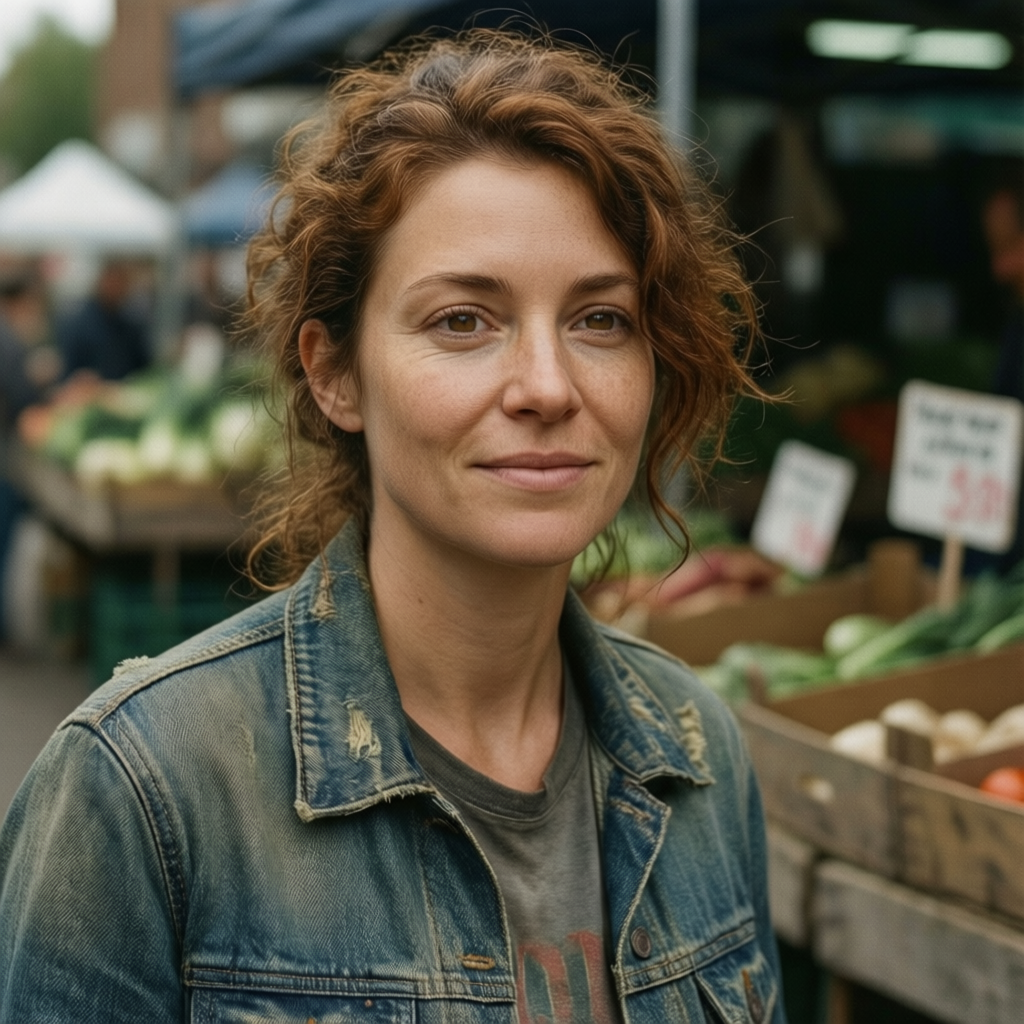
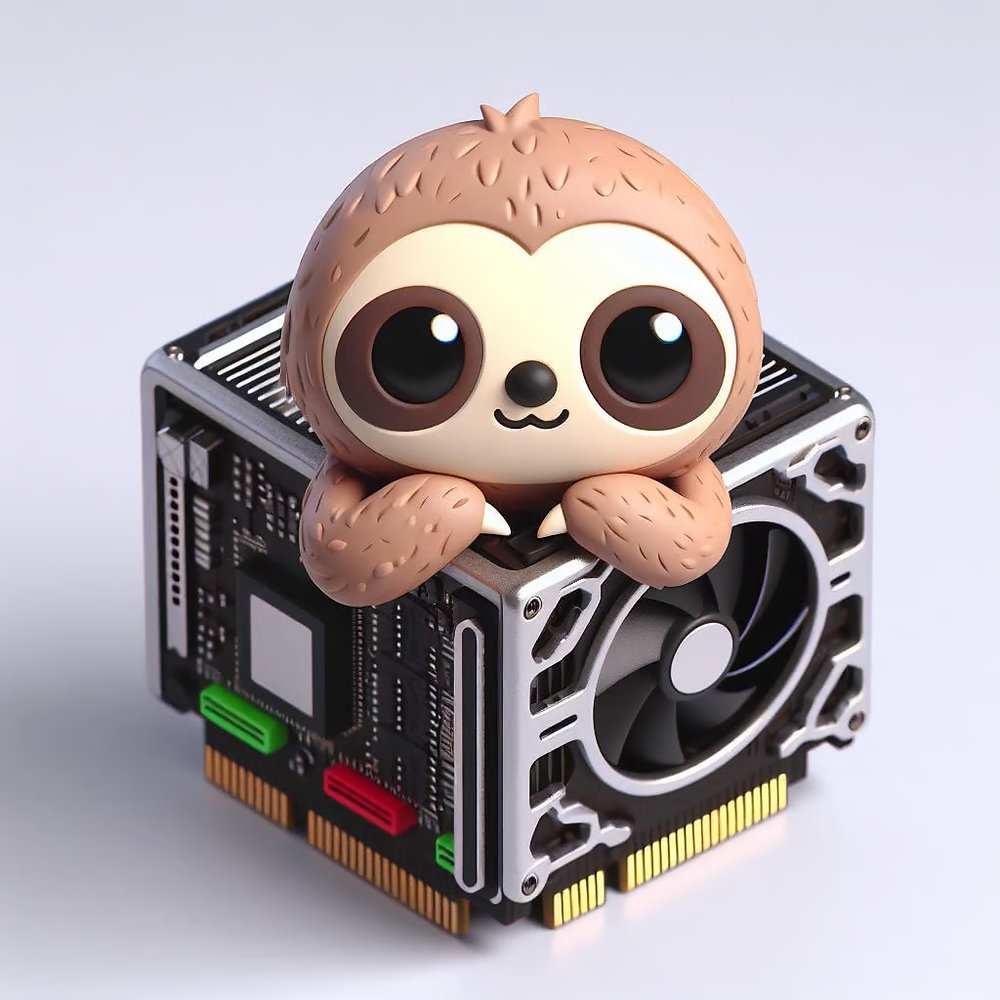
A key feature of Qwen-Image-Edit-2511 is multi reference generation where you can supply multiple images to use to help control generation. This time load the `unsloth_qwen_image_edit_2511.json`. We will use most of the same models but switching `qwen-image-2512-Q4_K_M.gguf` to `qwen-image-edit-2511-Q4_K_M.gguf` for the unet. The other difference this time are extra nodes to select images to reference, which we've downloaded earlier. You'll notice the prompt refers to both `image 1` and `image 2` which are prompt anchors for the images. Once loaded click Run, and you'll see an output that creates our two unique sloth characters together while preserving their likeness.
Final result made from images to the right:
## 🤗 D**iffusers Tutorial**
We have also uploaded a [Dynamic 4-bit BitsandBytes](https://huggingface.co/unsloth/Qwen-Image-2512-unsloth-bnb-4bit) quantized version which can be run in Hugging Face's `diffusers` library. Once again, it uses Unsloth Dynamic where important layers are upcasted to higher precision.
Run `Qwen-Image-2512-unsloth-bnb-4bit` with the code below:
```python
from diffusers import DiffusionPipeline
import torch
pipe = DiffusionPipeline.from_pretrained(
"unsloth/Qwen-Image-2512-unsloth-bnb-4bit",
torch_dtype=torch.bfloat16,
).to('cuda')
# uncomment if you run out of memory
# pipe.enable_model_cpu_offload()
output = pipe(
prompt="a kawaii sloth playing the drums",
negative_prompt="blurry, unfocused",
num_inference_steps=20,
true_cfg_scale=4.0,
)
# Save output
image = output.images[0]
image.save('sample.png')
```
## 🎨 **stable-diffusion.cpp Tutorial**
If you want to run the model in stable-diffusion.cpp, you can follow our [step-by-step guide here](/docs/models/tutorials/qwen-image-2512/stable-diffusion.cpp.md).
---
# Agent Instructions
This documentation is published with GitBook. GitBook is the documentation platform designed so that both humans and AI agents can read, navigate, and reason over technical content effectively. Learn more at gitbook.com.
## Querying This Documentation
If you need additional information that is not directly available in this page, you can query the documentation by asking a question.
Perform an HTTP GET request on the following URL with the `ask` and `goal` query parameters:
```
GET https://unsloth.ai/docs/models/tutorials/qwen-image-2512.md?ask=&goal=
```
`ask` is the immediate question: it should be specific, self-contained, and written in natural language.
`goal` is what the user is ultimately trying to achieve, the reason they need the answer. Sharing it helps GitBook give you a better, more relevant answer. A goal is most helpful when it describes the outcome the user wants rather than restating the question. For example, with `ask=how do I create an API token`, a goal like `automate deployments from our CI pipeline` lets GitBook tailor the answer to that use case.
The response will contain a direct answer to the question and relevant excerpts and sources from the documentation.
Use this mechanism when the answer is not explicitly present in the current page, you need clarification or additional context, or you want to retrieve related documentation sections.