# Mistral 3.5 - How To Run Locally
Mistral releases Mistral-Medium-3.5-128B, their new dense 128B parameter, multimodal, hybrid reasoning model. It supports text and image input, text output, a 256K context window and excels at reasoning, coding, long-context, tool use, agentic workflows, and multimodal doc/image understanding.
Mistral Medium 3.5 offers highly competitive performance for models 5x its size. Run locally on \~64GB RAM.
### Usage Guide
{% hint style="info" %}
Vision for GGUFs it now supported for now. Support will come later.
{% endhint %}
Table: Mistral Medium 3.5 recommended hardware requirements. Units are total memory: RAM + VRAM, or unified memory.
| Mistral 3.5 | 3-bit | 4-bit | 8-bit |
| --------------- | ----- | ----- | ---------- |
| Medium 3.5 128B | 64 GB | 80 GB | 128-170 GB |
{% hint style="info" %}
Your total available memory should at least exceed the size of the quantized model you download. If it does not, llama.cpp can still run with partial RAM / disk offload, but generation will be slower. You will also need more memory for long context, larger batches, tool-heavy agent runs and image prompts.
{% endhint %}
#### Recommended Settings
Use Mistral's recommended reasoning settings:
* `reasoning_effort="none"` → fast instant replies, chat, extraction and simple instructions.
* `reasoning_effort="high"` → reasoning mode, recommended for complex prompts, coding, research, math and agentic usage.
Recommended sampling defaults:
* Use `temperature = 0.7` for `reasoning_effort="high"`.
* Use `temperature = 0.0` to `0.7` for `reasoning_effort="none"`, depending on the task.
* Keep repetition and presence penalties disabled or at `1.0` unless you see looping.
* Maximum context length of `262,144`
#### **Reasoning Mode**
Mistral Medium 3.5 supports instant instruct mode and reasoning mode with a 'high' option.
To enable high reasoning for llama.cpp / llama-server:
```bash
--chat-template-kwargs '{"reasoning_effort":"high"}'
```
To disable reasoning:
```bash
--chat-template-kwargs '{"reasoning_effort":"none"}'
```
If you're on Windows PowerShell, use:
```powershell
--chat-template-kwargs "{\"reasoning_effort\":\"none\"}"
```
## Run Mistral 3.5 Tutorials
Because Mistral Medium 3.5 is a dense 128B model, the recommended starting point is Dynamic 4-bit GGUFs for local inference. GGUF: `unsloth/Mistral-Medium-3.5-128B-GGUF`
Run in Unsloth StudioRun in llama.cpp
{% hint style="warning" %}
Currently no multimodal/vision GGUF works in **Ollama** due to separate `mmproj` vision files. Use llama.cpp compatible backends.
Do NOT use **CUDA 13.2** as you may get gibberish outputs. NVIDIA is working on a fix.
{% endhint %}
### 🦥 Unsloth Studio Guide
For this tutorial, we will be using [Unsloth Studio](https://unsloth.ai/docs/new/studio), which is our new web UI for running and training LLMs. With Unsloth Studio, you can run models and input **audio**, image and text locally on **Mac, Windows**, and Linux and:
{% columns %}
{% column %}
* Search, download, [run GGUFs](https://unsloth.ai/docs/new/studio#run-models-locally) and safetensor models
* **Compare** models **side-by-side**
* [**Self-healing** tool calling](https://unsloth.ai/docs/new/studio#execute-code--heal-tool-calling) + **web search**
* [**Code execution**](https://unsloth.ai/docs/new/studio#run-models-locally) (Python, Bash)
* [Automatic inference](https://unsloth.ai/docs/new/studio#model-arena) parameter tuning (temp, top-p, etc.)
* [Train LLMs](https://unsloth.ai/docs/new/studio#no-code-training) 2x faster with 70% less VRAM
{% endcolumn %}
{% column %}
{% endcolumn %}
{% endcolumns %}
{% stepper %}
{% step %}
#### Install Unsloth
**MacOS, Linux, WSL:**
```bash
curl -fsSL https://unsloth.ai/main/install.sh | sh
```
**Windows PowerShell:**
```bash
irm https://unsloth.ai/install.ps1 | iex
```
{% endstep %}
{% step %}
#### Setup Unsloth Studio (one time)
Setup automatically installs Node.js (via nvm), builds the frontend, installs all Python dependencies, and builds llama.cpp with CUDA support.
{% hint style="info" %}
**WSL users:** you will be prompted for your `sudo` password to install build dependencies (`cmake`, `git`, `libcurl4-openssl-dev`).
{% endhint %}
{% endstep %}
{% step %}
#### Launch Unsloth
**MacOS, Linux, WSL:**
```bash
source unsloth_studio/bin/activate
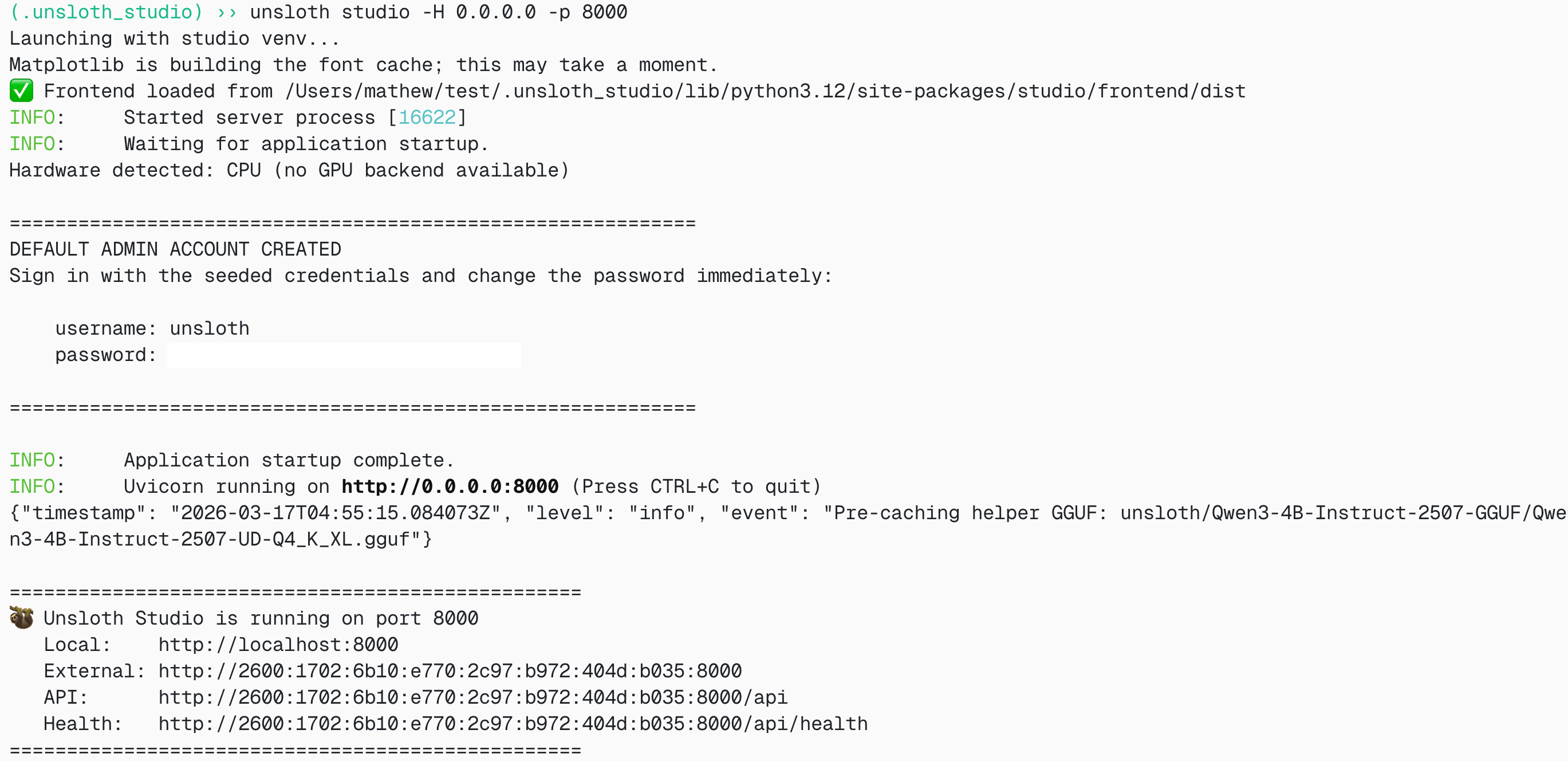
unsloth studio -H 0.0.0.0 -p 8888
```
**Windows Powershell:**
```bash
& .\unsloth_studio\Scripts\unsloth.exe studio -H 0.0.0.0 -p 8888
```
**Then open `http://localhost:8888` in your browser.**
{% endstep %}
{% step %}
#### Search and download Mistral Medium 3.5
On first launch you will need to create a password to secure your account and sign in again later. Then go to the [Studio Chat](https://unsloth.ai/docs/new/studio/chat) tab and search for Mistral 3.5 in the search bar and download your desired model and quant.
{% endstep %}
{% step %}
#### Run Mistral 3.5
Inference parameters should be auto-set when using Unsloth Studio, however you can still change it manually. You can also edit the context length, chat template and other settings.
For more information, you can view our [Unsloth Studio inference guide](https://unsloth.ai/docs/new/studio/chat).
{% endstep %}
{% endstepper %}
### 🦙 Llama.cpp Guide
For this guide we will use Unsloth Dynamic 4-bit for Mistral Medium 3.5. See: `unsloth/Mistral-Medium-3.5-128B-GGUF`.
For these tutorials, we will use llama.cpp for fast local inference, especially if you have a CPU or high-memory unified-memory machine.
**1. Build llama.cpp**
Obtain the latest `llama.cpp` on GitHub. Change `-DGGML_CUDA=ON` to `-DGGML_CUDA=OFF` if you don't have a GPU or just want CPU inference. For Apple Mac / Metal devices, set `-DGGML_CUDA=OFF`; Metal support is on by default.
```bash
apt-get update
apt-get install pciutils build-essential cmake curl libcurl4-openssl-dev -y
git clone https://github.com/ggml-org/llama.cpp
cmake llama.cpp -B llama.cpp/build \
-DBUILD_SHARED_LIBS=OFF -DGGML_CUDA=ON
cmake --build llama.cpp/build --config Release -j --clean-first --target llama-cli llama-mtmd-cli llama-server llama-gguf-split
cp llama.cpp/build/bin/llama-* llama.cpp
```
**2. Run directly from Hugging Face**
```bash
export LLAMA_CACHE="unsloth/Mistral-Medium-3.5-128B-GGUF"
./llama.cpp/llama-cli \
-hf unsloth/Mistral-Medium-3.5-128B-GGUF:UD-Q4_K_XL \
--temp 0.7 \
--chat-template-kwargs '{"reasoning_effort":"none"}'
```
For high reasoning mode:
```bash
./llama.cpp/llama-cli \
-hf unsloth/Mistral-Medium-3.5-128B-GGUF:UD-Q4_K_XL \
--temp 0.7 \
--chat-template-kwargs '{"reasoning_effort":"high"}'
```
**3. Download the model manually**
After installing `huggingface_hub` and `hf_transfer`:
```bash
pip install huggingface_hub hf_transfer
hf download unsloth/Mistral-Medium-3.5-128B-GGUF \
--local-dir unsloth/Mistral-Medium-3.5-128B-GGUF \
--include "*UD-Q4_K_XL*" \
--include "*mmproj*"
```
If downloads get stuck, set:
```bash
export HF_HUB_ENABLE_HF_TRANSFER=1
```
**4. Run the local GGUF**
```bash
./llama.cpp/llama-cli \
--model unsloth/Mistral-Medium-3.5-128B-GGUF/Mistral-Medium-3.5-128B-UD-Q4_K_XL.gguf \
--temp 0.7 \
--chat-template-kwargs '{"reasoning_effort":"none"}'
```
If a multimodal projector GGUF is included, use:
```bash
./llama.cpp/llama-cli \
--model unsloth/Mistral-Medium-3.5-128B-GGUF/Mistral-Medium-3.5-128B-UD-Q4_K_XL.gguf \
--mmproj unsloth/Mistral-Medium-3.5-128B-GGUF/mmproj-BF16.gguf \
--temp 0.7 \
--chat-template-kwargs '{"reasoning_effort":"none"}'
```
#### Llama-server deployment
To deploy Mistral Medium 3.5 on llama-server, use:
```bash
./llama.cpp/llama-server \
-hf unsloth/Mistral-Medium-3.5-128B-GGUF:UD-Q4_K_XL \
--alias "mistral-medium-3.5" \
--host 0.0.0.0 \
--port 8001 \
--temp 0.7 \
--chat-template-kwargs '{"reasoning_effort":"none"}'
```
For reasoning mode:
```bash
--chat-template-kwargs '{"reasoning_effort":"high"}'
```
If you're on Windows PowerShell, use:
```powershell
--chat-template-kwargs "{\"reasoning_effort\":\"high\"}"
```
You can ping llama-server with an OpenAI-compatible request:
```bash
curl http://localhost:8001/v1/chat/completions \
-H "Content-Type: application/json" \
-d '{
"model": "mistral-medium-3.5",
"messages": [
{"role": "user", "content": "Explain the main difference between instant mode and reasoning mode."}
],
"temperature": 0.7
}'
```
### Mistral 3.5 Best Practices
#### Prompting examples
**Simple reasoning prompt**
```
System:
You are a precise reasoning assistant. Solve carefully and present only the final answer and a short explanation.
User:
A train leaves at 8:15 AM and arrives at 11:47 AM. How long was the journey?
```
Use `reasoning_effort="high"` for this style of prompt.
**OCR / document prompt**
For OCR and document extraction, put the image first and ask for structured output.
```
[image first]
Extract all text from this receipt. Return merchant, date, line_items and total as JSON.
```
**Multi-modal comparison prompt**
```
[image 1]
[image 2]
Compare these two screenshots and tell me which one is more likely to confuse a new user. Give 3 concrete reasons.
```
**Coding agent prompt**
```
You are a coding agent working inside a repository.
First inspect the relevant files, then propose a minimal patch.
Return the final answer with: summary, files changed, tests run and risks.
```
Use `reasoning_effort="high"` and tool calling for codebase exploration.
**JSON / function calling prompt**
```
Use the provided tools whenever calculation or lookup is required.
Return valid JSON only. Do not include prose outside the JSON object.
```
### Benchmarks
---
# Agent Instructions: Querying This Documentation
If you need additional information that is not directly available in this page, you can query the documentation dynamically by asking a question.
Perform an HTTP GET request on the current page URL with the `ask` query parameter:
```
GET https://unsloth.ai/docs/models/mistral-3.5.md?ask=
```
The question should be specific, self-contained, and written in natural language.
The response will contain a direct answer to the question and relevant excerpts and sources from the documentation.
Use this mechanism when the answer is not explicitly present in the current page, you need clarification or additional context, or you want to retrieve related documentation sections.