> For the complete documentation index, see [llms.txt](https://unsloth.ai/docs/llms.txt). Markdown versions of documentation pages are available by appending `.md` to page URLs; this page is available as [Markdown](https://unsloth.ai/docs/jp/moderu/tutorials/glm-4.7-flash.md).
# GLM-4.7-Flash: ローカルでの実行方法
デバイス上でGLM-4.7-Flashをローカル実行・ファインチューニングしましょう!
GLM-4.7-Flash は、ローカルデプロイ向けに構築された Z.ai の新しい 30B MoE 推論モデルで、コーディング、エージェント的ワークフロー、チャットにおいてクラス最高の性能を発揮します。約 36 億パラメータを使用し、200K のコンテキストをサポートし、SWE-Bench、GPQA、推論/チャットのベンチマークでトップを走ります。
GLM-4.7-Flash は **24GB RAM**/VRAM/ユニファイドメモリ(フル精度では 32GB)で動作し、現在は Unsloth でファインチューニングもできます。vLLM で GLM 4.7 Flash を実行するには、こちらを参照してください: [#glm-4.7-flash-in-vllm](#glm-4.7-flash-in-vllm "mention")
{% hint style="success" %}
1月21日更新: `llama.cpp` 誤った `scoring_func`: `"softmax"` (本来は `"sigmoid"`です)。これがループや質の悪い出力の原因になっていました。GGUF を更新したので、より良い出力を得るためにモデルを再ダウンロードしてください。
これで Z.ai 推奨のパラメータを使って、良い結果を得られるようになりました:
* **一般用途では:** `--temp 1.0 --top-p 0.95`
* **ツール呼び出しでは:** `--temp 0.7 --top-p 1.0`
* **繰り返しペナルティ:** 無効にするか、 `--repeat-penalty 1.0`
1月22日:CUDA 向けの FA 修正がマージされたため、より高速な推論が利用可能になりました。
{% endhint %}
実行チュートリアルファインチューニング
実行する GLM-4.7-Flash GGUF: [unsloth/GLM-4.7-Flash-GGUF](https://huggingface.co/unsloth/GLM-4.7-Flash-GGUF)
### ⚙️ 使用ガイド
最高の性能のために、利用可能な総メモリ(VRAM + システム RAM)が、ダウンロードする量子化済みモデルファイルのサイズを上回っていることを確認してください。そうでなくても、llama.cpp は SSD/HDD オフロード経由で実行できますが、推論は遅くなります。
Z.ai のチームと話した後、彼らは GLM-4.7 のサンプリングパラメータを使うことを推奨しています:
| デフォルト設定(ほとんどのタスク) | Terminal Bench、SWE Bench Verified |
| ------------------------------------------------------------------ | ------------------------------------------------------------------ |
| **temperature = 1.0** | **temperature = 0.7** |
| **top\_p = 0.95** | **top\_p = 1.0** |
| repeat penalty = 無効または 1.0 | repeat penalty = 無効または 1.0 |
* 一般用途では: `--temp 1.0 --top-p 0.95`
* ツール呼び出しでは: `--temp 0.7 --top-p 1.0`
* llama.cpp を使用する場合は、 `--min-p 0.01` と設定してください。llama.cpp のデフォルトは 0.05 だからです
* 場合によっては、どの数値が用途に最適か試してみる必要があります。
{% hint style="warning" %}
現時点では、 **推奨しません** この GGUF を **Ollama** で実行することは、チャットテンプレートの互換性に問題が出る可能性があるためです。GGUF は llama.cpp(または LM Studio、Jan などのバックエンド)でうまく動作します。
**repeat penalty を無効にするのを忘れないでください! または、** `--repeat-penalty 1.0`
{% endhint %}
* **最大コンテキストウィンドウ:** `202,752`
### 🖥️ GLM-4.7-Flash を実行
ユースケースに応じて、異なる設定を使用する必要があります。一部の GGUF は、モデルアーキテクチャ(たとえば [gpt-oss](/docs/jp/moderu/gpt-oss-how-to-run-and-fine-tune.md)) の次元が128で割り切れないため、一部をより低いビットに量子化できません。
このガイドは 4-bit を使用しているため、約 18GB の RAM/ユニファイドメモリが必要です。最高の性能を得るには、少なくとも 4-bit 精度の使用を推奨します。
{% hint style="warning" %}
現時点では、 **推奨しません** この GGUF を **Ollama** で実行することは、チャットテンプレートの互換性に問題が出る可能性があるためです。GGUF は llama.cpp(または LM Studio、Jan などのバックエンド)でうまく動作します。
**repeat penalty を無効にするのを忘れないでください! または、** `--repeat-penalty 1.0`
{% endhint %}
#### 🦥 Unsloth Studio ガイド
GLM-4.7-Flash は [Unsloth Studio](/docs/jp/shii/studio.md)。これはローカルAI向けの新しいオープンソースWeb UIです。Unsloth Studioを使えば、モデルをローカルで次の環境で実行できます **MacOS、Windows**、Linux、そして:
{% columns %}
{% column %}
* 検索、ダウンロード、 [GGUFを実行](/docs/jp/shii/studio.md#run-models-locally) およびsafetensorモデル
* [**自己修復** ツール呼び出し](/docs/jp/shii/studio.md#execute-code--heal-tool-calling) + **web search**
* [**コード実行**](/docs/jp/shii/studio.md#run-models-locally) (Python、Bash)
* [自動推論](https://unsloth.ai/docs/desktop#feature-deep-dive) パラメータ調整(temp、top-pなど)
* llama.cppによる高速CPU + GPU推論
* [LLMを学習](/docs/jp/shii/studio.md#no-code-training) VRAMを70%削減して2倍高速
{% endcolumn %}
{% column %}
{% endcolumn %}
{% endcolumns %}
{% stepper %}
{% step %}
**Unslothをインストール**
ターミナルで次を実行してください:
MacOS、Linux、WSL:
```bash
curl -fsSL https://unsloth.ai/install.sh | sh
```
Windows PowerShell:
```bash
irm https://unsloth.ai/install.ps1 | iex
```
{% hint style="success" %}
**インストールはすぐに終わり、約 1〜2 分かかります。**
{% endhint %}
{% endstep %}
{% step %}
**Unsloth を起動**
MacOS、Linux、WSL、Windows:
```bash
unsloth studio -H 0.0.0.0 -p 8888
```
その後、 `http://localhost:8888` をブラウザで開いてください。
{% endstep %}
{% step %}
**GLM-4.7-Flash を検索してダウンロード**
初回起動時には、アカウントを保護するためのパスワードを作成し、後で再度サインインする必要があります。その後、モデル、データセット、基本設定を選ぶ簡単なオンボーディングウィザードが表示されます。いつでもスキップできます。
それから [Unsloth Chat](/docs/jp/shii/studio/chat.md) タブで検索して **GLM-4.7-Flash** を検索バーに入力し、希望するモデルと量子化版をダウンロードしてください。
{% endstep %}
{% step %}
**GLM-4.7-Flash を実行**
Unsloth Studio を使用すると推論パラメータは自動設定されるはずですが、手動で変更することもできます。コンテキスト長、チャットテンプレート、その他の設定も編集できます。
詳細については、次を参照してください。 [Unsloth Studio 推論ガイド](/docs/jp/shii/studio/chat.md).
{% endstep %}
{% endstepper %}
#### Llama.cppチュートリアル(GGUF):
llama.cpp で実行する手順(ほとんどのデバイスに収めるため、4bit を使用します):
{% stepper %}
{% step %}
最新の `llama.cpp` を [GitHubこちら](https://github.com/ggml-org/llama.cpp)。以下のビルド手順に従うこともできます。変更してください `-DGGML_CUDA=ON` を `-DGGML_CUDA=OFF` GPUがない場合、またはCPU推論のみを使いたい場合は。 **Apple Mac / Metalデバイスの場合**、次を設定します `-DGGML_CUDA=OFF` その後は通常どおり続けてください。Metalサポートはデフォルトで有効です。
{% code overflow="wrap" %}
```bash
apt-get update
apt-get install pciutils build-essential cmake curl libcurl4-openssl-dev -y
git clone https://github.com/ggml-org/llama.cpp
cmake llama.cpp -B llama.cpp/build \
-DBUILD_SHARED_LIBS=OFF -DGGML_CUDA=ON
cmake --build llama.cpp/build --config Release -j --clean-first --target llama-cli llama-mtmd-cli llama-server llama-gguf-split
cp llama.cpp/build/bin/llama-* llama.cpp
```
{% endcode %}
{% endstep %}
{% step %}
Hugging Face から直接取得できます。RAM/VRAM に応じてコンテキストを 200K まで増やせます。
Z.ai 推奨の GLM-4.7 サンプリングパラメータも試せます:
* 一般用途では: `--temp 1.0 --top-p 0.95`
* ツール呼び出しでは: `--temp 0.7 --top-p 1.0`
* **repeat penalty を無効にするのを忘れないでください!**
これに従ってください: **一般的な手順** ユースケース:
```bash
./llama.cpp/llama-cli \
-hf unsloth/GLM-4.7-Flash-GGUF:UD-Q4_K_XL \
--ctx-size 16384 \\
--temp 1.0 --top-p 0.95 --min-p 0.01
```
これに従ってください: **ツール呼び出し** ユースケース:
```bash
./llama.cpp/llama-cli \
-hf unsloth/GLM-4.7-Flash-GGUF:UD-Q4_K_XL \
--ctx-size 16384 \\
--temp 0.7 --top-p 1.0 --min-p 0.01
```
{% endstep %}
{% step %}
以下をインストールした後、( `pip install huggingface_hub`をインストール後)。 `UD-Q4_K_XL` または他の量子化版を使ってください。ダウンロードが止まる場合は、こちらを参照してください [Hugging Face Hub、XET のデバッグ](/docs/jp/ji-chu/troubleshooting-and-faqs/hugging-face-hub-xet-debugging.md)
{% code overflow="wrap" %}
```bash
pip install -U huggingface_hub
hf download unsloth/GLM-4.7-Flash-GGUF \
--local-dir unsloth/GLM-4.7-Flash-GGUF \
--include "*UD-Q2_K_XL*"
```
{% endcode %}
{% endstep %}
{% step %}
その後、会話モードでモデルを実行します:
{% code overflow="wrap" %}
```bash
./llama.cpp/llama-cli \
--model unsloth/GLM-4.7-Flash-GGUF/GLM-4.7-Flash-UD-Q4_K_XL.gguf \
--ctx-size 16384 \\
--seed 3407 \\
--temp 1.0 \\
--top-p 0.95 \\
--min-p 0.01
```
{% endcode %}
また、調整してください **コンテキストウィンドウ** 必要に応じて、最大 `202752`
{% endstep %}
{% endstepper %}
### :loop:繰り返しとループの削減
{% hint style="success" %}
**1月21日更新:llama.cpp が誤った指定のバグを修正しました** `"scoring_func": "softmax"` **これがループや質の悪い出力の原因でした(本来は sigmoid)。GGUF を更新しました。より良い出力を得るためにモデルを再ダウンロードしてください。**
{% endhint %}
つまり、Z.ai 推奨のパラメータを使って、良い結果を得られるようになったということです:
* 一般用途では: `--temp 1.0 --top-p 0.95`
* ツール呼び出しでは: `--temp 0.7 --top-p 1.0`
* llama.cpp を使用する場合は、 `--min-p 0.01` と設定してください。llama.cpp のデフォルトは 0.05 だからです
* **repeat penalty を無効にするのを忘れないでください! または、** `--repeat-penalty 1.0`
追加しました `"scoring_func": "sigmoid"` を `config.json` メインモデル用に - [こちらを参照](https://huggingface.co/unsloth/GLM-4.7-Flash/commit/3fd53b491e04f707f307aef2f70f8a7520511e6d).
{% hint style="warning" %}
現時点では、 **推奨しません** この GGUF を **Ollama** で実行することは、チャットテンプレートの互換性に問題が出る可能性があるためです。GGUF は llama.cpp(または LM Studio、Jan などのバックエンド)でうまく動作します。
{% endhint %}
### :bird:UD-Q4\_K\_XL を使った Flappy Bird の例
例として、私たちは次の長い会話を UD-Q4\_K\_XL 経由で行いました: `./llama.cpp/llama-cli --model unsloth/GLM-4.7-Flash-GGUF/GLM-4.7-Flash-UD-Q4_K_XL.gguf --fit on --temp 1.0 --top-p 0.95 --min-p 0.01` :
```
こんにちは
2+2 はいくつですか
Python の Flappy Bird ゲームを作成して
Rust でまったく別のゲームを作成して
両方のバグを見つけて
先ほど言った最初のゲームを、単独の HTML ファイルで作って
バグを見つけて修正済みのゲームを表示して
```
その結果、次の Flappy Bird ゲームが HTML 形式でレンダリングされました:
HTML の Flappy Bird ゲーム(展開可)
```html
Flappy Bird Fixed
0
FLAPPY
BIRD
タップするか Space キーで開始
```
また、いくつかスクリーンショットも取得しました(4bit でも動作します):


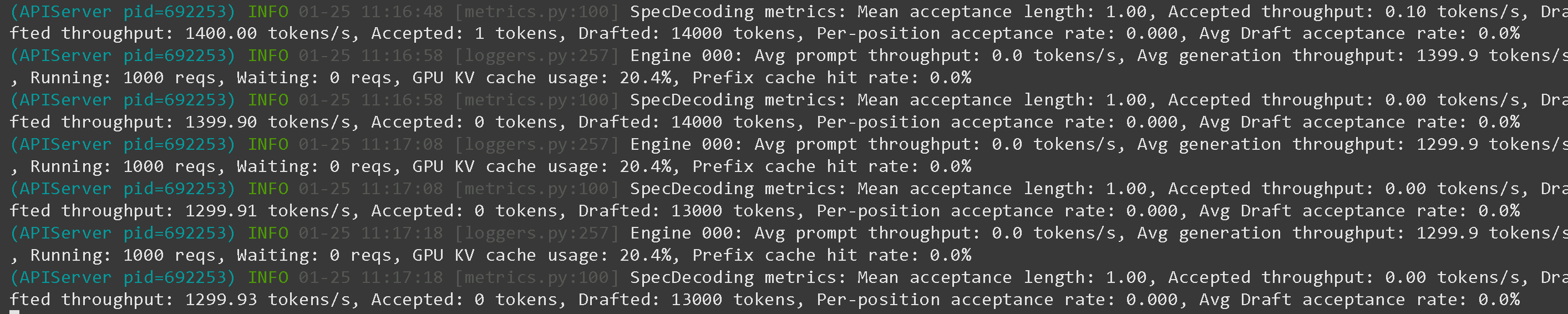 そして 1xB200 でのスループットは 13,000 トークン/秒(それでもユーザーごとのデコードは 130 トークン/秒)
 ### :hammer:GLM-4.7-Flash でのツール呼び出し
こちらを参照 [Tool Calling Guide](/docs/jp/ji-chu/tool-calling-guide-for-local-llms.md) して、ツール呼び出しの詳細を確認してください。新しいターミナルで(tmux を使っている場合は CTRL+B+D を使用)、2つの数値の加算、Python コードの実行、Linux 関数の実行など、いくつかのツールを作成します:
{% code expandable="true" %}
```python
import json, subprocess, random
from typing import Any
def add_number(a: float | str, b: float | str) -> float:
return float(a) + float(b)
def multiply_number(a: float | str, b: float | str) -> float:
return float(a) * float(b)
def subtract_number(a: float | str, b: float | str) -> float:
return float(a) - float(b)
def write_a_story() -> str:
return random.choice([
"はるか昔、はるか彼方の銀河系で...",
"スロースとコードを愛する2人の友達がいました...",
"すべてのナマケモノが超人的知能を持つよう進化したため、世界は終わりを迎えていました...",
"片方の友達も知らないうちに、もう一方が誤ってナマケモノを進化させるプログラムを書いてしまっていました...",
])
def terminal(command: str) -> str:
if "rm" in command or "sudo" in command or "dd" in command or "chmod" in command:
msg = "'rm, sudo, dd, chmod' コマンドは危険なため実行できません"
print(msg); return msg
print(f"Executing terminal command `{command}`")
try:
return str(subprocess.run(command, capture_output = True, text = True, shell = True, check = True).stdout)
except subprocess.CalledProcessError as e:
return f"Command failed: {e.stderr}"
def python(code: str) -> str:
data = {}
exec(code, data)
del data["__builtins__"]
return str(data)
MAP_FN = {
"add_number": add_number,
"multiply_number": multiply_number,
"subtract_number": subtract_number,
"write_a_story": write_a_story,
"terminal": terminal,
"python": python,
}
tools = [
{
"type": "function",
"function": {
"name": "add_number",
"description": "2つの数を加算します。",
"parameters": {
"type": "object",
"properties": {
"a": {
"type": "string",
"description": "最初の数。",
},
"b": {
"type": "string",
"description": "2つ目の数。",
},
},
"required": ["a", "b"],
},
},
},
{
"type": "function",
"function": {
"name": "multiply_number",
"description": "2つの数を掛け算します。",
"parameters": {
"type": "object",
"properties": {
"a": {
"type": "string",
"description": "最初の数。",
},
"b": {
"type": "string",
"description": "2つ目の数。",
},
},
"required": ["a", "b"],
},
},
},
{
"type": "function",
"function": {
"name": "subtract_number",
"description": "2つの数を引きます。",
"parameters": {
"type": "object",
"properties": {
"a": {
"type": "string",
"description": "最初の数。",
},
"b": {
"type": "string",
"description": "2つ目の数。",
},
},
"required": ["a", "b"],
},
},
},
{
"type": "function",
"function": {
"name": "write_a_story",
"description": "ランダムな物語を書きます。",
"parameters": {
"type": "object",
"properties": {},
"required": [],
},
},
},
{
"type": "function",
"function": {
"name": "terminal",
"description": "ターミナルから操作を実行します。",
"parameters": {
"type": "object",
"properties": {
"command": {
"type": "string",
"description": "起動したいコマンドです。例: `ls`, `rm`, ...",
},
},
"required": ["command"],
},
},
},
{
"type": "function",
"function": {
"name": "python",
"description": "実行される Python コードを使って Python インタープリタを呼び出します。",
"parameters": {
"type": "object",
"properties": {
"code": {
"type": "string",
"description": "実行する Python コード",
},
},
"required": ["code"],
},
},
},
]
```
{% endcode %}
その後、以下の関数(コピーして貼り付けて実行)を使います。これにより関数呼び出しが自動で解析され、任意のモデルに対して OpenAI エンドポイントが呼び出されます:
{% code overflow="wrap" expandable="true" %}
```python
from openai import OpenAI
def unsloth_inference(
messages,
temperature = 0.7,
top_p = 1.0,
top_k = -1,
repetition_penalty = 0.0,
):
messages = messages.copy()
openai_client = OpenAI(
base_url = "http://127.0.0.1:8001/v1",
api_key = "sk-no-key-required",
)
model_name = next(iter(openai_client.models.list())).id
print(f"Using model = {model_name}")
has_tool_calls = True
original_messages_len = len(messages)
while has_tool_calls:
print(f"Current messages = {messages}")
response = openai_client.chat.completions.create(
model = model_name,
messages = messages,
temperature = temperature,
top_p = top_p,
tools = tools if tools else None,
tool_choice = "auto" if tools else None,
extra_body = {"top_k": top_k, "min_p": min_p, "dry_multiplier" :repetition_penalty,}
)
tool_calls = response.choices[0].message.tool_calls or []
content = response.choices[0].message.content or ""
tool_calls_dict = [tc.to_dict() for tc in tool_calls] if tool_calls else tool_calls
messages.append({"role": "assistant", "tool_calls": tool_calls_dict, "content": content,})
for tool_call in tool_calls:
fx, args, _id = tool_call.function.name, tool_call.function.arguments, tool_call.id
out = MAP_FN[fx](**json.loads(args))
messages.append({"role": "tool", "tool_call_id": _id, "name": fx, "content": str(out),})
else:
has_tool_calls = False
return messages
```
{% endcode %}
GLM-4.7-Flash を `llama-server` で起動した後、 [#deploy-with-llama-server-and-openais-completion-library](#deploy-with-llama-server-and-openais-completion-library "mention") のように、あるいは [Tool Calling Guide](/docs/jp/ji-chu/tool-calling-guide-for-local-llms.md) で起動した後、詳細については、以下のツール呼び出しを実行できます:
**GLM 4.7 の数学演算用ツール呼び出し**
{% code overflow="wrap" %}
```python
messages = [{
"role": "user",
"content": [{"type": "text", "text": "今日の日付に3日足すと何日ですか?"}],
}]
unsloth_inference(messages, temperature = 1.0, top_p = 0.95, top_k = -1, min_p = 0.01)
```
{% endcode %}
### :hammer:GLM-4.7-Flash でのツール呼び出し
こちらを参照 [Tool Calling Guide](/docs/jp/ji-chu/tool-calling-guide-for-local-llms.md) して、ツール呼び出しの詳細を確認してください。新しいターミナルで(tmux を使っている場合は CTRL+B+D を使用)、2つの数値の加算、Python コードの実行、Linux 関数の実行など、いくつかのツールを作成します:
{% code expandable="true" %}
```python
import json, subprocess, random
from typing import Any
def add_number(a: float | str, b: float | str) -> float:
return float(a) + float(b)
def multiply_number(a: float | str, b: float | str) -> float:
return float(a) * float(b)
def subtract_number(a: float | str, b: float | str) -> float:
return float(a) - float(b)
def write_a_story() -> str:
return random.choice([
"はるか昔、はるか彼方の銀河系で...",
"スロースとコードを愛する2人の友達がいました...",
"すべてのナマケモノが超人的知能を持つよう進化したため、世界は終わりを迎えていました...",
"片方の友達も知らないうちに、もう一方が誤ってナマケモノを進化させるプログラムを書いてしまっていました...",
])
def terminal(command: str) -> str:
if "rm" in command or "sudo" in command or "dd" in command or "chmod" in command:
msg = "'rm, sudo, dd, chmod' コマンドは危険なため実行できません"
print(msg); return msg
print(f"Executing terminal command `{command}`")
try:
return str(subprocess.run(command, capture_output = True, text = True, shell = True, check = True).stdout)
except subprocess.CalledProcessError as e:
return f"Command failed: {e.stderr}"
def python(code: str) -> str:
data = {}
exec(code, data)
del data["__builtins__"]
return str(data)
MAP_FN = {
"add_number": add_number,
"multiply_number": multiply_number,
"subtract_number": subtract_number,
"write_a_story": write_a_story,
"terminal": terminal,
"python": python,
}
tools = [
{
"type": "function",
"function": {
"name": "add_number",
"description": "2つの数を加算します。",
"parameters": {
"type": "object",
"properties": {
"a": {
"type": "string",
"description": "最初の数。",
},
"b": {
"type": "string",
"description": "2つ目の数。",
},
},
"required": ["a", "b"],
},
},
},
{
"type": "function",
"function": {
"name": "multiply_number",
"description": "2つの数を掛け算します。",
"parameters": {
"type": "object",
"properties": {
"a": {
"type": "string",
"description": "最初の数。",
},
"b": {
"type": "string",
"description": "2つ目の数。",
},
},
"required": ["a", "b"],
},
},
},
{
"type": "function",
"function": {
"name": "subtract_number",
"description": "2つの数を引きます。",
"parameters": {
"type": "object",
"properties": {
"a": {
"type": "string",
"description": "最初の数。",
},
"b": {
"type": "string",
"description": "2つ目の数。",
},
},
"required": ["a", "b"],
},
},
},
{
"type": "function",
"function": {
"name": "write_a_story",
"description": "ランダムな物語を書きます。",
"parameters": {
"type": "object",
"properties": {},
"required": [],
},
},
},
{
"type": "function",
"function": {
"name": "terminal",
"description": "ターミナルから操作を実行します。",
"parameters": {
"type": "object",
"properties": {
"command": {
"type": "string",
"description": "起動したいコマンドです。例: `ls`, `rm`, ...",
},
},
"required": ["command"],
},
},
},
{
"type": "function",
"function": {
"name": "python",
"description": "実行される Python コードを使って Python インタープリタを呼び出します。",
"parameters": {
"type": "object",
"properties": {
"code": {
"type": "string",
"description": "実行する Python コード",
},
},
"required": ["code"],
},
},
},
]
```
{% endcode %}
その後、以下の関数(コピーして貼り付けて実行)を使います。これにより関数呼び出しが自動で解析され、任意のモデルに対して OpenAI エンドポイントが呼び出されます:
{% code overflow="wrap" expandable="true" %}
```python
from openai import OpenAI
def unsloth_inference(
messages,
temperature = 0.7,
top_p = 1.0,
top_k = -1,
repetition_penalty = 0.0,
):
messages = messages.copy()
openai_client = OpenAI(
base_url = "http://127.0.0.1:8001/v1",
api_key = "sk-no-key-required",
)
model_name = next(iter(openai_client.models.list())).id
print(f"Using model = {model_name}")
has_tool_calls = True
original_messages_len = len(messages)
while has_tool_calls:
print(f"Current messages = {messages}")
response = openai_client.chat.completions.create(
model = model_name,
messages = messages,
temperature = temperature,
top_p = top_p,
tools = tools if tools else None,
tool_choice = "auto" if tools else None,
extra_body = {"top_k": top_k, "min_p": min_p, "dry_multiplier" :repetition_penalty,}
)
tool_calls = response.choices[0].message.tool_calls or []
content = response.choices[0].message.content or ""
tool_calls_dict = [tc.to_dict() for tc in tool_calls] if tool_calls else tool_calls
messages.append({"role": "assistant", "tool_calls": tool_calls_dict, "content": content,})
for tool_call in tool_calls:
fx, args, _id = tool_call.function.name, tool_call.function.arguments, tool_call.id
out = MAP_FN[fx](**json.loads(args))
messages.append({"role": "tool", "tool_call_id": _id, "name": fx, "content": str(out),})
else:
has_tool_calls = False
return messages
```
{% endcode %}
GLM-4.7-Flash を `llama-server` で起動した後、 [#deploy-with-llama-server-and-openais-completion-library](#deploy-with-llama-server-and-openais-completion-library "mention") のように、あるいは [Tool Calling Guide](/docs/jp/ji-chu/tool-calling-guide-for-local-llms.md) で起動した後、詳細については、以下のツール呼び出しを実行できます:
**GLM 4.7 の数学演算用ツール呼び出し**
{% code overflow="wrap" %}
```python
messages = [{
"role": "user",
"content": [{"type": "text", "text": "今日の日付に3日足すと何日ですか?"}],
}]
unsloth_inference(messages, temperature = 1.0, top_p = 0.95, top_k = -1, min_p = 0.01)
```
{% endcode %}
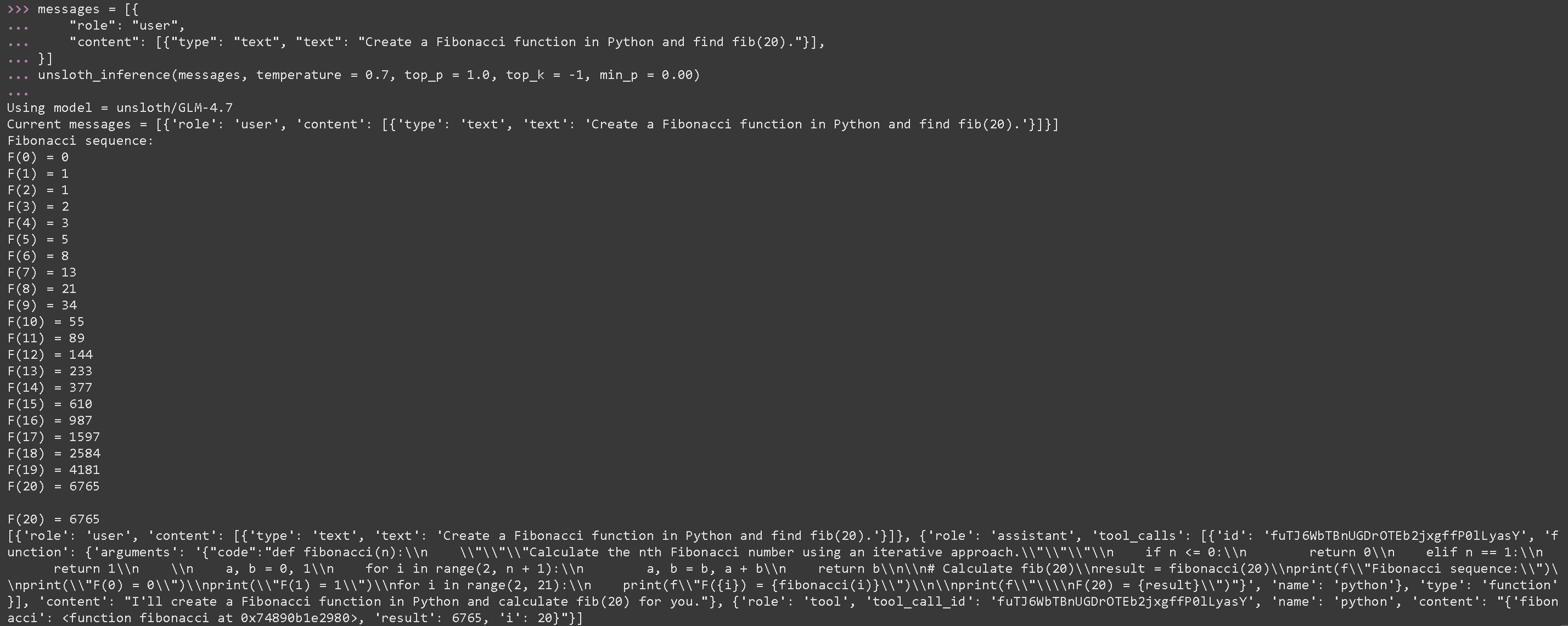
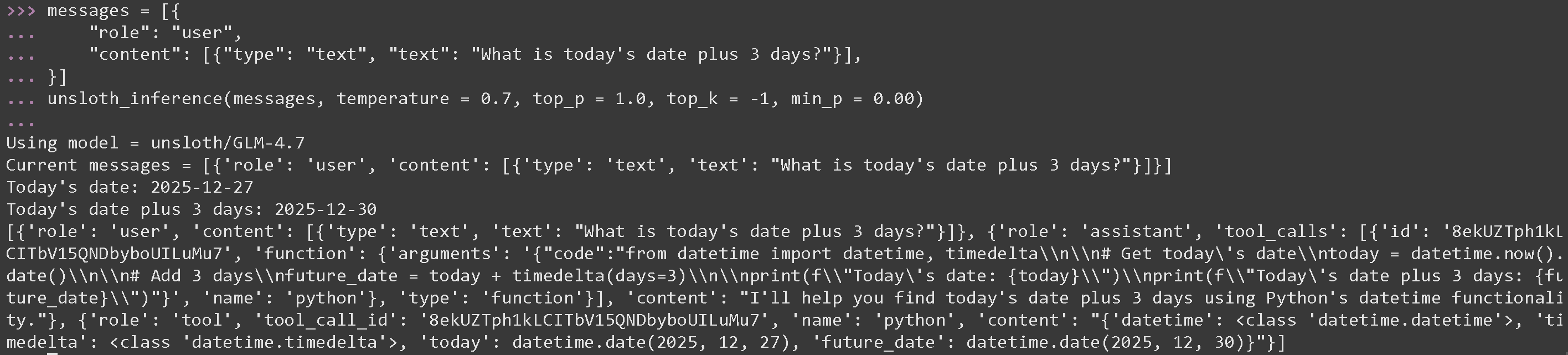 **GLM-4.7-Flash 用に生成された Python コードを実行するツール呼び出し**
{% code overflow="wrap" %}
```python
messages = [{
"role": "user",
"content": [{"type": "text", "text": "Python でフィボナッチ関数を作成し、fib(20) を求めてください。"}],
}]
unsloth_inference(messages, temperature = 1.0, top_p = 0.95, top_k = -1, min_p = 0.01)
```
{% endcode %}
**GLM-4.7-Flash 用に生成された Python コードを実行するツール呼び出し**
{% code overflow="wrap" %}
```python
messages = [{
"role": "user",
"content": [{"type": "text", "text": "Python でフィボナッチ関数を作成し、fib(20) を求めてください。"}],
}]
unsloth_inference(messages, temperature = 1.0, top_p = 0.95, top_k = -1, min_p = 0.01)
```
{% endcode %}
 ### ベンチマーク
GLM-4.7-Flash は、AIME 25 を除くすべてのベンチマークで最も高性能な 30B モデルです。
### ベンチマーク
GLM-4.7-Flash は、AIME 25 を除くすべてのベンチマークで最も高性能な 30B モデルです。
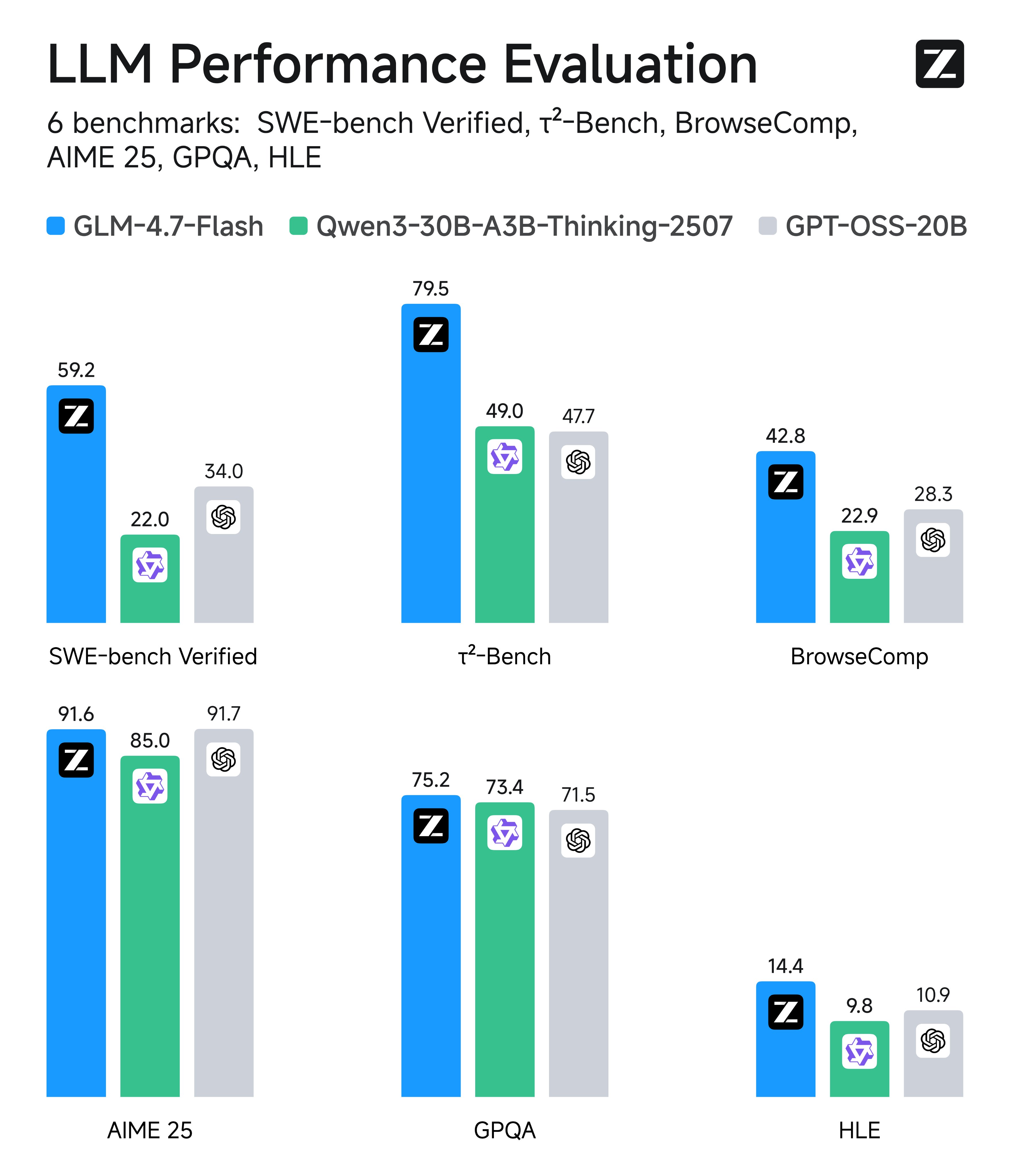 | ベンチマーク | GLM-4.7-Flash | Qwen3-30B-A3B-Thinking-2507 | GPT-OSS-20B |
| ------------------ | ------------- | --------------------------- | ----------- |
| AIME 25 | 91.6 | 85.0 | 91.7 |
| GPQA | 75.2 | 73.4 | 71.5 |
| LCB v6 | 64.0 | 66.0 | 61.0 |
| HLE | 14.4 | 9.8 | 10.9 |
| SWE-bench Verified | 59.2 | 22.0 | 34.0 |
| τ²-Bench | 79.5 | 49.0 | 47.7 |
| BrowseComp | 42.8 | 2.29 | 28.3 |
---
# Agent Instructions
This documentation is published with GitBook. GitBook is the documentation platform designed so that both humans and AI agents can read, navigate, and reason over technical content effectively. Learn more at gitbook.com.
## Querying This Documentation
If you need additional information that is not directly available in this page, you can query the documentation by asking a question.
Perform an HTTP GET request on the following URL with the `ask` and `goal` query parameters:
```
GET https://unsloth.ai/docs/jp/moderu/tutorials/glm-4.7-flash.md?ask=&goal=
```
`ask` is the immediate question: it should be specific, self-contained, and written in natural language.
`goal` is what the user is ultimately trying to achieve, the reason they need the answer. Sharing it helps GitBook give you a better, more relevant answer. A goal is most helpful when it describes the outcome the user wants rather than restating the question. For example, with `ask=how do I create an API token`, a goal like `automate deployments from our CI pipeline` lets GitBook tailor the answer to that use case.
The response will contain a direct answer to the question and relevant excerpts and sources from the documentation.
Use this mechanism when the answer is not explicitly present in the current page, you need clarification or additional context, or you want to retrieve related documentation sections.
| ベンチマーク | GLM-4.7-Flash | Qwen3-30B-A3B-Thinking-2507 | GPT-OSS-20B |
| ------------------ | ------------- | --------------------------- | ----------- |
| AIME 25 | 91.6 | 85.0 | 91.7 |
| GPQA | 75.2 | 73.4 | 71.5 |
| LCB v6 | 64.0 | 66.0 | 61.0 |
| HLE | 14.4 | 9.8 | 10.9 |
| SWE-bench Verified | 59.2 | 22.0 | 34.0 |
| τ²-Bench | 79.5 | 49.0 | 47.7 |
| BrowseComp | 42.8 | 2.29 | 28.3 |
---
# Agent Instructions
This documentation is published with GitBook. GitBook is the documentation platform designed so that both humans and AI agents can read, navigate, and reason over technical content effectively. Learn more at gitbook.com.
## Querying This Documentation
If you need additional information that is not directly available in this page, you can query the documentation by asking a question.
Perform an HTTP GET request on the following URL with the `ask` and `goal` query parameters:
```
GET https://unsloth.ai/docs/jp/moderu/tutorials/glm-4.7-flash.md?ask=&goal=
```
`ask` is the immediate question: it should be specific, self-contained, and written in natural language.
`goal` is what the user is ultimately trying to achieve, the reason they need the answer. Sharing it helps GitBook give you a better, more relevant answer. A goal is most helpful when it describes the outcome the user wants rather than restating the question. For example, with `ask=how do I create an API token`, a goal like `automate deployments from our CI pipeline` lets GitBook tailor the answer to that use case.
The response will contain a direct answer to the question and relevant excerpts and sources from the documentation.
Use this mechanism when the answer is not explicitly present in the current page, you need clarification or additional context, or you want to retrieve related documentation sections.


