# NVIDIA Nemotron 3 Nano Omni - ローカル実行方法

NVIDIA Nemotron-3-Nano-Omni-30B-A3B は、以下を含むマルチモーダルなエージェント型ワークロード向けに構築された、オープンな 300 億パラメータ、30 億アクティブのハイブリッド推論 MoE モデルです **音声**, **動画**、テキスト、画像、ドキュメントを入力とし、テキストを出力します。このモデルは **25GB の RAM** で 4 ビット、36GB で 8 ビット動作します。

256K の **コンテキスト**により、Nemotron 3 Nano Omni はその **最強のオムニ** モデルであり、同サイズ帯で最高効率のオープンなマルチモーダルモデルです。私たちは NVIDIA と協力し、初日からのサポートを実現しました！\
**GGUF:** [Nemotron-3-Nano-Omni-30B-A3B-Reasoning](https://huggingface.co/unsloth/Nemotron-3-Nano-30B-A3B-GGUF)

### ⚙️ 使用ガイド

NVIDIA は推論用に次の設定を推奨しています:

{% columns %}
{% column %}
**一般的なチャット/インストラクション（デフォルト）:**

* `temperature = 1.0`
* `top_p = 1.0`
  {% endcolumn %}

{% column %}
**ツール呼び出しのユースケース:**

* `temperature = 0.6`
* `top_p = 0.95`
  {% endcolumn %}
  {% endcolumns %}

{% hint style="warning" %}
意味不明な出力になる可能性があるため、CUDA 13.2 は使用しないでください。NVIDIA は修正に取り組んでいます。
{% endhint %}

### Nemotron-3-Nano-Omni を実行する

ユースケースに応じて、 [異なる設定](#usage-guide)を使用する必要があります。一部の GGUF は、モデルアーキテクチャ（たとえば [gpt-oss](/docs/jp/moderu/gpt-oss-how-to-run-and-fine-tune.md)）の次元が 128 で割り切れないため、サイズが近くなり、いくつかの部分を低ビットに量子化できません。 **GGUF:** [Nemotron-3-Nano-Omni-30B-A3B-Reasoning](https://huggingface.co/unsloth/Nemotron-3-Nano-30B-A3B-GGUF)

モデルの 4 ビット版は約 25GB の RAM が必要です。8 ビットでは 36GB 必要です。これらのガイドでは、 `UD-Q4-K-XL` を使用します。これはサイズと精度のバランスが良好です。

<a href="/pages/3b841dc831ba1d1cd9a579d65ec4951bca9c1e85#unsloth-studio-guide" class="button primary">Unsloth Studio で実行</a><a href="/pages/3b841dc831ba1d1cd9a579d65ec4951bca9c1e85#llama.cpp-tutorial" class="button secondary">llama.cpp で実行</a>

{% hint style="warning" %}
現在、いかなるマルチモーダル/ビジョン GGUF も **Ollama** では別々の `mmproj` vision ファイルのため動作しません。llama.cpp 互換のバックエンドを使用してください。

使用しないでください **CUDA 13.2** 、さもないと意味不明な出力になることがあります。NVIDIA が修正に取り組んでいます。
{% endhint %}

### 🦥 Unsloth Studio ガイド

このチュートリアルでは、 [Unsloth Studio](/docs/jp/xin-zhe/studio.md)を使用します。これは LLM の実行と学習のための新しい Web UI です。Unsloth Studio を使えば、モデルを実行し、 **音声**、画像、テキストをローカルで **Mac、Windows**、Linux 上で入力でき、さらに次のことができます:

{% columns %}
{% column %}

* 検索、ダウンロード、 [GGUF を実行](/docs/jp/xin-zhe/studio.md#run-models-locally) し、safetensor モデルを扱う
* **モデルを** 比較する **横並びで**
* [**自己修復** ツール呼び出し](/docs/jp/xin-zhe/studio.md#execute-code--heal-tool-calling) + **Web 検索**
* [**コード実行**](/docs/jp/xin-zhe/studio.md#run-models-locally) （Python、Bash）
* [自動推論](/docs/jp/xin-zhe/studio.md#model-arena) パラメータ調整（temp、top-p など）
* [LLM を学習する](/docs/jp/xin-zhe/studio.md#no-code-training) VRAM を 70% 少なくして 2 倍高速
  {% endcolumn %}

{% column %}

<div data-with-frame="true"><figure><img src="/files/c32867f999db074387ac16732ce548485cc593de" alt=""><figcaption></figcaption></figure></div>
{% endcolumn %}
{% endcolumns %}

{% stepper %}
{% step %}

#### Unslothをインストールする

**MacOS、Linux、WSL:**

```bash
curl -fsSL https://unsloth.ai/install.sh | sh
```

**Windows PowerShell:**

```bash
irm https://unsloth.ai/install.ps1 | iex
```

{% endstep %}

{% step %}

#### Unsloth Studio をセットアップ（1回のみ）

セットアップでは自動的に Node.js（nvm 経由）をインストールし、フロントエンドをビルドし、必要な Python 依存関係をすべてインストールし、CUDA サポート付きで llama.cpp をビルドします。

{% hint style="info" %}
**WSL ユーザー:** 次のインストールのために `sudo` パスワードの入力を求められます（ビルド依存関係のインストール用: `cmake`, `git`, `libcurl4-openssl-dev`).
{% endhint %}
{% endstep %}

{% step %}

#### Unsloth を起動

**MacOS、Linux、WSL:**

```bash
source unsloth_studio/bin/activate
unsloth studio -H 0.0.0.0 -p 8888
```

**Windows Powershell:**

```bash
& .\unsloth_studio\Scripts\unsloth.exe studio -H 0.0.0.0 -p 8888
```

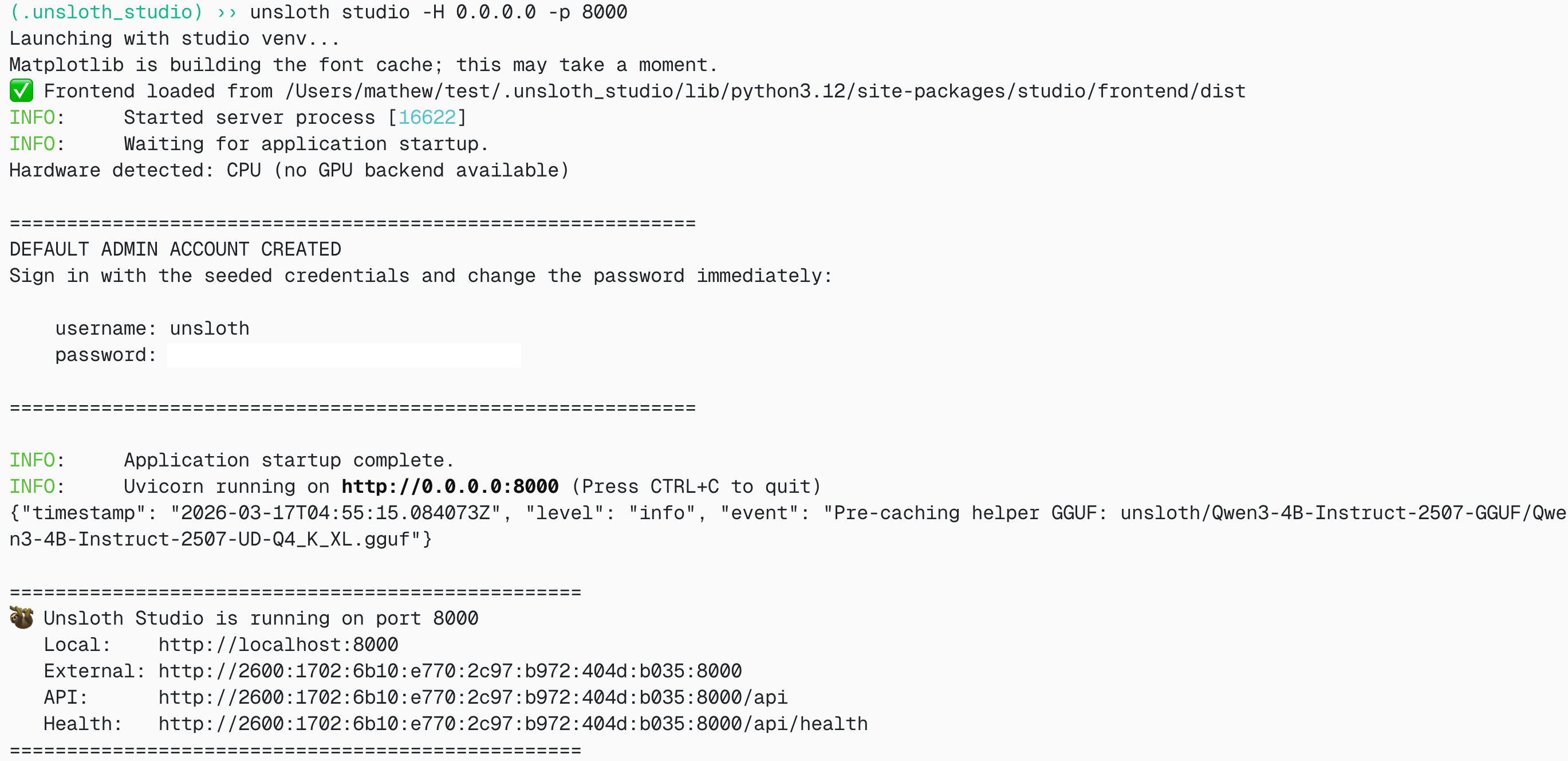
<div data-with-frame="true"><figure><img src="/files/698ae7636b7c9b8a8122c6fbdabc1bd2273fdb2c" alt="" width="375"><figcaption></figcaption></figure></div>

その後、 `http://127.0.0.1:8888` をブラウザで開いてください。
{% endstep %}

{% step %}

#### NVIDIA-Nemotron-3-Nano-30B-A3B-Omni を検索してダウンロードする

初回起動時には、アカウントを保護するためのパスワードを作成し、後で再度サインインする必要があります。その後、 [Studio Chat](/docs/jp/xin-zhe/studio/chat.md) タブを開き、検索バーで Nemotron-3-Nano-Omni を検索し、希望するモデルと量子化版をダウンロードしてください。

<div data-with-frame="true"><figure><img src="/files/4c08a7090e3e8716d80637bf268c8530648c0065" alt="" width="375"><figcaption></figcaption></figure></div>
{% endstep %}

{% step %}

#### Nemotron-3-Nano-30B-A3B-Omni を実行する

Unsloth Studio を使用すると推論パラメータは自動設定されるはずですが、手動で変更することもできます。コンテキスト長、チャットテンプレート、その他の設定も編集できます。

詳細は、 [Unsloth Studio 推論ガイド](/docs/jp/xin-zhe/studio/chat.md).

<div data-with-frame="true"><figure><img src="/files/44d9105dd956eac31f9586bcf01055a289b0ef3e" alt="" width="563"><figcaption></figcaption></figure></div>
{% endstep %}
{% endstepper %}

### 🦙 Llama.cpp チュートリアル:

llama.cpp で実行するための手順（ほとんどのデバイスに収まるよう 4-bit を使用します）:

{% stepper %}
{% step %}
最新の `llama.cpp` を [GitHub こちら](https://github.com/ggml-org/llama.cpp)から取得してください。以下のビルド手順に従うこともできます。 `-DGGML_CUDA=ON` を `-DGGML_CUDA=OFF` に変更してください。GPU がない場合、または CPU 推論だけを使いたい場合です。 **Apple Mac / Metal デバイスの場合**、次を設定して `-DGGML_CUDA=OFF` その後は通常どおり続けてください - Metal サポートは既定で有効です。

{% code overflow="wrap" %}

```bash
apt-get update
apt-get install pciutils build-essential cmake curl libcurl4-openssl-dev -y
git clone https://github.com/ggml-org/llama.cpp
cmake llama.cpp -B llama.cpp/build \\
    -DBUILD_SHARED_LIBS=OFF -DGGML_CUDA=ON -DLLAMA_CURL=ON
cmake --build llama.cpp/build --config Release -j --clean-first --target llama-cli llama-mtmd-cli llama-server llama-gguf-split
cp llama.cpp/build/bin/llama-* llama.cpp
```

{% endcode %}
{% endstep %}

{% step %}
**まず画像を取得しましょう！** 画像をアップロードすることもできます。ここでは <https://raw.githubusercontent.com/unslothai/unsloth/refs/heads/main/images/unsloth%20made%20with%20love.png>を使用します。これは、Unsloth でファインチューニングがどのように作られるかを示す私たちのミニロゴです:

{% code overflow="wrap" %}

```bash
wget https://raw.githubusercontent.com/unslothai/unsloth/refs/heads/main/images/unsloth%20made%20with%20love.png -O unsloth.png
```

{% endcode %}

<figure><img src="/files/8ae02fb49d0894924cd953777ab38bc4d56ba3f8" alt="" width="188"><figcaption></figcaption></figure>

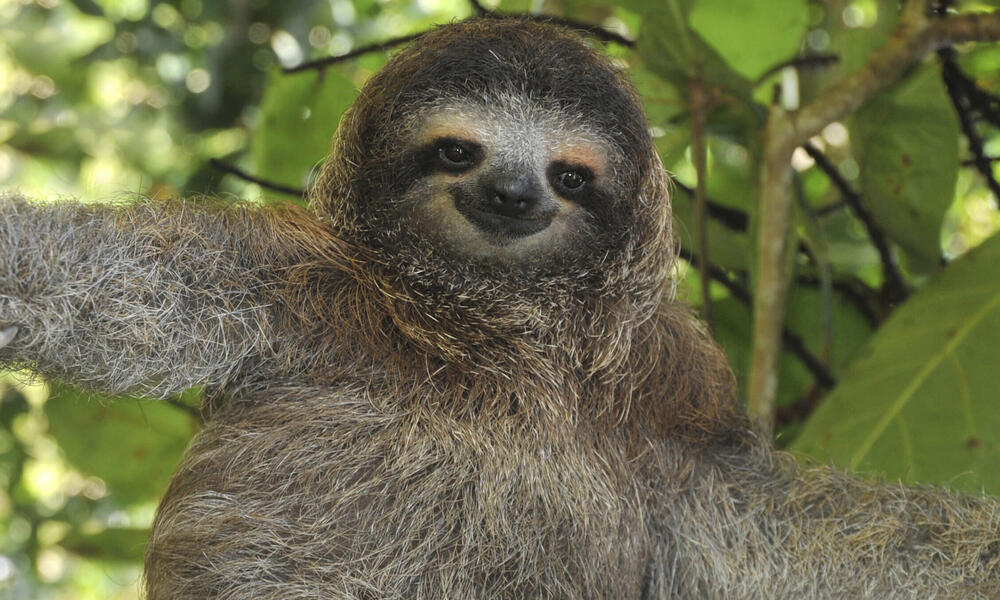
2 枚目の画像を取得しましょう。場所は <https://files.worldwildlife.org/wwfcmsprod/images/Sloth_Sitting_iStock_3_12_2014/story_full_width/8l7pbjmj29_iStock_000011145477Large_mini__1_.jpg>

{% code overflow="wrap" %}

```bash
wget https://files.worldwildlife.org/wwfcmsprod/images/Sloth_Sitting_iStock_3_12_2014/story_full_width/8l7pbjmj29_iStock_000011145477Large_mini__1_.jpg -O picture.png
```

{% endcode %}

<figure><img src="/files/5e1b9352de623a1d57f735cf6be692f421bca972" alt="" width="188"><figcaption></figcaption></figure>
{% endstep %}

{% step %}
以下のコードでモデルをダウンロードします（事前に `pip install huggingface_hub`をインストールした後）。Q4\_K\_M や、次のような他の量子化バージョンを選ぶこともできます `UD-Q4_K_XL` 。サイズと精度のバランスを取るため、少なくとも 2 ビットの動的量子化を推奨します `UD-Q2_K_XL` 。ダウンロードが止まる場合は、こちらを参照してください: [Hugging Face Hub、XETデバッグ](/docs/jp/ji-ben/troubleshooting-and-faqs/hugging-face-hub-xet-debugging.md)

{% code overflow="wrap" %}

```bash
pip install huggingface_hub
hf download unsloth/NVIDIA-Nemotron-3-Nano-Omni-30B-A3B-Reasoning-GGUF \
    --local-dir unsloth/NVIDIA-Nemotron-3-Nano-Omni-30B-A3B-Reasoning-GGUF \
    --include "*mmproj-BF16*" \
    --include "*UD-Q4_K_XL*" # Dynamic 2bit には "*UD-Q2_K_XL*" を使用
```

{% endcode %}
{% endstep %}

{% step %}
その後、会話モードでモデルを実行します:

{% code overflow="wrap" %}

```bash
./llama.cpp/llama-cli \\
    --model unsloth/NVIDIA-Nemotron-3-Nano-Omni-30B-A3B-Reasoning-GGUF/NVIDIA-Nemotron-3-Nano-Omni-30B-A3B-Reasoning-UD-Q4_K_XL.gguf \
    --mmproj unsloth/NVIDIA-Nemotron-3-Nano-Omni-30B-A3B-Reasoning-GGUF/mmproj-BF16.gguf \
    --temp 1.0 \
    --top-p 1.0 \\
    --min-p 0.01
```

{% endcode %}
{% endstep %}

{% step %}
すると、以下のように表示されます:

<figure><img src="/files/c6326c43615d19797e9f95e09f26acf5f32b9617" alt="" width="563"><figcaption></figcaption></figure>
{% endstep %}

{% step %}
次に、 `/image` を使って両方の画像を読み込み、「これは何の画像ですか」と尋ねます:

<figure><img src="/files/e23b641efe1d2e90774946c0e52bb9bd3e216454" alt="" width="563"><figcaption></figcaption></figure>

<figure><img src="/files/59b1a66e0eb1db1bd89f49eed88119c005c0406b" alt="" width="563"><figcaption></figcaption></figure>
{% endstep %}

{% step %}
そしてナマケモノの画像については:

<figure><img src="/files/deff21c3ed033166ab730c0260fb17608457a8de" alt="" width="563"><figcaption></figcaption></figure>
{% endstep %}
{% endstepper %}

#### Llama-server サービング & デプロイ

Nemotron 3 Nano Omni をローカルでデプロイするには、 `llama-server`を使用します。たとえば、 `tmux`を使って新しいターミナルでモデルをデプロイします:

```bash
./llama.cpp/llama-server \\
    -hf unsloth/NVIDIA-Nemotron-3-Nano-Omni-30B-A3B-Reasoning-GGUF:UD-Q4_K_XL \
    --alias "unsloth/NVIDIA-Nemotron-3-Nano-Omni-30B-A3B-Reasoning" \
    --prio 3 \\
    --temp 1.0 \
    --top-p 1.0 \\
    --port 8001
```

モデルを手動でダウンロードした場合は、次を使用してください:

{% code overflow="wrap" %}

```bash
./llama.cpp/llama-server \\
    --model unsloth/NVIDIA-Nemotron-3-Nano-Omni-30B-A3B-Reasoning-GGUF/NVIDIA-Nemotron-3-Nano-Omni-30B-A3B-Reasoning-UD-Q4_K_XL.gguf \
    --mmproj unsloth/NVIDIA-Nemotron-3-Nano-Omni-30B-A3B-Reasoning-GGUF/mmproj-BF16.gguf \
    --alias "unsloth/NVIDIA-Nemotron-3-Nano-Omni-30B-A3B-Reasoning" \
    --prio 3 \\
    --temp 1.0 \
    --top-p 1.0 \\
    --port 8001
```

{% endcode %}

次に、新しいターミナルで、OpenAI クライアントをインストールした後、 `pip install openai`:

```python
from openai import OpenAI
openai_client = OpenAI(
    base_url = "http://127.0.0.1:8001/v1",
    api_key = "sk-no-key-required",
)
completion = openai_client.chat.completions.create(
    model = "unsloth/NVIDIA-Nemotron-3-Nano-Omni-30B-A3B-Reasoning",
    messages = [
        {"role": "user", "content": "2+2 は何ですか？"},
    ],
)
print(completion.choices[0].message.reasoning_content)
print(completion.choices[0].message.content)
```

すると、以下のようなものが表示されます:

<figure><img src="/files/3f843d059d8d45017838c2519479a77c4a37fdcd" alt="" width="563"><figcaption></figcaption></figure>

#### OpenAI 互換サーバー経由の画像入力

では、 `picture.png` を使いましょう。これは、で使ったナマケモノの画像でした [#llama.cpp-tutorial](#llama.cpp-tutorial "mention")

{% code expandable="true" %}

```python
from openai import OpenAI
import base64
import mimetypes
image_link = "picture.png"

def file_to_data_url(path: str) -> str:
    mime = mimetypes.guess_type(path)[0] or "application/octet-stream"
    with open(path, "rb") as f:
        data = base64.b64encode(f.read()).decode("utf-8")
    return f"data:{mime};base64,{data}"

openai_client = OpenAI(
    base_url = "http://127.0.0.1:8001/v1",
    api_key = "sk-no-key-required",
)

completion = openai_client.chat.completions.create(
    model = "unsloth/NVIDIA-Nemotron-3-Nano-Omni-30B-A3B-Reasoning",
    messages = [ {
        "role": "user",
        "content": [
            { "type": "text", "text": "これは何の画像ですか？", },
            {
                "type": "image_url",
                "image_url": { "url": file_to_data_url(image_link), },
            },
        ],
    } ],
)
print(completion.choices[0].message.reasoning_content)
print(completion.choices[0].message.content)
```

{% endcode %}

すると、以下のようなものが表示されます:

<figure><img src="/files/7ede0bf5b405beb74bb47c9a87c7cc8df4151ba3" alt=""><figcaption></figcaption></figure>

### 🦥 Nemotron 3 Nano Omni のファインチューニング

Unsloth は [Nemotron](/docs/jp/moderu/nemotron-3.md) モデルファミリー全体をサポートしています。Nemotron 3 Nano Omni は、マルチモーダルなエージェントデータセットに有用です。Unsloth を介して音声、視覚、またはテキストで学習できます。 **動画入力** のファインチューニングは現在サポートされていません。

テキストのみとノートブックについては、既存の [Nemotron 3 Nano のファインチューニングフロー](/docs/jp/moderu/nemotron-3.md#fine-tuning-nemotron-3-and-rl)から開始できます。マルチモーダルアダプターでは、データセットにエージェントが実際に必要とするモダリティが含まれていることを確認してください:

* **コンピュータ利用:** スクリーンショット、UI の状態、カーソル/コンテキスト、期待される次のアクション
* **ドキュメントインテリジェンス:** PDF、スクリーンショット、グラフ、表、構造化抽出ターゲット
* **音声理解:** 音声クリップ、サンプリングされたフレーム、要約、タイムスタンプ、イベント、および追加質問
* **エージェントループ:** 観察 → 推論 → 行動 → 検証の例

Omni では、テキスト専用の VRAM 数値を盲目的に再利用しないでください。マルチモーダルエンコーダー、プロジェクター重み、画像トークン、音声チャンク、長いコンテキストはすべてメモリ使用量を増やします。まずは短いコンテキストと小さいバッチサイズから始め、その後スケールアップしてください。

### ベンチマーク

Nemotron 3 Nano Omni は、そのサイズ帯で最強のオムニモデルです。また、トップクラスの精度を備えた、最高効率のオープンなマルチモーダルモデルでもあります。このモデルは、あらゆるベンチマークで Qwen3-Omni-30B-A3B を上回ります。

<div data-with-frame="true"><figure><img src="/files/c3056bb505f6d610abf9868398d14334653e12fa" alt="" width="563"><figcaption></figcaption></figure></div>


---

# Agent Instructions: Querying This Documentation

If you need additional information that is not directly available in this page, you can query the documentation dynamically by asking a question.

Perform an HTTP GET request on the current page URL with the `ask` query parameter:

```
GET https://unsloth.ai/docs/jp/moderu/nemotron-3-nano-omni.md?ask=<question>
```

The question should be specific, self-contained, and written in natural language.
The response will contain a direct answer to the question and relevant excerpts and sources from the documentation.

Use this mechanism when the answer is not explicitly present in the current page, you need clarification or additional context, or you want to retrieve related documentation sections.