> For the complete documentation index, see [llms.txt](https://unsloth.ai/docs/llms.txt). Markdown versions of documentation pages are available by appending `.md` to page URLs; this page is available as [Markdown](https://unsloth.ai/docs/jp/ji-chu/lan.md).

# UnslothのLANアクセスで、ネットワーク上のどのデバイスからでもローカルAIモデルを提供する方法

LANアクセスを使って、自宅やオフィス内の任意のデバイスでローカルAIモデルを実行できます [Unsloth](https://github.com/unslothai/unsloth)。これを有効にすると、ローカルモデルは、クラウドに何も送信することなく、同じWi‑Fiまたは有線ネットワーク上のスマートフォン、ノートパソコン、あるいは別のコンピューターからアクセスできます。公開URLやインターネット接続は不要です - AIはあなたのマシンとネットワーク内にとどまります。

{% columns %}
{% column %}
LANアクセスは、別のデバイスからローカルモデルを使う最速の方法です。通信はネットワークの外に出ないため、レイテンシーは低くなります。

LANアクセスをオンにすると、Unslothは次のようにマシンのネットワークアドレスで応答します: `http://192.168.1.42:8888`。スマートフォン、ノートパソコン、または同じネットワーク上の任意のデバイスで開いてください。

無料で、オフラインでも動作します。ネットワークの外に出るものは何もなく、ルーターやファイアウォールを操作する必要もありません。ネットワーク外からアクセスする場合は、 [リモートアクセス](/docs/jp/ji-chu/cloudflaretounslothniyorunarimtoakusesuderkarullmwodokokarademosuru.md) 代わりに。
{% endcolumn %}

{% column %}

<figure><img src="https://3215535692-files.gitbook.io/~/files/v0/b/gitbook-x-prod.appspot.com/o/spaces%2FxhOjnexMCB3dmuQFQ2Zq%2Fuploads%2FD2v8S0MkS1xAeEVersl2%2Fmobile_studio1.gif?alt=media&#x26;token=7cd8a534-d82f-4f05-8d5a-9b7277f7eac0" alt="" width="180"><figcaption></figcaption></figure>
{% endcolumn %}
{% endcolumns %}

有効にする方法は2つあります:

* **Unslothを起動するとき:** を追加します `-H 0.0.0.0` あなたの `unsloth studio` コマンド
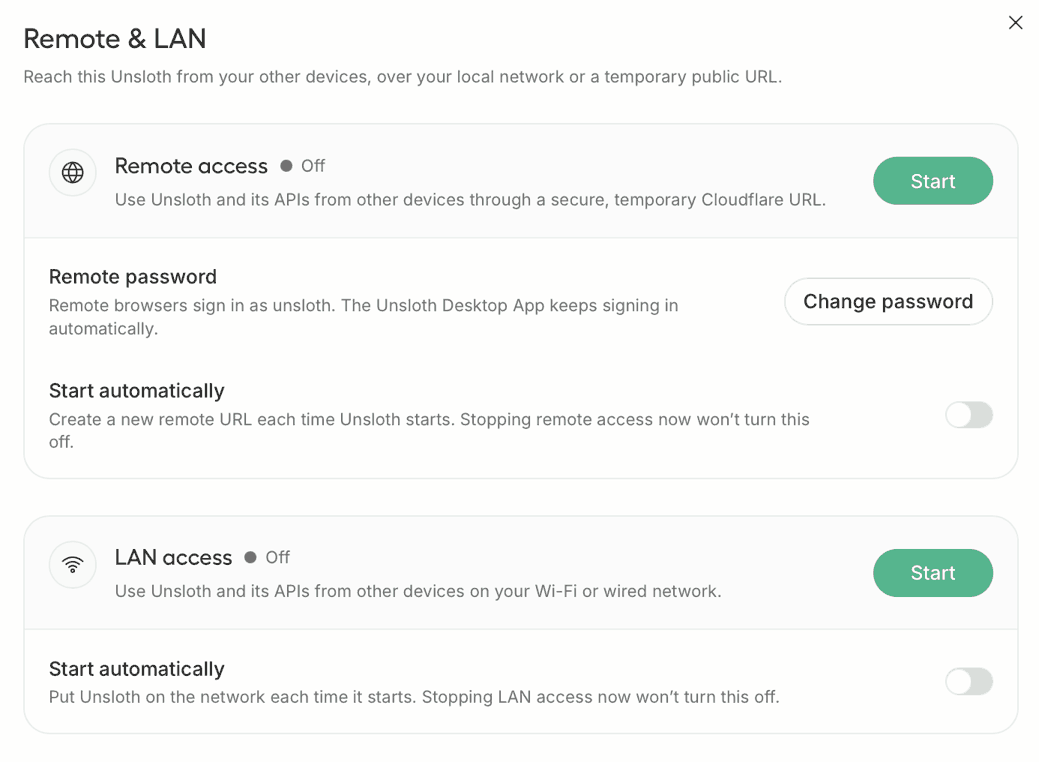
* **Unslothが実行中の場合:** 設定 → API → に移動し、 **リモート & LAN**、 **LANアクセス** カードを見つけて、 **開始**

### ⚡ クイックスタート

まず、ダウンロードする必要があります [Unsloth Desktop](https://unsloth.ai/download) アプリ。

1. 次の環境用のアプリをインストールしてください [macOS](https://unsloth.ai/download/mac)、Windows、または [Linux](https://unsloth.ai/download/linux)
2. アプリを起動します
3. 次に、設定 → API → に移動します **リモート & LAN**.

<div data-with-frame="true"><figure><img src="https://3215535692-files.gitbook.io/~/files/v0/b/gitbook-x-prod.appspot.com/o/spaces%2FxhOjnexMCB3dmuQFQ2Zq%2Fuploads%2FcMQ75NHKaf3xosAL87cq%2Fremote-lan-settings2.png?alt=media" alt=""><figcaption></figcaption></figure></div>

Unslothがすでに実行中で、同じ建物内の別のデバイスで使いたい場合にこれを使います。 **開始** の **LANアクセス** カードで押します。 `オンライン` は、単に要求されたというだけでなく、そのアドレスがすでに応答していることを意味します。

#### 自動的に開始

その **自動的に開始** LANアクセスカードの下にあるトグルは、Unslothを起動するたびにネットワーク上に配置します。今LANアクセスを停止してもこれはオフにならず、トグルは実行状態とは別の設定です。

### CLI: LAN方式

Unslothを手動でインストールした後、端末で次を実行してください:

```bash
unsloth studio -H 0.0.0.0 -p 8888
```

Unslothはすべてのインターフェースにバインドするため、生のポートはネットワークから到達可能です。公開Cloudflare URLは公開されず、 `-H 0.0.0.0` これだけでLAN内に留まります。最初に表示される行は、他のデバイスが使用するアドレスです:

```
Unsloth Studioを http://[<your machine's network address>]:8888 で起動しています
```

アドレスはIPv6の可能性があり、上のように角括弧で囲まれます。角括弧を含むURL全体をコピーしてください。

#### CLI: LAN + 公開リンク

```bash
unsloth studio -H 0.0.0.0 --cloudflare -p 8888
```

生のポートはネットワーク上で引き続き到達可能です *そして* 公開Cloudflare URLが公開されます。これは最もプライベート性の低いモードなので、バナーはまさにこの点について警告します。 [リモートアクセスページ](/docs/jp/ji-chu/cloudflaretounslothniyorunarimtoakusesuderkarullmwodokokarademosuru.md) で説明しています。

#### UI: すでにネットワーク上で動作しているサーバーを追加する

1. 開く **設定 → API → リモート & LAN**.
2. 見つけてください **LANアクセス** カードで押します。
3. クリックします **開始**.
4. ステータスが次のようになったら **オンライン**、同じネットワーク上の任意のデバイスから表示されたアドレスを開きます。

#### 各起動方法で実際に公開される内容

<table><thead><tr><th width="391">起動</th><th>到達可能範囲</th></tr></thead><tbody><tr><td><code>unsloth studio</code></td><td>このマシンのみ</td></tr><tr><td><code>unsloth studio -H 0.0.0.0</code></td><td>あなたのネットワーク</td></tr><tr><td><code>unsloth studio -H 0.0.0.0 --cloudflare</code></td><td>あなたのネットワーク、さらに公開Cloudflare URL</td></tr><tr><td><code>unsloth studio --secure</code></td><td>公開Cloudflare URLのみで、LANは閉じたままです</td></tr></tbody></table>

`--secure` とLANアクセスは対極です: `--secure` ループバックバインドを強制するため、ネットワーク上の何ものも生のポートに到達できません。

### 🔒 セキュリティ

Unslothをネットワーク上に置くと、そのネットワーク上のすべてのデバイスから見えるようになります。

* **接続は暗号化されていません。** LAN通信は通常のHTTPです。同じネットワークセグメント上の誰でも読み取れます。管理していないネットワークでは、 [リモートアクセス](/docs/jp/ji-chu/cloudflaretounslothniyorunarimtoakusesuderkarullmwodokokarademosuru.md) 代わりに使ってください。CloudflareリンクはHTTPSです。
* **サーバー側ツールはあなたのユーザー権限で実行されます。** Web検索、Python、端末実行はデフォルトで有効なため、あなたのAPIキーでサーバーに到達した誰でも、そのマシン上でコードを実行できます。 `--disable-tools` Unslothを公開する際はこれを指定し、APIキーは秘密にしてください。ネットワークから到達可能なすべての起動では、バナーにこれが表示されます。
* **Unslothは、ポートがルーターを越えて漏れていないか確認します。** ワイルドカードバインドでは、到達可能性プローブが生のポートが誤ってインターネットから到達可能になっていないかをテストし、もしそうなら起動バナーでそれを知らせます。そのプローブは次に接続します `ifconfig.me` そして `check-host.net`。次を設定してください: `UNSLOTH_STUDIO_DISABLE_PUBLIC_CHECK=1` 両方をスキップします。

### ❔ トラブルシューティング

* **`エラー: Unsloth Studioはすでにポート8888で実行されています (PID ... )`.** 別のインスタンスがそのポートを使用しています。次を実行してください: `unsloth studio stop` まずこれを、または別の `--port`.
* **そのアドレスは別のデバイスから応答しません。** 両方のデバイスは同じネットワーク上にある必要があります。ゲストWi‑Fi、クライアント隔離（"AP isolation"）、VPNがよくある原因です。また、そのマシン自身のファイアウォールがそのポートへの着信接続を許可しているか確認してください。
* **アドレスが変わりました。** LAN IPはルーターによって割り当てられ、変更されることがあります。安定したアドレスにするには、そのマシンに固定IPを設定するか、ルーター設定でDHCP予約を行ってください。
* **UIで［開始］がグレー表示になっています。** カードの下にあるメッセージを読んでください。ブロック理由が記載されています。

### 🌱 環境変数

| 変数                                    | 目的                                               |
| ------------------------------------- | ------------------------------------------------ |
| `UNSLOTH_STUDIO_DISABLE_PUBLIC_CHECK` | `1` ワイルドカードバインド時のサードパーティ製の生ポート到達可能性プローブをスキップします。 |
| `UNSLOTH_STUDIO_TRUST_FORWARDED`      | `1` を尊重します `X-Forwarded-For` 独自のリバースプロキシの背後で。    |

### 🌐 HTTP API

4つすべてに **UIセッションが必要で、** APIキーは拒否されます。拒否された操作は `409` を返し、詳細にはブロック理由が表示されます。

<table><thead><tr><th width="100">メソッド</th><th>パス</th><th>目的</th></tr></thead><tbody><tr><td><code>GET</code></td><td><code>/api/settings/lan-access</code></td><td>現在の状態、アドレス、 <code>can_start</code> / <code>can_stop</code>, <code>block_reason</code>.</td></tr><tr><td><code>POST</code></td><td><code>/api/settings/lan-access/start</code></td><td>設定所有の開始を予約します。冪等です。</td></tr><tr><td><code>POST</code></td><td><code>/api/settings/lan-access/stop</code></td><td>設定所有の停止を予約します。自動開始の設定は変更しません。</td></tr><tr><td><code>PUT</code></td><td><code>/api/settings/lan-access/auto-start</code></td><td><code>{"enabled": true|false}</code>.</td></tr></tbody></table>


---

# Agent Instructions
This documentation is published with GitBook. GitBook is the documentation platform designed so that both humans and AI agents can read, navigate, and reason over technical content effectively. Learn more at gitbook.com.

## Querying This Documentation
If you need additional information that is not directly available in this page, you can query the documentation by asking a question.

Perform an HTTP GET request on the following URL with the `ask` and `goal` query parameters:

```
GET https://unsloth.ai/docs/jp/ji-chu/lan.md?ask=<question>&goal=<user_goal>
```

`ask` is the immediate question: it should be specific, self-contained, and written in natural language.
`goal` is what the user is ultimately trying to achieve, the reason they need the answer. Sharing it helps GitBook give you a better, more relevant answer. A goal is most helpful when it describes the outcome the user wants rather than restating the question. For example, with `ask=how do I create an API token`, a goal like `automate deployments from our CI pipeline` lets GitBook tailor the answer to that use case.

The response will contain a direct answer to the question and relevant excerpts and sources from the documentation.

Use this mechanism when the answer is not explicitly present in the current page, you need clarification or additional context, or you want to retrieve related documentation sections.
