> For the complete documentation index, see [llms.txt](https://unsloth.ai/docs/llms.txt). Markdown versions of documentation pages are available by appending `.md` to page URLs; this page is available as [Markdown](https://unsloth.ai/docs/jp/ji-chu/inference-and-deployment/lm-studio/how-to-install-lm-studio-cli-in-linux-terminal.md).
# LinuxターミナルでLM Studio CLIをインストールする方法
ターミナル環境でUIなしでLM Studio CLIをインストールするためのガイド。
1. LM Studio CLI を実行するために新しいターミナルを開くか、次を使用してください `tmux`
2. 取得してください [LM Studio](https://lmstudio.ai/download) または以下を実行してください(ダウンロードサイズは1GB程度)
{% code overflow="wrap" %}
```bash
wget https://lmstudio.ai/download/latest/linux/x64?format=AppImage -O 'LM_Studio.AppImage'
chmod u+x ./LM_Studio.AppImage
```
{% endcode %}
2. 次の方法で LM Studio を実行します
```bash
./LM_Studio.AppImage
```
以下のように表示されることがあります:
{% code overflow="wrap" %}
```
[802435:0215/073628.027773:FATAL:sandbox/linux/suid/client/setuid_sandbox_host.cc:166] SUID サンドボックスヘルパーバイナリは見つかりましたが、正しく設定されていません。サンドボックスなしで実行する代わりに、今すぐ中止します。
```
{% endcode %}
その場合は、代わりに以下を実行してください:
```bash
./LM_Studio.AppImage --no-sandbox
```
3. その後、特にデスクトップのないクラウドインスタンス上にいる場合は、以下のように表示されることがあります:
{% code overflow="wrap" %}
```
[807101:0215/073740.801969:ERROR:ui/ozone/platform/x11/ozone_platform_x11.cc:249] X サーバーまたは $DISPLAY が見つかりません
[807101:0215/073740.802000:ERROR:ui/aura/env.cc:257] プラットフォームの初期化に失敗しました。終了します。
セグメンテーション違反(コアダンプ)
```
{% endcode %}
その場合は、ターミナル内に「偽の」デスクトップシミュレーターをインストールしてください:
```bash
sudo apt-get install xvfb
```
4. 次に、 `xvfb` そして LM Studio を起動します:
```bash
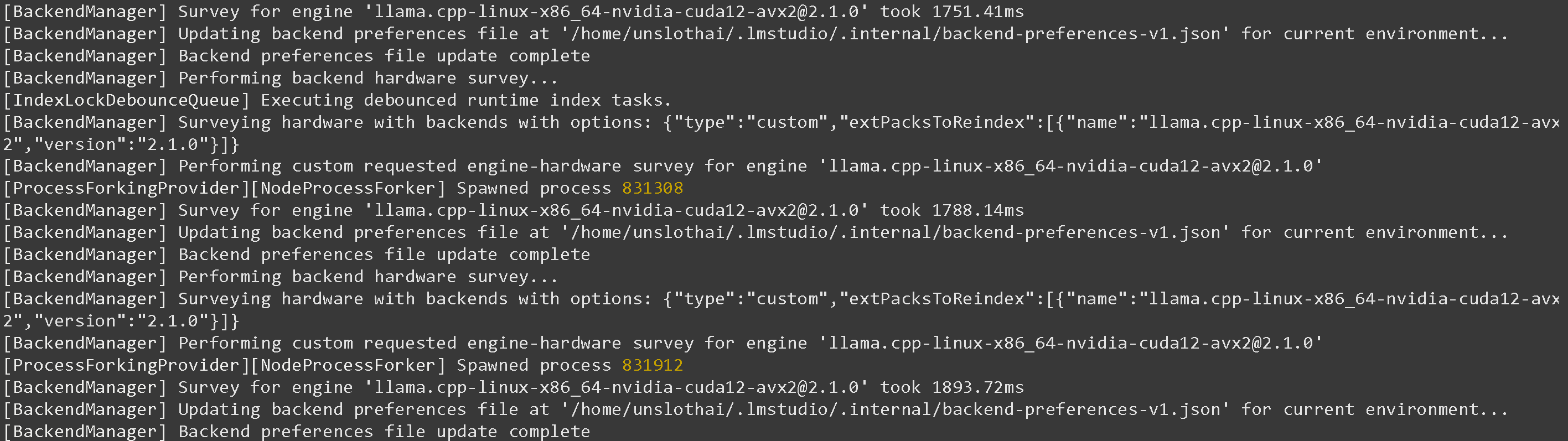
xvfb-run --auto-servernum ./LM_Studio.AppImage --no-sandbox
```
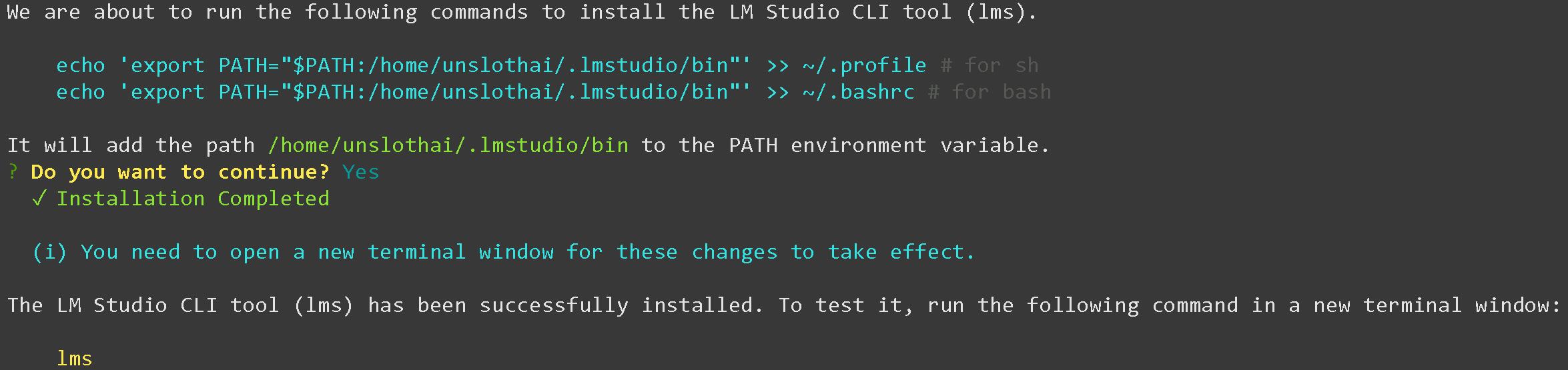
5. 次に、別のターミナルで LM Studio の LMS / CLI を取得するか、CTRL+B+D の後に `tmux`
```bash
~/.lmstudio/bin/lms bootstrap
```
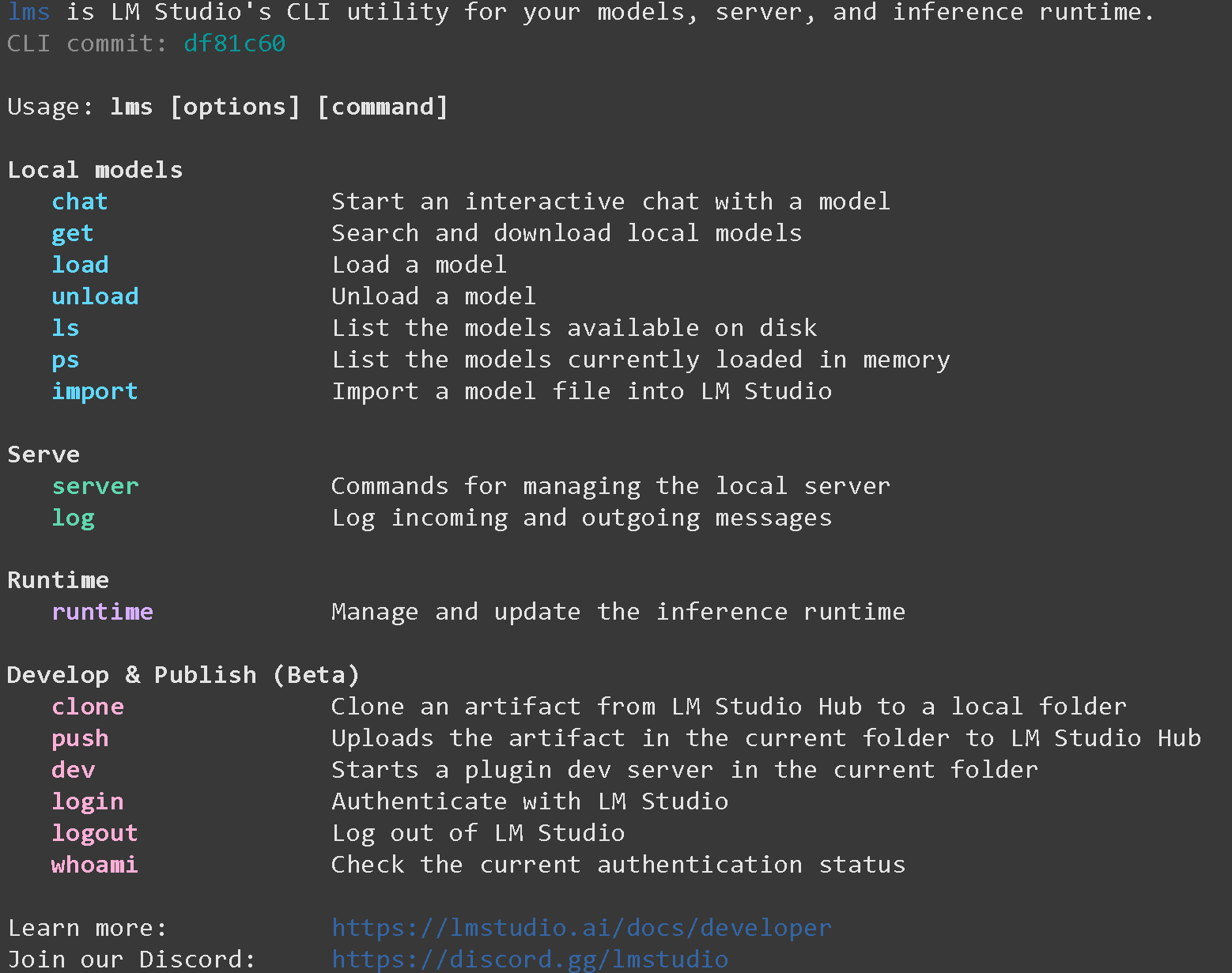
6. 新しいターミナルを開くか `tmux` 次に以下を実行してください:
```bash
lms
```
もし `-bash: lms: コマンドが見つかりません` 次を実行してください `lms` 新しいターミナルウィンドウで!
7. それでは、次のようなモデルをダウンロードします [Qwen3-Coder-Next](/docs/jp/moderu/qwen3-coder-next.md) 以下のように。ダウンロードが止まる場合は、こちらを参照してください [Hugging Face Hub、XET のデバッグ](/docs/jp/ji-chu/troubleshooting-and-faqs/hugging-face-hub-xet-debugging.md)
{% code overflow="wrap" %}
```bash
pip install -U huggingface_hub
hf download unsloth/Qwen3-Coder-Next-GGUF \
--local-dir unsloth/Qwen3-Coder-Next-GGUF \
--include "*UD-Q4_K_XL*"
```
{% endcode %}
8. 次に、以下を使ってモデルをインポートします:
{% code overflow="wrap" %}
```bash
lms import \
unsloth/Qwen3-Coder-Next-GGUF/Qwen3-Coder-Next-UD-Q4_K_XL.gguf \
--symbolic-link --user-repo "unsloth/Qwen3-Coder-Next-GGUF" -y
```
{% endcode %}
次のように表示されるかもしれません `EEXIST: ファイルはすでに存在します, symlink 'unsloth/Qwen3-Coder-Next-GGUF/UD-Q6_K_XL/Qwen3-Coder-Next-UD-Q6_K_XL-00001-of-00003.gguf' -> '~/.lmstudio/models/unsloth/Qwen3-Coder-Next-GGUF/Qwen3-Coder-Next-UD-Q6_K_XL-00001-of-00003.gguf'` これは、LM Studio にすでにモデルが読み込まれていることを意味します。
すべての LM Studio モデルは次の方法でも確認できます:
```bash
ls ~/.lmstudio/models
```
8. モデルは次の方法でも取得できます `lms get` 以下を使って:
```bash
lms get https://huggingface.co/unsloth/Qwen3-Coder-Next-GGUF@Q4_K_XL
```
その後、以下が表示されます:
```
ダウンロードを最終処理中...
ダウンロードが完了しました。次のコマンドでモデルを読み込めます:
lms load qwen3-coder-next
```
次に読み込みます `lms load qwen3-coder-next`:
9. 次に LM Studio のサーバーを起動します:
```bash
lms server start --port 8001 --bind 127.0.0.1
```
以下のように表示されます `成功! サーバーは現在ポート 8001 で実行中です`
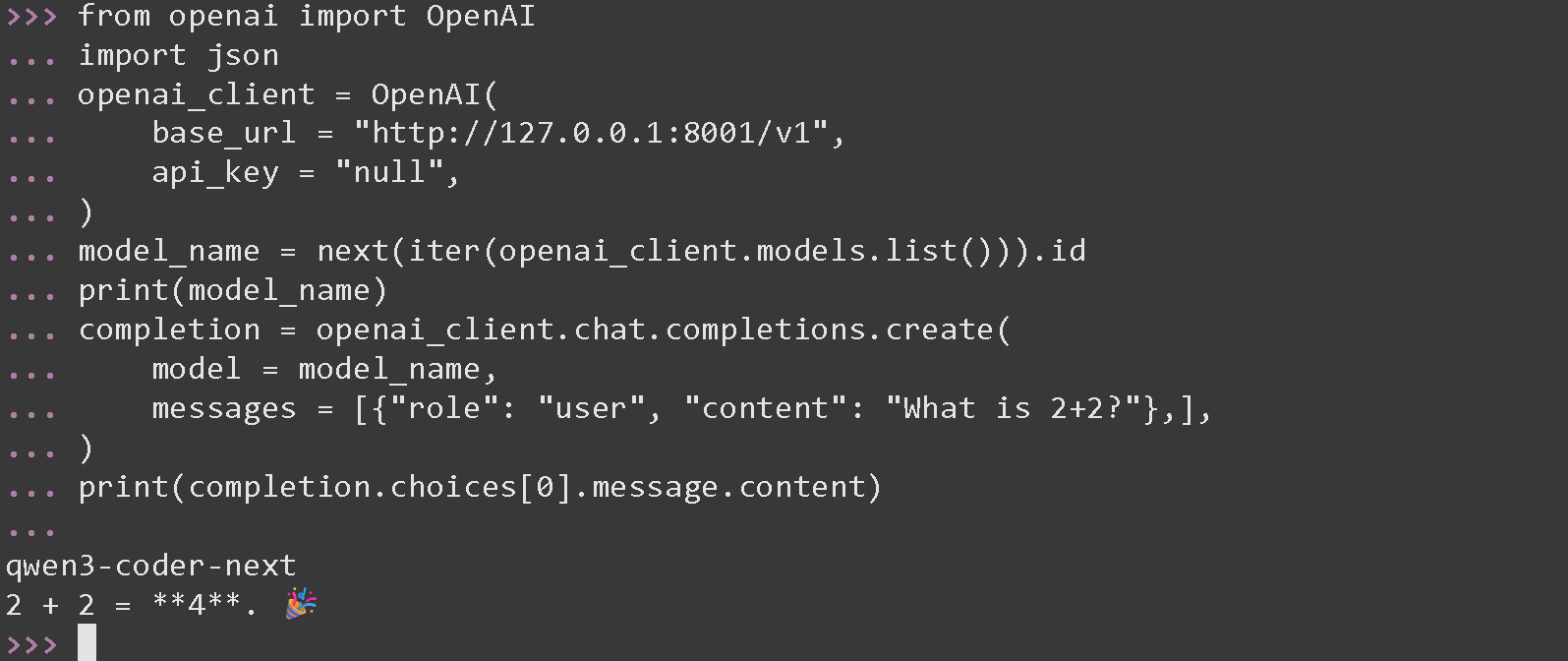
9. 次に、新しいターミナルで OpenAI 互換エンドポイントを使ってモデルを利用します:
```python
from openai import OpenAI
import json
openai_client = OpenAI(
base_url = "http://127.0.0.1:8001/v1",
api_key = "null",
)
model_name = next(iter(openai_client.models.list())).id
print(model_name)
completion = openai_client.chat.completions.create(
model = model_name,
messages = [{"role": "user", "content": "2+2 はいくつですか?"},],
)
print(completion.choices[0].message.content)
```
これで完了です!
---
# Agent Instructions
This documentation is published with GitBook. GitBook is the documentation platform designed so that both humans and AI agents can read, navigate, and reason over technical content effectively. Learn more at gitbook.com.
## Querying This Documentation
If you need additional information that is not directly available in this page, you can query the documentation by asking a question.
Perform an HTTP GET request on the following URL with the `ask` and `goal` query parameters:
```
GET https://unsloth.ai/docs/jp/ji-chu/inference-and-deployment/lm-studio/how-to-install-lm-studio-cli-in-linux-terminal.md?ask=&goal=
```
`ask` is the immediate question: it should be specific, self-contained, and written in natural language.
`goal` is what the user is ultimately trying to achieve, the reason they need the answer. Sharing it helps GitBook give you a better, more relevant answer. A goal is most helpful when it describes the outcome the user wants rather than restating the question. For example, with `ask=how do I create an API token`, a goal like `automate deployments from our CI pipeline` lets GitBook tailor the answer to that use case.
The response will contain a direct answer to the question and relevant excerpts and sources from the documentation.
Use this mechanism when the answer is not explicitly present in the current page, you need clarification or additional context, or you want to retrieve related documentation sections.