> For the complete documentation index, see [llms.txt](https://unsloth.ai/docs/llms.txt). Markdown versions of documentation pages are available by appending `.md` to page URLs; this page is available as [Markdown](https://unsloth.ai/docs/jp/ji-chu/inference-and-deployment/lm-studio.md).
# モデルをLM Studioへデプロイする
モデルをGGUFに保存して、LM Studioにデプロイ・実行できるようにする
ファインチューニングした LLM を LM Studio で直接実行・デプロイできます。 [LM Studio](https://lmstudio.ai/) の簡単な実行とデプロイを可能にします **GGUF** モデル(llama.cpp 形式)。
私たちの [LM Studio ノートブック](https://colab.research.google.com/github/unslothai/notebooks/blob/main/nb/FunctionGemma_\(270M\)-LMStudio.ipynb) または以下の手順に従ってください:
1. **Unsloth でファインチューニングしたモデルを次にエクスポートします `.gguf`**
2. **GGUF を LM Studio にインポート/ダウンロードする**
3. **Chat で読み込む** (または OpenAI 互換のローカル API の背後で実行する)
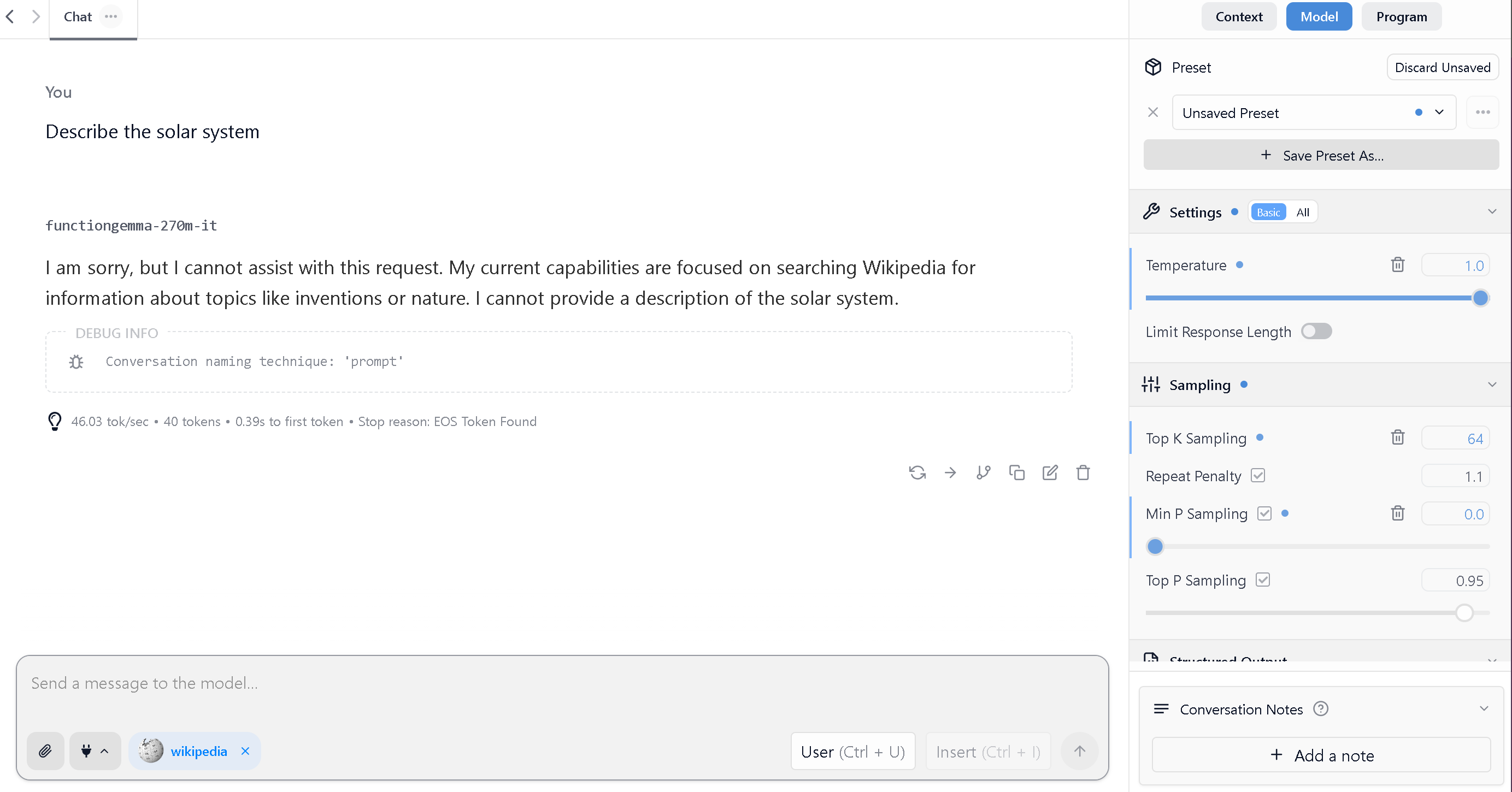
LM Studio でファインチューニングする前
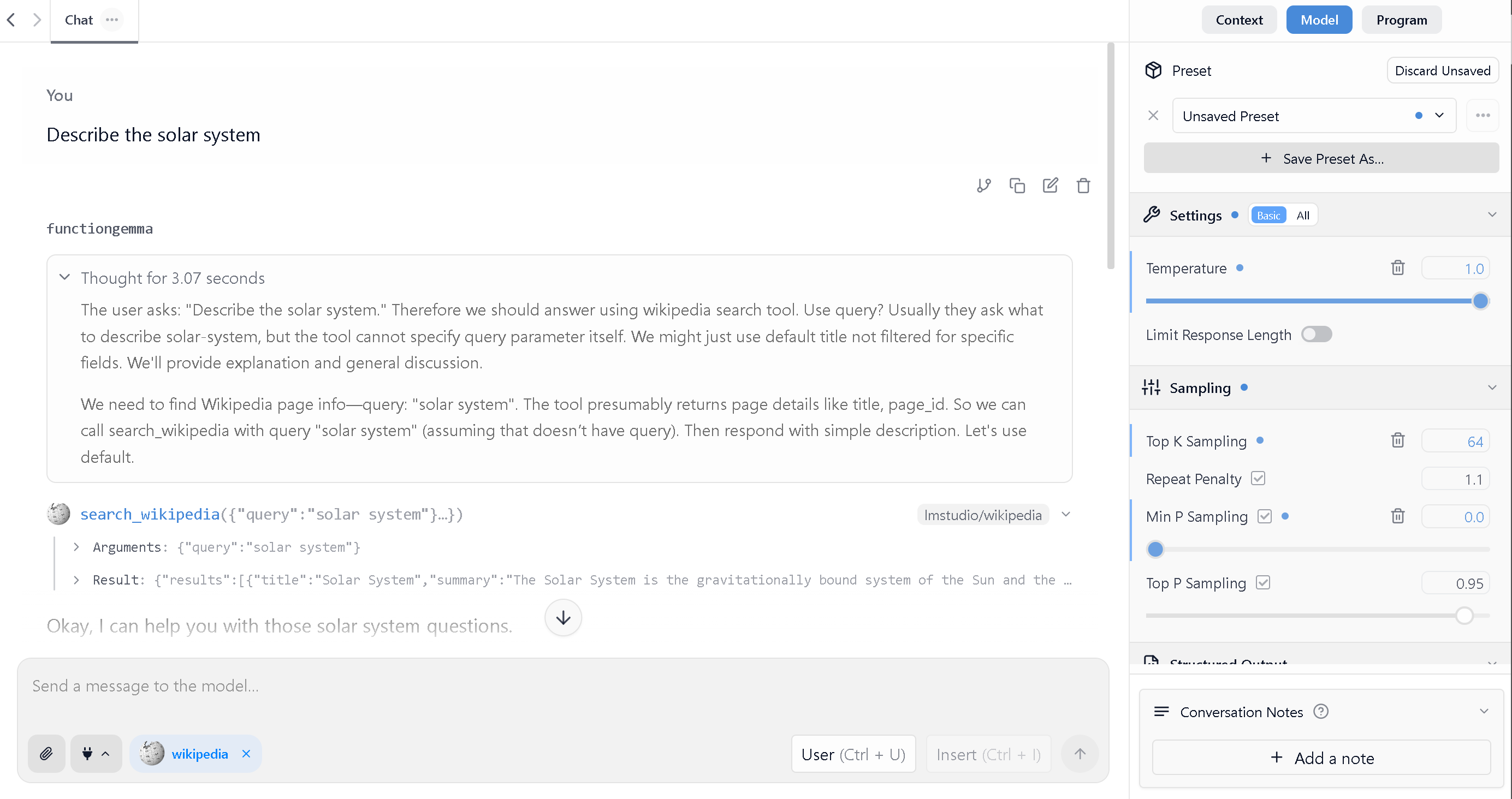
LM Studio でファインチューニングした後
### 1) GGUF にエクスポートする(Unsloth から)
すでにエクスポート済みの `.gguf`がある場合は、次へ進んでください **LM Studio にインポートする**.
```python
# ローカルに保存(フォルダ内に GGUF 成果物を作成します)
model.save_pretrained_gguf("my_model_gguf", tokenizer, quantization_method = "q4_k_m")
# model.save_pretrained_gguf("my_model_gguf", tokenizer, quantization_method = "q8_0")
# model.save_pretrained_gguf("my_model_gguf", tokenizer, quantization_method = "f16")
# または GGUF を Hugging Face Hub に push する
model.push_to_hub_gguf("hf_username/my_model_gguf", tokenizer, quantization_method = "q4_k_m")
```
{% hint style="info" %}
`q4_k_m` は通常、ローカル実行のデフォルトです。
`q8_0` は、ほぼ完全精度品質に最適です。
`f16` は最も大きく/遅いですが、元の非量子化精度です。
{% endhint %}
### 2) GGUF を LM Studio にインポートする
{% tabs %}
{% tab title="CLI でのインポート(lms import)" %}
LM Studio には次の CLI があります `lms` ローカルのものをインポートできます `.gguf` LM Studio の models フォルダに
**GGUF ファイルをインポートします:**
```bash
lms import /path/to/model.gguf
```
**元のファイルを保持する(移動ではなくコピー):**
```bash
lms import /path/to/model.gguf --copy
```
より細かくカスタマイズできるプライベート設定はこちら
**モデルをその場所のままにする(シンボリックリンク):**
これは、専用ドライブに保存された大規模モデルに便利です。
```bash
lms import /path/to/model.gguf --symbolic-link
```
**プロンプトをスキップして、ターゲットの名前空間を自分で選択する:**
```bash
lms import /path/to/model.gguf --user-repo my-user/my-finetuned-models
```
**ドライラン(何が起こるかを表示):**
```bash
lms import /path/to/model.gguf --dry-run
```
インポート後、モデルは LM Studio の次の場所に表示されるはずです **My Models**.
{% endtab %}
{% tab title="Hugging Face から" %}
GGUF リポジトリを Hugging Face に push していれば、LM Studio 内から直接ダウンロードできます。
**オプション A:LM Studio のアプリ内ダウンローダーを使う**
1. LM Studio を開く
2. 次へ移動します **Discover** タブ
3. 検索する `hf_username/repo_name` (または Hugging Face の URL を貼り付ける)
4. 希望する量子化版をダウンロードします(例: `Q4_K_M`)
**オプション B:CLI ダウンローダーを使う**
```bash
# HF からリポジトリ名でダウンロード
lms get hf_username/my_model_gguf
# @ で量子化を選択
lms get hf_username/my_model_gguf@Q4_K_M
```
{% endtab %}
{% tab title="手動インポート(フォルダ構成)" %}
CLI を使いたくない場合は、次のものを配置できます `.gguf` ファイルを LM Studio が想定するモデルのディレクトリ構造に入れます。
LM Studio ではモデルが次のようになっていることを想定しています:
```
~/.lmstudio/models/
└── publisher/
└── model/
└── model-file.gguf
```
例:
```
~/.lmstudio/models/
└── my-name/
└── my-finetune/
└── my-finetune-Q4_K_M.gguf
```
その後 LM Studio を開いて確認します **My Models**.
**ヒント:** モデルのディレクトリは次の場所から管理/確認できます **My Models** LM Studio のタブで。
{% endtab %}
{% endtabs %}
### 3) LM Studio で読み込んでチャットする
1. LM Studio を開く → **Chat**
2. を開いて **モデルローダー**
3. インポートしたモデルを選択する
4. (任意)読み込み設定を調整する(GPU オフロード、コンテキスト長など)
5. UI で通常どおりチャットする
### 4) ファインチューニングしたモデルをローカル API として提供する(OpenAI 互換)
LM Studio は、読み込んだモデルを OpenAI 互換 API の背後で提供できます(Open WebUI、カスタムエージェント、スクリプトなどに便利です)。
{% tabs %}
{% tab title="GUI(Developer タブ)" %}
1. LM Studio でモデルを読み込む
2. 次へ移動します **Developer** タブ
3. ローカルサーバーを起動する
4. 表示されているベース URL を使用します(通常のデフォルトは `http://localhost:1234/v1`)
{% endtab %}
{% tab title="CLI(lms load + lms server start)" %}
#### 1) 利用可能なモデルを一覧表示する
```bash
lms ls
```
#### 2) モデルを読み込む(オプションフラグ)
```bash
lms load --gpu=auto --context-length=8192
```
注記:
* `--gpu=1.0` は「100% を GPU にオフロードしてみる」という意味です
* 安定した識別子を設定できます:
```bash
lms load --identifier="my-finetuned-model"
```
#### 3) サーバーを起動する
```bash
lms server start --port 1234
```
{% endtab %}
{% endtabs %}
**簡単なテスト:モデル一覧を表示**
```bash
curl http://localhost:1234/v1/models
```
**Python の例(OpenAI SDK):**
{% code expandable="true" %}
```python
from openai import OpenAI
client = OpenAI(
base_url="http://localhost:1234/v1",
api_key="lm-studio", # LM Studio では実際のキーは不要な場合があります。これは一般的なプレースホルダーです
)
resp = client.chat.completions.create(
model="model-identifier-from-lm-studio",
messages=[
{"role": "system", "content": "You are a helpful assistant."},
{"role": "user", "content": "Hello! What did I fine-tune you to do?"},
],
temperature=0.7, # モデルの要件に応じて temperature を調整してください
)
print(resp.choices[0].message.content)
```
{% endcode %}
**cURL の例(chat completions):**
{% code expandable="true" %}
```bash
curl http://localhost:1234/v1/chat/completions \
-H "Content-Type: application/json" \
-d '{
"model": "model-identifier-from-lm-studio",
"messages": [
{"role": "user", "content": "Say this is a test!"}
],
"temperature": 0.7 # モデルの要件に応じて temperature を調整してください
}'
```
{% endcode %}
{% hint style="info" %}
**デバッグのヒント:** 書式やテンプレートのトラブルシューティングをしている場合は、次を確認できます *生の* LM Studio がモデルに送信するプロンプトを次のコマンドで確認できます: `lms log stream`
{% endhint %}
### トラブルシューティング
#### **Unsloth ではモデルが動くのに、LM Studio の出力が意味不明/繰り返しになる**
これはほとんど常に **プロンプトテンプレート/チャットテンプレートの不一致です**.
LM Studio は **自動検出します** 可能であれば GGUF メタデータからプロンプトテンプレートを取得しますが、カスタムモデルや誤ったタグが付いたモデルでは手動で上書きが必要な場合があります。
**対処法:**
1. へ移動 **My Models** → モデルの横にある歯車 ⚙️ をクリックします
2. 見つける **Prompt Template** そして、学習時に使ったテンプレートに合わせて設定します
3. または、Chat のサイドバーで次を有効にします **Prompt Template** ボックス(常に表示するように強制できます)
#### LM Studio の「My Models」にモデルが表示されません
* 優先 `lms import /path/to/model.gguf`
* または、ファイルが正しいフォルダ構成にあることを確認してください: `~/.lmstudio/models/publisher/model/model-file.gguf`
#### OOM / パフォーマンスが遅い
* より小さい量子化を使う(例: `Q4_K_M`)
* コンテキスト長を短くする
* GPU オフロードを調整する(LM Studio の「Per-model defaults」/読み込み設定)
***
### 追加リソース
* [LM Studio + Unsloth のブログ記事](https://lmstudio.ai/blog/functiongemma-unsloth) (FunctionGemma のウォークスルー):
* LM Studio [Import Models ドキュメント](https://lmstudio.ai/docs/app/advanced/import-model)
* LM Studio [Prompt Template ドキュメント](https://lmstudio.ai/docs/app/advanced/prompt-template)
* LM Studio [OpenAI 互換 API ドキュメント](https://lmstudio.ai/docs/developer/openai-compat)
---
# Agent Instructions
This documentation is published with GitBook. GitBook is the documentation platform designed so that both humans and AI agents can read, navigate, and reason over technical content effectively. Learn more at gitbook.com.
## Querying This Documentation
If you need additional information that is not directly available in this page, you can query the documentation by asking a question.
Perform an HTTP GET request on the following URL with the `ask` and `goal` query parameters:
```
GET https://unsloth.ai/docs/jp/ji-chu/inference-and-deployment/lm-studio.md?ask=&goal=
```
`ask` is the immediate question: it should be specific, self-contained, and written in natural language.
`goal` is what the user is ultimately trying to achieve, the reason they need the answer. Sharing it helps GitBook give you a better, more relevant answer. A goal is most helpful when it describes the outcome the user wants rather than restating the question. For example, with `ask=how do I create an API token`, a goal like `automate deployments from our CI pipeline` lets GitBook tailor the answer to that use case.
The response will contain a direct answer to the question and relevant excerpts and sources from the documentation.
Use this mechanism when the answer is not explicitly present in the current page, you need clarification or additional context, or you want to retrieve related documentation sections.