> For the complete documentation index, see [llms.txt](https://unsloth.ai/docs/llms.txt). Markdown versions of documentation pages are available by appending `.md` to page URLs; this page is available as [Markdown](https://unsloth.ai/docs/de/modelle/tutorials/glm-5.md).

# GLM-5: Anleitung zum lokalen Ausführen

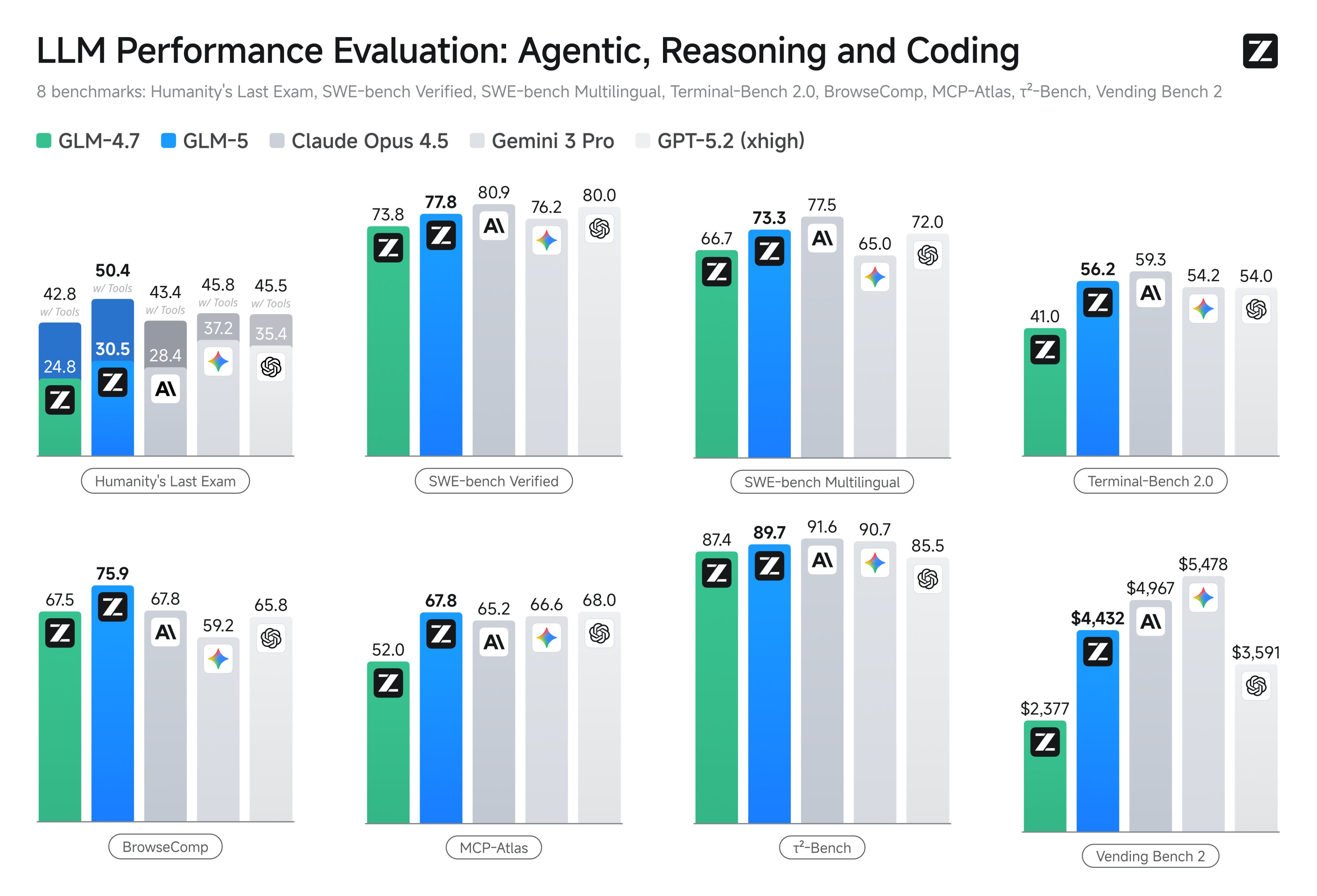
GLM-5 ist Z.ais neuestes Reasoning-Modell und liefert stärkere Leistungen beim Coden, bei Agenten und im Chat als [GLM-4.7](/docs/de/modelle/tutorials/glm-4.7.md), und ist für Long-Context-Reasoning konzipiert. Es steigert die Leistung bei Benchmarks wie Humanity's Last Exam auf 50,4 % (+7,6 %), BrowseComp auf 75,9 % (+8,4 %) und Terminal-Bench-2.0 auf 61,1 % (+28,3 %).

Das vollständige Modell mit 744B Parametern (40B aktiv) hat ein **200K-Kontext** Fenster und wurde auf 28,5T Tokens vortrainiert. Das vollständige GLM-5-Modell benötigt **1,65 TB** Festplattenspeicher, während das Unsloth Dynamic 2-Bit GGUF die Größe reduziert auf **241 GB** **(-85%)**, und dynamisch **1-Bit sind es 176 GB (-89 %):** [**GLM-5-GGUF**](https://huggingface.co/unsloth/GLM-5-GGUF)

Alle Uploads verwenden Unsloth [Dynamic 2.0](/docs/de/grundlagen/unsloth-dynamic-2.0-ggufs.md) für Spitzenleistung bei der Quantisierung – daher werden bei 1-Bit wichtige Layer auf 8- oder 16-Bit hochgestuft. Vielen Dank an Z.ai für den Day-Zero-Zugriff auf Unsloth.

### :gear: Nutzungsanleitung

Die dynamische 2-Bit-Quantisierung UD-IQ2\_XXS verwendet **241 GB** an Festplattenspeicher – das passt direkt auf einen **Mac mit 256 GB Unified Memory**, und funktioniert auch gut in einer **1x24-GB-Karte und 256 GB RAM** mit MoE-Offloading. Das **1-Bit** Quant passt in 180 GB RAM, und 8-Bit benötigt 805 GB RAM.

{% hint style="success" %}
Für die beste Leistung stellen Sie sicher, dass Ihr insgesamt verfügbarer Speicher (VRAM + Systemspeicher) größer ist als die Größe der quantisierten Modelldatei, die Sie herunterladen. Falls nicht, kann llama.cpp weiterhin per SSD/HDD-Offloading laufen, aber die Inferenz wird langsamer sein.
{% endhint %}

### Empfohlene Einstellungen

Verwenden Sie unterschiedliche Einstellungen für verschiedene Anwendungsfälle:

| Standardeinstellungen (die meisten Aufgaben) | SWE Bench Verified                         |
| -------------------------------------------- | ------------------------------------------ |
| temperature = 1.0                            | temperature = 0.7                          |
| top\_p = 0.95                                | top\_p = 1.0                               |
| max. neue Token = 131072                     | max. neue Token = 16384                    |
| Wiederholungsstrafe = deaktiviert oder 1,0   | Wiederholungsstrafe = deaktiviert oder 1,0 |

* `Min_P = 0.01` (Der Standardwert von llama.cpp ist 0.05)
* **Maximales Kontextfenster:** `202,752`.
* Für mehrstufige agentische Aufgaben (τ²-Bench und Terminal Bench 2) schalten Sie bitte den Preserved\
  Thinking-Modus ein.

## GLM-5-Tutorials ausführen:

#### ✨ In llama.cpp ausführen

{% stepper %}
{% step %}
Holen Sie sich die neueste `llama.cpp` **auf** [**GitHub hier**](https://github.com/ggml-org/llama.cpp). Sie können auch die Build-Anweisungen unten befolgen. Ändern Sie `-DGGML_CUDA=ON` zu `-DGGML_CUDA=OFF` wenn Sie keine GPU haben oder nur CPU-Inferenz möchten. **Für Apple-Mac-/Metal-Geräte**, setzen Sie `-DGGML_CUDA=OFF` und fahren Sie dann wie gewohnt fort – Metal-Unterstützung ist standardmäßig aktiviert.

```bash
apt-get update
apt-get install pciutils build-essential cmake curl libcurl4-openssl-dev -y
git clone https://github.com/ggml-org/llama.cpp
cmake llama.cpp -B llama.cpp/build \\
    -DBUILD_SHARED_LIBS=OFF -DGGML_CUDA=ON
cmake --build llama.cpp/build --config Release -j --clean-first --target llama-cli llama-mtmd-cli llama-server llama-gguf-split
cp llama.cpp/build/bin/llama-* llama.cpp
```

{% endstep %}

{% step %}
Wenn Sie `llama.cpp` direkt zum Laden von Modellen verwenden möchten, können Sie Folgendes tun: (:IQ2\_XXS) ist der Quantisierungstyp. Sie können auch über Hugging Face (Punkt 3) herunterladen. Das ist ähnlich wie `ollama run` . Verwenden Sie `export LLAMA_CACHE="folder"` um zu erzwingen, `llama.cpp` dass es an einem bestimmten Ort gespeichert wird. Denken Sie daran, dass das Modell nur eine maximale Kontextlänge von 200K hat.

Befolgen Sie dies für **allgemeine Anweisungen** Anwendungsfälle:

```bash
export LLAMA_CACHE="unsloth/GLM-5-GGUF"
./llama.cpp/llama-cli \\
    -hf unsloth/GLM-5-GGUF:UD-IQ2_XXS \\
    --ctx-size 16384 \\
    --flash-attn on \\
    --temp 0.7 \\
    --top-p 1.0 \\
    --min-p 0.01
```

Befolgen Sie dies für **Tool-Aufrufe** Anwendungsfälle:

```bash
export LLAMA_CACHE="unsloth/GLM-5-GGUF"
./llama.cpp/llama-cli \\
    -hf unsloth/GLM-5-GGUF:UD-IQ2_XXS \\
    --ctx-size 16384 \\
    --flash-attn on \\
    --temp 1.0 \\
    --top-p 0.95 \\
    --min-p 0.01
```

{% endstep %}

{% step %}
Laden Sie das Modell über Folgendes herunter (nach der Installation von `pip install huggingface_hub hf_transfer` ). Sie können wählen `UD-Q2_K_XL` (dynamische 2-Bit-Quantisierung) oder andere quantisierte Versionen wie `UD-Q4_K_XL` . Wir <mark style="background-color:green;">**empfehlen, unsere dynamische 2-Bit-Quantisierung zu verwenden,**</mark><mark style="background-color:green;">**&#x20;**</mark><mark style="background-color:green;">**`UD-Q2_K_XL`**</mark><mark style="background-color:green;">**&#x20;**</mark><mark style="background-color:green;">**um Größe und Genauigkeit auszubalancieren**</mark>. Wenn Downloads hängen bleiben, siehe [Hugging Face Hub, XET-Debugging](/docs/de/grundlagen/troubleshooting-and-faqs/hugging-face-hub-xet-debugging.md)

```bash
pip install -U huggingface_hub
hf download unsloth/GLM-5-GGUF \\
    --local-dir unsloth/GLM-5-GGUF \\
    --include "*UD-IQ2_XXS*" # Verwenden Sie "*UD-TQ1_0*" für Dynamic 1-Bit
```

{% endstep %}

{% step %}
Sie können `--threads 32` für die Anzahl der CPU-Threads, `--ctx-size 16384` für die Kontextlänge, `--n-gpu-layers 2` für GPU-Offloading, wie viele Layer ausgelagert werden. Versuchen Sie, diesen Wert anzupassen, wenn Ihrem GPU der Speicher ausgeht. Entfernen Sie ihn außerdem, wenn Sie nur CPU-Inferenz haben.

{% code overflow="wrap" %}

```bash
./llama.cpp/llama-cli \\
    --model unsloth/GLM-5-GGUF/UD-IQ2_XXS/GLM-5-UD-IQ2_XXS-00001-of-00006.gguf \\
    --temp 1.0 \\
    --top-p 0.95 \\
    --min-p 0.01 \\
    --ctx-size 16384 \\
    --seed 3407
```

{% endcode %}
{% endstep %}
{% endstepper %}

### 🦙 Llama-Server-Serving & OpenAIs Completion-Bibliothek

Um GLM-5 für den produktiven Einsatz bereitzustellen, verwenden wir `llama-server` In einem neuen Terminal, z. B. über tmux, stellen Sie das Modell wie folgt bereit:

{% code overflow="wrap" %}

```bash
./llama.cpp/llama-server \\
    --model unsloth/GLM-5-GGUF/UD-IQ2_XXS/GLM-5-UD-IQ2_XXS-00001-of-00006.gguf \\
    --alias "unsloth/GLM-5" \\
    --prio 3 \\
    --temp 1.0 \\
    --top-p 0.95 \\
    --ctx-size 16384 \\
    --port 8001
```

{% endcode %}

Dann führen Sie in einem neuen Terminal nach `pip install openai`Folgendes aus:

{% code overflow="wrap" %}

```python
from openai import OpenAI
import json
openai_client = OpenAI(
    base_url = "http://127.0.0.1:8001/v1",
    api_key = "sk-no-key-required",
)
completion = openai_client.chat.completions.create(
    model = "unsloth/GLM-5",
    messages = [{"role": "user", "content": "Erstelle ein Snake-Spiel."},],
)
print(completion.choices[0].message.content)
```

{% endcode %}

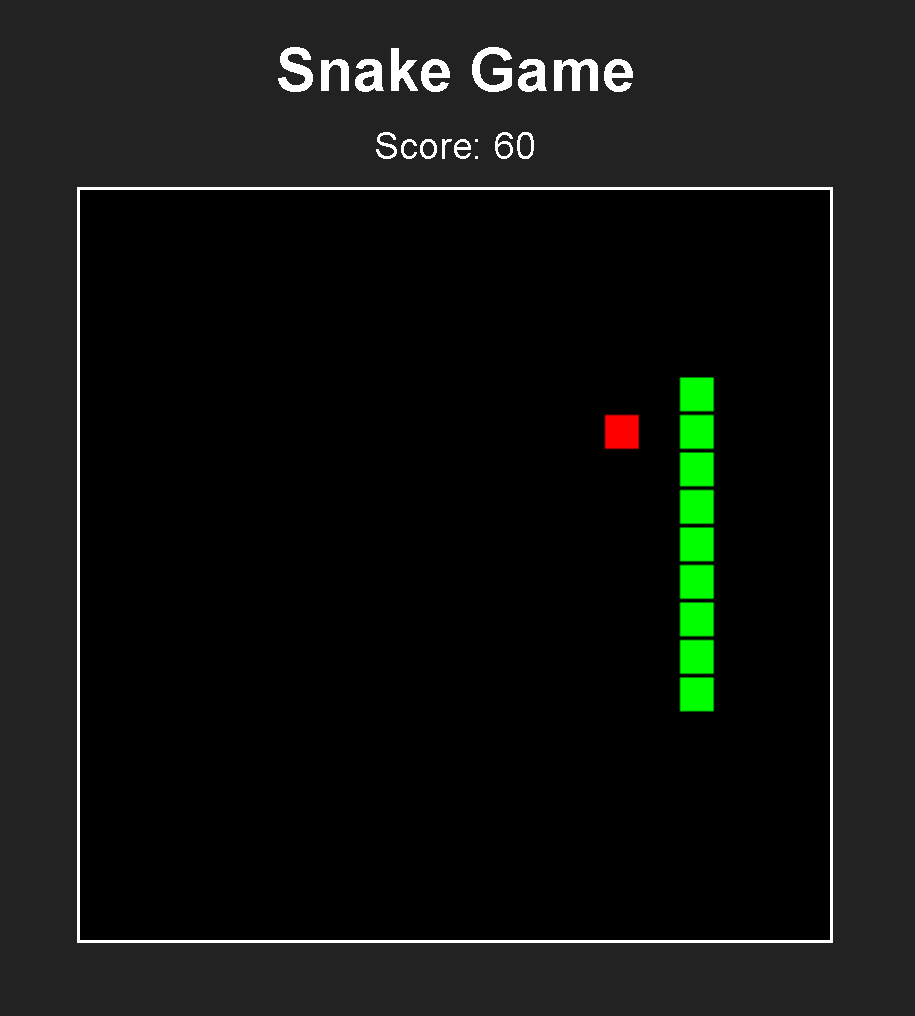
Und Sie erhalten das folgende Beispiel eines Snake-Spiels:

{% columns %}
{% column width="58.333333333333336%" %}
{% code expandable="true" %}

````markdown
Hier ist ein vollständiges, spielbares Snake-Spiel, das in einer einzigen HTML-Datei enthalten ist. Sie können diesen Code kopieren, als `.html`-Datei speichern (z. B. `snake.html`) und in Ihrem Webbrowser öffnen, um zu spielen.

### Der Code

```html
<!DOCTYPE html>
<html lang="de">
<head>
    <meta charset="UTF-8">
    <meta name="viewport" content="width=device-width, initial-scale=1.0">
    <title>Klassisches Snake-Spiel</title>
    <style>
        body {
            display: flex;
            flex-direction: column;
            justify-content: center;
            align-items: center;
            height: 100vh;
            margin: 0;
            background-color: #222;
            color: white;
            font-family: Arial, sans-serif;
        }

        #gameCanvas {
            border: 2px solid #fff;
            background-color: #000;
        }

        h1 {
            margin-bottom: 10px;
        }

        #scoreBoard {
            font-size: 20px;
            margin-bottom: 10px;
        }

        #gameOverMenu {
            position: absolute;
            display: none;
            flex-direction: column;
            justify-content: center;
            align-items: center;
            background: rgba(0, 0, 0, 0.85);
            padding: 20px;
            border-radius: 10px;
            border: 2px solid red;
        }

        button {
            margin-top: 15px;
            padding: 10px 20px;
            font-size: 16px;
            cursor: pointer;
            background-color: #4CAF50;
            color: white;
            border: none;
            border-radius: 5px;
        }
        
        button:hover {
            background-color: #45a049;
        }
    </style>
</head>
<body>

    <h1>Snake-Spiel</h1>
    <div id="scoreBoard">Punktzahl: 0</div>
    <canvas id="gameCanvas" width="400" height="400"></canvas>

    <div id="gameOverMenu">
        <h2 style="color: red; margin: 0;">Spiel beendet!</h2>
        <p id="finalScore">Endpunktzahl: 0</p>
        <button onclick="resetGame()">Nochmal spielen</button>
    </div>

    <script>
        // Spielkonstanten
        const canvas = document.getElementById('gameCanvas');
        const ctx = canvas.getContext('2d');
        const scoreBoard = document.getElementById('scoreBoard');
        const gameOverMenu = document.getElementById('gameOverMenu');
        const finalScoreDisplay = document.getElementById('finalScore');

        const gridSize = 20; // Größe jedes Quadrats
        const tileCount = canvas.width / gridSize; // Anzahl der Quadrate pro Reihe/Spalte

        // Spielvariablen
        let dx = 0; // Horizontale Geschwindigkeit
        let dy = 0; // Vertikale Geschwindigkeit
        let score = 0;
        let snake = [];
        let foodX, foodY;
        let gameInterval;
        let isGameRunning = false;

        // Spiel initialisieren
        function initGame() {
            snake = [
                {x: 10, y: 10}, 
                {x: 9, y: 10}, 
                {x: 8, y: 10}
            ];
            score = 0;
            scoreBoard.innerText = 'Punktzahl: ' + score;
            dx = 1; // Sofort nach rechts starten
            dy = 0;
            placeFood();
            isGameRunning = true;
            gameOverMenu.style.display = 'none';
            
            // Spielschleife starten
            if (gameInterval) clearInterval(gameInterval);
            gameInterval = setInterval(gameLoop, 100); // Spielschleife alle 100 ms ausführen
        }

        // Hauptspielschleife
        function gameLoop() {
            if (!isGameRunning) return;

            moveSnake();
            if (checkGameOver()) {
                endGame();
                return;
            }
            checkFoodCollision();
            draw();
        }

        // Die Schlange bewegen
        function moveSnake() {
            // Neuen Kopf basierend auf der aktuellen Richtung erstellen
            const head = {x: snake[0].x + dx, y: snake[0].y + dy};
            
            // Neuen Kopf am Anfang des Arrays hinzufügen
            snake.unshift(head);

            // Den Schwanz (letztes Element) entfernen, sofern kein Futter gefressen wurde
            // Hinweis: Das Entfernen des Schwanzes wird in checkFoodCollision behandelt
            snake.pop(); 
        }

        // Prüfen, ob die Schlange Futter frisst
        function checkFoodCollision() {
            const head = snake[0];
            
            if (head.x === foodX && head.y === foodY) {
                // Schlange wachsen lassen: ein Schwanzstück hinzufügen (das letzte duplizieren)
                snake.push({...snake[snake.length - 1]});
                score += 10;
                scoreBoard.innerText = 'Punktzahl: ' + score;
                placeFood();
            }
        }

        // Auf Kollisionen prüfen (Wände oder sich selbst)
        function checkGameOver() {
            const head = snake[0];

            // Wandkollision
            if (head.x < 0 || head.x >= tileCount || head.y < 0 || head.y >= tileCount) {
                return true;
            }

            // Selbstkollision (mit der Prüfung ab dem 4. Segment beginnen, da der Kopf die ersten 3 nicht treffen kann)
            for (let i = 4; i < snake.length; i++) {
                if (head.x === snake[i].x && head.y === snake[i].y) {
                    return true;
                }
            }

            return false;
        }

        // Alles zeichnen
        function draw() {
            // Canvas leeren
            ctx.fillStyle = 'black';
            ctx.fillRect(0, 0, canvas.width, canvas.height);

            // Futter zeichnen
            ctx.fillStyle = 'red';
            ctx.fillRect(foodX * gridSize, foodY * gridSize, gridSize - 2, gridSize - 2);

            // Schlange zeichnen
            ctx.fillStyle = 'lime';
            for (let i = 0; i < snake.length; i++) {
                // Den Kopf leicht anders oder einfach standardmäßig zeichnen
                const part = snake[i];
                ctx.fillRect(part.x * gridSize, part.y * gridSize, gridSize - 2, gridSize - 2);
            }
        }

        // Futter an einer zufälligen Position platzieren
        function placeFood() {
            foodX = Math.floor(Math.random() * tileCount);
            foodY = Math.floor(Math.random() * tileCount);

            // Sicherstellen, dass das Futter nicht auf dem Schlangenkörper erscheint
            for (let part of snake) {
                if (part.x === foodX && part.y === foodY) {
                    placeFood(); // Rekursiv einen neuen Platz finden
                    return;
                }
            }
        }

        // Logik zum Spielende
        function endGame() {
            isGameRunning = false;
            clearInterval(gameInterval);
            finalScoreDisplay.innerText = 'Endpunktzahl: ' + score;
            gameOverMenu.style.display = 'flex';
        }

        // Spiel-Reset-Logik
        function resetGame() {
            initGame();
        }

        // Tastatursteuerung
        document.addEventListener('keydown', (e) => {
            // Verhindern, dass die Richtung umgekehrt wird (man kann nicht nach links, wenn man nach rechts fährt)
            switch(e.key) {
                case 'ArrowUp':
                    if (dy !== 1) { dx = 0; dy = -1; }
                    break;
                case 'ArrowDown':
                    if (dy !== -1) { dx = 0; dy = 1; }
                    break;
                case 'ArrowLeft':
                    if (dx !== 1) { dx = -1; dy = 0; }
                    break;
                case 'ArrowRight':
                    if (dx !== -1) { dx = 1; dy = 0; }
                    break;
                case ' ':
                    if (!isGameRunning && gameOverMenu.style.display !== 'flex') {
                        initGame();
                    }
                    break;
            }
        });

        // Das Spiel beim Laden starten
        initGame();
    </script>
</body>
</html>
```

### So spielt man
1.  **Kopieren Sie den Code** oben.
2.  Erstellen Sie auf Ihrem Computer eine neue Datei mit dem Namen `snake.html`.
3.  **Fügen Sie den Code** in diese Datei ein und speichern Sie sie.
4.  **Doppelklicken Sie auf `snake.html`**, um sie in Ihrem Browser zu öffnen.

### Steuerung
*   **Pfeiltasten**: Nach oben, unten, links, rechts bewegen.
*   **Leertaste**: Startet das Spiel (falls es noch nicht gestartet wurde).
*   **Taste „Erneut spielen“**: Erscheint, wenn Sie verlieren, um das Spiel neu zu starten.

### Funktionen dieser Version
*   **Rasterbasiertes Bewegen**: Klassisches Retrogefühl.
*   **Punktestandverfolgung**: Wird in Echtzeit aktualisiert.
*   **Game-Over-Bildschirm**: Zeigt Ihren Endstand an und ermöglicht Ihnen einen einfachen Neustart.
*   **Kollisionserkennung**: Beendet das Spiel, wenn Sie gegen die Wände oder sich selbst stoßen.
*   **Schutz vor Selbstkollision**: Der Code verhindert, dass die Schlange sich unmittelbar nach dem Fressen von Nahrung versehentlich selbst frisst, aufgrund der "Tail-Skipping"-Logik, die in einfachen Tutorials häufig vorkommt.
````

{% endcode %}
{% endcolumn %}

{% column width="41.666666666666664%" %}

<figure><img src="/files/31cf6df45ab08463901063468e2a0af935dec725" alt=""><figcaption></figcaption></figure>
{% endcolumn %}
{% endcolumns %}

### :computer: vLLM-Bereitstellung

Sie können jetzt Z.ai's FP8-Version des Modells über vLLM bereitstellen. Sie benötigen 860 GB VRAM oder mehr, daher werden mindestens 8xH200 (141x8 = 1128 GB) empfohlen. 8xB200 funktioniert gut. Installieren Sie zunächst die Nightly-Version von vllm:

{% code overflow="wrap" %}

```bash
uv pip install --upgrade --force-reinstall vllm --torch-backend=auto --extra-index-url https://wheels.vllm.ai/nightly/cu130
uv pip install --upgrade --force-reinstall git+https://github.com/huggingface/transformers.git
uv pip install --force-reinstall numba
```

{% endcode %}

Um den FP8-KV-Cache zu deaktivieren (reduziert den Speicherverbrauch um 50 %), entfernen Sie `--kv-cache-dtype fp8`

```bash
export PYTORCH_CUDA_ALLOC_CONF=expandable_segments:False
vllm serve unsloth/GLM-5-FP8 \\
    --served-model-name unsloth/GLM-5-FP8 \\
    --kv-cache-dtype fp8 \\
    --tensor-parallel-size 8 \\
    --tool-call-parser glm47 \\
    --reasoning-parser glm45 \\
    --enable-auto-tool-choice \\
    --dtype bfloat16 \\
    --seed 3407 \\
    --max-model-len 200000 \\
    --gpu-memory-utilization 0.93 \\
    --max_num_batched_tokens 4096 \\
    --speculative-config.method mtp \\
    --speculative-config.num_speculative_tokens 1 \\
    --port 8001
```

Anschließend können Sie das bereitgestellte Modell über die OpenAI-API aufrufen:

```python
from openai import AsyncOpenAI, OpenAI
openai_api_key = "EMPTY"
openai_api_base = "http://localhost:8001/v1"
client = OpenAI( # or AsyncOpenAI
    api_key = openai_api_key,
    base_url = openai_api_base,
)
```

### :hammer:Tool-Calling mit GLM 5

Siehe [Tool Calling Guide](/docs/de/grundlagen/tool-calling-guide-for-local-llms.md) für weitere Details zum Tool-Calling. In einem neuen Terminal (wenn Sie tmux verwenden, drücken Sie CTRL+B+D) erstellen wir einige Tools wie das Hinzufügen von 2 Zahlen, das Ausführen von Python-Code, das Ausführen von Linux-Funktionen und vieles mehr:

{% code expandable="true" %}

```python
import json, subprocess, random
from typing import Any
def add_number(a: float | str, b: float | str) -> float:
    return float(a) + float(b)
def multiply_number(a: float | str, b: float | str) -> float:
    return float(a) * float(b)
def subtract_number(a: float | str, b: float | str) -> float:
    return float(a) - float(b)
def write_a_story() -> str:
    return random.choice([
        "Vor langer, langer Zeit in einer weit, weit entfernten Galaxis...",
        "Es gab 2 Freunde, die Faultiere und Code liebten...",
        "Die Welt ging unter, weil sich jedes Faultier zu übermenschlicher Intelligenz entwickelt hatte...",
        "Ohne dass es ein Freund wusste, hatte der andere versehentlich ein Programm geschrieben, um Faultiere weiterzuentwickeln...",
    ])
def terminal(command: str) -> str:
    if "rm" in command or "sudo" in command or "dd" in command or "chmod" in command:
        msg = "Kann die Befehle 'rm, sudo, dd, chmod' nicht ausführen, da sie gefährlich sind"
        print(msg); return msg
    print(f"Führe Terminalbefehl `{command}` aus")
    try:
        return str(subprocess.run(command, capture_output = True, text = True, shell = True, check = True).stdout)
    except subprocess.CalledProcessError as e:
        return f"Befehl fehlgeschlagen: {e.stderr}"
def python(code: str) -> str:
    data = {}
    exec(code, data)
    del data["__builtins__"]
    return str(data)
MAP_FN = {
    "add_number": add_number,
    "multiply_number": multiply_number,
    "subtract_number": subtract_number,
    "write_a_story": write_a_story,
    "terminal": terminal,
    "python": python,
}
tools = [
    {
        "type": "function",
        "function": {
            "name": "add_number",
            "description": "Addiere zwei Zahlen.",
            "parameters": {
                "type": "object",
                "properties": {
                    "a": {
                        "type": "string",
                        "description": "Die erste Zahl.",
                    },
                    "b": {
                        "type": "string",
                        "description": "Die zweite Zahl.",
                    },
                },
                "required": ["a", "b"],
            },
        },
    },
    {
        "type": "function",
        "function": {
            "name": "multiply_number",
            "description": "Multipliziert zwei Zahlen.",
            "parameters": {
                "type": "object",
                "properties": {
                    "a": {
                        "type": "string",
                        "description": "Die erste Zahl.",
                    },
                    "b": {
                        "type": "string",
                        "description": "Die zweite Zahl.",
                    },
                },
                "required": ["a", "b"],
            },
        },
    },
    {
        "type": "function",
        "function": {
            "name": "subtract_number",
            "description": "Subtrahiert zwei Zahlen.",
            "parameters": {
                "type": "object",
                "properties": {
                    "a": {
                        "type": "string",
                        "description": "Die erste Zahl.",
                    },
                    "b": {
                        "type": "string",
                        "description": "Die zweite Zahl.",
                    },
                },
                "required": ["a", "b"],
            },
        },
    },
    {
        "type": "function",
        "function": {
            "name": "write_a_story",
            "description": "Schreibt eine zufällige Geschichte.",
            "parameters": {
                "type": "object",
                "properties": {},
                "required": [],
            },
        },
    },
    {
        "type": "function",
        "function": {
            "name": "terminal",
            "description": "Führt Operationen im Terminal aus.",
            "parameters": {
                "type": "object",
                "properties": {
                    "command": {
                        "type": "string",
                        "description": "Der Befehl, den Sie ausführen möchten, z. B. `ls`, `rm`, ...",
                    },
                },
                "required": ["command"],
            },
        },
    },
    {
        "type": "function",
        "function": {
            "name": "python",
            "description": "Ruft einen Python-Interpreter mit etwas Python-Code auf, der ausgeführt wird.",
            "parameters": {
                "type": "object",
                "properties": {
                    "code": {
                        "type": "string",
                        "description": "Der auszuführende Python-Code",
                    },
                },
                "required": ["code"],
            },
        },
    },
]
```

{% endcode %}

Anschließend verwenden wir die untenstehenden Funktionen (kopieren, einfügen und ausführen), die die Funktionsaufrufe automatisch parsen und den OpenAI-Endpunkt für jedes Modell aufrufen:

{% code overflow="wrap" expandable="true" %}

```python
from openai import OpenAI
def unsloth_inference(
    messages,
    temperature = 1.0,
    top_p = 0.95,
    top_k = -1,
    min_p = 0.01,
    repetition_penalty = 1.0,
):
    messages = messages.copy()
    openai_client = OpenAI(
        base_url = "http://127.0.0.1:8001/v1",
        api_key = "sk-no-key-required",
    )
    model_name = next(iter(openai_client.models.list())).id
    print(f"Verwende Modell = {model_name}")
    has_tool_calls = True
    original_messages_len = len(messages)
    while has_tool_calls:
        print(f"Aktuelle Nachrichten = {messages}")
        response = openai_client.chat.completions.create(
            model = model_name,
            messages = messages,
            temperature = temperature,
            top_p = top_p,
            tools = tools if tools else None,
            tool_choice = "auto" if tools else None,
            extra_body = {"top_k": top_k, "min_p": min_p, "repetition_penalty" :repetition_penalty,}
        )
        tool_calls = response.choices[0].message.tool_calls or []
        content = response.choices[0].message.content or ""
        tool_calls_dict = [tc.to_dict() for tc in tool_calls] if tool_calls else tool_calls
        messages.append({"role": "assistant", "tool_calls": tool_calls_dict, "content": content,})
        for tool_call in tool_calls:
            fx, args, _id = tool_call.function.name, tool_call.function.arguments, tool_call.id
            out = MAP_FN[fx](**json.loads(args))
            messages.append({"role": "tool", "tool_call_id": _id, "name": fx, "content": str(out),})
        else:
            has_tool_calls = False
    return messages
```

{% endcode %}

Nach dem Start von GLM 5 über `llama-server` wie in [#deploy-with-llama-server-and-openais-completion-library](#deploy-with-llama-server-and-openais-completion-library "mention") oder siehe [Tool Calling Guide](/docs/de/grundlagen/tool-calling-guide-for-local-llms.md) für weitere Details können wir dann einige Tool-Calls durchführen.

### 📊 Benchmarks

Weiter unten können Sie die Benchmarks in Tabellenform sehen:

<figure><img src="/files/436cccc748aa0b82afd19d99cf7357620b93b957" alt="" width="375"><figcaption></figcaption></figure>

<table data-full-width="true"><thead><tr><th>Benchmark</th><th>GLM-5</th><th>GLM-4.7</th><th>DeepSeek-V3.2</th><th>Kimi K2.5</th><th>Claude Opus 4.5</th><th>Gemini 3 Pro</th><th>GPT-5.2 (xhigh)</th></tr></thead><tbody><tr><td>HLE</td><td>30.5</td><td>24.8</td><td>25.1</td><td>31.5</td><td>28.4</td><td>37.2</td><td>35.4</td></tr><tr><td>HLE (mit Tools)</td><td>50.4</td><td>42.8</td><td>40.8</td><td>51.8</td><td>43.4*</td><td>45.8*</td><td>45.5*</td></tr><tr><td>AIME 2026 I</td><td>92.7</td><td>92.9</td><td>92.7</td><td>92.5</td><td>93.3</td><td>90.6</td><td>-</td></tr><tr><td>HMMT Nov. 2025</td><td>96.9</td><td>93.5</td><td>90.2</td><td>91.1</td><td>91.7</td><td>93.0</td><td>97.1</td></tr><tr><td>IMOAnswerBench</td><td>82.5</td><td>82.0</td><td>78.3</td><td>81.8</td><td>78.5</td><td>83.3</td><td>86.3</td></tr><tr><td>GPQA-Diamond</td><td>86.0</td><td>85.7</td><td>82.4</td><td>87.6</td><td>87.0</td><td>91.9</td><td>92.4</td></tr><tr><td>SWE-bench Verified</td><td>77.8</td><td>73.8</td><td>73.1</td><td>76.8</td><td>80.9</td><td>76.2</td><td>80.0</td></tr><tr><td>SWE-bench Multilingual</td><td>73.3</td><td>66.7</td><td>70.2</td><td>73.0</td><td>77.5</td><td>65.0</td><td>72.0</td></tr><tr><td>Terminal-Bench 2.0 (Terminus 2)</td><td>56.2 / 60.7 †</td><td>41.0</td><td>39.3</td><td>50.8</td><td>59.3</td><td>54.2</td><td>54.0</td></tr><tr><td>Terminal-Bench 2.0 (Claude Code)</td><td>56.2 / 61.1 †</td><td>32.8</td><td>46.4</td><td>-</td><td>57.9</td><td>-</td><td>-</td></tr><tr><td>CyberGym</td><td>43.2</td><td>23.5</td><td>17.3</td><td>41.3</td><td>50.6</td><td>39.9</td><td>-</td></tr><tr><td>BrowseComp</td><td>62.0</td><td>52.0</td><td>51.4</td><td>60.6</td><td>37.0</td><td>37.8</td><td>-</td></tr><tr><td>BrowseComp (mit Kontextverwaltung)</td><td>75.9</td><td>67.5</td><td>67.6</td><td>74.9</td><td>67.8</td><td>59.2</td><td>65.8</td></tr><tr><td>BrowseComp-Zh</td><td>72.7</td><td>66.6</td><td>65.0</td><td>62.3</td><td>62.4</td><td>66.8</td><td>76.1</td></tr><tr><td>τ²-Bench</td><td>89.7</td><td>87.4</td><td>85.3</td><td>80.2</td><td>91.6</td><td>90.7</td><td>85.5</td></tr><tr><td>MCP-Atlas (öffentliches Set)</td><td>67.8</td><td>52.0</td><td>62.2</td><td>63.8</td><td>65.2</td><td>66.6</td><td>68.0</td></tr><tr><td>Tool-Decathlon</td><td>38.0</td><td>23.8</td><td>35.2</td><td>27.8</td><td>43.5</td><td>36.4</td><td>46.3</td></tr><tr><td>Vending Bench 2</td><td>$4,432.12</td><td>$2,376.82</td><td>$1,034.00</td><td>$1,198.46</td><td>$4,967.06</td><td>$5,478.16</td><td>$3,591.33</td></tr></tbody></table>


---

# Agent Instructions
This documentation is published with GitBook. GitBook is the documentation platform designed so that both humans and AI agents can read, navigate, and reason over technical content effectively. Learn more at gitbook.com.

## Querying This Documentation
If you need additional information that is not directly available in this page, you can query the documentation dynamically by asking a question.

Perform an HTTP GET request on the current page URL with the `ask` query parameter:

```
GET https://unsloth.ai/docs/de/modelle/tutorials/glm-5.md?ask=<question>
```

The question should be specific, self-contained, and written in natural language.
The response will contain a direct answer to the question and relevant excerpts and sources from the documentation.

Use this mechanism when the answer is not explicitly present in the current page, you need clarification or additional context, or you want to retrieve related documentation sections.
