> For the complete documentation index, see [llms.txt](https://unsloth.ai/docs/llms.txt). Markdown versions of documentation pages are available by appending `.md` to page URLs; this page is available as [Markdown](https://unsloth.ai/docs/de/modelle/nemotron-3-nano-omni.md).
# NVIDIA Nemotron 3 Nano Omni - Lokal ausführen
Führe Nemotron-3-Nano-Omni-30B-A3B lokal auf deinem Gerät aus und feinabstimme es!
NVIDIA Nemotron-3-Nano-Omni-30B-A3B ist ein offenes hybrides 30B-Parameter-, 3B-aktives Reasoning-MoE-Modell, das für multimodale agentische Workloads entwickelt wurde, einschließlich **Audio**, **Video**, Text, Bildern und Dokumenten als Eingabe, mit Textausgabe. Das Modell läuft auf **25 GB RAM** für 4-Bit und 36 GB für 8-Bit.
Mit einem **256K-Kontext**, ist Nemotron 3 Nano Omni das **stärkste Omni** Modell seiner Größe und das effizienteste offene multimodale Modell. Wir haben mit NVIDIA für Support ab Tag null zusammengearbeitet!\
**GGUF:** [Nemotron-3-Nano-Omni-30B-A3B-Reasoning](https://huggingface.co/unsloth/Nemotron-3-Nano-30B-A3B-GGUF)
### ⚙️ Gebrauchsanleitung
NVIDIA empfiehlt diese Einstellungen für die Inferenz:
{% columns %}
{% column %}
**Denkmodus:**
* `temperature = 0.6`
* `top_p = 0.95`
{% endcolumn %}
{% column %}
**Instruct-Modus:**
* `temperature = 0.2`
{% endcolumn %}
{% endcolumns %}
### Nemotron-3-Nano-Omni ausführen
Je nach Anwendungsfall müssen Sie [unterschiedliche Einstellungen](#usage-guide). Einige GGUFs enden in ähnlicher Größe, weil die Modellarchitektur (wie [gpt-oss](/docs/de/modelle/gpt-oss-how-to-run-and-fine-tune.md)) Dimensionen hat, die nicht durch 128 teilbar sind, sodass Teile nicht auf niedrigere Bits quantisiert werden können. **GGUF:** [Nemotron-3-Nano-Omni-30B-A3B-Reasoning](https://huggingface.co/unsloth/Nemotron-3-Nano-30B-A3B-GGUF)
Die 4-Bit-Versionen des Modells benötigen ca. 25 GB RAM. 8-Bit benötigt 36 GB. Für diese Anleitungen verwenden wir `UD-Q4-K-XL` was ein guter Kompromiss zwischen Größe und Genauigkeit ist.
In Unsloth Studio ausführenIn llama.cpp ausführen
{% hint style="warning" %}
Derzeit funktioniert kein multimodales/Vision-GGUF in **Ollama** aufgrund separater `mmproj` Vision-Dateien. Verwenden Sie mit llama.cpp kompatible Backends.
Verwenden Sie NICHT **CUDA 13.2** da Sie sonst Kauderwelsch-Ausgaben erhalten könnten. NVIDIA arbeitet an einem Fix.
{% endhint %}
### 🦥 Unsloth Studio-Leitfaden
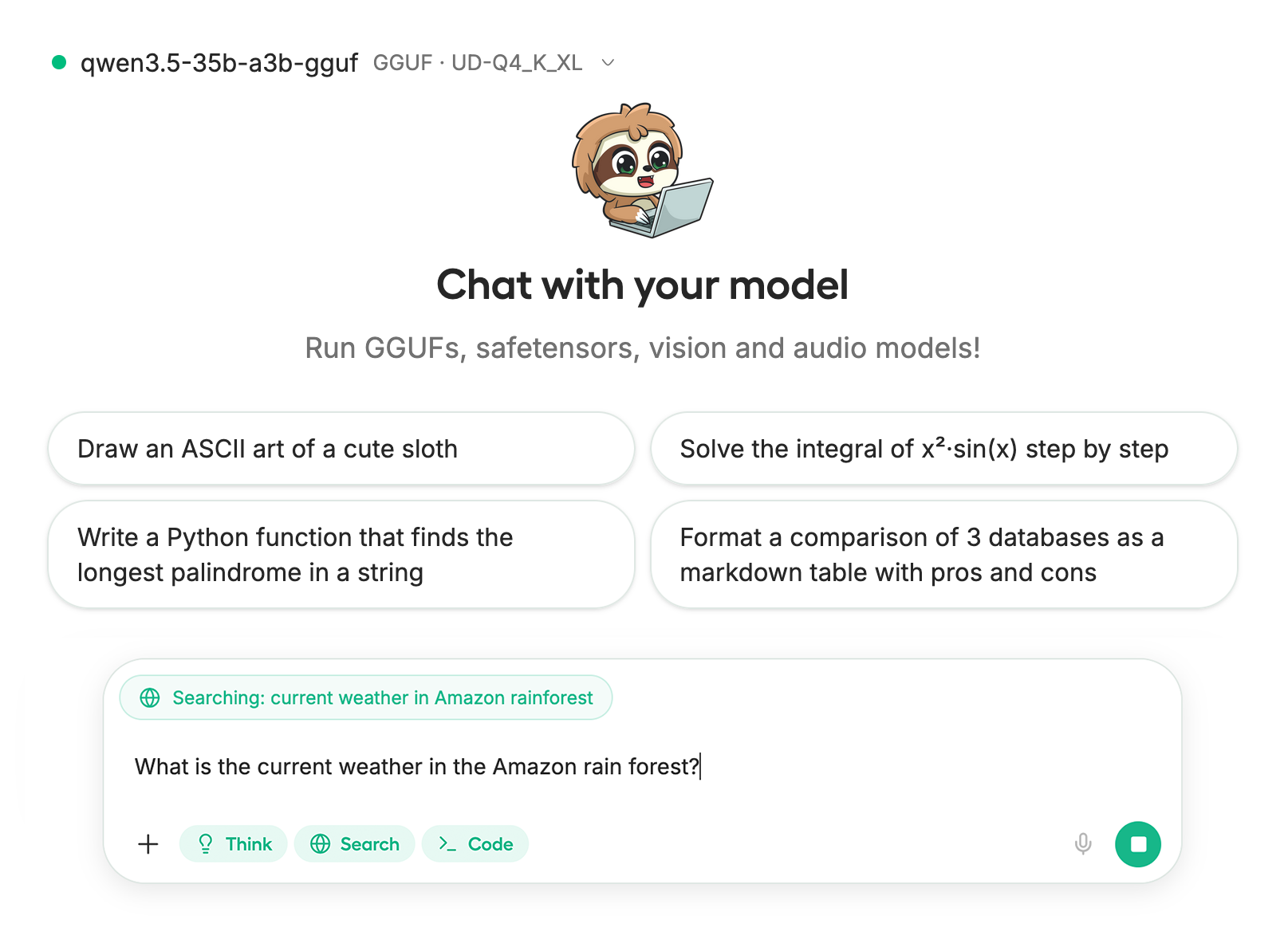
Für dieses Tutorial verwenden wir [Unsloth Studio](/docs/de/neu/studio.md), unsere neue Web-UI zum Ausführen und Trainieren von LLMs. Mit Unsloth Studio können Sie Modelle ausführen und **Audio**, Bild und Text lokal auf **Mac, Windows**, und Linux sowie:
{% columns %}
{% column %}
* Suchen, herunterladen, [GGUFs ausführen](/docs/de/neu/studio.md#run-models-locally) und Safetensor-Modelle
* **Vergleichen** Modelle **nebeneinander**
* [**Selbstheilend** Tool-Aufrufe](/docs/de/neu/studio.md#execute-code--heal-tool-calling) + **Websuche**
* [**Codeausführung**](/docs/de/neu/studio.md#run-models-locally) (Python, Bash)
* [Automatische Inferenz](https://unsloth.ai/docs/desktop#feature-deep-dive) Abstimmung der Parameter (Temp., Top-p usw.)
* [LLMs trainieren](/docs/de/neu/studio.md#no-code-training) 2x schneller mit 70 % weniger VRAM
{% endcolumn %}
{% column %}
{% endcolumn %}
{% endcolumns %}
{% stepper %}
{% step %}
#### Unsloth installieren
**macOS, Linux, WSL:**
```bash
curl -fsSL https://unsloth.ai/install.sh | sh
```
**Windows PowerShell:**
```bash
irm https://unsloth.ai/install.ps1 | iex
```
{% endstep %}
{% step %}
#### Unsloth Studio einrichten (einmalig)
Die Einrichtung installiert automatisch Node.js (über nvm), baut das Frontend, installiert alle Python-Abhängigkeiten und baut llama.cpp mit CUDA-Unterstützung.
{% hint style="info" %}
**Für WSL-Nutzer:** Sie werden zur Eingabe Ihres `sudo` Passworts aufgefordert, um Build-Abhängigkeiten zu installieren (`cmake`, `git`, `libcurl4-openssl-dev`).
{% endhint %}
{% endstep %}
{% step %}
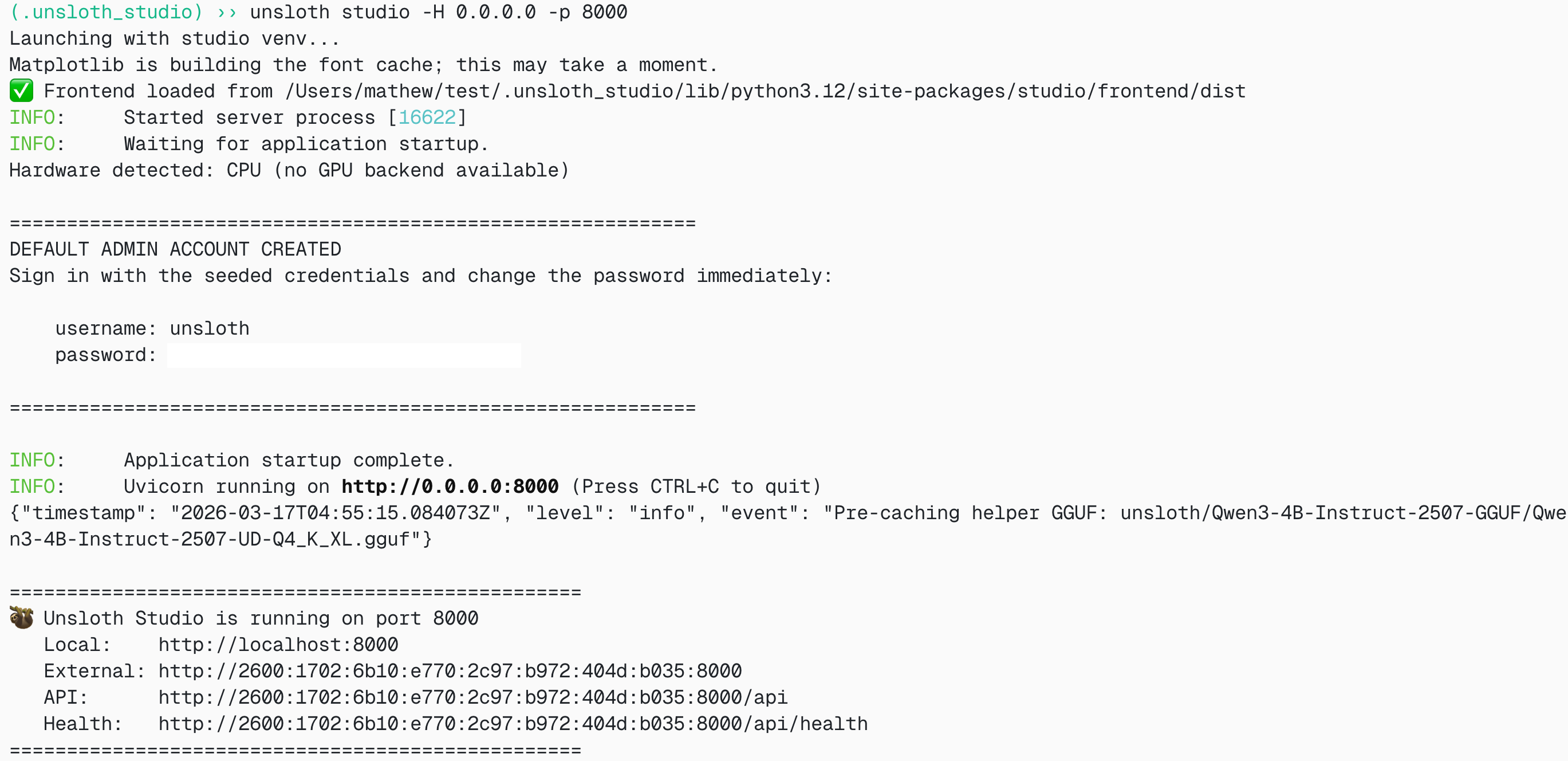
#### Unsloth starten
**macOS, Linux, WSL:**
```bash
source unsloth_studio/bin/activate
unsloth studio -H 0.0.0.0 -p 8888
```
**Windows PowerShell:**
```bash
unsloth studio -H 0.0.0.0 -p 8888
```
Dann öffnen Sie `http://127.0.0.1:8888` in Ihrem Browser.
{% endstep %}
{% step %}
#### NVIDIA-Nemotron-3-Nano-30B-A3B-Omni suchen und herunterladen
Beim ersten Start müssen Sie ein Passwort erstellen, um Ihr Konto zu schützen, und sich später erneut anmelden. Gehen Sie dann zum [Unsloth Chat](/docs/de/neu/studio/chat.md) Registerkarte und suchen Sie in der Suchleiste nach Nemotron-3-Nano-Omni und laden Sie die gewünschte Modell- und Quantisierungsvariante herunter.
{% endstep %}
{% step %}
#### Nemotron-3-Nano-30B-A3B-Omni ausführen
Die Inferenzparameter sollten bei der Verwendung von Unsloth Studio automatisch gesetzt werden, Sie können sie jedoch weiterhin manuell ändern. Sie können auch die Kontextlänge, das Chat-Template und andere Einstellungen bearbeiten.
Für weitere Informationen können Sie unseren [Inferenzleitfaden für Unsloth Studio](/docs/de/neu/studio/chat.md).
{% endstep %}
{% endstepper %}
### 🦙 Llama.cpp-Tutorial:
Anweisungen zur Ausführung in llama.cpp (beachten Sie, dass wir 4-Bit verwenden werden, damit es auf die meisten Geräte passt):
{% stepper %}
{% step %}
Holen Sie sich die neueste `llama.cpp` auf [hier auf GitHub](https://github.com/ggml-org/llama.cpp). Sie können auch die folgenden Build-Anweisungen befolgen. Ändern Sie `-DGGML_CUDA=ON` zu `-DGGML_CUDA=OFF` wenn Sie keine GPU haben oder nur CPU-Inferenz möchten. **Für Apple-Mac-/Metal-Geräte**, setzen Sie `-DGGML_CUDA=OFF` und fahren Sie dann wie gewohnt fort – Metal-Unterstützung ist standardmäßig aktiviert.
{% code overflow="wrap" %}
```bash
apt-get update
apt-get install pciutils build-essential cmake curl libcurl4-openssl-dev -y
git clone https://github.com/ggml-org/llama.cpp
cmake llama.cpp -B llama.cpp/build \\
-DBUILD_SHARED_LIBS=OFF -DGGML_CUDA=ON -DLLAMA_CURL=ON
cmake --build llama.cpp/build --config Release -j --clean-first --target llama-cli llama-mtmd-cli llama-server llama-gguf-split
cp llama.cpp/build/bin/llama-* llama.cpp
```
{% endcode %}
{% endstep %}
{% step %}
**Lassen Sie uns zuerst ein Bild holen!** Sie können auch Bilder hochladen. Wir werden verwenden , das lediglich unser Mini-Logo ist und zeigt, wie Fine-Tunes mit Unsloth erstellt werden:
{% code overflow="wrap" %}
```bash
wget https://raw.githubusercontent.com/unslothai/unsloth/refs/heads/main/images/unsloth%20made%20with%20love.png -O unsloth.png
```
{% endcode %}
Holen wir uns das zweite Bild unter
{% code overflow="wrap" %}
```bash
wget https://files.worldwildlife.org/wwfcmsprod/images/Sloth_Sitting_iStock_3_12_2014/story_full_width/8l7pbjmj29_iStock_000011145477Large_mini__1_.jpg -O picture.png
```
{% endcode %}
{% endstep %}
{% step %}
Jetzt laden wir das Modell manuell herunter. Das können wir mit dem folgenden Code tun (nach der Installation von pip install huggingface\_hub). Wenn Downloads hängen bleiben, siehe: [Hugging Face Hub, XET-Debugging](/docs/de/grundlagen/troubleshooting-and-faqs/hugging-face-hub-xet-debugging.md)
{% code overflow="wrap" %}
```bash
pip install huggingface_hub
hf download unsloth/NVIDIA-Nemotron-3-Nano-Omni-30B-A3B-Reasoning-GGUF \
--local-dir unsloth/NVIDIA-Nemotron-3-Nano-Omni-30B-A3B-Reasoning-GGUF \
--include "*mmproj-BF16*" \\
--include "*UD-Q4_K_XL*" # Verwenden Sie "*UD-Q2_K_XL*" für dynamisches 2-Bit
```
{% endcode %}
{% endstep %}
{% step %}
Führen Sie das Modell dann im Konversationsmodus aus:
{% code overflow="wrap" %}
```bash
./llama.cpp/llama-cli \\
--model unsloth/NVIDIA-Nemotron-3-Nano-Omni-30B-A3B-Reasoning-GGUF/NVIDIA-Nemotron-3-Nano-Omni-30B-A3B-Reasoning-UD-Q4_K_XL.gguf \
--mmproj unsloth/NVIDIA-Nemotron-3-Nano-Omni-30B-A3B-Reasoning-GGUF/mmproj-BF16.gguf \
--temp 0.6 \
--top-p 0.95 \\
--min-p 0.01
```
{% endcode %}
{% endstep %}
{% step %}
Dann sehen Sie Folgendes unten:
{% endstep %}
{% step %}
Dann verwenden Sie `/image` um beide Bilder zu laden und zu fragen: „Was ist dieses Bild?“
{% endstep %}
{% step %}
Und für das Faultier-Bild:
{% endstep %}
{% endstepper %}
#### Llama-Server-Bereitstellung & Deployment
Um Nemotron 3 Nano Omni lokal bereitzustellen, verwenden Sie `llama-server`. In einem neuen Terminal, zum Beispiel über `tmux`, stellen Sie das Modell bereit:
```bash
./llama.cpp/llama-server \\
-hf unsloth/NVIDIA-Nemotron-3-Nano-Omni-30B-A3B-Reasoning-GGUF:UD-Q4_K_XL \
--alias "unsloth/NVIDIA-Nemotron-3-Nano-Omni-30B-A3B-Reasoning" \
--prio 3 \\
--temp 0.6 \
--top-p 0.95 \\
--port 8001
```
Wenn Sie das Modell manuell heruntergeladen haben, verwenden Sie:
{% code overflow="wrap" %}
```bash
./llama.cpp/llama-server \\
--model unsloth/NVIDIA-Nemotron-3-Nano-Omni-30B-A3B-Reasoning-GGUF/NVIDIA-Nemotron-3-Nano-Omni-30B-A3B-Reasoning-UD-Q4_K_XL.gguf \
--mmproj unsloth/NVIDIA-Nemotron-3-Nano-Omni-30B-A3B-Reasoning-GGUF/mmproj-BF16.gguf \
--alias "unsloth/NVIDIA-Nemotron-3-Nano-Omni-30B-A3B-Reasoning" \
--prio 3 \\
--temp 0.6 \
--top-p 0.95 \\
--port 8001
```
{% endcode %}
Dann in einem neuen Terminal, nach der Installation des OpenAI-Clients mit `pip install openai`:
```python
from openai import OpenAI
openai_client = OpenAI(
base_url = "http://127.0.0.1:8001/v1",
api_key = "sk-no-key-required",
)
completion = openai_client.chat.completions.create(
model = "unsloth/NVIDIA-Nemotron-3-Nano-Omni-30B-A3B-Reasoning",
messages = [
{"role": "user", "content": "Was ist 2+2?"},
],
)
print(completion.choices[0].message.reasoning_content)
print(completion.choices[0].message.content)
```
Es wird etwas wie das Folgende angezeigt:
#### Bildeingabe über den OpenAI-kompatiblen Server
Verwenden wir `picture.png` das das Faultierbild war wie in [#llama.cpp-tutorial](#llama.cpp-tutorial "mention")
{% code expandable="true" %}
```python
from openai import OpenAI
import base64
import mimetypes
image_link = "picture.png"
def file_to_data_url(path: str) -> str:
mime = mimetypes.guess_type(path)[0] or "application/octet-stream"
with open(path, "rb") as f:
data = base64.b64encode(f.read()).decode("utf-8")
return f"data:{mime};base64,{data}"
openai_client = OpenAI(
base_url = "http://127.0.0.1:8001/v1",
api_key = "sk-no-key-required",
)
completion = openai_client.chat.completions.create(
model = "unsloth/NVIDIA-Nemotron-3-Nano-Omni-30B-A3B-Reasoning",
messages = [ {
"role": "user",
"content": [
{ "type": "text", "text": "Was ist auf diesem Bild zu sehen?", },
{
"type": "image_url",
"image_url": { "url": file_to_data_url(image_link), },
},
],
} ],
)
print(completion.choices[0].message.reasoning_content)
print(completion.choices[0].message.content)
```
{% endcode %}
Es wird etwas wie das Folgende angezeigt:
### 🦥 Fine-Tuning von Nemotron 3 Nano Omni
Unsloth unterstützt die gesamte [Nemotron](/docs/de/modelle/nemotron-3.md) Modellfamilie. Nemotron 3 Nano Omni ist nützlich für multimodale Agenten-Datensätze. Sie können mit Unsloth auf Audio, Vision oder Text trainieren. **Videoeingabe** Fine-Tuning wird derzeit nicht unterstützt.
Für nur Text und Notebooks können Sie mit dem vorhandenen [Fine-Tuning-Flow für Nemotron 3 Nano](/docs/de/modelle/nemotron-3.md#fine-tuning-nemotron-3-and-rl)beginnen. Für multimodale Adapter stellen Sie sicher, dass Ihr Datensatz die Modalität enthält, die Ihr Agent tatsächlich benötigt:
* **Computer-Nutzung:** Screenshots, UI-Zustand, Cursor/Kontext, erwartete nächste Aktion
* **Dokumentenintelligenz:** PDFs, Screenshots, Diagramme, Tabellen, strukturierte Extraktionsziele
* **Audioverständnis:** Audioclips, abgetastete Frames, Zusammenfassungen, Zeitstempel, Ereignisse und Folgefragen
* **Agentenschleifen:** Beobachtung → Schlussfolgerung → Aktion → Validierungsbeispiele
Verwenden Sie für Omni nicht blind die VRAM-Zahlen nur für Text wieder. Multimodale Encoder, Projektor-Gewichte, Bild-Token, Audio-Chunks und langer Kontext erhöhen alle den Speicherverbrauch. Beginnen Sie mit kürzeren Kontexten und kleineren Batch-Größen und skalieren Sie dann nach oben.
### Benchmarks
Nemotron 3 Nano Omni ist das stärkste Omni-Modell seiner Größe. Es ist außerdem das effizienteste offene multimodale Modell mit führender Genauigkeit. Das Modell übertrifft Qwen3-Omni-30B-A3B in jedem Benchmark.
---
# Agent Instructions
This documentation is published with GitBook. GitBook is the documentation platform designed so that both humans and AI agents can read, navigate, and reason over technical content effectively. Learn more at gitbook.com.
## Querying This Documentation
If you need additional information that is not directly available in this page, you can query the documentation by asking a question.
Perform an HTTP GET request on the following URL with the `ask` and `goal` query parameters:
```
GET https://unsloth.ai/docs/de/modelle/nemotron-3-nano-omni.md?ask=&goal=
```
`ask` is the immediate question: it should be specific, self-contained, and written in natural language.
`goal` is what the user is ultimately trying to achieve, the reason they need the answer. Sharing it helps GitBook give you a better, more relevant answer. A goal is most helpful when it describes the outcome the user wants rather than restating the question. For example, with `ask=how do I create an API token`, a goal like `automate deployments from our CI pipeline` lets GitBook tailor the answer to that use case.
The response will contain a direct answer to the question and relevant excerpts and sources from the documentation.
Use this mechanism when the answer is not explicitly present in the current page, you need clarification or additional context, or you want to retrieve related documentation sections.