> For the complete documentation index, see [llms.txt](https://unsloth.ai/docs/llms.txt). Markdown versions of documentation pages are available by appending `.md` to page URLs; this page is available as [Markdown](https://unsloth.ai/docs/de/loslegen/install/linux.md).
# Unsloth auf Linux installieren
Installiere Unsloth Desktop, Unsloth Studio oder Unsloth Core unter Linux.
Um Unsloth Desktop unter Linux zu installieren, folgen Sie den folgenden Schritten.
{% stepper %}
{% step %}
### Herunterladen
Unsloth für Linux herunterladen
{% endstep %}
{% step %}
### Installieren
1. Öffnen Sie das Unsloth-Installationsprogramm (`.deb` Datei)
2. Installieren auswählen
3. Starten Sie die App und warten Sie, bis die Installation abgeschlossen ist
{% endstep %}
{% step %}
### Wählen Sie ein Modell
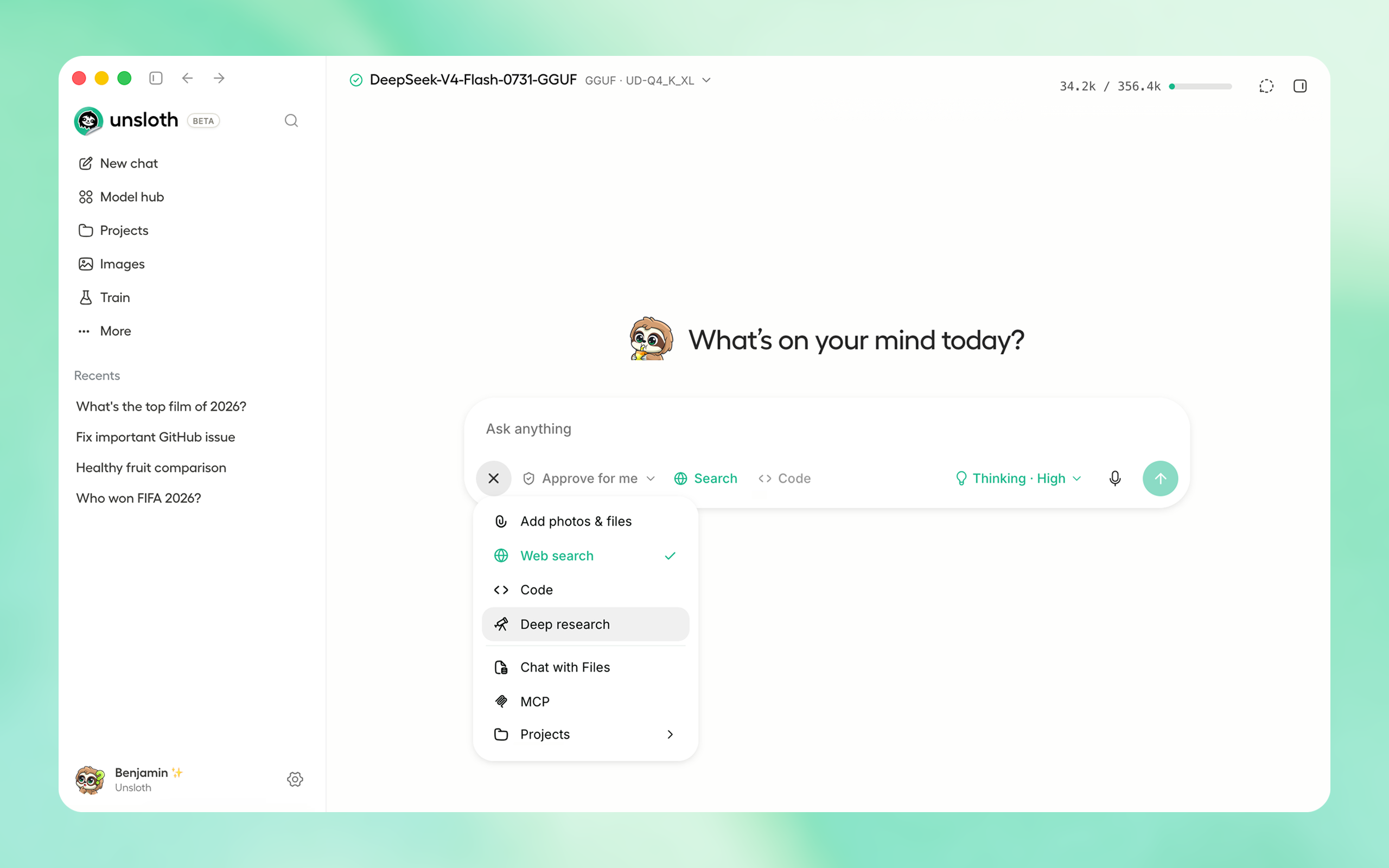
Öffnen Sie „Modell auswählen“ oder „Model Hub“, wählen Sie ein Modell und die Quantisierung aus und laden Sie es dann herunter. Sobald der Vorgang abgeschlossen ist, beginnen Sie mit dem Chatten – keine Einrichtung erforderlich.
{% endstep %}
{% step %}
### Unsloth ist jetzt bereit
Um mit dem Chatten zu beginnen, geben Sie eine Nachricht ein und drücken Sie Enter.
* **Tools verbinden:** [Claude Code](/docs/de/grundlagen/claude-code.md), [Codex](/docs/de/grundlagen/codex.md), Websuche, [MCP](/docs/de/grundlagen/mcp.md) und mehr
* **Modelle trainieren:** Text, Diffusion, Embeddings und mehr feinabstimmen
* **Medien generieren:** Bilder, Videos und TTS lokal erstellen und trainieren
{% endstep %}
{% endstepper %}
### Erweiterte Installation
Verwenden Sie diese Optionen für Entwickler-Builds, das nächtliche Unsloth Studio oder das codebasierte Unsloth Core.
#### Unsloth Studio aus dem Haupt-Repository installieren
```bash
git clone https://github.com/unslothai/unsloth
cd unsloth
./install.sh --local
unsloth studio -H 0.0.0.0 -p 8888
```
#### Nächtliches Unsloth Studio installieren
```bash
git clone https://github.com/unslothai/unsloth
cd unsloth
git checkout nightly
./install.sh --local
unsloth studio -H 0.0.0.0 -p 8888
```
#### Unsloth Core mit uv installieren
```bash
curl -LsSf https://astral.sh/uv/install.sh | sh
uv venv unsloth_env --python 3.13
source unsloth_env/bin/activate
uv pip install unsloth --torch-backend=auto
```
Oder installieren Sie direkt die neueste pip-Version:
```bash
pip install unsloth
```
Um vLLM mit Unsloth zu installieren:
```bash
uv pip install unsloth vllm --torch-backend=auto
```
Für virtuelle Umgebungen, CUDA- und Torch-spezifische Befehle sowie erweiterte pip-Optionen:
[**Anleitung zur erweiterten pip-Installation ansehen**](https://unsloth.ai/docs/get-started/install/pip-install)
### Unsloth Studio manuell installieren
Der folgende Befehl installiert **Unsloth Studio**, die browserbasierte Weboberfläche. Die native Desktop-App wird nicht installiert.
```bash
curl -fsSL https://unsloth.ai/install.sh | sh
```
Verwenden Sie denselben Befehl, um Unsloth Studio zu aktualisieren.
#### Unsloth Studio starten
{% tabs %}
{% tab title="Lokaler Start" %}
```bash
unsloth studio
```
{% endtab %}
{% tab title="Remote-Zugriff" %}
```bash
unsloth studio --secure
```
{% endtab %}
{% endtabs %}
Ausführliche Installationsanweisungen und Anforderungen für Unsloth Studio [sehen Sie sich die Unsloth-Studio-Anleitung an](https://unsloth.ai/docs/new/studio/install).
### Deinstallieren
#### Unsloth Desktop
**Ubuntu oder Debian (`.deb`)**
1. Schließen Sie Unsloth, falls es läuft.
2. Entfernen Sie das Paket:
```bash
sudo apt remove unsloth
```
**AppImage**
1. Schließen Sie Unsloth, falls es läuft.
2. Löschen Sie die heruntergeladene `.AppImage` Datei.
Das Deinstallieren von Unsloth Desktop entfernt weder heruntergeladene Modelle noch Ihre Dateien.
#### Unsloth Studio (manuelle Installation)
Führen Sie das Deinstallationsskript für Linux aus:
```bash
curl -fsSL https://raw.githubusercontent.com/unslothai/unsloth/main/scripts/uninstall.sh | sh
```
Dadurch werden Unsloth Studio, sein CLI-Befehl, die Starterdaten und die Linux-Desktop-Verknüpfungen entfernt. Heruntergeladene Hugging-Face-Modelle werden nicht entfernt.
#### Heruntergeladene Modelldateien löschen
Der standardmäßige Hugging-Face-Cache ist:
```bash
~/.cache/huggingface/hub/
```
Wenn `HF_HUB_CACHE`, `HF_HOME`, oder `XDG_CACHE_HOME` gesetzt ist, verwenden Sie stattdessen diesen Speicherort.
---
# Agent Instructions
This documentation is published with GitBook. GitBook is the documentation platform designed so that both humans and AI agents can read, navigate, and reason over technical content effectively. Learn more at gitbook.com.
## Querying This Documentation
If you need additional information that is not directly available in this page, you can query the documentation by asking a question.
Perform an HTTP GET request on the following URL with the `ask` and `goal` query parameters:
```
GET https://unsloth.ai/docs/de/loslegen/install/linux.md?ask=&goal=
```
`ask` is the immediate question: it should be specific, self-contained, and written in natural language.
`goal` is what the user is ultimately trying to achieve, the reason they need the answer. Sharing it helps GitBook give you a better, more relevant answer. A goal is most helpful when it describes the outcome the user wants rather than restating the question. For example, with `ask=how do I create an API token`, a goal like `automate deployments from our CI pipeline` lets GitBook tailor the answer to that use case.
The response will contain a direct answer to the question and relevant excerpts and sources from the documentation.
Use this mechanism when the answer is not explicitly present in the current page, you need clarification or additional context, or you want to retrieve related documentation sections.