> For the complete documentation index, see [llms.txt](https://unsloth.ai/docs/llms.txt). Markdown versions of documentation pages are available by appending `.md` to page URLs; this page is available as [Markdown](https://unsloth.ai/docs/basics/lan.md).

# How to Serve Local AI Models from Any Device on Your Network with Unsloth LAN Access

You can run local AI models on any device in your home or office with LAN access using [Unsloth](https://github.com/unslothai/unsloth). With this enabled, local models can be accessed from a phone, laptop, or another computer on the same Wi-Fi or wired network without sending anything to the cloud. No public URL or internet connection is needed - your AI stays on your machine and your network.

{% columns %}
{% column %}
LAN access is the fastest way to use a local model from another device. Traffic never leaves your network, so latency is low.

Turn on LAN access and Unsloth answers at your machine's network address, like `http://192.168.1.42:8888`. Open it on your phone, your laptop, or any device on the same network.

It is free and it works offline. Nothing leaves your network and you never touch your router or firewall. For access from outside your network, use [remote access](/docs/basics/how-to-serve-local-llms-anywhere-secure-remote-access-with-cloudflare-and-unsloth.md) instead.
{% endcolumn %}

{% column %}

<figure><img src="https://3215535692-files.gitbook.io/~/files/v0/b/gitbook-x-prod.appspot.com/o/spaces%2FxhOjnexMCB3dmuQFQ2Zq%2Fuploads%2FD2v8S0MkS1xAeEVersl2%2Fmobile_studio1.gif?alt=media&#x26;token=7cd8a534-d82f-4f05-8d5a-9b7277f7eac0" alt="" width="180"><figcaption></figcaption></figure>
{% endcolumn %}
{% endcolumns %}

Two ways to turn it on:

* **When you start Unsloth:** add `-H 0.0.0.0` to your `unsloth studio` command
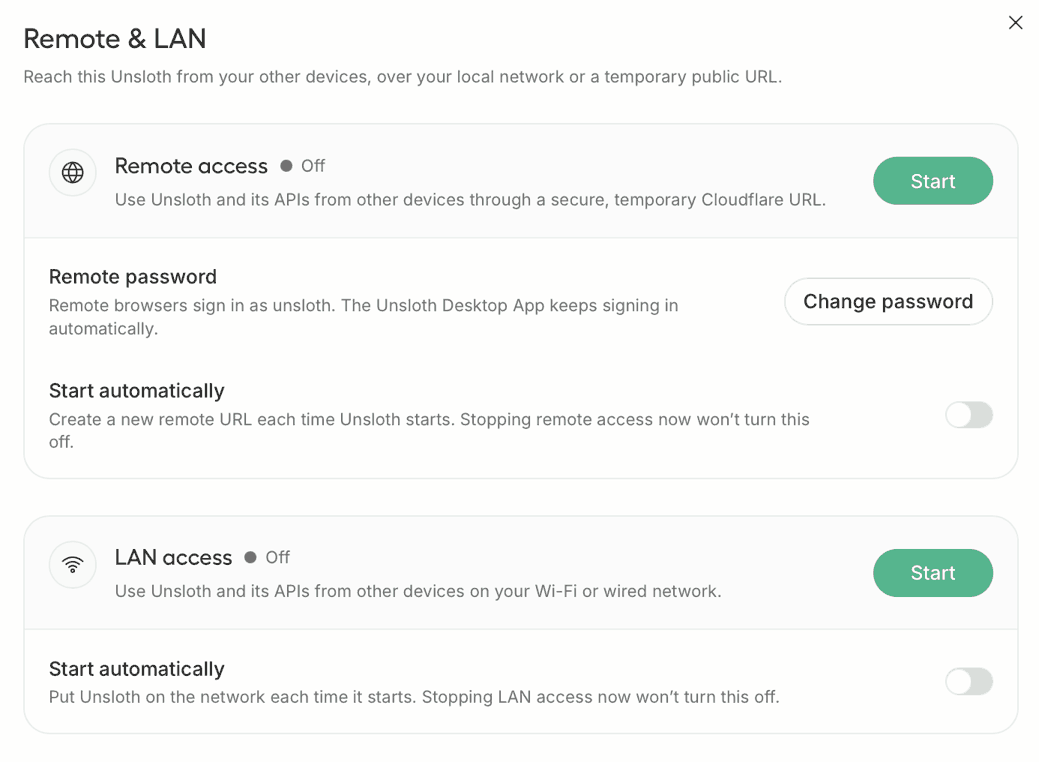
* **While Unsloth is running:** go to Settings → API → **Remote & LAN**, find the **LAN access** card, and press **Start**

### ⚡ Quickstart

Firstly we will need to download the [Unsloth Desktop](https://unsloth.ai/download) app.

1. Install the app for [macOS](https://unsloth.ai/download/mac), Windows, or [Linux](https://unsloth.ai/download/linux)
2. Launch the app
3. Then go to Settings → API → **Remote & LAN**.

<div data-with-frame="true"><figure><img src="https://3215535692-files.gitbook.io/~/files/v0/b/gitbook-x-prod.appspot.com/o/spaces%2FxhOjnexMCB3dmuQFQ2Zq%2Fuploads%2FcMQ75NHKaf3xosAL87cq%2Fremote-lan-settings2.png?alt=media" alt=""><figcaption></figcaption></figure></div>

Use this when Unsloth is already running and you want it on another device in the same building. Press **Start** on the **LAN access** card. `Online` means the address already answers, not just that it was requested.

#### Start automatically

The **Start automatically** toggle under the LAN access card puts Unsloth on the network each time it starts. Stopping LAN access now won't turn this off, the toggle is a separate preference from the running state.

### CLI: LAN method

After installing Unsloth manually, run in your terminal:

```bash
unsloth studio -H 0.0.0.0 -p 8888
```

Unsloth binds to every interface, so the raw port is reachable from your network. No public Cloudflare URL is published, `-H 0.0.0.0` alone keeps you on the LAN. The first line printed is the address other devices use:

```
Starting Unsloth Studio on http://[<your machine's network address>]:8888
```

The address may be IPv6, in square brackets as above. Copy the whole URL including the brackets.

#### CLI: LAN plus a public link

```bash
unsloth studio -H 0.0.0.0 --cloudflare -p 8888
```

The raw port stays reachable on your network *and* a public Cloudflare URL is published. The banner warns you about exactly this, because it is the least private mode. The [remote access page](/docs/basics/how-to-serve-local-llms-anywhere-secure-remote-access-with-cloudflare-and-unsloth.md) covers it.

#### UI: put a server that is already running on the network

1. Open **Settings → API → Remote & LAN**.
2. Find the **LAN access** card.
3. Click **Start**.
4. When the status reads **Online**, open the shown address from any device on the same network.

#### What each launch actually exposes

<table><thead><tr><th width="391">Launch</th><th>Reachable from</th></tr></thead><tbody><tr><td><code>unsloth studio</code></td><td>this machine only</td></tr><tr><td><code>unsloth studio -H 0.0.0.0</code></td><td>your network</td></tr><tr><td><code>unsloth studio -H 0.0.0.0 --cloudflare</code></td><td>your network, plus a public Cloudflare URL</td></tr><tr><td><code>unsloth studio --secure</code></td><td>a public Cloudflare URL only, the LAN stays closed</td></tr></tbody></table>

`--secure` and LAN access are opposites: `--secure` forces a loopback bind, so nothing on your network can reach the raw port.

### 🔒 Security

Putting Unsloth on the network means every device on that network can see it.

* **The connection is not encrypted.** LAN traffic is plain HTTP. Anyone on the same network segment can read it. On a network you do not control, use [remote access](/docs/basics/how-to-serve-local-llms-anywhere-secure-remote-access-with-cloudflare-and-unsloth.md) instead, the Cloudflare link is HTTPS.
* **Server-side tools run as your user.** Web search, Python and terminal execution are on by default, so anyone reaching the server with your API key can run code on that machine. Pass `--disable-tools` when exposing Unsloth, and keep the API key private. Every network-reachable launch says this in the banner.
* **Unsloth checks whether the port leaks past your router.** On a wildcard bind, a reachability probe tests whether the raw port is accidentally reachable from the internet, and the startup banner says so if it is. That probe contacts `ifconfig.me` and `check-host.net`; set `UNSLOTH_STUDIO_DISABLE_PUBLIC_CHECK=1` to skip both.

### ❔ Troubleshooting

* **`Error: Unsloth Studio is already running on port 8888 (PID ...)`.** Another instance holds the port. Run `unsloth studio stop` first, or start this one on a different `--port`.
* **The address does not answer from another device.** Both devices must be on the same network. Guest Wi-Fi, client isolation ("AP isolation"), and VPNs are the usual culprits. Also check the machine's own firewall allows inbound connections on the port.
* **The address changed.** LAN IPs are assigned by your router and can change. Give the machine a static IP or a DHCP reservation in your router settings for a stable address.
* **Start is greyed out in the UI.** Read the message under the card, it names the block reason.

### 🌱 Environment variables

| Variable                              | Purpose                                                                  |
| ------------------------------------- | ------------------------------------------------------------------------ |
| `UNSLOTH_STUDIO_DISABLE_PUBLIC_CHECK` | `1` skips the third-party raw-port reachability probe on wildcard binds. |
| `UNSLOTH_STUDIO_TRUST_FORWARDED`      | `1` honours `X-Forwarded-For` behind your own reverse proxy.             |

### 🌐 HTTP API

All four require a **UI session,** an API key is rejected. A refused operation returns `409` with the block reason as the detail.

<table><thead><tr><th width="100">Method</th><th>Path</th><th>Purpose</th></tr></thead><tbody><tr><td><code>GET</code></td><td><code>/api/settings/lan-access</code></td><td>Current state, address, <code>can_start</code> / <code>can_stop</code>, <code>block_reason</code>.</td></tr><tr><td><code>POST</code></td><td><code>/api/settings/lan-access/start</code></td><td>Schedule a settings-owned start. Idempotent.</td></tr><tr><td><code>POST</code></td><td><code>/api/settings/lan-access/stop</code></td><td>Schedule a settings-owned stop. Does not change the auto-start preference.</td></tr><tr><td><code>PUT</code></td><td><code>/api/settings/lan-access/auto-start</code></td><td><code>{"enabled": true|false}</code>.</td></tr></tbody></table>


---

# Agent Instructions
This documentation is published with GitBook. GitBook is the documentation platform designed so that both humans and AI agents can read, navigate, and reason over technical content effectively. Learn more at gitbook.com.

## Querying This Documentation
If you need additional information that is not directly available in this page, you can query the documentation dynamically by asking a question.

Perform an HTTP GET request on the current page URL with the `ask` query parameter, and the optional `goal` query parameter:

```
GET https://unsloth.ai/docs/basics/lan.md?ask=<question>&goal=<endgoal>
```

`ask` is the immediate question: it should be specific, self-contained, and written in natural language.
`goal` is optional and describes the broader end goal you are ultimately trying to accomplish on behalf of the user. GitBook uses it to tailor the answer towards what is most useful for that goal.

The response will contain a direct answer to the question and relevant excerpts and sources from the documentation.

Use this mechanism when the answer is not explicitly present in the current page, you need clarification or additional context, or you want to retrieve related documentation sections.
