> For the complete documentation index, see [llms.txt](https://unsloth.ai/docs/llms.txt). Markdown versions of documentation pages are available by appending `.md` to page URLs; this page is available as [Markdown](https://unsloth.ai/docs/basics/inference-and-deployment/lm-studio/how-to-install-lm-studio-cli-in-linux-terminal.md).
# How to install LM Studio CLI in Linux Terminal
LM Studio CLI installation guide without a UI in a terminal instance.
1. Open a new terminal to run LM Studio CLI, or use `tmux`
2. Get [LM Studio](https://lmstudio.ai/download) or run below (1GB or so download size)
{% code overflow="wrap" %}
```bash
wget https://lmstudio.ai/download/latest/linux/x64?format=AppImage -O 'LM_Studio.AppImage'
chmod u+x ./LM_Studio.AppImage
```
{% endcode %}
2. Run LM Studio via
```bash
./LM_Studio.AppImage
```
You might see below:
{% code overflow="wrap" %}
```
[802435:0215/073628.027773:FATAL:sandbox/linux/suid/client/setuid_sandbox_host.cc:166] The SUID sandbox helper binary was found, but is not configured correctly. Rather than run without sandboxing I'm aborting now.
```
{% endcode %}
If so, do the below instead:
```bash
./LM_Studio.AppImage --no-sandbox
```
3. You then might see the below, especially if you are in a cloud instance with no desktop:
{% code overflow="wrap" %}
```
[807101:0215/073740.801969:ERROR:ui/ozone/platform/x11/ozone_platform_x11.cc:249] Missing X server or $DISPLAY
[807101:0215/073740.802000:ERROR:ui/aura/env.cc:257] The platform failed to initialize. Exiting.
Segmentation fault (core dumped)
```
{% endcode %}
If so, install a "fake" desktop simulator within the terminal:
```bash
sudo apt-get install xvfb
```
4. Then use `xvfb` and launch LM Studio:
```bash
xvfb-run --auto-servernum ./LM_Studio.AppImage --no-sandbox
```
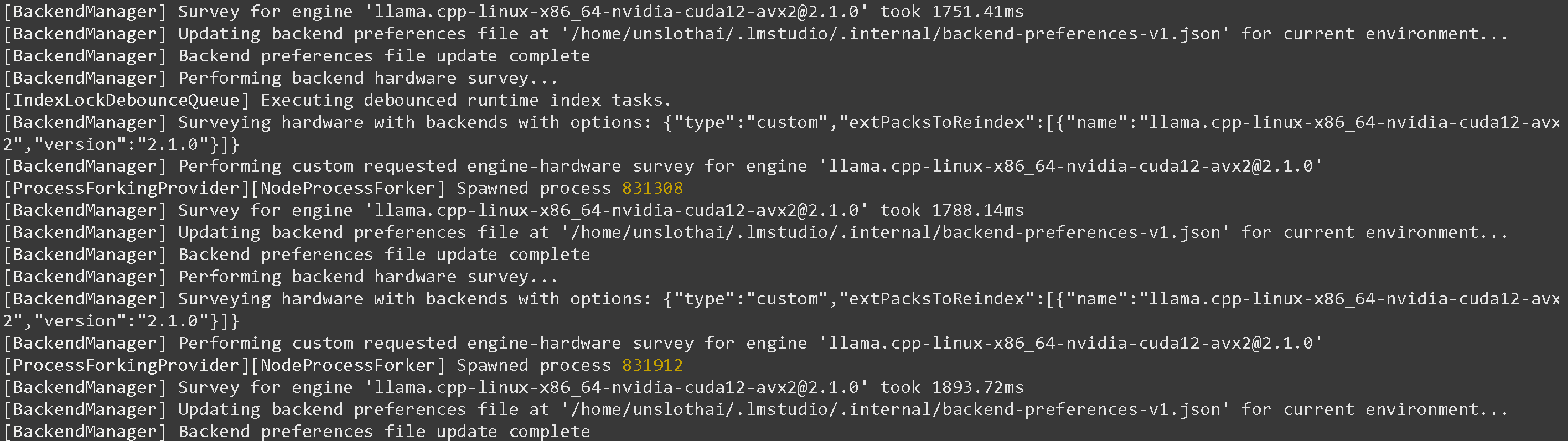
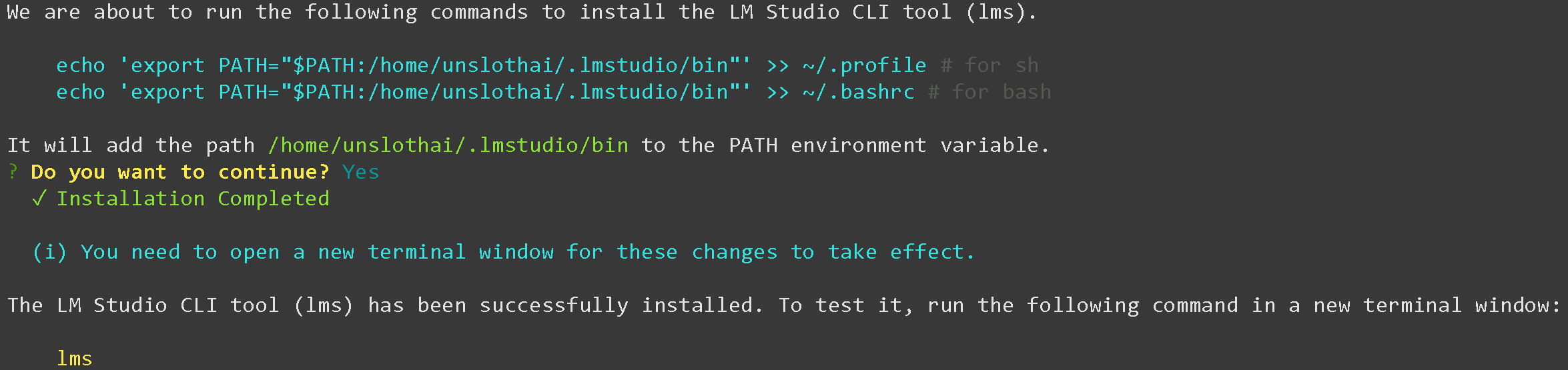
5. Then get LM Studio's LMS / CLI in another terminal, or after CTRL+B+D for `tmux`
```bash
~/.lmstudio/bin/lms bootstrap
```
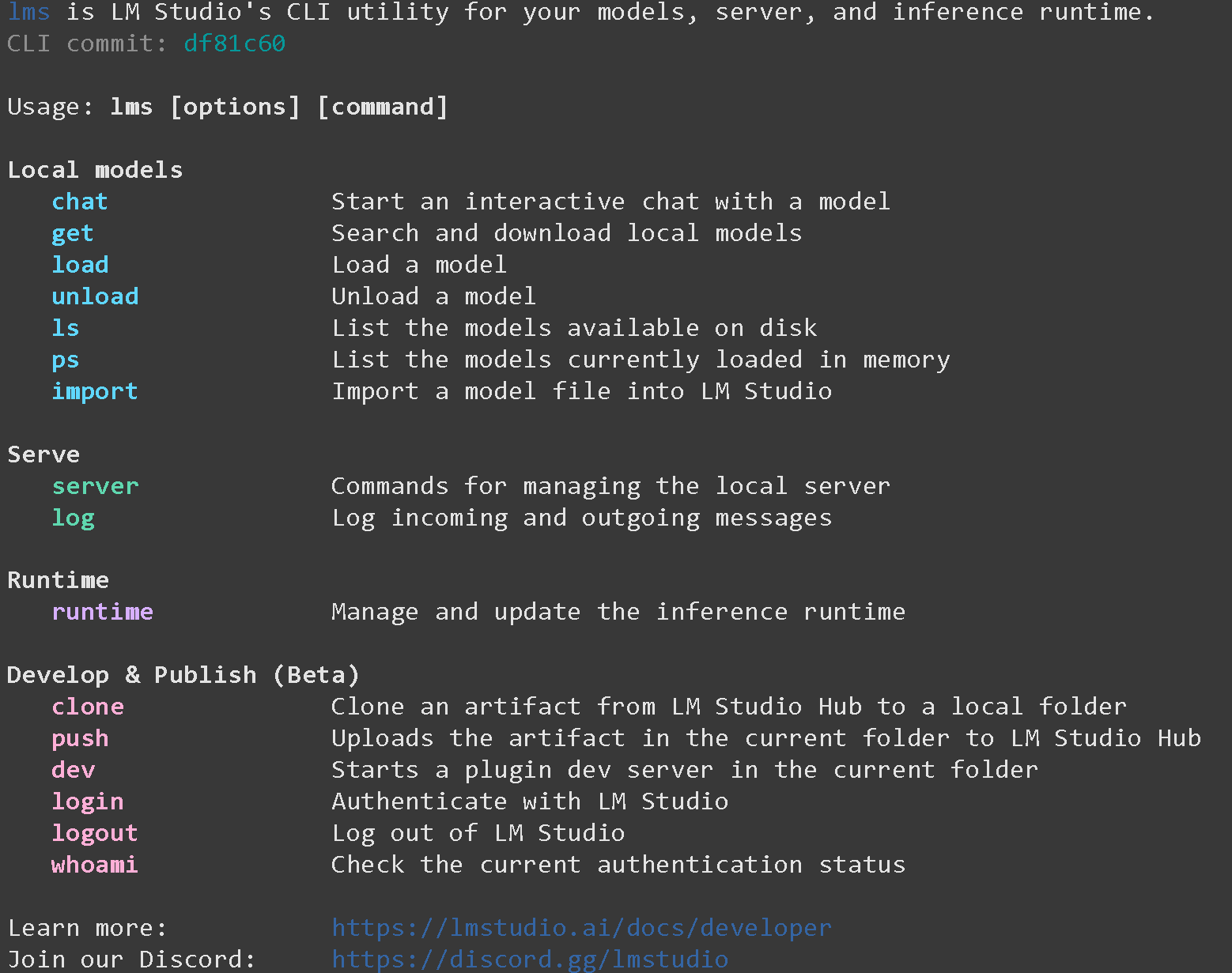
6. Open a new terminal or `tmux` then run:
```bash
lms
```
If you see `-bash: lms: command not found` please run `lms` in a new terminal window!
7. Now download a model like [Qwen3-Coder-Next](/docs/models/qwen3-coder-next.md) like below. If downloads get stuck, see [Hugging Face Hub, XET debugging](/docs/basics/troubleshooting-and-faqs/hugging-face-hub-xet-debugging.md)
{% code overflow="wrap" %}
```bash
pip install -U huggingface_hub
hf download unsloth/Qwen3-Coder-Next-GGUF \
--local-dir unsloth/Qwen3-Coder-Next-GGUF \
--include "*UD-Q4_K_XL*"
```
{% endcode %}
8. We then import the model via:
{% code overflow="wrap" %}
```bash
lms import \
unsloth/Qwen3-Coder-Next-GGUF/Qwen3-Coder-Next-UD-Q4_K_XL.gguf \
--symbolic-link --user-repo "unsloth/Qwen3-Coder-Next-GGUF" -y
```
{% endcode %}
You might see `EEXIST: file already exists, symlink 'unsloth/Qwen3-Coder-Next-GGUF/UD-Q6_K_XL/Qwen3-Coder-Next-UD-Q6_K_XL-00001-of-00003.gguf' -> '~/.lmstudio/models/unsloth/Qwen3-Coder-Next-GGUF/Qwen3-Coder-Next-UD-Q6_K_XL-00001-of-00003.gguf'` which just means you already have the model loaded in LM Studio.
You can also check all LM Studio models via:
```bash
ls ~/.lmstudio/models
```
8. You can also get models via `lms get` via below:
```bash
lms get https://huggingface.co/unsloth/Qwen3-Coder-Next-GGUF@Q4_K_XL
```
You will then see:
```
Finalizing download...
Download completed. You can load the model with:
lms load qwen3-coder-next
```
Then load `lms load qwen3-coder-next`:
9. Then start up LM Studio's server:
```bash
lms server start --port 8001 --bind 127.0.0.1
```
You will see `Success! Server is now running on port 8001`
9. Then in a new terminal, use the model via the OpenAI compatible endpoint:
```python
from openai import OpenAI
import json
openai_client = OpenAI(
base_url = "http://127.0.0.1:8001/v1",
api_key = "null",
)
model_name = next(iter(openai_client.models.list())).id
print(model_name)
completion = openai_client.chat.completions.create(
model = model_name,
messages = [{"role": "user", "content": "What is 2+2?"},],
)
print(completion.choices[0].message.content)
```
And we're done!
---
# Agent Instructions
This documentation is published with GitBook. GitBook is the documentation platform designed so that both humans and AI agents can read, navigate, and reason over technical content effectively. Learn more at gitbook.com.
## Querying This Documentation
If you need additional information that is not directly available in this page, you can query the documentation dynamically by asking a question.
Perform an HTTP GET request on the current page URL with the `ask` query parameter, and the optional `goal` query parameter:
```
GET https://unsloth.ai/docs/basics/inference-and-deployment/lm-studio/how-to-install-lm-studio-cli-in-linux-terminal.md?ask=&goal=
```
`ask` is the immediate question: it should be specific, self-contained, and written in natural language.
`goal` is optional and describes the broader end goal you are ultimately trying to accomplish on behalf of the user. GitBook uses it to tailor the answer towards what is most useful for that goal.
The response will contain a direct answer to the question and relevant excerpts and sources from the documentation.
Use this mechanism when the answer is not explicitly present in the current page, you need clarification or additional context, or you want to retrieve related documentation sections.