> For the complete documentation index, see [llms.txt](https://unsloth.ai/docs/llms.txt). Markdown versions of documentation pages are available by appending `.md` to page URLs; this page is available as [Markdown](https://unsloth.ai/docs/basics/inference-and-deployment/deploy-llms-phone.md).
# How to Run and Deploy LLMs on your iOS or Android Phone
Tutorial for fine-tuning your own LLM and deploying it on your Android or iPhone with ExecuTorch.
We’re excited to show how you can train LLMs then **deploy them locally** to **Android phones** and **iPhones**. We collabed with [ExecuTorch](https://github.com/pytorch/executorch/) from PyTorch & Meta to create a streamlined workflow using quantization-aware training ([QAT](/docs/blog/quantization-aware-training-qat.md)) then deploy them directly to edge devices. With [Unsloth](https://github.com/unslothai/unsloth), TorchAO and ExecuTorch, we show how you can:
* Use the same tech (ExecuTorch) Meta has to power billions on Instagram, WhatsApp
* Deploy Qwen3-0.6B locally to **Pixel 8** and **iPhone 15 Pro at \~40 tokens/s**
* Apply QAT via TorchAO to recover 70% of accuracy
* Get privacy first, instant responses and offline capabilities
* Use our [free Colab notebook](https://colab.research.google.com/github/unslothai/notebooks/blob/main/nb/Qwen3_\(0_6B\)-Phone_Deployment.ipynb) to fine-tune Qwen3 0.6B and export it for phone deployment
iOS TutorialAndroid Tutorial
{% columns %}
{% column %}
**Qwen3-4B** deployed on a iPhone 15 Pro
{% endcolumn %}
{% endcolumns %}
### 🦥 Training Your Model
We support Qwen3, Gemma3, Llama3, Qwen2.5, Phi4 and many other models for phone deployment! Follow the [**free Colab notebook**](https://colab.research.google.com/github/unslothai/notebooks/blob/main/nb/Qwen3_\(0_6B\)-Phone_Deployment.ipynb) **for Qwen3-0.6B deployment:**
{% embed url="" %}
First update Unsloth and install TorchAO and Executorch.
```bash
pip install --upgrade unsloth unsloth_zoo
pip install torchao==0.14.0 executorch pytorch_tokenizers
```
Then simply use `qat_scheme = "phone-deployment"` to signify we want to deploy it to a phone. Note we also set `full_finetuning = True` for full finetuning!
```python
from unsloth import FastLanguageModel
import torch
model, tokenizer = FastLanguageModel.from_pretrained(
model_name = "unsloth/Qwen3-0.6B",
max_seq_length = 1024,
full_finetuning = True,
qat_scheme = "phone-deployment", # Flag for phone deployment
)
```
We’re using `qat_scheme = "phone-deployment"` we actually use `qat_scheme = "int8-int4"` under the hood to enable Unsloth/TorchAO QAT that *simulates* INT8 dynamic activation quantization with INT4 weight quantization for Linear layers during training (via fake quantization operations) while keeping computations in 16bits. After training, the model is converted to a real quantized version so the on-device model is smaller and typically **retains accuracy better than naïve PTQ**.
After finetuning as described in the [Colab notebook](https://colab.research.google.com/github/unslothai/notebooks/blob/main/nb/Qwen3_\(0_6B\)-Phone_Deployment.ipynb), we then save it to a `.pte` file via Executorch:
{% code expandable="true" %}
```bash
# Convert the weight checkpoint state dict keys to one that ExecuTorch expects
python -m executorch.examples.models.qwen3.convert_weights "phone_model" pytorch_model_converted.bin
# Download model config from ExecuTorch repo
curl -L -o 0.6B_config.json https://raw.githubusercontent.com/pytorch/executorch/main/examples/models/qwen3/config/0_6b_config.json
# Export to ExecuTorch pte file
python -m executorch.examples.models.llama.export_llama \
--model "qwen3_0_6b" \
--checkpoint pytorch_model_converted.bin \
--params 0.6B_config.json \
--output_name qwen3_0.6B_model.pte \
-kv --use_sdpa_with_kv_cache -X --xnnpack-extended-ops \
--max_context_length 1024 --max_seq_length 128 --dtype fp32 \
--metadata '{"get_bos_id":199999, "get_eos_ids":[200020,199999]}'
```
{% endcode %}
### 🏁 Deployment After Training
And now with your `qwen3_0.6B_model.pte` file which is around 472MB in size, we can deploy it! Pick your device and jump straight in:
* [#ios-deployment](#ios-deployment "mention") – Xcode route, simulator or device
* [#android-deployment](#android-deployment "mention") – command-line route, no Unsloth required
## :apple: iOS Deployment
Tutorial to get your model running on iOS (tested on an iPhone 16 Pro but will work for other iPhones too). You will need a physical macOS based device which must be capable of running XCode 15.
### macOS Development Environment Setup
**Install Xcode & Command Line Tools**
1. Install Xcode from the Mac App Store (must be version 15 or later)
2. Open Terminal and verify your installation: `xcode-select -p`
3. Install command line tools and accept the license:
1. `xcode-select --install`
2. `sudo xcodebuild -license accept`
4. Launch Xcode for the first time and install any additional components when prompted
5. If asked to select platforms, choose iOS 18 and download it for simulator access
{% hint style="warning" %}
Important: The first Xcode launch is crucial! Don't skip those extra component installations! Check [here](https://developer.apple.com/documentation/xcode/downloading-and-installing-additional-xcode-components) and [here](https://developer.apple.com/documentation/safari-developer-tools/adding-additional-simulators) for additional help.
{% endhint %}
**Verify Everything Works:** `xcode-select -p`
You should see a path printed. If not, repeat step 3.

### Apple Developer Account Setup
**For Physical devices only!**
{% hint style="info" %}
Skip this entire section if you're only using the iOS Simulator. You only need a paid developer account for deployment to a physical iPhone.
{% endhint %}
{% columns %}
{% column %}
**Create Your Apple ID**
Don't have an Apple ID?[ Sign up here](https://support.apple.com/en-us/108647?device-type=iphone).
#### **Add Your Account to Xcode**
1. Open Xcode
2. Navigate to Xcode → Settings → Accounts
3. Click the + button and select Apple ID
4. Sign in with your regular Apple ID
{% endcolumn %}
{% column %}
{% endcolumn %}
{% endcolumns %}
#### **Enroll in the Apple Developer Program**
ExecuTorch requires the `increased-memory-limit capability`, which needs a paid developer account:
1. Visit[ developer.apple.com](https://developer.apple.com)
2. Sign in with your Apple ID
3. Enroll in the Apple Developer Program
### Setup the ExecuTorch Demo App
**Grab the Example Code:**
```bash
# Download the LLM example app directly
curl -L https://github.com/meta-pytorch/executorch-examples/archive/main.tar.gz | \
tar -xz --strip-components=2 executorch-examples-main/llm/apple
```
{% columns %}
{% column %}
**Open in Xcode**
1. Open `apple/etLLM.xcodeproj` in Xcode
2. In the top toolbar, select `iPhone 16 Pro` Simulator as your target device
3. Hit Play (▶️) to build and run
🎉 Success! The app should now launch in the simulator. It won't work yet, we need to add your model.
{% endcolumn %}
{% column %}
{% endcolumn %}
{% endcolumns %}
### Deploying to Simulator
**No Developer Account is needed.**
**Prepare Your Model Files**
1. Stop the simulator in Xcode (press the stop button)
2. Navigate to your HuggingFace Hub repo (if not saved locally)
3. Download these two files:
1. `qwen3_0.6B_model.pte` (your exported model)
2. tokenizer.json (the tokenizer)
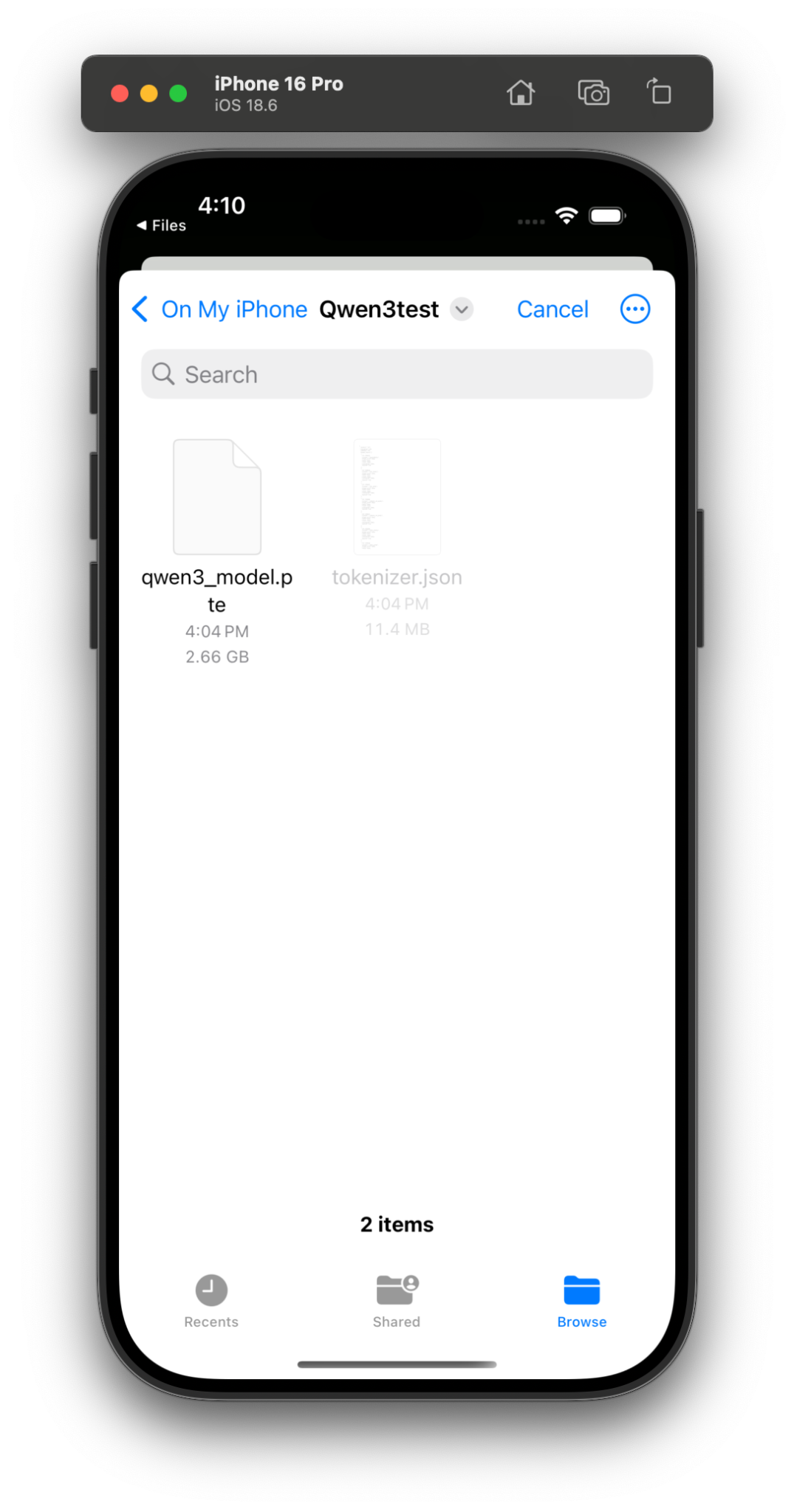
**Create a Shared Folder on the Simulator**
1. Click the virtual Home button on the simulator
2. Open the Files App → Browse → On My iPhone
3. Tap the ellipsis (•••) button and create a new folder named `Qwen3test`
**Transfer Files Using the Terminal**
```bash
# Find the simulator's hidden folder
find ~/Library/Developer/CoreSimulator/Devices/ -type d -iname "*Qwen3test*"
```
When you see the folder run the following:
```bash
cp tokenizer.json /path/to/Qwen3test/tokenizer.json
cp qwen3_0.6B_model.pte /path/to/Qwen3test/qwen3_model.pte
```
**Load & Chat**
{% columns %}
{% column %}
1. Return to the etLLM app in the simulator. Tap it to launch.
{% endcolumn %}
{% column %}
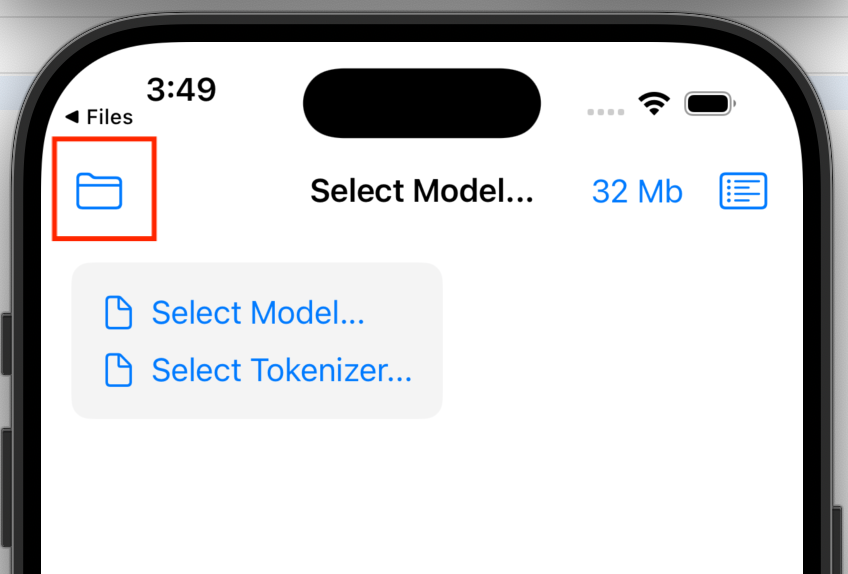
2\. Load the model and tokenizer from the Qwen3test folder
{% endcolumn %}
{% column %}
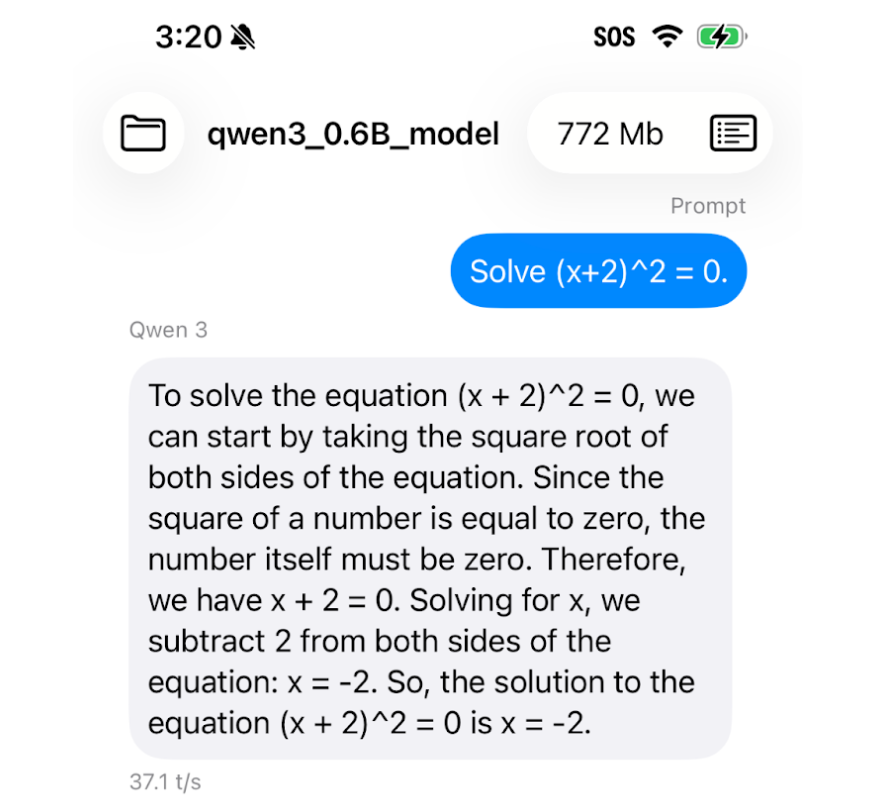
3\. Start chatting with your fine-tuned model! 🎉
{% endcolumn %}
{% endcolumns %}
### Deploying to Your Physical iPhone
**Initial Device Setup**
1. Connect your iPhone to your Mac via USB
2. Unlock your iPhone and tap "Trust This Device"
3. In Xcode, go to Window → Devices and Simulators
4. Wait until your device appears on the left (it may show "Preparing" for a bit)
**Configure Xcode Signing**
{% columns %}
{% column %}
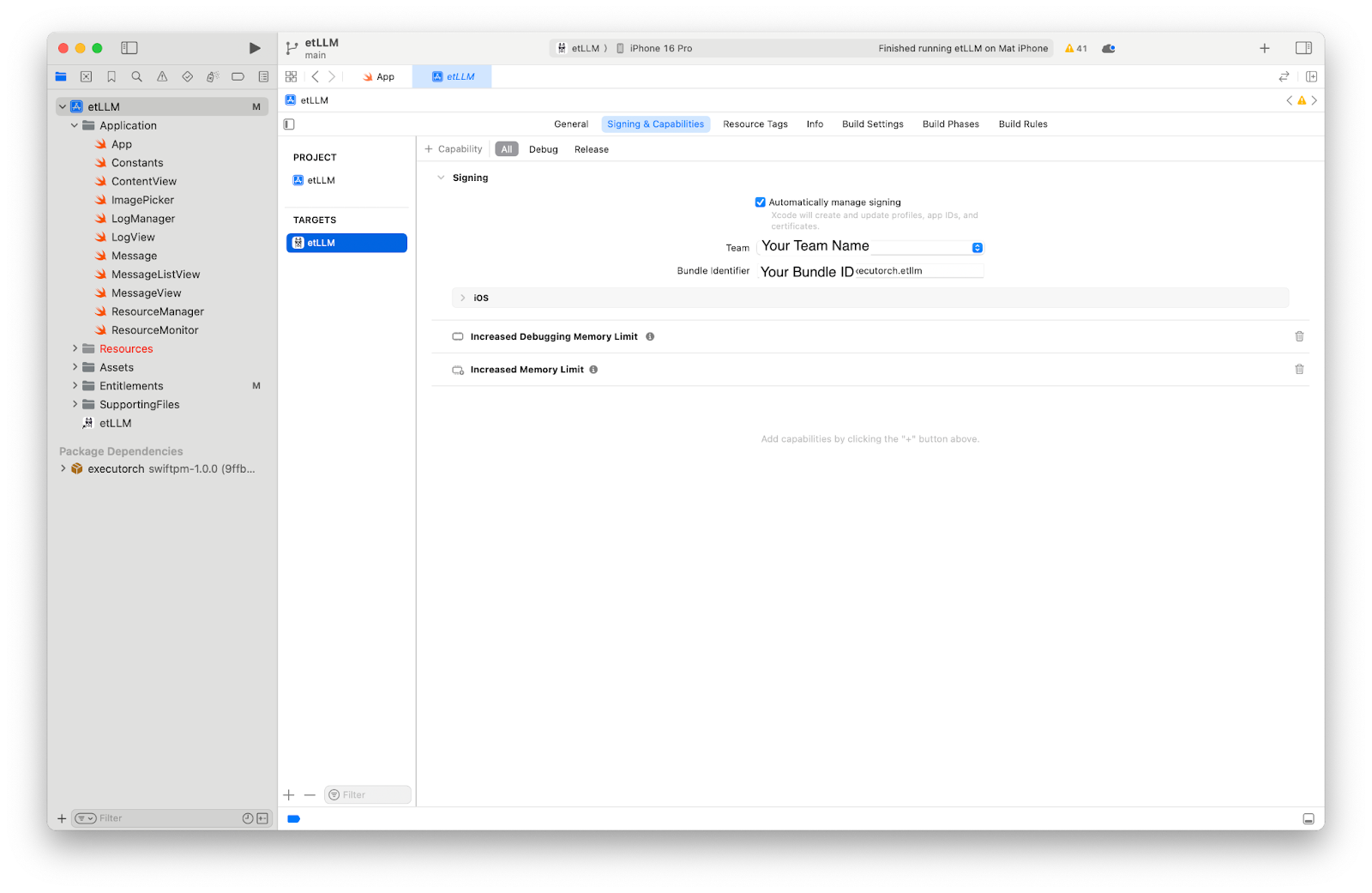
1. Add your Apple Account: Xcode → Settings → Accounts → `+`
2. In the project navigator, click the etLLM project (blue icon)
3. Select etLLM under TARGETS
4. Go to the Signing & Capabilities tab
5. Check "Automatically manage signing"
6. Select your Team from the dropdown
{% endcolumn %}
{% column %}
{% endcolumn %}
{% endcolumns %}
{% hint style="warning" %}
Change the Bundle Identifier to something unique (e.g., com.yourname.etLLM). This fixes 99% of provisioning profile errors
{% endhint %}
**Add the Required Capability**
1. Still in Signing & Capabilities, click + Capability
2. Search for "Increased Memory Limit" and add it
**Build & Run**
1. In the top toolbar, select your physical iPhone from the device selector
2. Hit Play (▶️) or press Cmd + R
**Trust the Developer Certificate**
Your first build will fail—this is normal!
1. On your iPhone, go to Settings → Privacy & Security → Developer Mode
2. Toggle On
3. Agree and accept notices
4. Restart device, return to Xcode and hit Play again
{% hint style="warning" %}
Developer Mode allows XCode to run and install apps on your iPhone
{% endhint %}
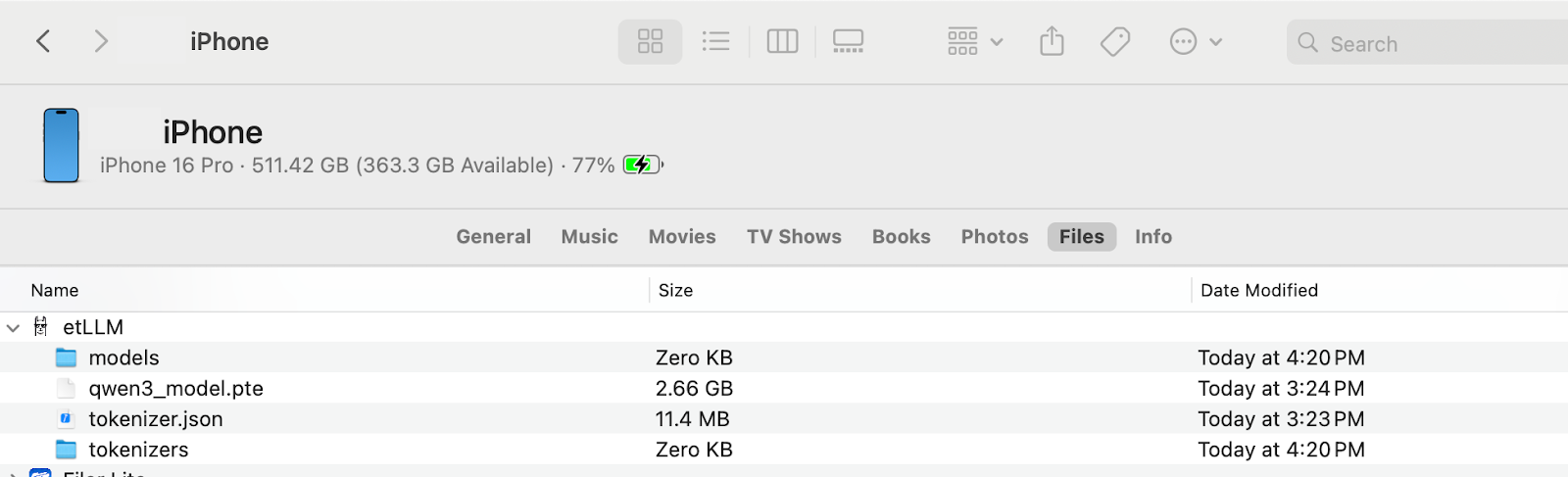
**Transfer Model Files to Your iPhone**
1. Once the app is running, open Finder on your Mac
2. Select your iPhone in the sidebar
3. Click the Files tab
4. Expand etLLM
5. Drag and drop your .pte and tokenizer.json files directly into this folder
6. Be patient! These files are large and may take a few minutes
**Load & Chat**
{% columns %}
{% column %}
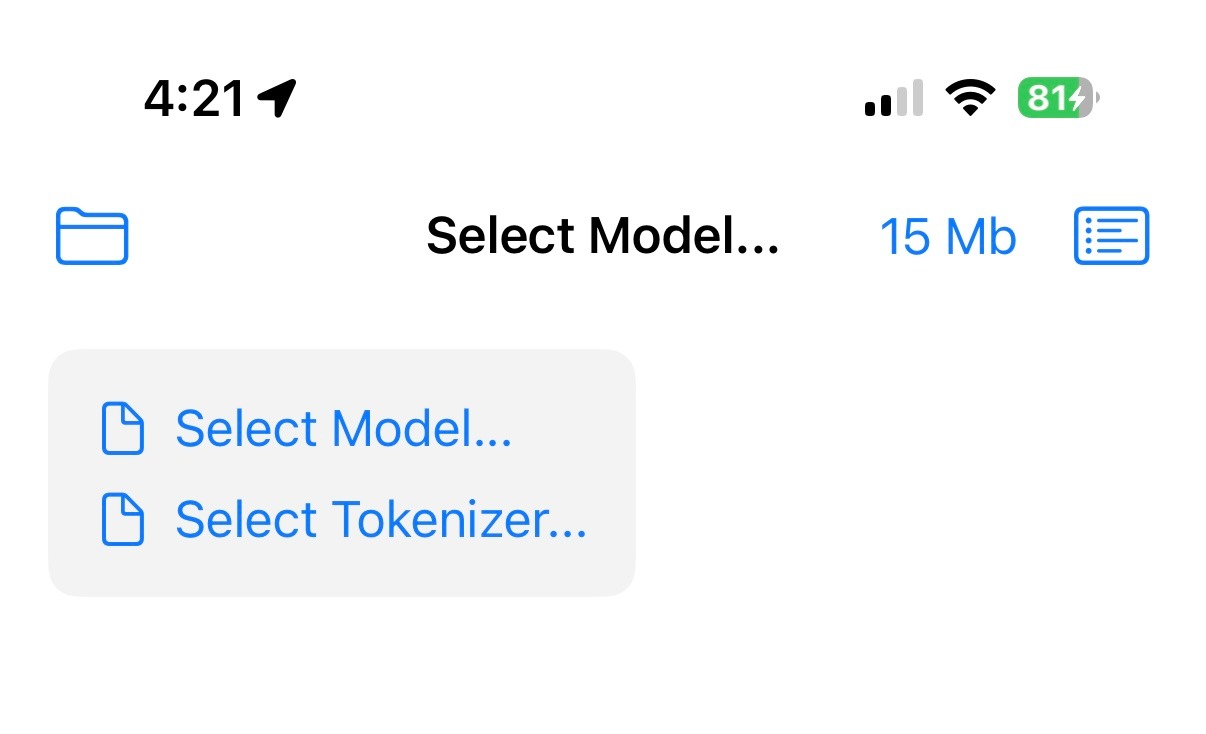
1. On your iPhone, switch back to the etLLM app
2. Load the model and tokenizer from the app interface
{% endcolumn %}
{% column %}
3\. Your fine-tuned Qwen3 is now running natively on your iPhone!
{% endcolumn %}
{% endcolumns %}
## :android: Android Deployment
This guide covers how to build and install the ExecuTorch Llama demo app on an Android device (tested using Pixel 8 but will also work on other Android phones too) using a Linux/Mac command line environment. This approach minimizes dependencies (no Android Studio required) and offloads the heavy build process to your computer.
### Requirements
Ensure your development machine has the following installed:
* Java 17 (Java 21 is often the default but may cause build issues)
* Git
* Wget / Curl
* Android Command Line Tools
* [Guide to install](https://www.xda-developers.com/install-adb-windows-macos-linux/) and setup `adb` on your android and your computer
#### Verification
Check that your Java version matches 17.x:
```bash
# Output should look like: openjdk version "17.0.x"
java -version
```
If it does not match, install it via Ubuntu/Debian:
```bash
sudo apt install openjdk-17-jdk
```
Then set it as default or export `JAVA_HOME`:
```bash
export JAVA_HOME=/usr/lib/jvm/java-17-openjdk-amd64
export PATH=$JAVA_HOME/bin:$PATH
```
If you are on a different OS or distribution, you might want to follow [this guide](https://docs.oracle.com/en/java/javase/25/install/overview-jdk-installation.html) or just ask your favorite LLM to guide you through.
### Step 1: Install Android SDK & NDK
Set up a minimal Android SDK environment without the full Android Studio.
1\. Create the SDK directory:
```bash
mkdir -p ~/android-sdk/cmdline-tools
cd ~/android-sdk
```
2. Install Android Command Line Tools
```bash
wget https://dl.google.com/android/repository/commandlinetools-linux-11076708_latest.zip
unzip commandlinetools-linux-*.zip -d cmdline-tools
# Important: Reorganize to satisfy SDK structure
mv cmdline-tools/cmdline-tools cmdline-tools/latest
```
### Step 2: Configure Environment Variables
Add these to your `~/.bashrc` or `~/.zshrc`:
```bash
export ANDROID_HOME=$HOME/android-sdk
export PATH=$ANDROID_HOME/cmdline-tools/latest/bin:$PATH
export PATH=$ANDROID_HOME/platform-tools:$PATH
```
Reload them:
```bash
source ~/.zshrc # or ~/.bashrc depending on your shell
```
### Step 3: Install SDK Components
ExecuTorch requires specific NDK versions.
```bash
# Accept licenses
yes | sdkmanager --licenses
# Install API 34 and NDK 25
sdkmanager "platforms;android-34" "platform-tools" "build-tools;34.0.0" "ndk;25.0.8775105"
```
Set the NDK variable:
```bash
export ANDROID_NDK=$ANDROID_HOME/ndk/25.0.8775105
```
### Step 4: Get the Code
We use the `executorch-examples` repository, which contains the updated Llama demo.
```bash
cd ~
git clone https://github.com/meta-pytorch/executorch-examples.git
cd executorch-examples
```
### Step 5: Fix Common Compilation Issues
Note that the current code doesn't have these issues but we have faced them previously and might be helpful to you:
**Fix "SDK Location not found":**
Create a `local.properties` file to explicitly tell Gradle where the SDK is:
```bash
echo "sdk.dir=$HOME/android-sdk" > llm/android/LlamaDemo/local.properties
```
**Fix `cannot find symbol` error:**
The current code uses a deprecated method `getDetailedError()`. Patch it with this command:
```bash
sed -i 's/e.getDetailedError()/e.getMessage()/g' llm/android/LlamaDemo/app/src/main/java/com/example/executorchllamademo/MainActivity.java
```
### Step 6: Build the APK
This step compiles the app and native libraries.
1. Navigate to the Android project:
```bash
cd llm/android/LlamaDemo
```
2. Build with Gradle (explicitly set `JAVA_HOME` to 17 to avoid toolchain errors):
Note: The first run will take a few minutes.
```bash
export JAVA_HOME=/usr/lib/jvm/java-17-openjdk-amd64
./gradlew :app:assembleDebug
```
3. The final generated apk can be found at:
```
app/build/outputs/apk/debug/app-debug.apk
```
### Step 7: Install on your Android device
You have two options to install the app.
#### Option A: Using ADB (Wired/Wireless)
If you have `adb` access to your phone:
```bash
adb install -r app/build/outputs/apk/debug/app-debug.apk
```
#### Option B: Direct File Transfer
If you are on a remote VM or don't have a cable:
1. Upload the app-debug.apk to a place where you can download from on the phone
2. Download it on your phone
3. Tap to Install (Enable "Install from unknown sources" if prompted).
### Step 8: Transfer Model Files
The app needs the .pte model and tokenizer files.
1. Transfer Files: Move your model.pte and tokenizer.bin (or tokenizer.model) to your phone's storage (e.g., Downloads folder).
2. Open LlamaDemo App: Launch the app on your phone.
3. Select Model
4. Tap the Settings (gear icon) or the file picker.
5. Navigate to your Download folder.
6. Select your .pte file.
7. Select your tokenizer file.
Done! You can now chat with the LLM directly on your device.
### Troubleshooting
* Build Fails? Check java -version. It MUST be 17.
* Model not loading? Ensure you selected both the `.pte` AND the `tokenizer`.
* App crashing? Valid `.pte` files must be exported specifically for ExecuTorch (usually XNNPACK backend for CPU).
### Transferring model to your phone
Currently, `executorchllama` app that we built only supports loading the model from a specific directory on Android that is unfortunately not accessible via regular file managers. But we can save the model files to the said directory using adb.
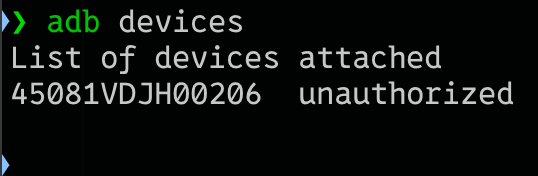
#### Make sure that adb is running properly and connected
```shellscript
adb devices
```
{% columns %}
{% column %}
1. If you have connected via wireless debugging, you’d see something like this:
Or if you have connected via a wire/cable:
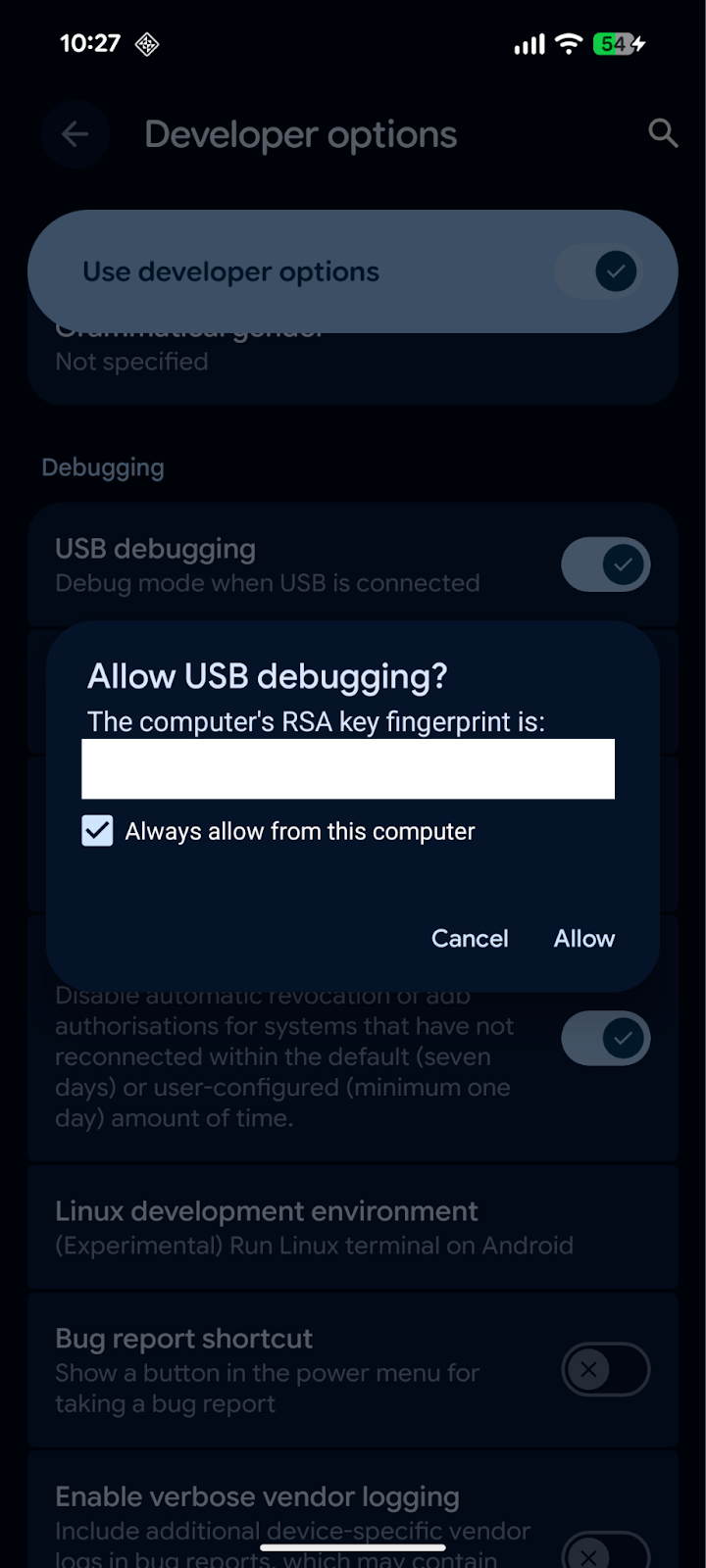
If you haven’t given permissions to the computer to access your phone:
{% endcolumn %}
{% column %}
2\. Then you need to check your phone for a pop up dialog that looks like (which you might want to allow)
{% endcolumn %}
{% endcolumns %}
Once done, it's time to create the folder where we need to place the `.pte` and `tokenizer.json` files.
Create the said directory on the phone’s path.
```shellscript
adb shell mkdir -p /data/local/tmp/llama
adb shell chmod 777 /data/local/tmp/llama
```
Verify that the directory is created properly.
```shellscript
adb shell ls -l /data/local/tmp/llama
total 0
```
Push the contents to the said directory. This might take a couple of minutes to more depending on your computer, the connection and the phone. Please be patient.
```shellscript
adb push /data/local/tmp/llama
adb push /data/local/tmp/llama
```
{% columns %}
{% column %}
1. Open the `executorchllamademo` app you installed in Step 5, then tap the gear icon in the top-right to open Settings.
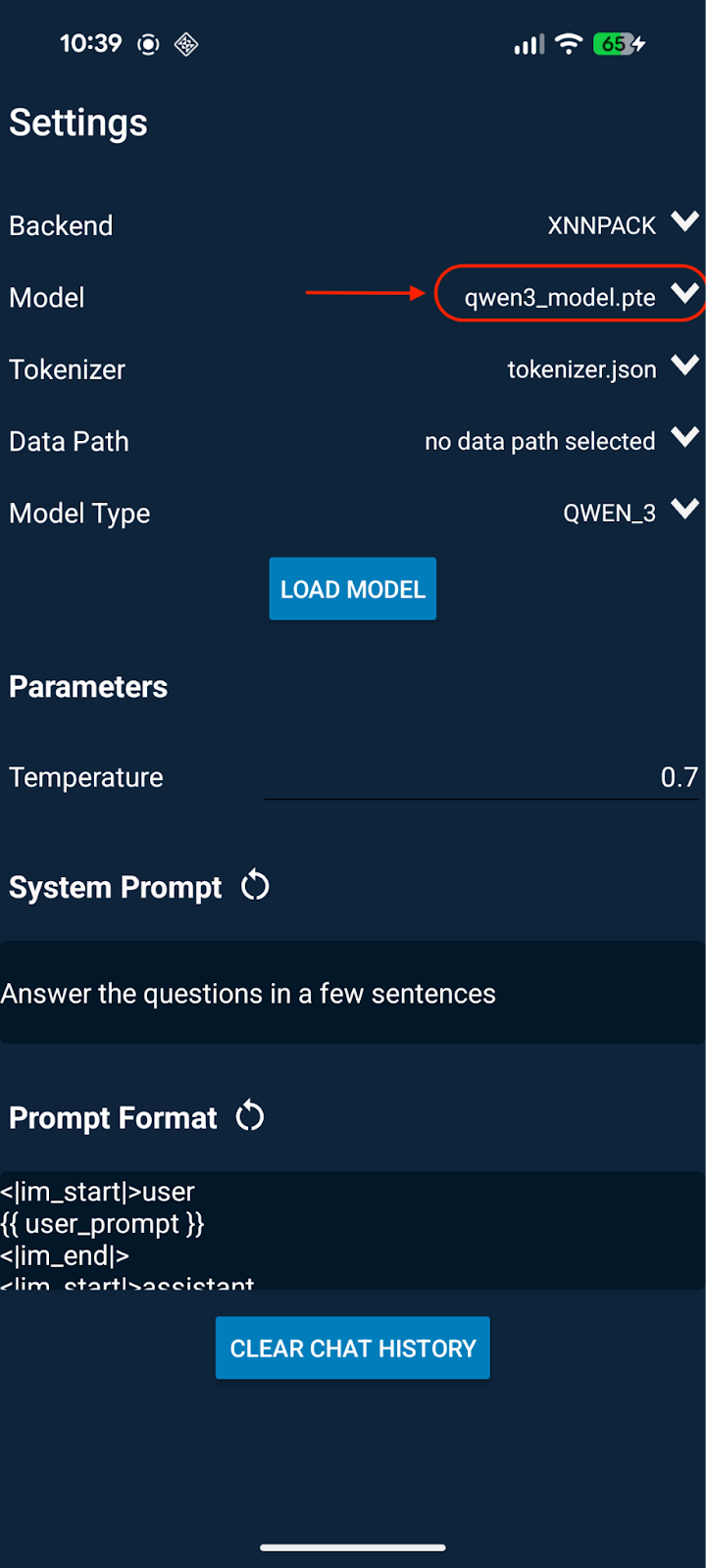
2. Tap the arrow next to Model to open the picker and select a model.\
If you see a blank white dialog with no filename, your ADB model push likely failed - redo that step. Also note it may initially show “no model selected.”
3. After you select a model, the app should display the model filename.
{% endcolumn %}
{% column %}
{% endcolumn %}
{% endcolumns %}
{% columns %}
{% column %}
5\. Now repeat the same for tokenizer. Click on the arrow next to the tokenizer field and select the corresponding file.
{% endcolumn %}
{% column %}
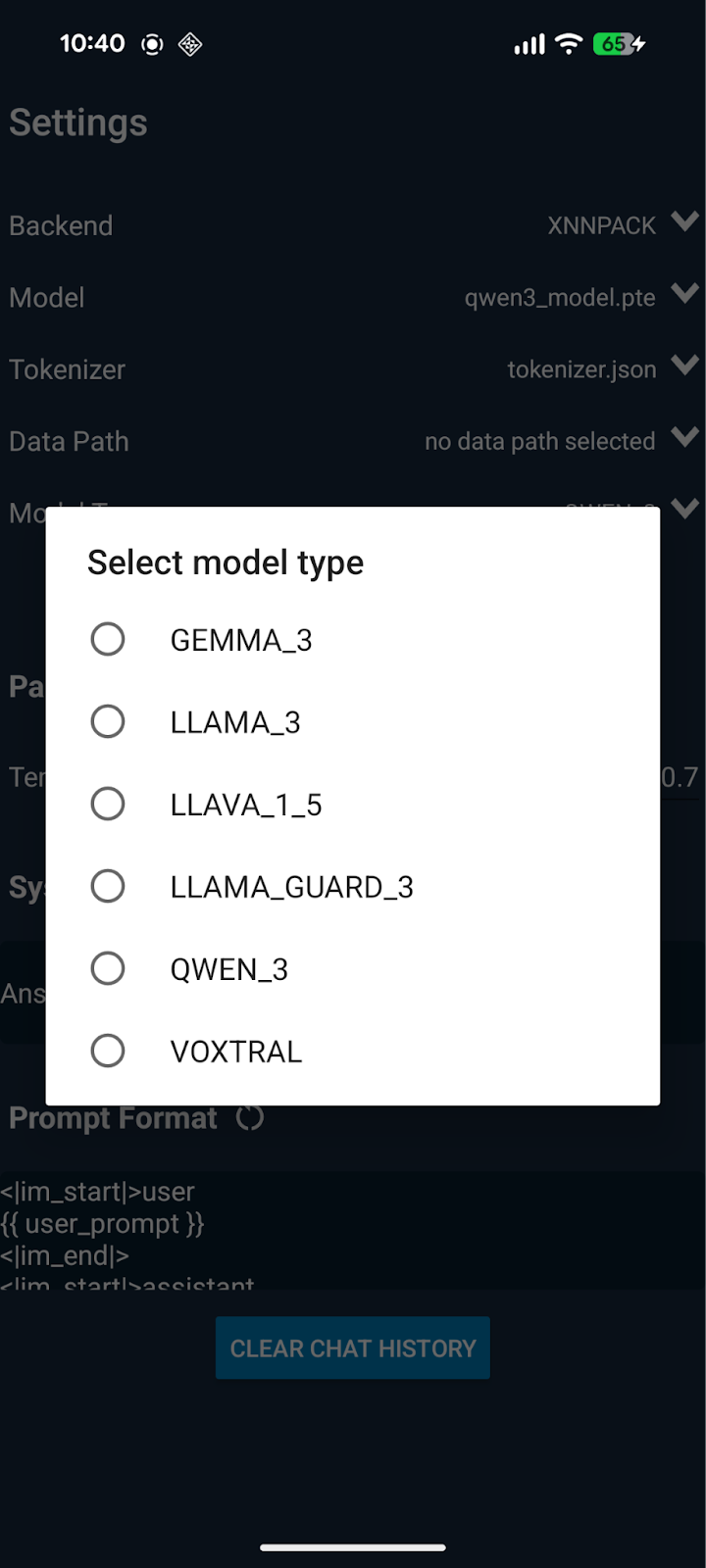
6\. You might need to select the model type depending on which model you're uploading. Qwen3 is selected here.
{% endcolumn %}
{% column %}
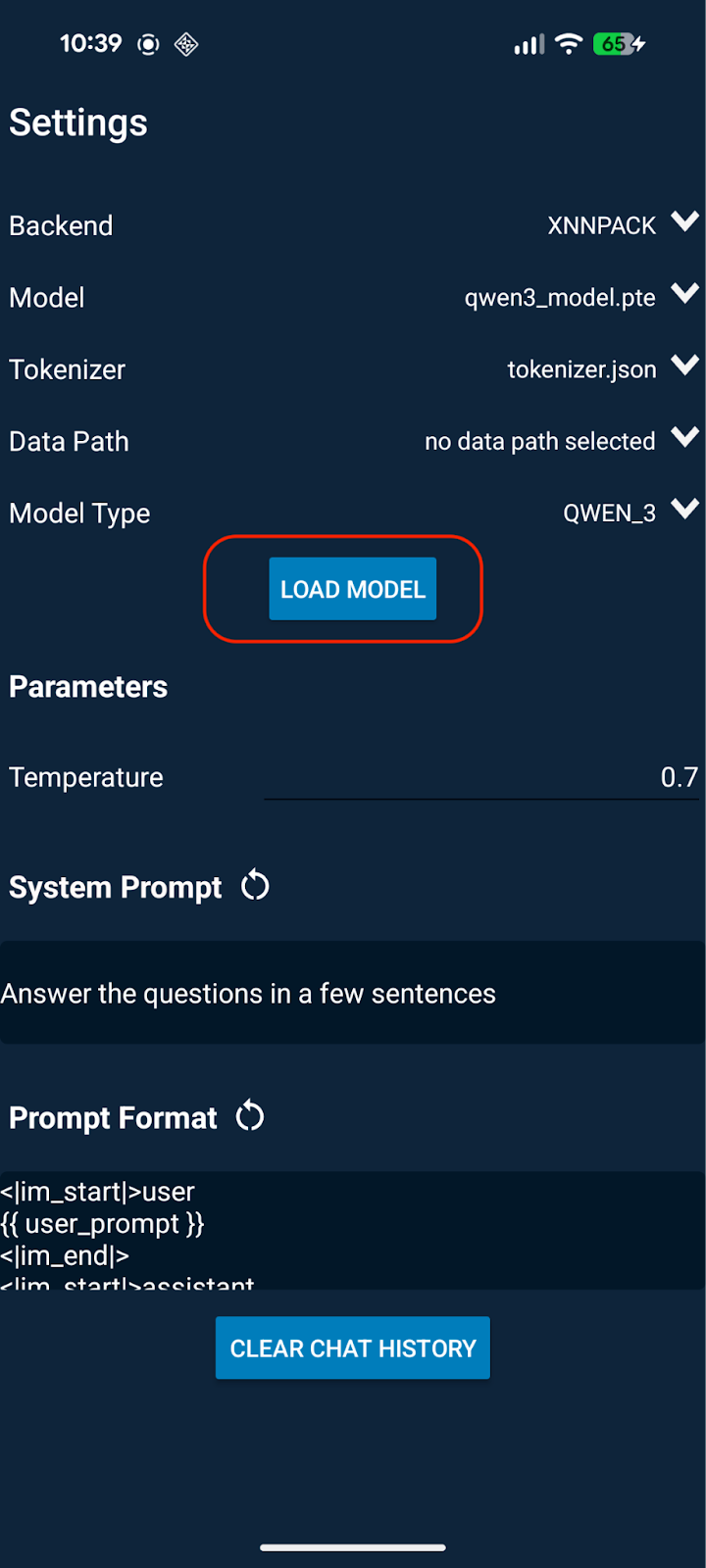
7\. Once you have selected both files, click on the "Load Model" button.
{% endcolumn %}
{% endcolumns %}
{% columns %}
{% column %}
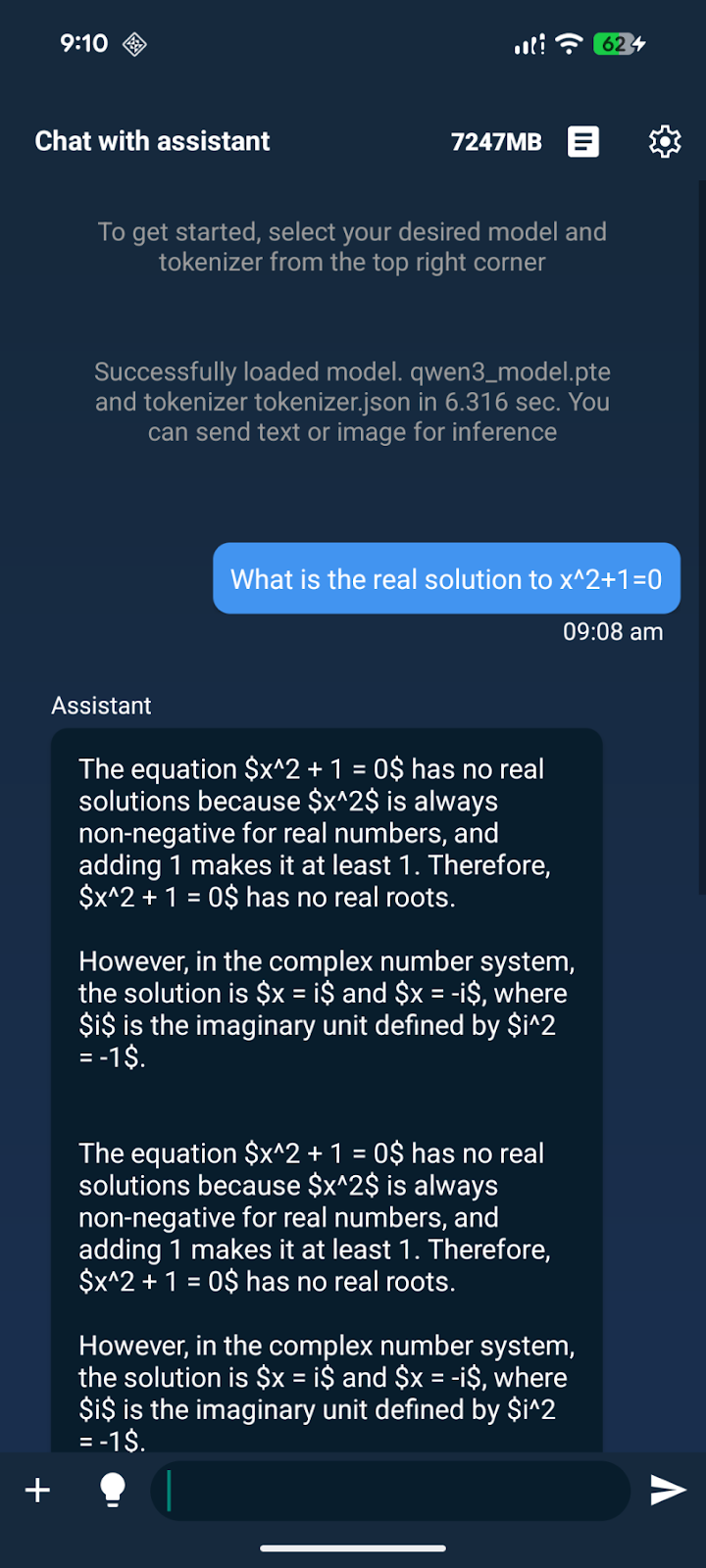
8\. It will take you back to the original screen with the chat window, and it might show "model loading". It might take a few seconds to finish loading depending on your phone's RAM and storage speeds.
{% endcolumn %}
{% column %}
9\. Once it says "successfully loaded model," you can start chatting with the model.\
\
Et Voila, you now have an LLM running natively on your Android phone!
{% endcolumn %}
{% endcolumns %}
### :mobile\_phone:ExecuTorch powers billions
ExecuTorch [powers on-device ML experiences for billions of people](https://engineering.fb.com/2025/07/28/android/executorch-on-device-ml-meta-family-of-apps/) on Instagram, WhatsApp, Messenger, and Facebook. Instagram Cutouts uses ExecuTorch to extract editable stickers from photos. In encrypted applications like Messenger, ExecuTorch enables on-device privacy aware language identification and translation. ExecuTorch supports over a dozen hardware backends across Apple, Qualcomm, ARM and [Meta’s Quest 3 and Ray Bans](https://ai.meta.com/blog/executorch-reality-labs-on-device-ai/).
## Other model support
* All Qwen 3 dense models ([Qwen3-0.6B](https://huggingface.co/unsloth/Qwen3-0.6B), [Qwen3-4B](https://huggingface.co/unsloth/Qwen3-4B), [Qwen3-32B](https://huggingface.co/unsloth/Qwen3-32B) etc)
* All Gemma 3 models ([Gemma3-270M](https://huggingface.co/unsloth/gemma-3-270m-it), [Gemma3-4B](https://huggingface.co/unsloth/gemma-3-4b-it), [Gemma3-27B](https://huggingface.co/unsloth/gemma-3-27b-it) etc)
* All Llama 3 models ([Llama 3.1 8B](https://huggingface.co/unsloth/Llama-3.1-8B-Instruct), [Llama 3.3 70B Instruct](https://huggingface.co/unsloth/Llama-3.3-70B-Instruct) etc)
* Qwen 2.5, Phi 4 Mini models, and much more!
You can customize the [**free Colab notebook**](https://colab.research.google.com/github/unslothai/notebooks/blob/main/nb/Qwen3_\(0_6B\)-Phone_Deployment.ipynb) for Qwen3-0.6B to allow phone deployment for any of the models above!
{% columns %}
{% column %}
**Qwen3 0.6B main phone deployment notebook**
{% embed url="" %}
{% endcolumn %}
{% column %}
Works with Gemma 3
{% embed url="" %}
{% endcolumn %}
{% column %}
Works with Llama 3
{% embed url="" %}
{% endcolumn %}
{% endcolumns %}
Go to our [Unsloth Notebooks](/docs/get-started/unsloth-notebooks.md) page for all other notebooks.
---
# Agent Instructions
This documentation is published with GitBook. GitBook is the documentation platform designed so that both humans and AI agents can read, navigate, and reason over technical content effectively. Learn more at gitbook.com.
## Querying This Documentation
If you need additional information that is not directly available in this page, you can query the documentation by asking a question.
Perform an HTTP GET request on the following URL with the `ask` and `goal` query parameters:
```
GET https://unsloth.ai/docs/basics/inference-and-deployment/deploy-llms-phone.md?ask=&goal=
```
`ask` is the immediate question: it should be specific, self-contained, and written in natural language.
`goal` is what the user is ultimately trying to achieve, the reason they need the answer. Sharing it helps GitBook give you a better, more relevant answer. A goal is most helpful when it describes the outcome the user wants rather than restating the question. For example, with `ask=how do I create an API token`, a goal like `automate deployments from our CI pipeline` lets GitBook tailor the answer to that use case.
The response will contain a direct answer to the question and relevant excerpts and sources from the documentation.
Use this mechanism when the answer is not explicitly present in the current page, you need clarification or additional context, or you want to retrieve related documentation sections.